
Xiaomi POCO X4 Pro 5G
User Manual: Xiaomi POCO X4 Pro 5G Smartphone
Model: POCO X4 Pro 5G
1. Introduction
This manual provides comprehensive instructions for the safe and efficient use of your Xiaomi POCO X4 Pro 5G smartphone. Please read this manual carefully before using the device and keep it for future reference.
The Xiaomi POCO X4 Pro 5G is a high-performance smartphone featuring a 6.67-inch 120Hz AMOLED DotDisplay, Snapdragon 695 processor, 108MP triple camera, and a 5000mAh battery with 67W turbo charging.
2. Safety Information
Always follow basic safety precautions when using your smartphone to reduce the risk of fire, electric shock, and injury.
- Do not expose the device to extreme temperatures or direct sunlight.
- Avoid dropping or subjecting the device to strong impacts.
- Use only original or certified chargers and accessories.
- Do not attempt to disassemble or repair the device yourself.
- Keep the device away from water and moisture.
3. Device Overview
Familiarize yourself with the components of your POCO X4 Pro 5G.

Figure 3.1: Front and Back View of POCO X4 Pro 5G. This image displays the smartphone from both the front, showing its large display, and the back, highlighting the camera module and the "POCO" branding. Wired earphones are also depicted, suggesting audio connectivity options.
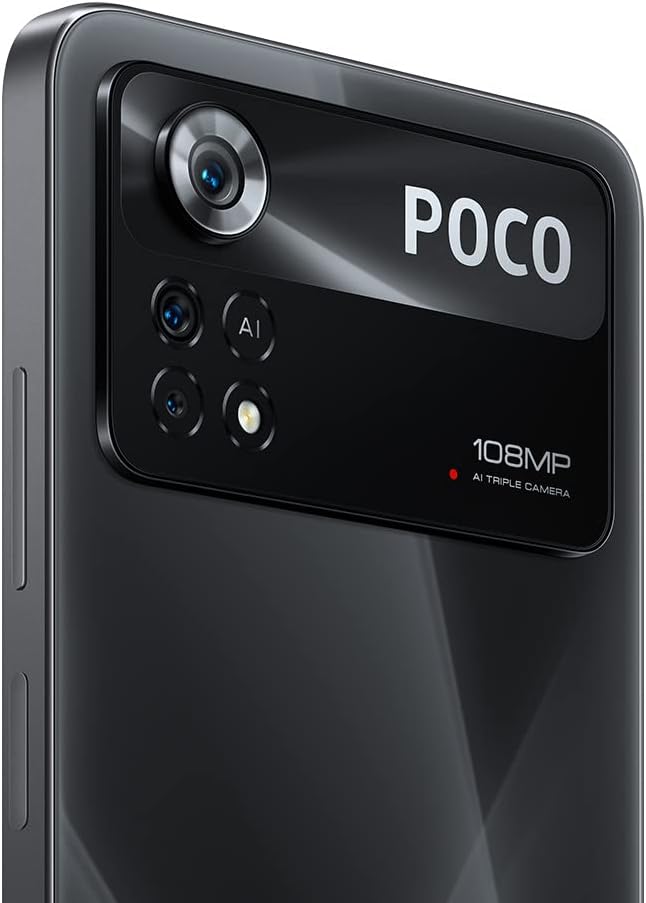
Figure 3.2: Rear Camera Module. A detailed shot of the smartphone's rear camera array, featuring the prominent 108MP main sensor, along with additional lenses and the AI Triple Camera designation.
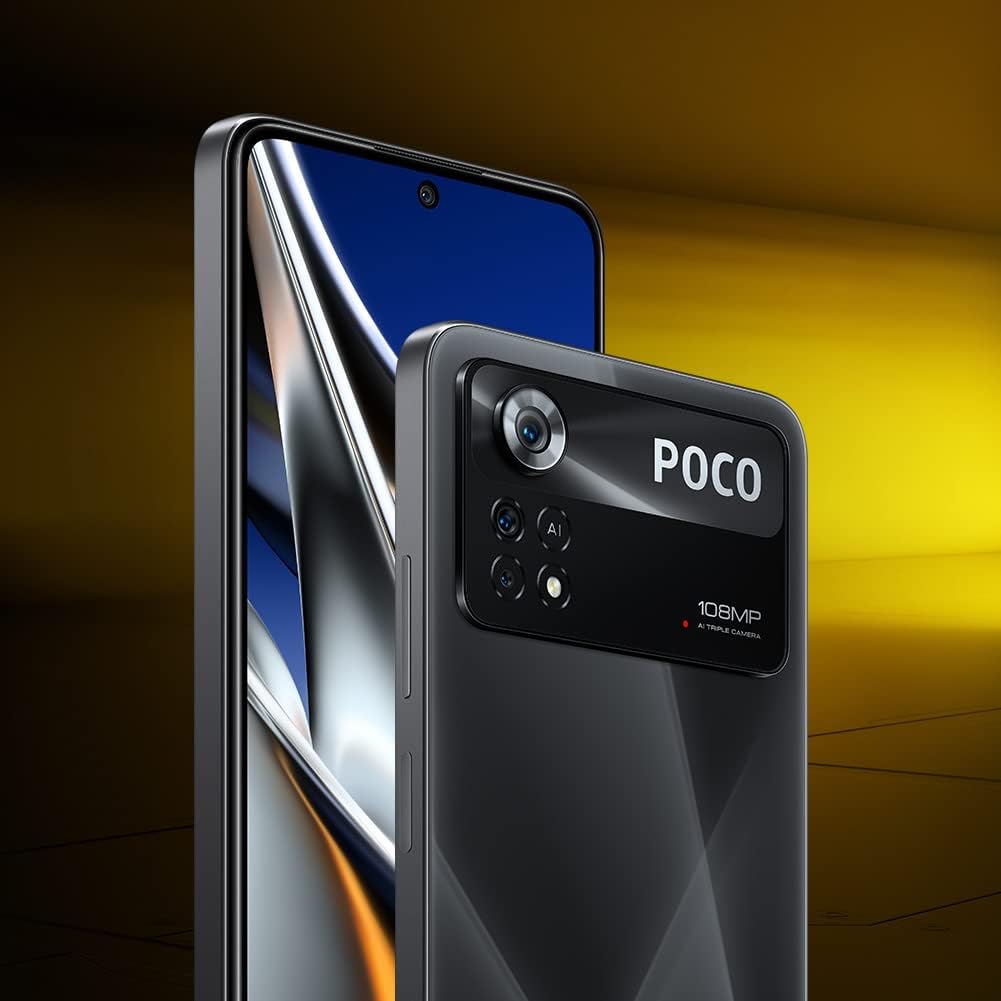
Figure 3.3: Device Profile. This image shows the smartphone from a slight angle, emphasizing its thin design and the edge-to-edge display.

Figure 3.4: Available Color Variants. This image displays four units of the POCO X4 Pro 5G, showcasing the different color options available for the device.
3.1. Physical Buttons and Ports
- Power Button: Located on the right side, used to turn the device on/off or wake/sleep the screen. Also integrates the fingerprint sensor.
- Volume Buttons: Located above the power button, used to adjust media volume and ringtone volume.
- USB Type-C Port: Located at the bottom, used for charging and data transfer.
- 3.5mm Headphone Jack: Located at the top, for connecting wired headphones.
- SIM Card Tray: Located on the left side, for inserting SIM cards and microSD card.
- Speakers: Dual stereo speakers located at the top and bottom for enhanced audio experience.
4. Setup
4.1. Inserting SIM Card and MicroSD Card
- Locate the SIM card tray on the left side of the device.
- Insert the SIM ejector tool into the small hole next to the tray and push gently until the tray pops out.
- Place your Nano-SIM card(s) and/or microSD card into the designated slots on the tray. Ensure the gold contacts are facing down.
- Carefully reinsert the tray into the device until it clicks into place.
4.2. Initial Power On and Setup Wizard
- Press and hold the Power button until the Xiaomi logo appears.
- Follow the on-screen instructions to complete the initial setup:
- Select your language and region.
- Connect to a Wi-Fi network.
- Accept the End User License Agreement and Privacy Policy.
- Sign in with your Google account or create a new one.
- Set up screen lock (PIN, pattern, password, fingerprint, face unlock).
- Restore data from a previous device (optional).
- Configure additional settings like Google Assistant and payment info.
4.3. Charging the Device
Before first use, it is recommended to fully charge your device.
- Connect the USB Type-C cable to the charging port on the bottom of the phone.
- Connect the other end of the cable to the power adapter.
- Plug the power adapter into a wall outlet.
- The device supports 67W turbo charging. A full charge from 0% to 100% typically takes approximately 41 minutes.
5. Operating Your POCO X4 Pro 5G
5.1. Basic Navigation
- Home Screen: Swipe left or right to navigate between home screens.
- App Drawer: On some MIUI versions, swipe up from the bottom of the screen to access all installed applications.
- Notification Shade: Swipe down from the top of the screen to view notifications and quick settings.
- Recent Apps: Swipe up from the bottom and hold (for gesture navigation) or tap the square button (for button navigation) to see recently used applications.
5.2. Camera Usage
The POCO X4 Pro 5G features a 108MP AI Triple Camera system.
- Open the Camera app from your home screen or app drawer.
- Select your desired mode (Photo, Portrait, Video, Pro, Night, Macro, etc.) by swiping left or right on the mode selector.
- Tap the shutter button to take a photo or start/stop recording a video.
- Use the zoom controls on the screen to adjust magnification.
- Tap on the screen to focus on a specific object.
5.3. Connectivity
- Wi-Fi: Go to Settings > Wi-Fi to connect to available wireless networks.
- Bluetooth: Go to Settings > Bluetooth to pair with Bluetooth devices like headphones or speakers.
- Mobile Data: Ensure your SIM card is active and mobile data is enabled in Settings > SIM cards & mobile networks.
- NFC: The device supports NFC for contactless payments and quick pairing. Enable it in Settings > Connection & sharing > NFC.
5.4. Alexa Integration
Your POCO X4 Pro 5G comes with Alexa built-in, allowing for hands-free voice control.
- Download the Amazon Alexa app from the Google Play Store.
- Open the Alexa app and complete the setup process, including logging into your Amazon account.
- Enable hands-free Alexa in the app settings.
- Once set up, you can activate Alexa by saying "Alexa" followed by your command, even when the phone is locked.
- Use Alexa to make calls, open apps, control smart home devices, check weather, and more.
6. Maintenance
6.1. Software Updates
Regularly check for and install software updates to ensure optimal performance and security.
- Go to Settings > About phone > MIUI version.
- Tap "Check for updates" to see if a new version is available.
- Download and install updates when prompted. Ensure your device has sufficient battery and a stable internet connection.
6.2. Cleaning Your Device
- Use a soft, lint-free cloth to wipe the screen and back of the phone.
- For stubborn smudges, slightly dampen the cloth with water or a screen cleaner.
- Avoid using harsh chemicals, abrasive materials, or aerosol sprays.
- Do not spray cleaners directly onto the device.
6.3. Battery Care
- Avoid fully discharging the battery frequently.
- Do not leave the device plugged in for extended periods after it's fully charged.
- Keep the device within optimal temperature ranges (0°C to 35°C) to prolong battery life.
7. Troubleshooting
7.1. Common Issues and Solutions
| Problem | Possible Cause | Solution |
|---|---|---|
| Device not turning on | Low battery; Software crash | Charge the device for at least 30 minutes. Press and hold the Power button for 10-15 seconds to force restart. |
| Apps crashing or freezing | Insufficient RAM; App bug; Outdated software | Close background apps. Clear app cache (Settings > Apps > Manage apps > [App Name] > Clear cache). Update the app or system software. |
| Poor battery life | High screen brightness; Many background apps; GPS/Bluetooth always on | Reduce screen brightness. Close unnecessary background apps. Turn off GPS/Bluetooth when not in use. Check battery usage in Settings > Battery. |
| Network connectivity issues (Wi-Fi/Mobile Data) | Incorrect settings; Router issues; SIM card problem | Toggle Wi-Fi/Mobile Data off and on. Restart router. Reinsert SIM card. Reset network settings (Settings > Connection & sharing > Reset Wi-Fi, mobile networks, and Bluetooth). |
7.2. Factory Reset
A factory reset will erase all data from your device and restore it to its original factory settings. Back up important data before proceeding.
- Go to Settings > About phone > Factory reset.
- Tap "Erase all data" and follow the on-screen prompts.
- You will need to enter your screen lock password to confirm.
8. Specifications
| Feature | Specification |
|---|---|
| Brand | Xiaomi |
| Model | POCO X4 Pro 5G |
| Operating System | Android (MIUI 13) |
| Display | 6.67-inch AMOLED DotDisplay, 2400 x 1080 FHD+, 120Hz Refresh Rate, 360Hz Touch Sampling Rate |
| Processor | Snapdragon 695 5G (6nm) |
| RAM | 8 GB (expandable with Dynamic RAM Expansion Technology) |
| Storage | 256 GB |
| Rear Camera | 108MP Main + 8MP Ultra-wide + 2MP Macro |
| Battery | 5000mAh |
| Charging | 67W Turbo Charging |
| Connectivity | 5G, Wi-Fi, Bluetooth, NFC, 3.5mm Headphone Jack, USB Type-C |
| Audio | Dual Stereo Speakers |
| Other Features | Side-mounted Fingerprint Sensor, AI Face Unlock, Z-axis linear motor, Alexa Built-in |
9. Warranty and Support
Your Xiaomi POCO X4 Pro 5G comes with a standard manufacturer's warranty. Please refer to the warranty card included in your product packaging for specific terms and conditions, including warranty period and coverage.
9.1. Warranty Information
For products purchased in Italy, the device typically includes a 2-year warranty from the date of purchase, covering manufacturing defects. Keep your proof of purchase (receipt or invoice) as it is required for warranty claims.
9.2. Customer Support
For technical support, service, or warranty claims, please contact Xiaomi customer service through their official website or authorized service centers.
- Xiaomi Official Website: www.mi.com/global/service/support/
- POCO Community: c.po.co (for forums and community support)
When contacting support, please have your device's model number (POCO X4 Pro 5G) and IMEI number ready. The IMEI can be found by dialing *#06# on your phone's dialer or in Settings > About phone > All specs > Status > IMEI (SIM slot 1).
Ask a question about this manual
Ask about setup, troubleshooting, compatibility, parts, safety, or missing instructions. Manuals+ will review the question and use this page’s manual context to help answer it.