
Other... CR.803181-001
Wired USB Slim Keyboard User Manual
Model: CR.803181-001 | Brand: Other...
Introduction
This manual provides comprehensive instructions for the setup, operation, maintenance, and troubleshooting of your 803181-001 Wired USB Slim Keyboard. Please read this manual thoroughly before using the product to ensure proper functionality and longevity.
What's in the Box
Upon opening the package, please verify that all components are present and undamaged.
- One (1) 803181-001 Wired USB Slim Keyboard
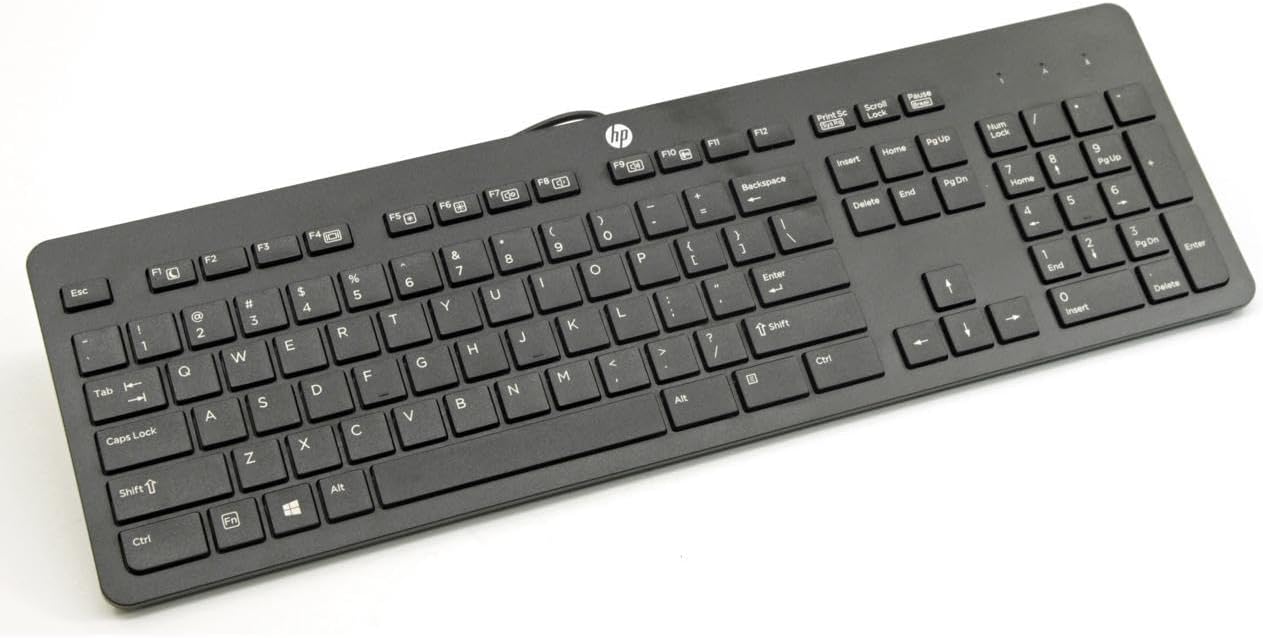
Image: The 803181-001 Wired USB Slim Keyboard, displaying its full layout including function keys, alphanumeric keys, and a numeric keypad. The keyboard is black with white key legends.
Setup
The 803181-001 Wired USB Slim Keyboard is designed for plug-and-play connectivity, requiring no additional software installation.
- Unpack the Keyboard: Carefully remove the keyboard from its packaging.
- Locate a USB Port: Identify an available USB-A port on your computer or device.
- Connect the USB Cable: Insert the USB connector of the keyboard cable firmly into the USB port on your computer.
- System Recognition: Your operating system should automatically detect and install the necessary drivers. This process typically takes a few seconds.
- Adjust Keyboard Legs (Optional): The keyboard features adjustable legs on the underside. Flip them out to raise the keyboard to a more comfortable typing angle if desired.
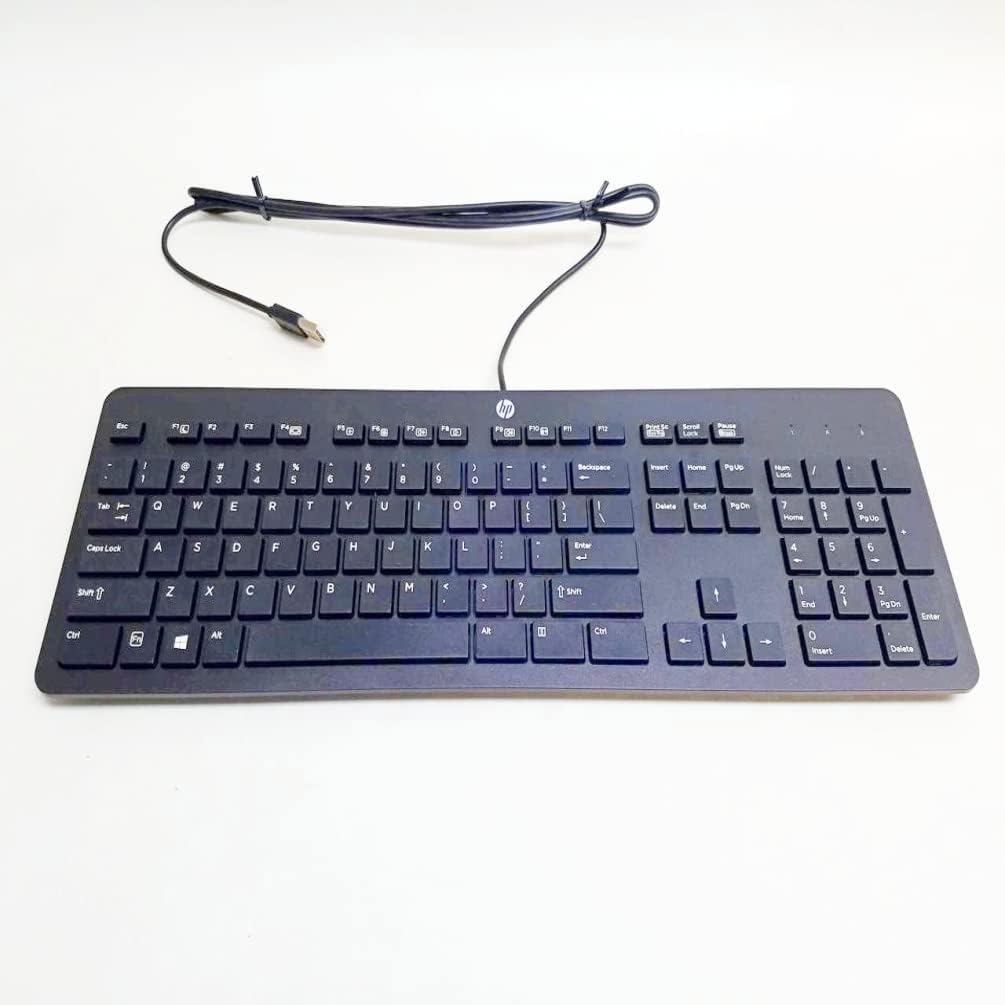
Image: The keyboard viewed from the front, showing the attached USB cable ready for connection. The cable is neatly coiled.
Operating Instructions
The keyboard functions as a standard QWERTY input device. Below are some key operational aspects:
- Standard Layout: The keyboard features a full-size 104-key layout, including a numeric keypad, function keys (F1-F12), and navigation keys.
- Typing: Press keys to input characters into your computer.
- Function Keys: F1-F12 keys perform various functions depending on the software or operating system in use. Some may have secondary functions accessible via a 'Fn' key (if present, though not typical for basic wired keyboards).
- Numeric Keypad: Use the numeric keypad for efficient data entry. Ensure 'Num Lock' is active (indicated by an LED if present) to use the numbers.
- Spill-Resistant Design: The keyboard is designed with spill-resistant features to protect against accidental liquid spills. In case of a spill, immediately disconnect the keyboard from the computer and allow it to dry completely before reconnecting.
Maintenance
Proper maintenance ensures the longevity and optimal performance of your keyboard.
- Cleaning:
- Disconnect the keyboard from your computer before cleaning.
- Use a soft, lint-free cloth slightly dampened with water or a mild cleaning solution (e.g., isopropyl alcohol) to wipe the keycaps and surface.
- Avoid spraying liquids directly onto the keyboard.
- For dust and debris between keys, use compressed air.
- Storage: Store the keyboard in a cool, dry place away from direct sunlight and extreme temperatures when not in use.
- Handling: Avoid dropping the keyboard or exposing it to excessive force.
Troubleshooting
If you encounter issues with your keyboard, refer to the following common problems and solutions:
- Keyboard Not Responding:
- Ensure the USB cable is securely plugged into a working USB port on your computer.
- Try plugging the keyboard into a different USB port.
- Restart your computer.
- Test the keyboard on another computer to determine if the issue is with the keyboard or the computer.
- Keys Not Functioning Correctly:
- Check for any physical obstructions or debris under the non-functioning keys.
- If a specific key is stuck, gently try to free it.
- Ensure 'Num Lock' or 'Caps Lock' is not inadvertently activated if numbers or capital letters are not appearing as expected.
- Spill Incident:
- Immediately disconnect the keyboard from the computer.
- Turn the keyboard upside down to drain any liquid.
- Allow the keyboard to air dry completely for at least 24-48 hours before attempting to reconnect it. Do not use heat to dry it.
Specifications
| Feature | Detail |
|---|---|
| Model Number | CR.803181-001 |
| Connectivity Technology | USB, USB-A |
| Keyboard Description | Wired |
| Special Feature | Spill Proof |
| Color | Black |
| Number of Keys | 104 |
| Style | Modern |
| Included Components | Keyboard |
| Product Dimensions | 6 x 17 x 1 inches |
| Item Weight | 1.4 pounds |
| Manufacturer | Other... |
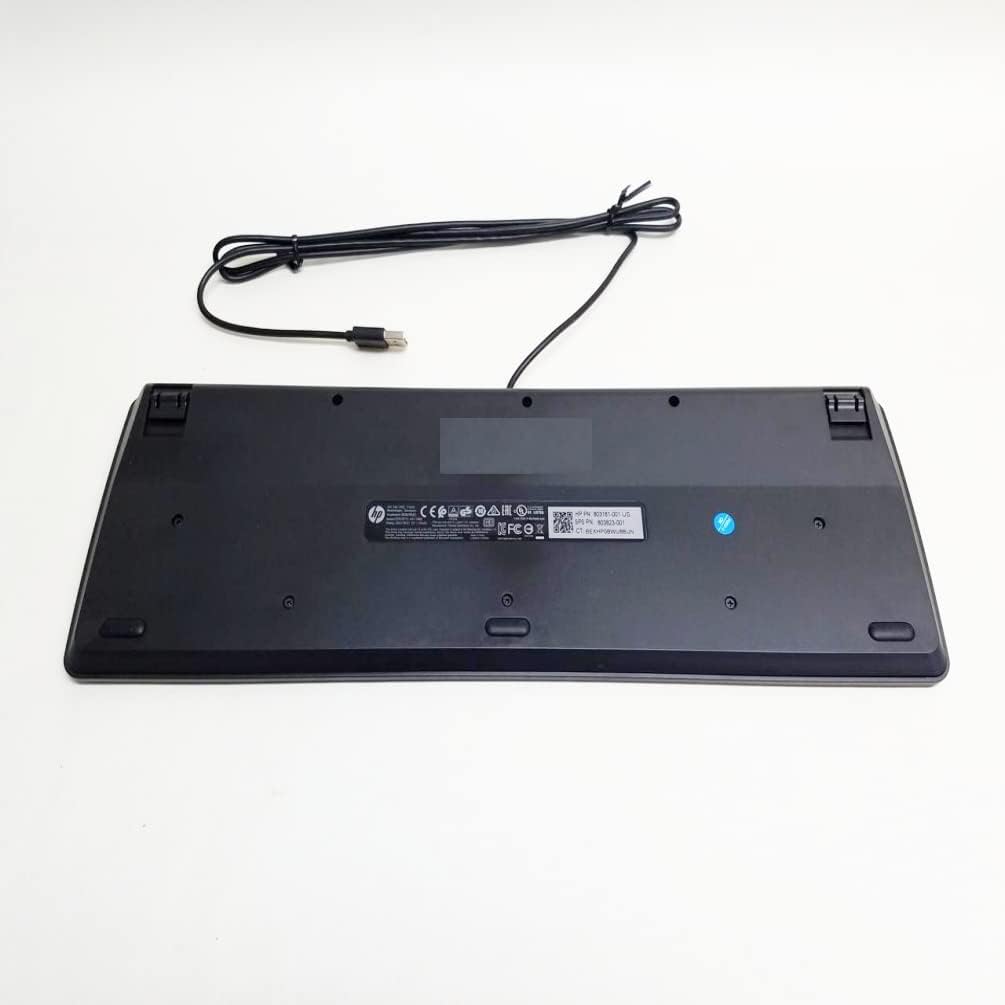
Image: The underside of the keyboard, revealing the product information label and the two adjustable flip-out feet for ergonomic positioning.
Warranty and Support
For warranty information or technical support, please refer to the documentation provided with your purchase or contact the retailer/manufacturer directly. Keep your proof of purchase for warranty claims.
Ask a question about this manual
Ask about setup, troubleshooting, compatibility, parts, safety, or missing instructions. Manuals+ will review the question and use this page’s manual context to help answer it.