1. Introduction
The Yealink UVC34 is an all-in-one USB video conferencing device designed for small meeting rooms and home office scenarios. It integrates a 4K camera, microphones, and speakers into a single compact unit, simplifying deployment and enhancing the conferencing experience. This manual provides detailed instructions for setting up, operating, maintaining, and troubleshooting your UVC34 device.

Image: The Yealink UVC34 4K USB Video Conference Camera, a sleek black bar with an integrated camera lens, accompanied by its remote control.
2. Package Contents
Verify that all items are present in your package:
- Yealink UVC34 Video Conference Camera
- VCR20 Remote Control
- 7-meter USB Cable
- Power Adapter (48V/0.7A)
- 2 AAA Batteries (for remote control)

Image: A visual representation of the Yealink UVC34 camera and its included accessories: a 7m USB cable, the VCR20 remote control, and a power adapter.
3. Product Overview
3.1 Key Features
- All-in-One Design: Integrates 4K webcam, 8-microphone array, and 5W speaker.
- 4K Ultra HD Video: 8MP camera with 1/2.8" CMOS sensor, delivering 4K 30FPS video.
- Wide-Angle Lens: 120° Field of View (FoV) to capture all participants.
- 5x e-PTZ Camera: Electronic Pan, Tilt, and Zoom capabilities.
- AI Features: Auto Framing and AI Face Enhancement for optimized participant visibility.
- Intelligent Audio: Full-duplex audio, Yealink Noise Proof Technology, Acoustic Echo Cancellation, and an upgraded beamforming algorithm for clear voice pickup up to 4.5 meters (15 feet).
- Electric Privacy Shutter: Automatically covers the lens when not in use for privacy.
- Plug-and-Play Connectivity: Simple USB-A connection to PC.
- Broad Compatibility: Certified for Microsoft Teams & Zoom, compatible with major UC platforms including BlueJeans, Google Meet, Cisco Webex, and more.

Image: An infographic highlighting the key features of the Yealink UVC34: 4K resolution, 5x e-PTZ, 120° wide-angle, 8 microphones, 5W speaker, and USB-A plug-and-play.
3.2 Components
The UVC34 unit consists of the following main components:
- Camera Lens: The central optical component for video capture.
- Integrated Speaker and Microphone Array: Located within the bar for audio input and output.
- Mounting Bracket: Adjustable bracket for placement on top of a monitor/TV or wall mounting.
- USB-A Port: For connection to a PC.
- Power Input: For connecting the power adapter.

Image: A detailed view of the UVC34's camera lens, emphasizing its 8MP, 1/2.8-inch CMOS sensor, and 5x e-PTZ for 4K 30FPS Ultra HD video.
4. Setup
Follow these steps to set up your Yealink UVC34:
- Position the Device: Place the UVC34 on top of your monitor/TV using its integrated clip, or mount it on a wall using the provided hardware.
- Connect Power: Connect the power adapter to the UVC34's power input and plug it into an electrical outlet.
- Connect to PC: Connect the 7-meter USB cable from the UVC34's USB-B port to a USB-A port on your PC.
- Install Batteries (Remote): Insert the two AAA batteries into the VCR20 remote control.
- Software Recognition: Your PC should automatically recognize the UVC34 as a camera, microphone, and speaker device.
- Select as Default Device: In your video conferencing software (e.g., Microsoft Teams, Zoom), navigate to the audio and video settings and select "Yealink UVC34" as your preferred camera, microphone, and speaker.
- Start Meeting: You are now ready to begin your video conference.

Image: A step-by-step diagram illustrating the simple plug-and-play setup: connect USB-B to the camera, USB-A to the PC, connect the power adapter, set UVC34 as the default device in conferencing software, and start a meeting.
5. Operating Instructions
5.1 Basic Operation
Once connected and selected as the default device in your conferencing application, the UVC34 operates automatically. The electric privacy shutter will open when the camera is active and close when not in use, ensuring privacy.
5.2 AI Features
- Auto Framing: The camera automatically adjusts its view to frame all participants in the room, ensuring everyone is visible without manual intervention.
- AI Face Enhancement: Optimizes image brightness and clarity, making participants' faces clearly visible even in challenging lighting conditions (dim or backlit environments).

Image: A split-screen graphic demonstrating the AI features of the UVC34, showing improved face enhancement in low light and automatic framing of meeting participants.
5.3 Remote Control (VCR20)
The VCR20 remote control allows for convenient adjustment of certain functions:
- Volume Control: Adjust the speaker volume up or down.
- Mute: Mute or unmute the microphone.
- Camera Control: While the UVC34 features automatic AI framing, the remote may offer manual e-PTZ (electronic Pan, Tilt, Zoom) controls for specific scenarios, such as zooming in on a whiteboard. Refer to your conferencing software's integration for full remote control functionality.
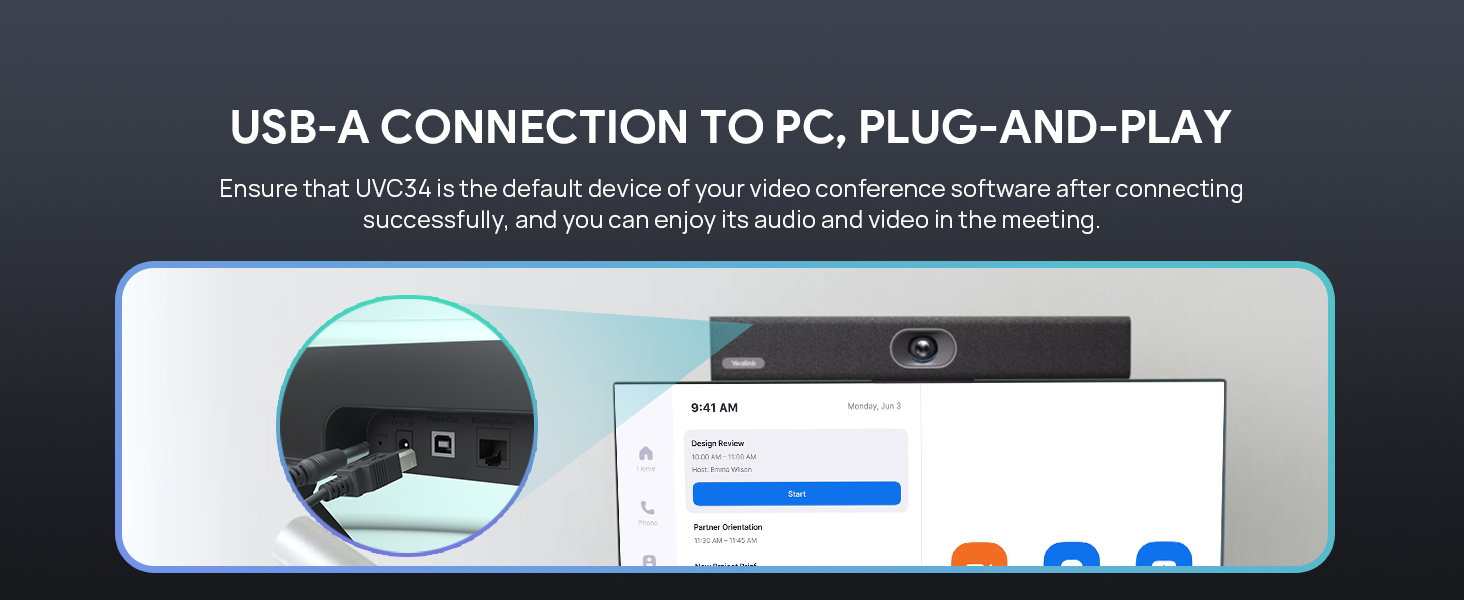
Image: A visual comparison of the UVC34 with its electric privacy shutter in the open (camera active) and closed (privacy enabled) positions.
6. Yealink RoomConnect Software
For advanced device management and firmware upgrades, Yealink provides the "Yealink RoomConnect" software. This application allows you to:
- View device status and information.
- Configure specific device settings.
- Perform firmware updates to ensure optimal performance and access new features.
It is recommended to periodically check for and install firmware updates using this software.

Image: A screenshot of the Yealink RoomConnect software, displayed on a monitor, showing options for device status, settings, and firmware upgrades for UVC Series devices.
7. Maintenance
To ensure the longevity and optimal performance of your Yealink UVC34, follow these maintenance guidelines:
- Cleaning: Use a soft, dry cloth to clean the exterior of the device. Do not use liquid cleaners or aerosols directly on the unit. For the camera lens, use a lens cleaning cloth specifically designed for optics.
- Storage: When not in use for extended periods, store the device in a cool, dry place, away from direct sunlight and extreme temperatures.
- Cable Management: Ensure cables are not kinked or strained to prevent damage.
- Firmware Updates: Regularly check for and install firmware updates via the Yealink RoomConnect software to benefit from performance improvements and bug fixes.
8. Troubleshooting
If you encounter issues with your UVC34, refer to the following common problems and solutions:
8.1 No Video or Audio Output
- Check Connections: Ensure the USB cable is securely connected to both the UVC34 and your PC, and the power adapter is properly plugged in.
- Power Status: Verify that the UVC34 is powered on.
- Software Selection: Confirm that "Yealink UVC34" is selected as the camera, microphone, and speaker in your video conferencing application's settings.
- PC USB Port: Try connecting to a different USB port on your PC.
- Restart: Restart your PC and the UVC34.
8.2 Remote Control Issues
- Batteries: Ensure the AAA batteries are correctly inserted and not depleted.
- Line of Sight: Make sure there is a clear line of sight between the remote control and the UVC34.
- Functionality: Note that some advanced PTZ functions via the remote may require specific software integration or may not be fully supported by all conferencing platforms. Basic functions like volume and mute should generally work.
- Missing Remote: If the remote control was missing from the package, contact your vendor or Yealink support for a replacement.
8.3 Poor Video Quality
- Lighting: Ensure adequate lighting in the room. The UVC34 has low-light optimization, but extreme conditions can still affect quality.
- Lens Cleanliness: Clean the camera lens with a soft, dry lens cloth.
- Internet Connection: A stable and high-bandwidth internet connection is crucial for 4K video streaming. Check your network speed.
- Software Settings: Verify that your conferencing software is configured to use 4K resolution if supported.
8.4 Poor Audio Quality
- Microphone Placement: Ensure the UVC34 is positioned optimally to capture voices from all participants.
- Room Acoustics: Minimize background noise and reverberation in the meeting space.
- Software Settings: Confirm that "Yealink UVC34" is selected as the microphone and speaker in your conferencing application.
9. Specifications
| Feature | Detail |
|---|---|
| Brand | Yealink |
| Model Number | UVC34 |
| Item Weight | 3.57 pounds |
| Product Dimensions | 2 x 2 x 14.96 inches |
| Color | Black |
| Photo Sensor Technology | CMOS |
| Video Capture Resolution | 4K |
| Maximum Focal Length | 8 |
| Maximum Aperture | 2 f |
| Connectivity Technology | USB |
| Batteries | 2 AAA batteries (included) |
| Special Features | AI Technologies (Auto Framing, AI Face Enhancement), Audio (Built-in 8+1 microphone array, 4.5-meter voice pickup, 5W high fidelity speaker, Noise Proof Technology, Full-duplex, Echo cancellation), Camera (8MP, 4K 30FPS, 120° FoV, 5x e-PTZ), USB-A for PC, Electric lens cap. Compatible with Microsoft Teams, Zoom, BlueJeans, Google Meet, Cisco Webex, etc. |
10. Warranty and Support
For information regarding the product warranty, please refer to the official Yealink website or the warranty card included with your purchase. Warranty terms and conditions may vary by region and retailer.
For technical support, product inquiries, or to report missing components, please contact Yealink customer support through their official website: