
Coastacloud 2.4G-Black
Coastacloud Slim Wireless TV Keyboard User Manual
Model: 2.4G-Black
Product Overview
The Coastacloud Slim Wireless TV Keyboard with Touchpad is a versatile input device designed for seamless control across multiple platforms. It features a built-in trackpad, 7-color backlit keys, and supports both 2.4GHz wireless and Bluetooth connectivity, allowing you to easily switch between up to three devices.
Key Features
- Freely Switch System: Pairs with 2 Bluetooth devices simultaneously and 1 USB interface device, allowing easy access to any of the 3 connected devices.
- 2.4GHz Connection Technology: Plug and play with stable, anti-jamming transmission up to 10 meters (33 ft) away, ensuring virtually no delays or dropouts.
- Perfect Compatibility: Connects to iOS (iPhone/iPad/iPad Pro), Smart TV, Windows, Samsung Android devices, and Tablets. Ideal for office, home, cafe, and library use.
- Comfortable Typing: Ergonomic design with scissor spring keys for tactile feedback. Features 7 colors with 3 levels of brightness for convenient typing in low-light conditions.
- Power Management & Sleep Automatically: Built-in 1000mAh rechargeable Li-ion battery with Type-C charging. Automatically enters sleep mode after 40 minutes of inactivity and reconnects quickly upon waking.
Package Contents
- Coastacloud Slim Wireless TV Keyboard with Touchpad
- Type-C Charging Cable
- USB Receiver (stored inside the keyboard)
- User Manual
Setup
Charging the Keyboard
Before first use, fully charge the keyboard using the provided Type-C charging cable. Connect the cable to the keyboard's Type-C port and the other end to a USB power source (e.g., computer USB port, USB wall adapter). The charging indicator light will show the charging status.
Connecting via 2.4GHz USB Receiver
- Locate the USB receiver, which is typically stored in a compartment within the keyboard itself.
- Plug the USB receiver into an available USB port on your device (e.g., PC, Smart TV, Android TV Box).
- Turn on the keyboard. It should automatically connect to the device via the 2.4GHz receiver.
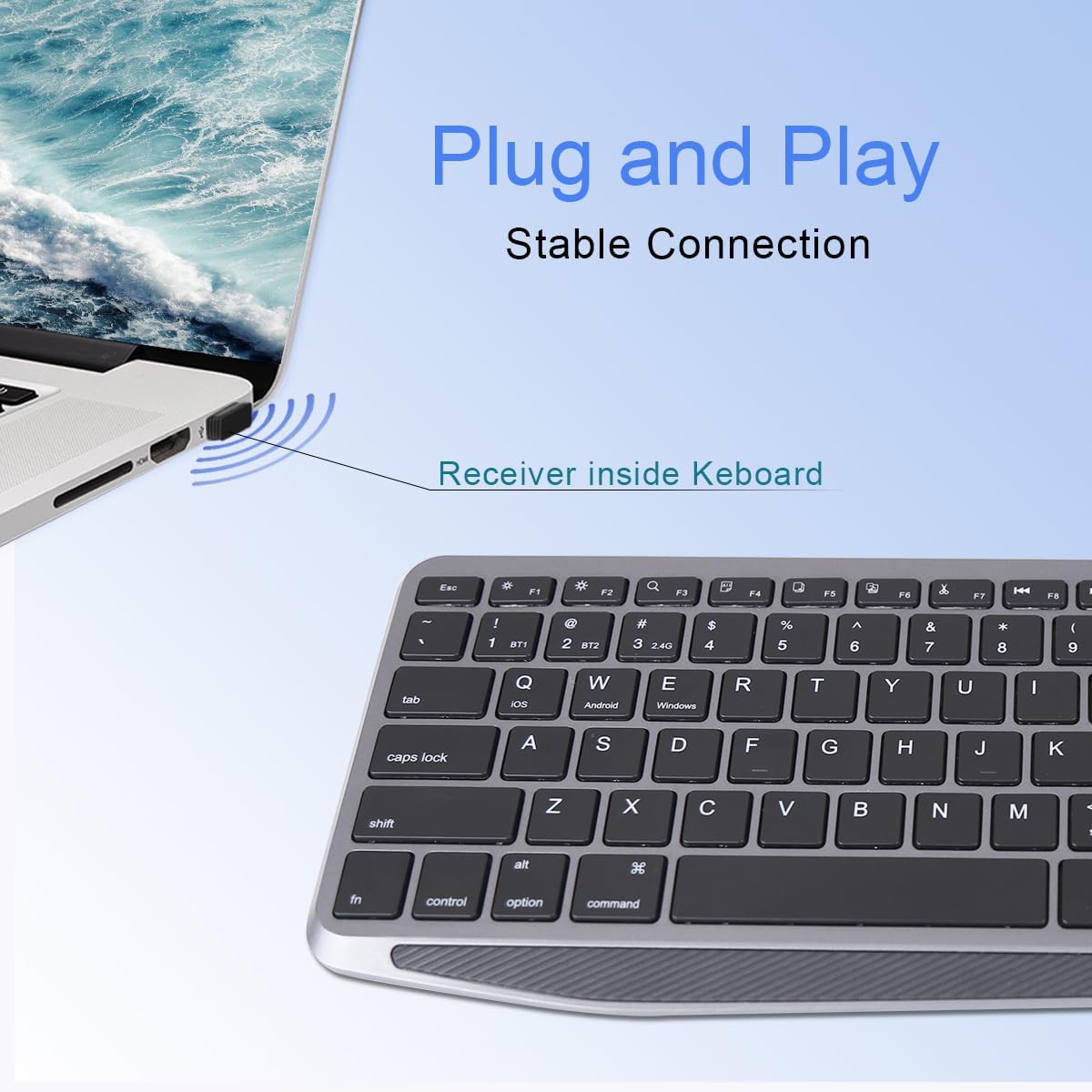
Figure 1: Plugging in the 2.4GHz USB receiver. The receiver is conveniently stored inside the keyboard for portability.
Connecting via Bluetooth
- Ensure the keyboard is powered on.
- Press the Bluetooth pairing button (refer to keyboard layout for exact location, often a dedicated Bluetooth key or Fn combination) to enter pairing mode. The indicator light will flash.
- On your device (e.g., tablet, smartphone, smart TV), go to Bluetooth settings and search for new devices.
- Select "Coastacloud Keyboard" or a similar name from the list of available devices.
- Follow any on-screen prompts to complete the pairing process. The indicator light on the keyboard will stop flashing once connected.

Figure 2: The keyboard offers a stable Bluetooth connection with a range of up to 10 meters, ideal for controlling devices from a distance.

Figure 3: The keyboard provides a stable Bluetooth connection for efficient typing and control across various devices.

Figure 4: Broad compatibility with Android, Windows, and MacOS devices, including smart TVs, mini PCs, and projectors.
Operating Instructions
Keyboard Layout and Functions
The keyboard features a standard QWERTY layout with additional function keys and a dedicated touchpad area. Familiarize yourself with the key layout for optimal use.

Figure 5: Overview of the Coastacloud Slim Wireless TV Keyboard, showcasing its full QWERTY layout and integrated touchpad.
Touchpad Gestures
The integrated touchpad supports various multi-touch gestures for intuitive navigation:
- One-finger slide: Move cursor.
- One/Two fingers click: Single click / Double click.
- Slide to sides from center: Zoom in.
- Slide in from outside: Zoom out.

Figure 6: Visual guide to common touchpad gestures for efficient browsing and control.

Figure 7: The D-PAD on the right side of the keyboard allows for precise navigation of on-screen menus.
Backlight Control
The keyboard features 7-color backlighting with 3 adjustable brightness levels. Use the dedicated backlight key (often indicated by a light bulb icon) or an Fn key combination to cycle through colors and adjust brightness. This enhances visibility in dark environments.

Figure 8: The keyboard's 7-color backlight feature provides customizable illumination for comfortable typing in various lighting conditions.
Multi-Device Switching
To switch between connected devices (2 Bluetooth, 1 USB), use the designated device switching keys (e.g., BT1, BT2, 2.4G). Press the corresponding key to instantly switch control to the desired device.
Maintenance
Cleaning
To clean the keyboard, power it off and use a soft, lint-free cloth slightly dampened with water or a mild cleaning solution. Avoid excessive moisture. Do not use harsh chemicals or abrasive materials.
Battery Care
To prolong battery life, avoid fully discharging the keyboard frequently. Recharge it when the low battery indicator appears. If storing the keyboard for an extended period, charge it to about 50% and store in a cool, dry place.
Troubleshooting
- Keyboard not responding: Ensure the keyboard is powered on and fully charged. Check if the USB receiver is securely plugged in or if Bluetooth is properly paired. Try restarting your device.
- Backlight not working: Ensure the keyboard is powered on. Press the backlight control key or Fn combination to activate or cycle through brightness levels. If the issue persists, the battery might be too low.
- Intermittent connection: Ensure the keyboard is within the 10-meter operating range. Avoid obstacles that might interfere with the wireless signal. Check for other devices causing interference.
- Touchpad not working: Ensure the touchpad is not accidentally disabled (some keyboards have a toggle). Check for any debris on the touchpad surface.
- Unable to pair via Bluetooth: Ensure the keyboard is in pairing mode. Clear previous Bluetooth connections on your device and try pairing again.
Specifications
| Feature | Detail |
|---|---|
| Product Dimensions | 14.37 x 5.24 x 0.55 inches |
| Item Weight | 14.3 ounces |
| Manufacturer | Coastacloud |
| Item Model Number | 2.4G-Black |
| Batteries | 1 Lithium Polymer batteries required (included) |
| Connectivity Technology | Bluetooth, USB (2.4GHz wireless) |
| Keyboard Description | Wireless |
| Special Feature | Backlit, Ergonomic, Rechargeable |
| Color | Black (RGB Backlighting) |
| Number of Keys | 78 |
Warranty and Support
This product comes with a standard manufacturer's warranty. For detailed warranty information, technical support, or service inquiries, please refer to the contact information provided on the product packaging or visit the official Coastacloud website. Keep your purchase receipt for warranty claims.