
1. Product Overview
The Wavlink RC-ST503P is a versatile SATA to USB 3.0 adapter cable designed to connect 2.5-inch or 3.5-inch SATA SSDs and HDDs to your computer via a USB port. It supports high-speed data transfer up to 5 Gbps with UASP acceleration, making it ideal for quick data backups, cloning, and file recovery. For 3.5-inch drives, an included 12V/2A DC power adapter provides the necessary external power.

Image: The Wavlink SATA to USB 3.0 Adapter Cable with its integrated USB-A connector and DC power input.
Key Features:
- High-Speed Data Transfer: Supports up to 5 Gbps with USB 3.0, backward compatible with USB 2.0/1.1.
- UASP Accelerated: Provides up to 70% faster read and 40% faster write speeds than traditional USB 3.0 when connected to a UASP-enabled host.
- Wide Compatibility: Works with 2.5-inch SATA III/II/I SSDs and HDDs, and 3.5-inch SATA III/II/I HDDs up to 18TB.
- External Power Supply: Includes a 12V/2A DC power adapter for stable operation with 3.5-inch hard drives. 2.5-inch drives typically do not require external power.
- Plug & Play: Tool-free installation, no drivers required for most operating systems.
- Auto-Sleep Mode: Automatically enters sleep mode after 3 minutes of inactivity to save power and prolong drive lifespan.
- LED Indicator: A blue LED light indicates the working status of the adapter.
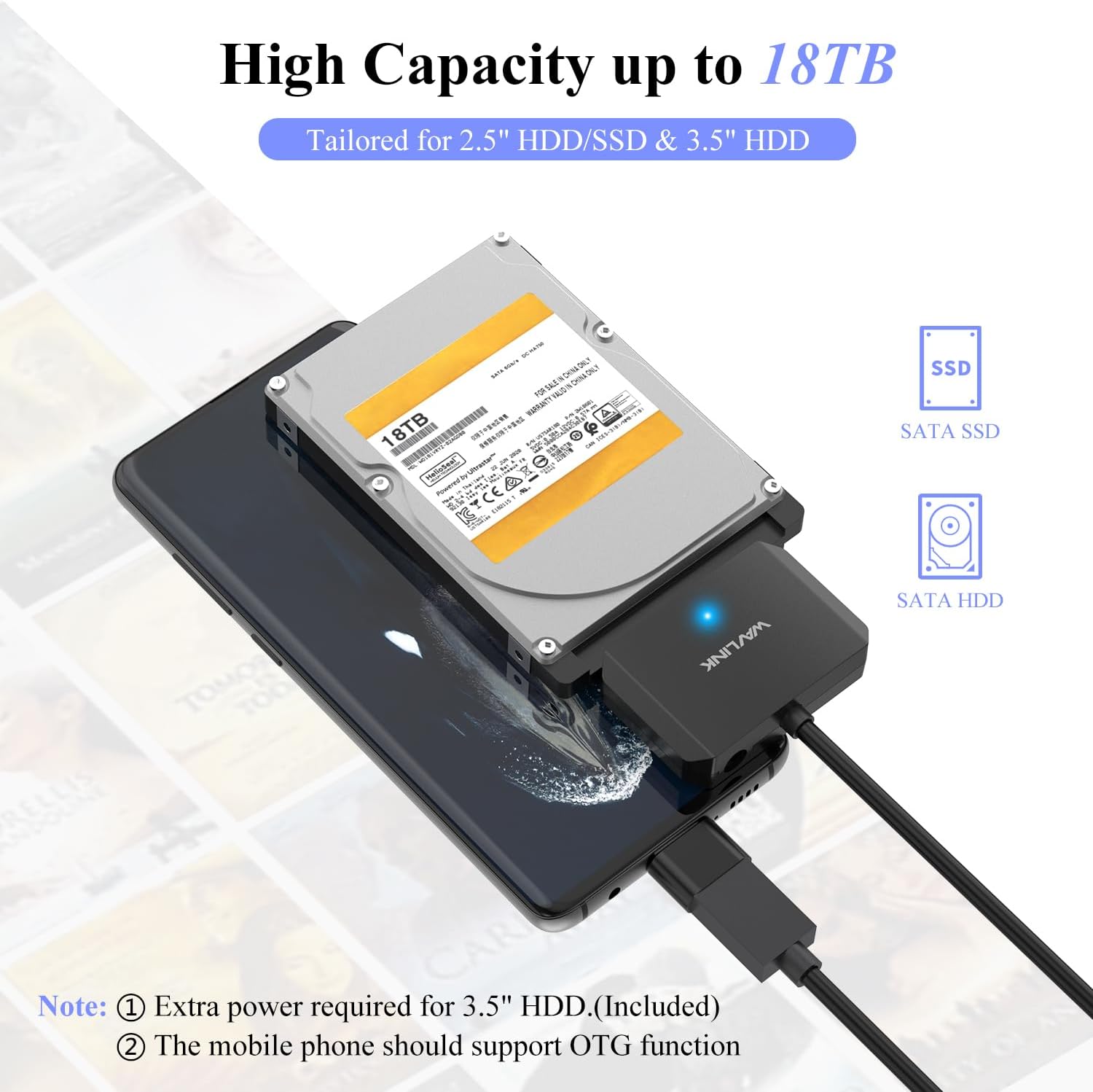
Image: The adapter supporting high-capacity drives up to 18TB, suitable for both 2.5" SSD/HDD and 3.5" HDD. Note that 3.5" HDDs require extra power, and mobile phone connection requires OTG function.
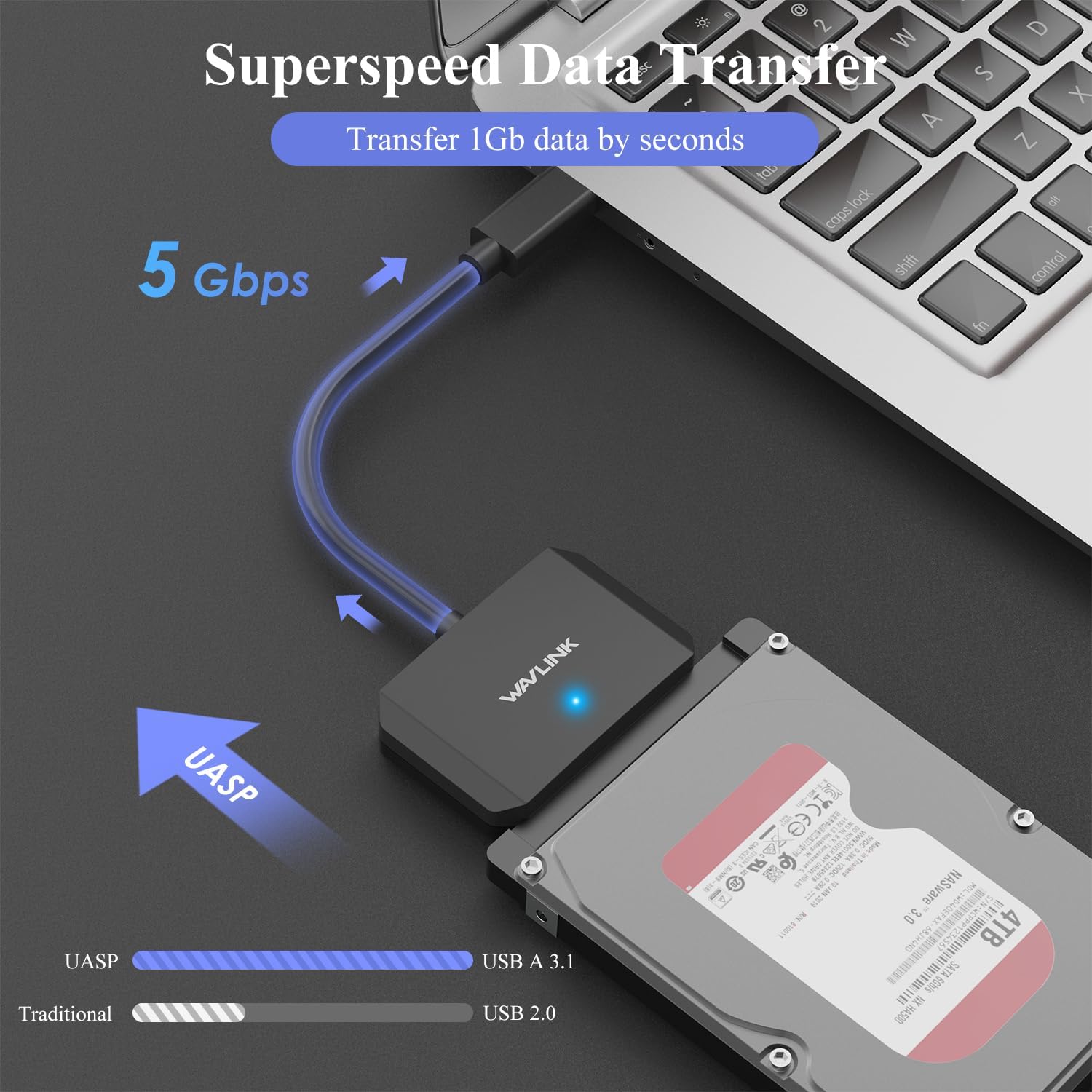
Image: Illustration of the adapter's 5 Gbps superspeed data transfer capability, highlighting the UASP technology for faster performance compared to traditional USB 3.0 and USB 2.0.

Image: Detailed view of the adapter's features, including the blue LED indicator for activity status, the auto-sleep mode for power saving and extended lifespan, and the flexible, durable integrated USB cable.
2. Setup Instructions
Follow these steps to connect your SATA drive using the Wavlink adapter:
- Prepare Your Drive: Ensure your 2.5-inch or 3.5-inch SATA SSD/HDD is ready for connection.
- Connect SATA Drive: Firmly connect the SATA connector of the Wavlink adapter to the SATA data and power ports on your SSD or HDD. Ensure a secure fit.
- Connect Power Adapter (for 3.5" HDDs only): If you are using a 3.5-inch HDD, plug the included 12V/2A DC power adapter into the adapter's DC input port, then plug the power adapter into a wall outlet. For 2.5-inch drives, this step is usually not required as they draw sufficient power from the USB port.
- Connect to Computer: Plug the USB-A connector of the Wavlink adapter into an available USB 3.0 (or USB 2.0) port on your computer (desktop, laptop, or compatible device).
- Access Drive: Your operating system should automatically detect the drive. For new drives, you may need to initialize and format them through Disk Management (Windows) or Disk Utility (macOS) before use.

Image: The adapter's compatibility with various devices including laptops, phones (with OTG), tablets, desktops, HDTVs, and routers, showing the USB port connection to the host and the SATA port connection to the drive.

Image: The Wavlink adapter in use, demonstrating its driver-free, plug-and-play functionality across various operating systems such as Windows, Mac OS, Linux, and Chrome OS.
3. Operating Instructions
Once connected, the Wavlink adapter functions like any external USB storage device. You can drag and drop files, perform backups, or use it for system cloning.
Data Transfer:
- Open 'This PC' or 'My Computer' (Windows) or 'Finder' (macOS).
- Locate the newly connected drive.
- Drag and drop files or folders to and from the drive.
- For optimal performance, ensure your computer's USB port supports USB 3.0 and UASP.
Auto-Sleep Function:
The adapter features an automatic sleep mode. If there is no data activity for approximately 3 minutes, the drive will enter a low-power sleep state. This helps conserve energy and extends the lifespan of your hard drive. The drive will automatically wake up when data access is requested.

Image: Examples of daily use for the Wavlink adapter, including worry-free hard disk upgrades, cloning, file recovery, and connecting to a TV for recording and backing up favorite shows, movies, and music.
4. Maintenance
To ensure the longevity and optimal performance of your Wavlink adapter and connected drives, follow these maintenance guidelines:
- Safe Removal: Always safely eject or unmount the drive from your operating system before disconnecting the adapter or power cable. This prevents data corruption.
- Cleanliness: Keep the adapter and connectors free from dust and debris. Use a soft, dry cloth for cleaning. Do not use liquid cleaners.
- Storage: Store the adapter in a cool, dry place away from direct sunlight and extreme temperatures when not in use.
- Cable Care: Avoid bending or twisting the integrated USB cable excessively to prevent internal damage.
5. Troubleshooting
If you encounter issues with your Wavlink adapter, refer to the following common problems and solutions:
- Drive Not Detected:
- Ensure all connections (SATA, USB, power adapter for 3.5" drives) are secure.
- Try a different USB port on your computer.
- For new drives, check Disk Management (Windows) or Disk Utility (macOS) to see if the drive needs to be initialized or formatted.
- Test the adapter with a different known-good SATA drive, or test the drive with a different adapter/enclosure.
- Slow Transfer Speeds:
- Ensure you are connected to a USB 3.0 port on your computer. USB 2.0 ports will limit speeds.
- Verify your operating system and hardware support UASP for accelerated speeds.
- Check the health of your SATA drive. A failing drive can result in slow performance.
- Drive Disconnects Randomly:
- Ensure the 12V/2A power adapter is securely connected and functioning, especially for 3.5-inch HDDs. Insufficient power is a common cause.
- Try a different USB port or a different power outlet.
- Disable USB selective suspend settings in your computer's power options (Windows).
- LED Indicator Not Lit:
- Ensure the adapter is properly connected to both the SATA drive and the computer's USB port.
- If using a 3.5" HDD, ensure the power adapter is connected and receiving power.
6. Specifications
| Feature | Specification |
|---|---|
| Brand | WAVLINK |
| Model Number | RC-ST503P |
| Color | Blue |
| Connector Type | USB Type A |
| Compatible Devices | Computer, Laptop (and other USB host devices) |
| Supported Drive Types | 2.5" and 3.5" SATA I/II/III SSD/HDD |
| Max Capacity Supported | Up to 18TB |
| Data Transfer Speed | Up to 5 Gbps (USB 3.0) |
| Power Input | 12V/2A DC (for 3.5" HDDs) |
| Dimensions (L x W x H) | 11 x 8.8 x 6 cm (approximate, adapter unit) |
| Operating Systems | Windows 11/10/8/7/Vista/XP, Mac OS 9/10/11+, Linux, Chrome OS |
7. Warranty and Support
The Wavlink RC-ST503P adapter comes with a manufacturer's warranty.
- Manufacturer Warranty: 2 years.
- Technical Support: For technical assistance, troubleshooting beyond this manual, or warranty claims, please contact Wavlink customer support through their official website or the retailer where the product was purchased.
Please retain your proof of purchase for warranty purposes.