
1. Product Overview
The HDSUNWSTD 4K HDMI to USB Video Capture Card is a compact device designed to capture high-definition HDMI video and audio signals directly to your computer. It supports input resolutions up to 4K@30Hz and outputs a maximum resolution of 1920x1080@60Hz. This versatile device is suitable for various applications, including gaming, live streaming, online teaching, and video conferencing, providing a reliable solution for converting HDMI signals to a digital format for recording or broadcasting.

Image showing the HDSUNWSTD 4K HDMI to USB Video Capture Card, featuring a male HDMI connector on one end and a male USB connector on the other. The cable is black and coiled.

Diagram illustrating the difference between 1080p 60fps (ours) and 720p 30fps (others) video capture quality, with the capture card shown in the foreground.
2. Setup Instructions
Follow these steps to set up your HDSUNWSTD Video Capture Card:
- Connect to Recording Device: Plug the USB connector of the video capture card into an available USB 2.0 port on your recording PC or notebook.
- Connect to Video Source: Plug the HDMI connector of the video capture card into the HDMI output port of your video source device (e.g., game console, camera, projector). Ensure the HDMI cable used supports the desired resolution (e.g., 4K for 4K input).
- Software Configuration: Open your preferred streaming or recording software (e.g., OBS Studio, Amcap, Potplayer). In the software settings, select the video capture card as the input device. Configure the input/output video resolution and frame rate as needed.

Diagram showing how to connect the video capture card. HDMI input sources (DV, Projector, PlayStation 4, Xbox) connect to the capture card, which then connects via USB output to a Laptop or Computer.
3. Operating Instructions
Once the capture card is properly connected and configured in your software, it will automatically detect and transmit the HDMI video and audio signal to your computer. You can then utilize your chosen software to:
- Record Content: Capture gameplay, presentations, or other video content directly to your computer's storage.
- Live Stream: Broadcast your content to platforms such as YouTube, Facebook Live, or Twitch.
- Display Content: Use your computer as a monitor for your HDMI source, useful for video conferencing or presentations.
The capture card offers wide compatibility with various operating systems and devices:
- Operating Systems: Windows 7/8/10, Mac OS (or above), Linux, Android.
- Compatible Devices: Laptops, Xbox One, PS3/PS4/PS5, Cameras, Webcams, DSLRs, Nintendo Switch, TV BOX, HDTVs.
- Software Support: Potplayer, VLC, OBS Studio, Amcap, etc.
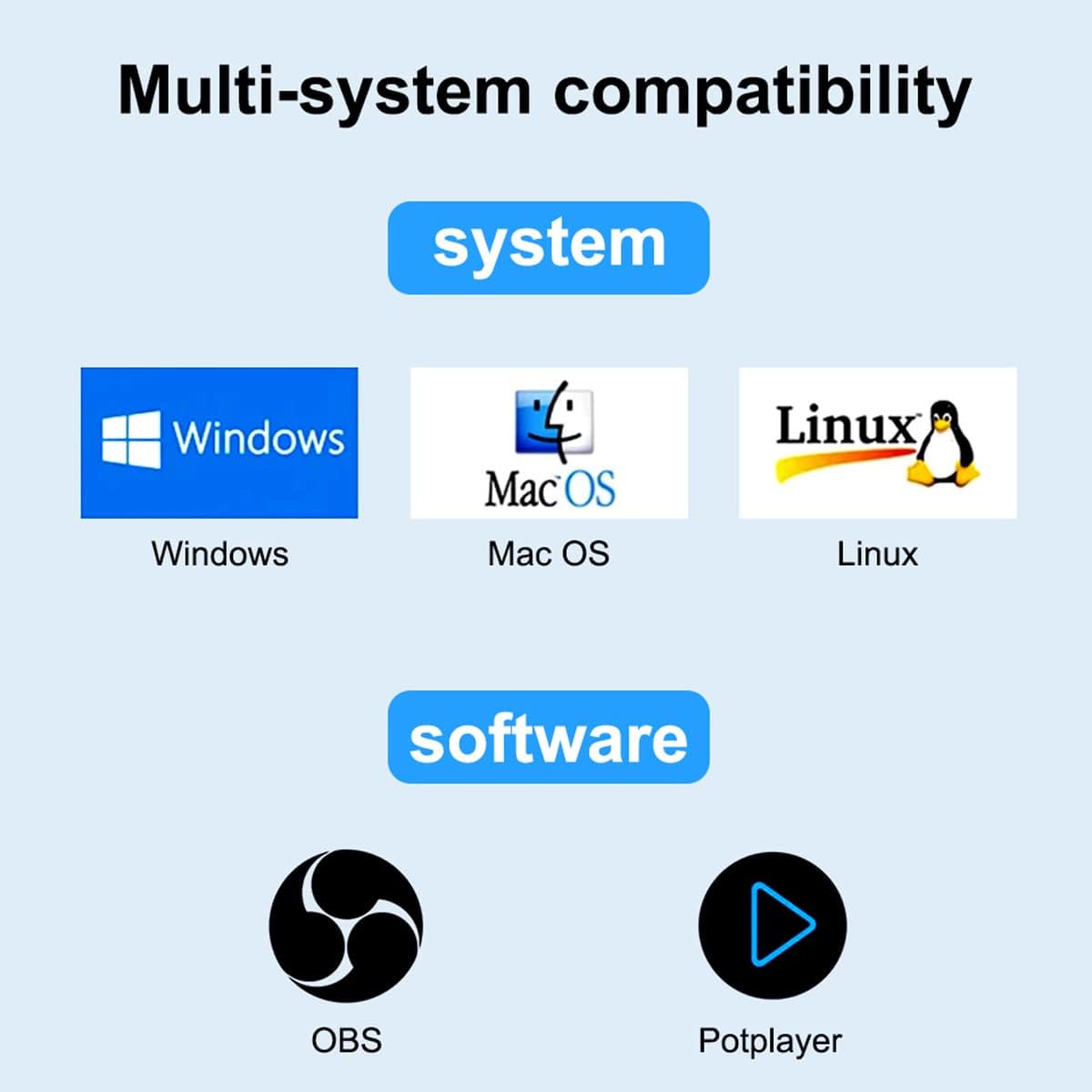
Image displaying the multi-system compatibility of the capture card, including Windows, Mac OS, and Linux operating systems, as well as OBS and Potplayer software.

Collage of images demonstrating various applications of the video capture card, including game playing, live streaming, video conferencing, and home theater setups.
4. Maintenance
To ensure the longevity and optimal performance of your video capture card, please observe the following maintenance guidelines:
- Storage: Store the device in a dry environment, away from direct sunlight and extreme temperatures.
- Cleaning: Use a soft, dry cloth to clean the exterior of the device. Do not use liquid cleaners or abrasive materials.
- Handling: Avoid dropping or subjecting the device to strong impacts. Do not attempt to disassemble or modify the device, as this will void the warranty.
- Ventilation: Ensure the device is placed in a well-ventilated area during operation to prevent overheating.
5. Troubleshooting
If you encounter issues with your HDSUNWSTD Video Capture Card, please refer to the following common troubleshooting steps:
- No Video/Audio Output:
- Ensure all HDMI and USB connections are secure and properly seated.
- Verify that the input source is active and outputting a signal.
- Check your streaming/recording software settings to confirm the correct capture device and input/output resolutions are selected.
- If attempting 4K input, ensure your HDMI cable is 4K compatible.
- Confirm the HDMI source is unencrypted; HDCP-protected content cannot be captured.
- Frame Drops or Lag:
- Ensure your recording computer meets the minimum system requirements for video capture and streaming.
- Close any unnecessary applications running in the background that may consume system resources.
- Try connecting the capture card to a different USB 2.0 port or a different computer if available.
- Reduce the output resolution or frame rate in your capture software settings.
- Overheating:
- If the device becomes excessively warm during operation, disconnect it immediately and allow it to cool down. Overheating can lead to performance degradation or damage.
- Ensure the device is in a well-ventilated area and not covered during use.
- Compatibility Issues:
- Verify that your operating system and software are listed as compatible with the device.
- While typically plug-and-play, ensure your system's USB drivers are up to date.
6. Specifications
| Brand | HDSUNWSTD |
| Model Number | 92ac170e-43bb-4bbc-b77a-316d444c235a |
| Input Resolution | Up to 4K@30Hz |
| Output Resolution | Max 1920x1080@60Hz |
| Interface | USB 2.0 |
| Connector Type | HDMI |
| Compatible Devices | Personal Computer |
| Specific Uses | PC |
| Color | Black |
| Item Dimensions (L x W x H) | 1.97 x 0.79 x 1.18 inches |
| Item Weight | 0.04 Kilograms |
| Number of Ports | 1 |
| Power Plug Type | No Plug (Bus-powered) |
7. Warranty Information
The HDSUNWSTD Video Capture Card comes with a 1-month limited warranty. This warranty covers manufacturing defects under normal use. Please retain your proof of purchase for warranty claims. For specific terms, conditions, and limitations of the warranty, refer to the documentation provided at the time of purchase or contact the manufacturer directly.
8. Support
For further assistance, technical support, or inquiries regarding your HDSUNWSTD 4K HDMI to USB Video Capture Card, please contact the manufacturer, HDSUNWSTD, through their official website or the retailer from whom the product was purchased. When contacting support, please have your product model number (92ac170e-43bb-4bbc-b77a-316d444c235a) and purchase information readily available.