1. Introduction
This manual provides detailed instructions for the setup, operation, and maintenance of your XENX P3-1060B Graphic Drawing Tablet. The P3-1060B features a 10 x 6.22 inch active drawing area, a battery-free pen with 8192 pressure levels, and 10 customizable shortcut keys. It is compatible with Windows, macOS, and Android operating systems, making it suitable for various creative and professional applications.
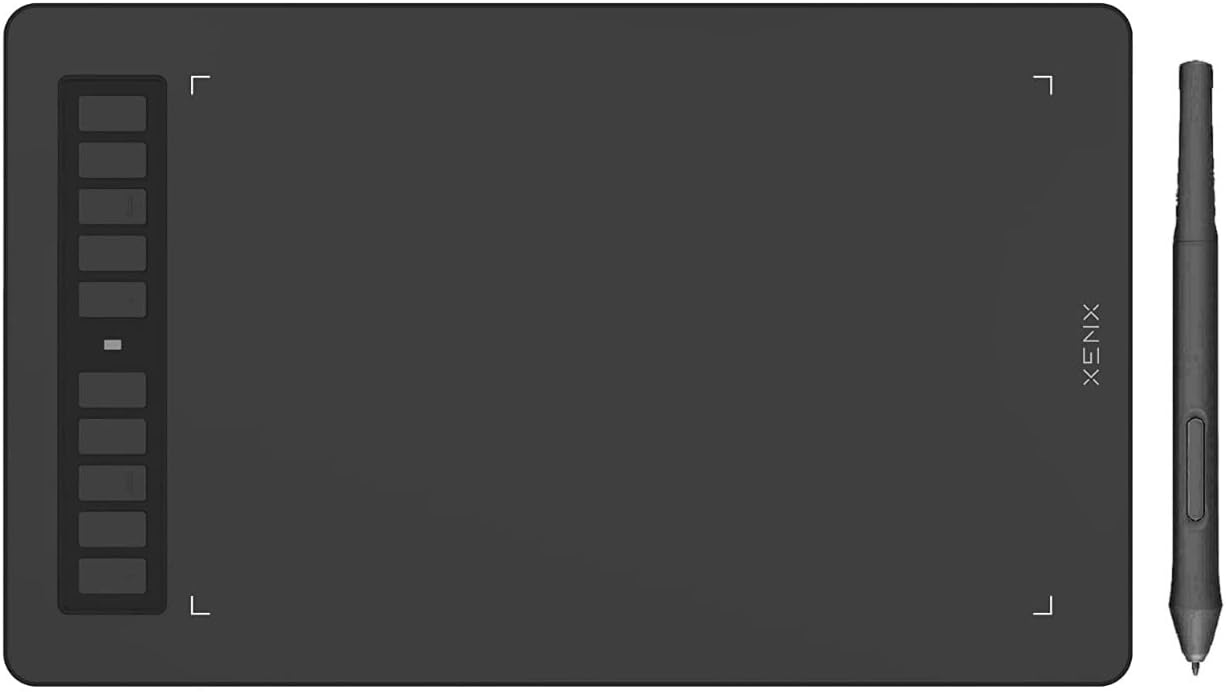
Image 1.1: The XENX P3-1060B Graphic Drawing Tablet with its battery-free pen.

Image 1.2: The XENX P3-1060B tablet highlighting its 10 x 6.22 inch active drawing area.
2. Package Contents
Verify that all items are present in the package:
- XENX P3-1060B Graphic Drawing Tablet
- Battery-Free Pen
- USB Cable
- Pen Nibs (replacement)
- Nib Remover Tool
- Quick Start Guide

Image 2.1: Contents included in the XENX P3-1060B package.
3. Setup
3.1 Driver Installation (Windows/macOS)
- Uninstall Existing Drivers: If you have previously installed drivers for other graphic tablets, uninstall them before proceeding.
- Download Driver: Visit the official XENX website (refer to the Quick Start Guide for the URL) and download the latest driver for your operating system (Windows 7 or later, macOS 10.12 or later).
- Install Driver: Run the downloaded installer and follow the on-screen instructions. It is recommended to temporarily disable antivirus software during installation.
- Restart Computer: After installation, restart your computer to ensure the driver is properly loaded.
3.2 Connecting the Tablet
Connect the XENX P3-1060B tablet to your computer or Android device using the provided USB cable.
- For Windows/macOS: Plug the USB cable into an available USB port on your computer. The tablet should be recognized automatically after driver installation.
- For Android Devices (Android 6.0 or later): Use a Type-C OTG adapter (not included) to connect the tablet to your Android phone or tablet. The device is plug-and-play for Android.

Image 3.1: The XENX P3-1060B tablet demonstrating compatibility with various operating systems.
3.3 Android Device Orientation
To adjust the tablet's orientation for portrait mode on Android devices:
- Connect the XENX tablet to your Android phone using a Type-C OTG adapter.
- Press and hold both the top and bottom shortcut buttons on the tablet simultaneously for 5 seconds.
- The XENX tablet will switch to portrait mode to fit your phone's orientation.

Image 3.2: Step-by-step guide for using the XENX tablet with Android devices, including orientation adjustment.
4. Operating Instructions
4.1 Battery-Free Pen
The XENX P3-1060B comes with a battery-free pen that utilizes 8192 levels of pressure sensitivity. This allows for precise control over line thickness and opacity in supported software. The pen also features two customizable side buttons.

Image 4.1: Detailed view of the XENX battery-free pen and its features.
4.2 Customizable Shortcut Keys
The tablet features 10 physical shortcut keys on the left side. With the XENX Tablet Driver installed, you can customize these buttons to your preferred shortcuts for various applications. These settings can be configured and saved per application, enhancing workflow efficiency.

Image 4.2: Illustration of the 10 customizable shortcut keys on the tablet.
4.3 Drawing Area and Rotation
The tablet offers a generous 10 x 6.22 inch active drawing area. The drawing surface has a fine texture designed to provide a comfortable and natural drawing experience, similar to drawing on paper. The tablet can be rotated 180 degrees to accommodate both right-handed and left-handed users, allowing the shortcut keys to be positioned on either side.

Image 4.3: The XENX P3-1060B tablet demonstrating its rotation capability.

Image 4.4: The XENX P3-1060B tablet in use with a laptop, showcasing its versatility.
4.4 Software Compatibility
The XENX P3-1060B is compatible with most major graphics software on Windows and macOS, including but not limited to Adobe Photoshop, Illustrator, Clip Studio Paint, Krita, and GIMP. For Android devices, it supports various drawing and design applications.
5. Maintenance
5.1 Cleaning the Tablet and Pen
To maintain optimal performance and appearance:
- Use a soft, dry, lint-free cloth to gently wipe the tablet surface and pen.
- Avoid using harsh chemicals, abrasive cleaners, or solvents, as these can damage the device.
- Do not spray cleaners directly onto the tablet or pen.
5.2 Pen Nib Replacement
Over time, the pen nib may wear down. Replace it when necessary to ensure consistent performance:
- Use the nib remover tool (included in the package) to gently pull out the old nib from the pen.
- Insert a new replacement nib firmly into the pen until it clicks into place.
- Ensure the nib is securely seated before resuming use.
6. Troubleshooting
6.1 Common Issues and Solutions
- Pen Not Responding:
- Ensure the tablet is properly connected to your device.
- Verify that the driver is correctly installed and running. Try reinstalling the driver if necessary.
- Check if the pen nib is worn out and replace it if needed.
- Test the tablet on a different USB port or computer to rule out port or system issues.
- Driver Installation Failure:
- Temporarily disable antivirus software during installation.
- Ensure all previous tablet drivers are uninstalled.
- Download the latest driver directly from the official XENX website.
- Inaccurate Pen Movement:
- Recalibrate the pen in the tablet driver settings.
- Ensure there are no electromagnetic interferences near the tablet.
- Shortcut Keys Not Working:
- Ensure the XENX driver is installed and running.
- Check the driver settings to confirm the keys are properly configured.
- Note that shortcut keys may not be fully functional on all Android applications or devices.
7. Specifications
| Feature | Specification |
|---|---|
| Model Number | P3-1060B |
| Active Area | 10 x 6.22 inches (252.8 x 158 mm) |
| Pressure Sensitivity | 8192 Levels |
| Report Rate | 266 PPS (Pen Coordinates and Pressure Data per Second) |
| Pen Resolution | 2540 LPI |
| Shortcut Keys | 10 Customizable Keys |
| Connectivity | USB |
| Operating System Compatibility | Windows 7 or later, macOS 10.12 or later, Android 6.0 or later |
| Product Dimensions | 13.19 x 7.99 x 3.35 inches |
| Item Weight | 12.8 ounces |
8. Warranty and Support
XENX products are designed for reliability and performance. For specific warranty details, please refer to the warranty card included in your product packaging or visit the official XENX website. Keep your purchase receipt as proof of purchase for warranty claims.
For technical support, driver downloads, or further assistance, please visit the official XENX support page or contact XENX customer service. You can find contact information on the XENX website or through the 'Visit the XENX Store' link on the product's retail page.
Online Resources: Visit the XENX Store on Amazon