
1. Introduction
Thank you for choosing the ROVPRO WRJ02 4K Dual Camera Foldable Drone. This manual provides essential information for the safe operation, setup, and maintenance of your drone. Please read it thoroughly before your first flight to ensure optimal performance and to prevent damage or injury.
2. Safety Guidelines
Always prioritize safety during drone operation. Failure to follow these guidelines may result in injury, property damage, or legal consequences.
- Flight Environment: Fly in open areas, away from people, animals, buildings, and power lines. Avoid flying in strong winds, rain, or snow.
- Line of Sight: Always maintain visual line of sight with your drone.
- Battery Safety: Use only approved batteries and chargers. Do not overcharge or puncture batteries. Discontinue use if batteries are damaged or swollen.
- Propeller Safety: Keep hands, face, and loose clothing away from rotating propellers. Ensure propellers are correctly installed before flight.
- Age Recommendation: This drone is suitable for adults and supervised beginners.
- Local Regulations: Be aware of and comply with all local drone regulations and airspace restrictions.
3. Package Contents & Component Identification
Verify that all items are present in your package. Familiarize yourself with the drone's components and the remote control layout.
3.1 Package Contents
- ROVPRO WRJ02 Foldable Drone
- Remote Control
- 2 x 3.7V 1600mAh Lithium Polymer Batteries
- USB Charging Cable
- Spare Propellers
- Propeller Protectors (4)
- Screwdriver
- User Manual
- Carrying Case
3.2 Drone Components

Image: The ROVPRO WRJ02 drone, showcasing its foldable design, propellers, and dual cameras.
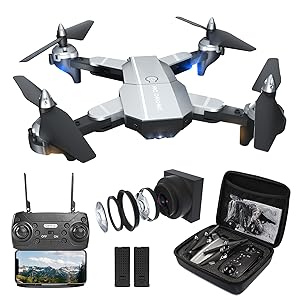
Image: All components of the ROVPRO WRJ02 drone kit, including the drone, remote, batteries, and accessories, neatly packed in a carrying case.
- Foldable Arms: For compact storage and transport.
- Propellers: Four main propellers for lift and thrust.
- Propeller Protectors: Attach to arms to shield propellers from impacts.
- 4K Front Camera: High-resolution camera for aerial photography and video.
- 1080P Bottom Camera: Secondary camera for additional perspectives.
- Battery Compartment: Located on the underside of the drone.
- Power Button: To turn the drone on/off.
3.3 Remote Control Layout
The remote control features dual joysticks and various buttons for flight functions and camera control. A smartphone holder is integrated for FPV viewing.
4. Setup
Follow these steps to prepare your drone for its first flight.
4.1 Battery Installation and Charging
- Insert the fully charged drone battery into the battery compartment until it clicks into place.
- Install 3 AA batteries (not included) into the remote control.
- To charge the drone battery, connect it to the USB charging cable and plug into a USB power source (e.g., computer, USB adapter). The indicator light will show charging status.
4.2 Propeller Installation
Ensure propellers are securely attached to the correct motor shafts. Match 'A' propellers with 'A' motors and 'B' propellers with 'B' motors.
4.3 Remote Control and Drone Pairing
- Place the drone on a flat, level surface.
- Turn on the remote control.
- Long press the power button on the drone to turn it on. The drone's indicator lights will flash.
- Push the left joystick on the remote control up and then down once. The drone lights will stop flashing and remain solid, indicating successful pairing.
Video: This video demonstrates the process of connecting the remote control to the ROVPRO drone, including powering on both devices and performing the joystick calibration for pairing.
4.4 App Installation and WiFi Connection
- Scan the QR code provided in the manual or search for the 'HF UFO' app in your smartphone's app store (App Store for iOS, Google Play for Android).
- Download and install the app.
- Turn on the drone.
- On your smartphone, go to WiFi settings and connect to the network named 'HF-XXX' (where XXX is a unique identifier for your drone).
- Open the 'HF UFO' app. You should see the live FPV feed from the drone's camera.

Image: A smartphone screen showing the live FPV (First Person View) feed from the drone's camera, demonstrating real-time transmission.
5. Operating Instructions
Learn how to fly your ROVPRO WRJ02 drone and utilize its various features.
5.1 Pre-Flight Checklist
- Ensure drone and remote batteries are fully charged.
- Check that propellers are securely attached and undamaged.
- Verify that the drone and remote are paired.
- Confirm the app is connected and displaying the FPV feed.
- Choose a safe, open flying area.
5.2 Takeoff and Landing

Image: Visual representation of the drone's easy-to-use features for beginners, including one-key start/landing and headless mode.
- One-Key Takeoff: After pairing, press the One-Key Takeoff/Landing button on the remote or in the app. The drone will automatically ascend to a stable hovering altitude.
- Manual Takeoff: Push both joysticks down and outwards to start the motors. Then, gently push the left joystick up to ascend.
- One-Key Landing: Press the One-Key Takeoff/Landing button again. The drone will automatically descend and land.
- Manual Landing: Gently pull the left joystick down to descend. Once landed, push both joysticks down and inwards to stop the motors.
Video: A demonstration of the ROVPRO drone performing a stable takeoff and hovering, showcasing its flight capabilities.
5.3 Basic Flight Controls
- Left Joystick (Throttle/Yaw): Up/Down for altitude, Left/Right for rotation (yaw).
- Right Joystick (Pitch/Roll): Up/Down for forward/backward movement (pitch), Left/Right for left/right movement (roll).
5.4 Advanced Flight Modes

Image: An overview of the ROVPRO drone's key features, including 4K FPV, 3D Flip, Altitude Hold, Headless Mode, Follow Me, Waypoints Fly, Gravity Control, and One Key Return.
- Altitude Hold: The drone maintains a stable altitude automatically, allowing you to focus on directional control.
- Headless Mode: In this mode, the drone's orientation is relative to the pilot, regardless of its actual front direction. Press the Headless Mode button to activate/deactivate.
- 3D Flips: Fly the drone to a height of at least 3 meters. Press the 3D Flip button, then push the right joystick in any direction to perform a flip.
- Waypoint Fly: In the app, draw a path on the screen, and the drone will automatically follow the designated route.
- Follow Me Mode: The drone will automatically follow the position of your smartphone. Ensure GPS is enabled on your device.
- Gesture Control: Use specific hand gestures in front of the drone's camera to trigger photo or video recording.
- Speed Modes: The drone has 3 speed settings (low, medium, high) to suit different flying skill levels and environments. Press the speed button on the remote to cycle through them.

Image: The ROVPRO drone executing a 360-degree 3D flip, alongside an illustration of its three adjustable speed modes (30%, 60%, 100%).
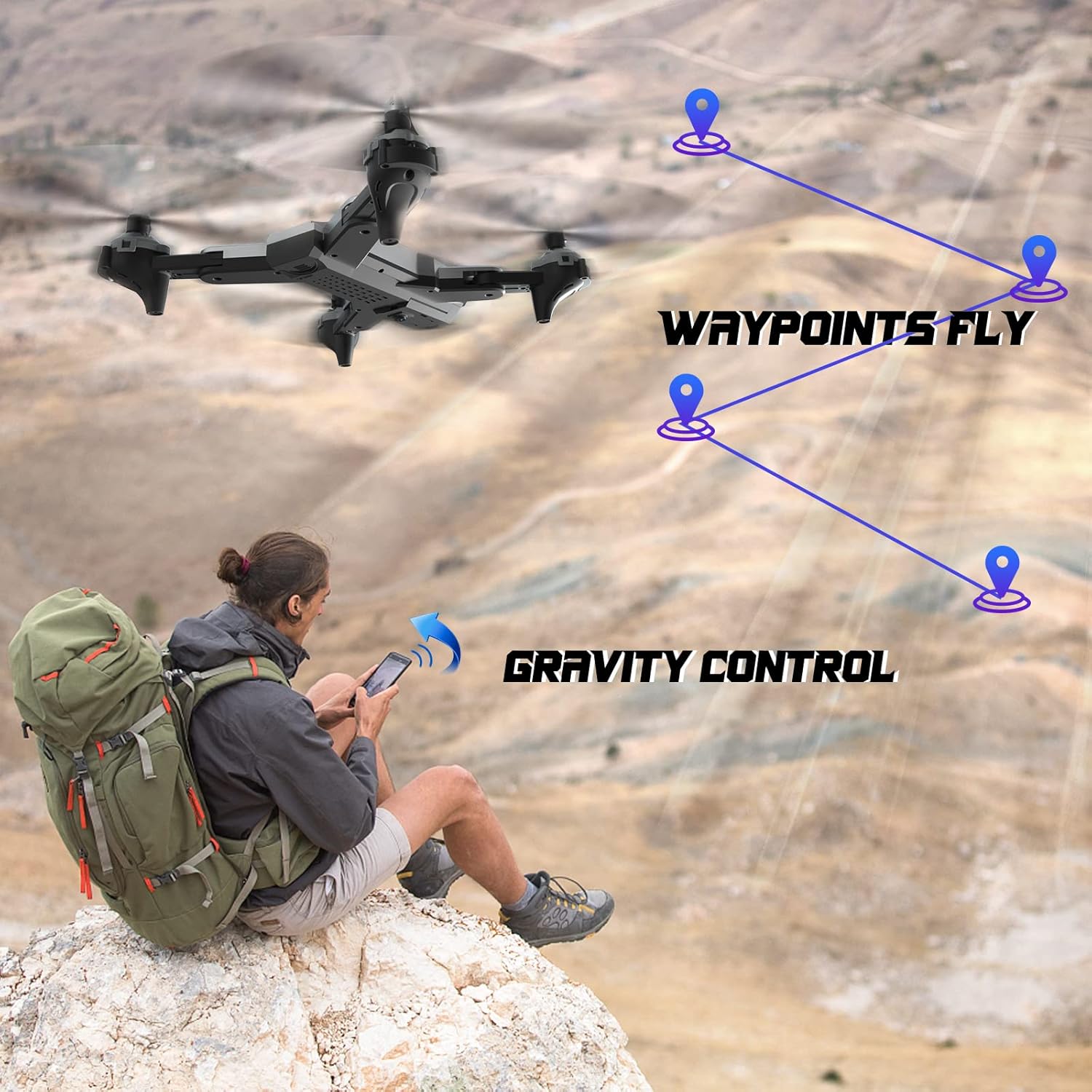
Image: The ROVPRO drone flying along a pre-defined waypoint path, and a user controlling the drone via smartphone's gravity sensor.

Image: The ROVPRO drone responding to hand gestures, with visual cues for taking photos (V-sign) and videos (open palm).
5.5 Camera Operation

Image: A side-by-side comparison illustrating the superior image quality of the ROVPRO 4K FPV HD wide-angle camera with 90° adjustable viewing angle, compared to a standard 1080P camera.
- Photo/Video Recording: Use the dedicated buttons on the remote control or the app interface to take photos or start/stop video recording.
- FPV (First Person View): The live video feed from the drone's camera is transmitted to your smartphone via WiFi, allowing for immersive flight experience.
- Adjustable Camera Angle: The camera's viewing angle can be adjusted to capture different perspectives.
6. Maintenance
Proper maintenance ensures the longevity and performance of your drone.
- Cleaning: Use a soft, dry cloth to clean the drone body and camera lens. Avoid using harsh chemicals.
- Propeller Replacement: If propellers are damaged, replace them with spare parts provided. Ensure correct 'A' and 'B' propeller types are used.
- Battery Care: Store batteries in a cool, dry place. Do not leave batteries fully charged or fully discharged for extended periods.
- Storage: When not in use, fold the drone arms and store it in its carrying case to protect it from dust and damage.
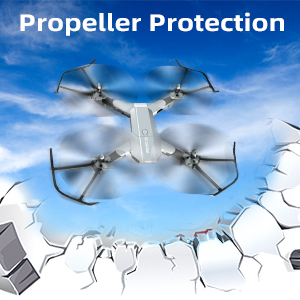
Image: The ROVPRO drone equipped with propeller protectors, highlighting the importance of safeguarding the propellers during flight and handling.
7. Troubleshooting
Refer to this section for common issues and their solutions.
| Problem | Possible Cause | Solution |
|---|---|---|
| Drone does not respond to remote. | Not paired; low remote battery. | Re-pair drone and remote; replace remote batteries. |
| Drone cannot take off or flies unstably. | Low drone battery; damaged propellers; uneven surface for takeoff. | Charge drone battery; replace damaged propellers; place on a flat surface. |
| FPV feed is not displayed in the app. | Not connected to drone's WiFi; app not open. | Connect to 'HF-XXX' WiFi network; open the 'HF UFO' app. |
| Short flight time. | Battery not fully charged; old battery. | Ensure battery is fully charged; consider replacing old batteries. |
8. Specifications
Key technical specifications of the ROVPRO WRJ02 drone.
- Brand: ROVPRO
- Model Name: WRJ02
- Color: Silver
- Video Capture Resolution: 4K (Front Camera), 1080p (Bottom Camera)
- Skill Level: Beginner
- Control Type: Remote Control, App Control
- Wireless Communication Technology: Wi-Fi
- Battery Cell Composition: Lithium Polymer
- Battery Capacity: 3.7V 1600mAh (x2 included)
- Product Dimensions: 13"L x 13"W x 2.5"H
- Item Weight: 1.2 pounds
- UPC: 715444418297
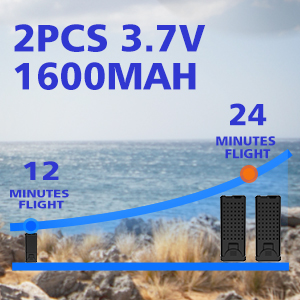
Image: An illustration showing the extended flight time provided by two 3.7V 1600mAh batteries, offering up to 24 minutes of flight.
9. Warranty and Support
ROVPRO is committed to providing high-quality products and customer satisfaction. For any questions, technical support, or warranty claims, please contact our customer service team through the retailer where you purchased the product or visit the official ROVPRO website.
Please retain your proof of purchase for warranty purposes.