1. Introduction
This manual provides essential information for the safe and efficient use of your Samsung Galaxy A03 Core smartphone. Please read this manual thoroughly before operating the device to ensure proper functionality and to prevent damage.
The Samsung Galaxy A03 Core features a 6.5-inch Infinity-V Display, an 8MP main camera, a 5MP front camera, an octa-core processor, 2GB of RAM, 32GB of internal storage, and a 5,000 mAh battery.
2. Device Layout
Familiarize yourself with the physical components of your device.

Figure 2.1: Front view of the Samsung Galaxy A03 Core, showing the display and front camera notch.

Figure 2.2: Back view of the Samsung Galaxy A03 Core, featuring the main camera and textured finish.

Figure 2.3: Right side view of the Samsung Galaxy A03 Core, showing the power button and volume rocker.
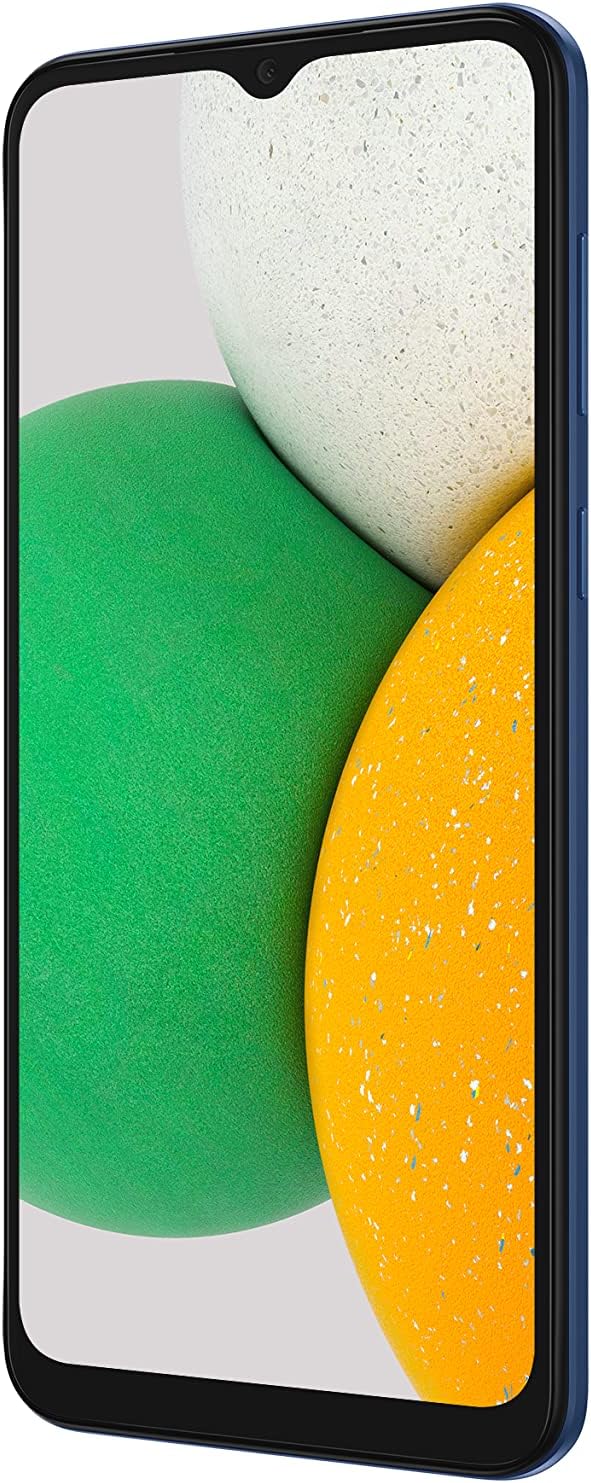
Figure 2.4: Left side view of the Samsung Galaxy A03 Core, indicating the location of the SIM card tray.
3. Setup
3.1. Inserting SIM and microSD Cards
The Samsung Galaxy A03 Core supports Dual SIM functionality and a microSD card for expanded storage.
- Locate the SIM card tray on the left side of the device.
- Insert the ejection pin (not included) into the small hole on the tray to open it.
- Place your Nano-SIM cards and/or microSD card into the tray with the gold contacts facing down. Ensure they are correctly oriented.
- Gently push the tray back into the slot until it clicks into place.
3.2. Charging the Battery
Before first use, fully charge the device battery.
- Connect the USB cable to the charging port at the bottom of the phone.
- Connect the other end of the USB cable to a power adapter, then plug the adapter into a wall outlet.
- The charging indicator will appear on the screen. A full charge typically takes approximately 3 hours.
3.3. Powering On/Off
- To power on: Press and hold the Power button (right side) until the Samsung logo appears.
- To power off: Press and hold the Power button, then tap 'Power off' on the screen.
- To restart: Press and hold the Power button, then tap 'Restart' on the screen.
3.4. Initial Setup Wizard
Upon first power-on, follow the on-screen prompts to configure basic settings such as language, Wi-Fi connection, Google account, and security options.
4. Operating Your Device
4.1. Basic Navigation
- Touch: Tap an item to select it or launch an application.
- Touch and hold: Touch and hold an item for more options.
- Swipe: Move your finger across the screen to scroll or switch between screens.
- Pinch: Pinch two fingers together or spread them apart to zoom in or out.
4.2. Calls and Messages
- Making a call: Open the Phone app, enter the number, and tap the call icon.
- Sending a message: Open the Messages app, tap the new message icon, enter the recipient and message, then tap send.
4.3. Camera Usage
The device features an 8MP main camera and a 5MP front camera.
- Open the Camera app.
- Tap the camera switch icon to toggle between the front and rear cameras.
- Tap the shutter button to take a photo.
- Tap the video icon to record a video.
4.4. Connectivity
- Wi-Fi: Go to Settings > Connections > Wi-Fi to connect to available networks.
- Bluetooth: Go to Settings > Connections > Bluetooth to pair with other Bluetooth devices.
- Mobile Data: Go to Settings > Connections > Data usage to manage mobile data.
4.5. Battery Management
The 5,000 mAh battery provides extended usage. To optimize battery life:
- Adjust screen brightness.
- Disable Wi-Fi, Bluetooth, and GPS when not in use.
- Close unused applications running in the background.
- Enable Power saving mode in Settings > Battery and device care > Battery.
5. Maintenance
5.1. Cleaning Your Device
Use a soft, lint-free cloth to clean the screen and body of your phone. Avoid using harsh chemicals or abrasive materials.
5.2. Software Updates
Regularly check for software updates to ensure optimal performance and security.
- Go to Settings > Software update.
- Tap Download and install.
5.3. Data Backup
Regularly back up your important data to prevent loss. You can use Google Drive, Samsung Cloud, or transfer files to a computer.
6. Troubleshooting
If you encounter issues with your device, refer to the following common solutions:
- Device not turning on: Ensure the battery is charged. Connect the charger and wait a few minutes before attempting to power on again.
- Apps crashing or freezing: Close the problematic app and reopen it. If the issue persists, restart your device.
- Network connectivity issues: Check if Airplane mode is off. Restart your device. Verify your SIM card is properly inserted.
- Slow performance: Clear cache, uninstall unused apps, or free up storage space.
- Factory Reset (Last Resort): If problems persist, you may need to perform a factory data reset. This will erase all data on your device. Go to Settings > General management > Reset > Factory data reset. Ensure you back up all important data before proceeding.
7. Specifications
| Feature | Specification |
|---|---|
| Model Number | SM-A032/DS |
| Operating System | Android 11.0 |
| Display | 6.5-inch Infinity-V Display (720 x 1600 resolution) |
| Processor | Octa-core |
| RAM | 2 GB |
| Internal Storage | 32 GB |
| Main Camera | 8 MP |
| Front Camera | 5 MP |
| Battery Capacity | 5000 mAh (Lithium Ion) |
| Dimensions | 6.46 x 2.99 x 0.36 inches |
| Weight | 7.4 ounces (211 grams) |
| Connectivity | 4G, Bluetooth |
| Audio Jack | 3.5 mm |
8. Warranty and Support
8.1. Warranty Information
Please note that this specific international version of the Samsung Galaxy A03 Core (SM-A032/DS) is sold without a manufacturer's warranty. Any issues or defects will not be covered by Samsung's standard warranty policy.
8.2. Customer Support
For further assistance or inquiries, please refer to the official Samsung support website for general product information and resources. You may also contact your retailer for support regarding your purchase.


