
Beston BS43FW1
Beston 43-inch Full HD Smart LED TV (Model: BS43FW1) User Manual
Powered by webOS
1. Introduction
This manual provides essential information for the safe and efficient operation of your Beston 43-inch Full HD Smart LED TV, model BS43FW1. Please read this manual thoroughly before using the product and retain it for future reference. Your television features a Full HD display, webOS Smart TV platform, Magic Remote, and integrated voice assistance.

Figure 1.1: Front view of the Beston 43-inch Full HD Smart LED TV.
2. Safety Information
Observe the following safety precautions to prevent fire, electric shock, or injury:
- Do not block ventilation openings. Ensure adequate space around the TV for proper airflow.
- Do not place the TV near heat sources such as radiators, heat registers, stoves, or other apparatus that produce heat.
- Protect the power cord from being walked on or pinched, particularly at plugs, convenience receptacles, and the point where they exit from the apparatus.
- Only use attachments/accessories specified by the manufacturer.
- Unplug this apparatus during lightning storms or when unused for long periods.
- Refer all servicing to qualified service personnel. Servicing is required when the apparatus has been damaged in any way.
- Keep the TV away from water or moisture.
- Do not allow children to climb on the TV or stand.
3. What's in the Box
Carefully unpack the box and ensure all the following items are present:
- 1 x Beston 43-inch LED TV
- 2 x Table Stand Base
- 1 x Wall Mount Kit (for optional wall installation)
- 1 x User Manual (this document)
- 1 x Warranty Card
- 1 x Magic Remote Control
4. Setup
4.1 Unpacking
Remove the TV and all accessories from the packaging. It is recommended to keep the original packaging for future transport or service needs.
4.2 Stand Installation (Table Mount)
To install the table stand:
- Place the TV face down on a soft, flat surface to prevent screen damage.
- Align the stand bases with the screw holes on the bottom of the TV.
- Secure each stand base with the provided screws.

Figure 4.1: Beston TV with table stands attached.

Figure 4.2: Back view of Beston TV showing stand mounting points.
4.3 Wall Mount Installation
A wall mount kit is included for optional wall installation. Please refer to the separate instructions provided with the wall mount kit for detailed installation steps. Ensure the wall can support the weight of the TV and mount.
4.4 Connecting Peripherals
Connect external devices to your TV using the available ports:
- HDMI Ports (3): Connect set-top boxes, gaming consoles, Blu-ray players, or other HDMI-enabled devices.
- USB Ports (2): Connect USB storage devices for media playback.
- Optical Output: For connecting to external audio systems.
- Ethernet Port: For a wired internet connection.
- Antenna/Cable Input: For connecting an antenna or cable TV signal.

Figure 4.3: Close-up view of the Beston TV's input and output ports.
4.5 Initial Power On & Setup Wizard
After connecting all necessary cables, plug the power cord into an electrical outlet. Press the power button on the remote control or TV. The TV will guide you through the initial setup process, including language selection, network connection (Wi-Fi or Ethernet), and channel scanning.
5. Operating Your TV
5.1 Magic Remote Overview
Your Beston TV comes with a Magic Remote, offering intuitive control through motion sensing, voice commands, and a scroll wheel.

Figure 5.1: Beston Magic Remote with labeled functions including Air Mouse, Voice Control, Scroll Wheel, Quick Access Buttons, and Popular App Hot Keys.
- Air Mouse: Point and click on the screen for navigation.
- Voice Control: Press the voice button to activate ThinQ AI Voice Assistant or Alexa Built-in.
- Scroll Wheel: Navigate through menus and content quickly.
- Quick Access Buttons: Customize buttons for instant access to favorite apps or functions.
- Popular App Hot Keys: Dedicated buttons for services like Netflix and Prime Video.
5.2 Basic TV Functions
- Power On/Off: Press the power button on the remote.
- Volume Control: Use the Volume Up/Down buttons.
- Channel Selection: Use the Channel Up/Down buttons or number pad.
- Input Selection: Press the Input button to switch between HDMI, USB, and other sources.
5.3 Smart TV Features (webOS)
Your TV is powered by webOS, providing a user-friendly interface for accessing smart features.
- Home Dashboard: Access all your apps, inputs, and settings from a single, customizable screen.
- Content Store: Download and install a wide range of applications including Netflix, YouTube, Prime Video, Disney+ Hotstar, SonyLiv, and Zee5.
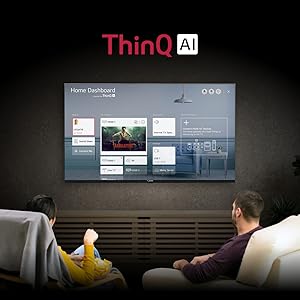
Figure 5.2: webOS Content Store with available applications.
- ThinQ AI Voice Assistant & Alexa Built-in: Use voice commands to search for content, control smart home devices, or get information.

Figure 5.3: ThinQ AI Home Dashboard for smart control.
- Miracast: Wirelessly mirror the screen of your compatible smartphone or tablet to the TV.
- 2-Way Bluetooth 5.0: Connect Bluetooth headphones or speakers to the TV, or use the TV as a Bluetooth speaker for your mobile device.
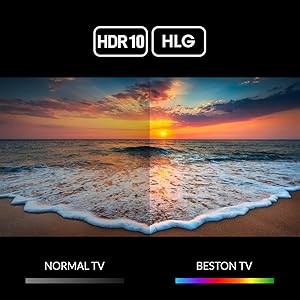
Figure 5.4: 2-Way Bluetooth 5.0 connectivity.
- Dual Band Wi-Fi: Connect to 2.4 GHz or 5 GHz Wi-Fi networks for high-speed internet access.
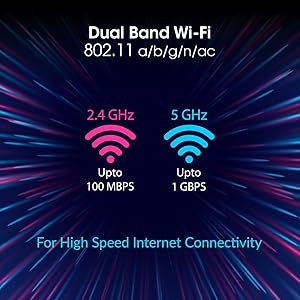
Figure 5.5: Dual Band Wi-Fi for high-speed internet.
5.4 Picture & Sound Settings
Access the TV's settings menu to adjust picture and sound preferences:
- Picture Modes: Select from various preset picture modes (e.g., Standard, Vivid, Cinema) or customize settings like brightness, contrast, and color.
- HDR10 & HLG: The TV supports HDR10 and HLG for enhanced contrast and color with compatible content.

Figure 5.6: HDR10 and HLG for enhanced picture quality.
- Sound Modes: Choose from preset sound modes (e.g., Standard, Music, Cinema) or adjust equalizer settings.
- Dolby Audio: Experience immersive sound with Dolby Audio technology.

Figure 5.7: Dolby Audio for enhanced sound experience.
6. Maintenance
6.1 Cleaning the TV
- Screen: Gently wipe the screen with a soft, lint-free cloth. For stubborn marks, dampen the cloth slightly with water or a specialized screen cleaner. Do not spray cleaner directly onto the screen.
- Cabinet: Wipe the TV cabinet with a soft, dry cloth. Avoid using abrasive cleaners or solvents.
- Remote Control: Clean the remote control with a soft, dry cloth.
6.2 Storage
If storing the TV for an extended period, unplug it from the power outlet and cover it to protect against dust. Store in a cool, dry place.
7. Troubleshooting
Before contacting customer support, try the following solutions for common issues:
| Problem | Possible Solution |
|---|---|
| No Power | Ensure the power cord is securely plugged into both the TV and a working electrical outlet. Try a different outlet. |
| No Picture, but Sound is Present | Check the input source. Ensure external devices are powered on and connected correctly. |
| No Sound, but Picture is Present | Check the volume level. Ensure mute is not activated. Check audio cables for external devices. |
| Remote Control Not Working | Replace the batteries. Ensure there are no obstructions between the remote and the TV. Re-pair the Magic Remote if necessary (refer to TV's on-screen guide). |
| Network Connection Issues | Check your Wi-Fi router. Restart the TV and router. Ensure correct Wi-Fi password is entered. Try a wired Ethernet connection. |
| Picture Quality Issues (e.g., blurry, distorted) | Check the source signal quality. Adjust picture settings (brightness, contrast, sharpness). |
8. Specifications
Technical specifications for the Beston 43-inch Full HD Smart LED TV (BS43FW1):
| Feature | Detail |
|---|---|
| Model | BS43FW1 |
| Display Size | 43 Inches (109 cm) |
| Resolution | Full HD (1920x1080) |
| Refresh Rate | 60 Hertz |
| Viewing Angle | 178 Degrees |
| Operating System | webOS |
| RAM | 1.5 GB |
| ROM | 8 GB |
| Connectivity | 3 HDMI, 2 USB, Dual Band Wi-Fi, 2-Way Bluetooth 5.0, Optical Output, Ethernet |
| Audio Output | 30 Watts with Dolby Audio |
| Special Features | Magic Remote, ThinQ AI Voice Assistant, Alexa Built-in, HDR 10, HLG, Miracast, Bezel-less Design |
| Product Dimensions (LxWxH) | 96.2 x 9 x 56.7 cm |
| Item Weight | 8.2 kg |

Figure 8.1: Beston 43-inch TV dimensions.
9. Warranty and Support
9.1 Warranty Information
Your Beston 43-inch Full HD Smart LED TV (BS43FW1) is covered by a 1-year manufacturer warranty from the date of purchase. Please retain your purchase receipt and warranty card for any warranty claims. The warranty covers manufacturing defects and does not cover damage caused by misuse, accidents, or unauthorized repairs.
9.2 Customer Support
For technical assistance, service requests, or any inquiries regarding your product, please contact Beston customer support:
- Toll-Free Number: 18001028471
- Email: info@bestonskyvision.com
- Manufacturer: Beston Sky Vision Pvt. Ltd.
Ask a question about this manual
Ask about setup, troubleshooting, compatibility, parts, safety, or missing instructions. Manuals+ will review the question and use this page’s manual context to help answer it.