1. Introduction
This manual provides essential instructions for the installation, operation, and maintenance of your Sony XAV-AX3200 7-inch multimedia receiver. This unit features a resistive touchscreen with anti-glare, Apple CarPlay, Android Auto, and a compact rear chassis for simplified installation. Please read this manual thoroughly before using the product to ensure correct operation and to prevent damage.
2. Setup and Installation
2.1 Package Contents
Verify that all items are present in the package:
- Sony XAV-AX3200 Multimedia Receiver
- Bluetooth Microphone
- Power/Speaker Harness
- Documentation (this manual and warranty information)
2.2 Installation Considerations
The XAV-AX3200 features a compact rear chassis, which allows for easier installation in vehicles with limited space behind the dashboard. Professional installation is recommended for optimal performance and safety.

2.3 Wiring Connections
Ensure all wiring connections are secure and correctly matched to your vehicle's electrical system. Refer to the detailed wiring diagram provided in the separate installation guide for specific connections.
- Power/Speaker Harness: Connects to your vehicle's power supply and speakers.
- Bluetooth Microphone: Connect for hands-free calling and voice commands.
- Rear Camera Input: Connect a compatible rear-view camera (sold separately).
- A/V Input: Rear 3.5mm A/V input for external audio or visual sources.
- USB Port: For smartphone connectivity (Apple CarPlay/Android Auto) and media playback.
- Pre-amp Outputs: 2V Front, rear, and subwoofer gold-plated pre-amp outputs for external amplifiers.


3. Operating Instructions
3.1 Basic Operation
The unit features a 7-inch resistive touchscreen. Power on the unit by turning on your vehicle's ignition. The screen will display the home menu, providing access to various functions.

3.2 Smartphone Connectivity
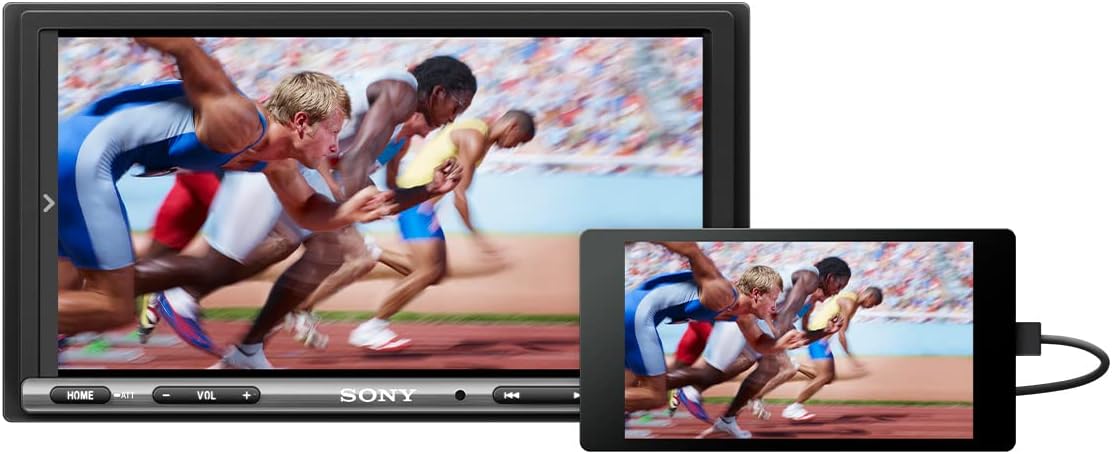
Connect your smartphone via USB to access Apple CarPlay or Android Auto. These features allow you to integrate your phone's navigation, communication, and entertainment apps directly onto the receiver's display.
- Apple CarPlay: Connect your iPhone via USB to use CarPlay features.
- Android Auto: Connect your Android phone via USB to use Android Auto features.

3.3 Media Playback
The unit supports various media sources:
- AM/FM Radio: Tune into your favorite radio stations.
- Bluetooth Audio: Stream music wirelessly from your Bluetooth-enabled device.
- USB Media: Play audio and video files from a USB storage device.
- SiriusXM Ready: Requires a SiriusXM Connect Vehicle Tuner and subscription (sold separately).
3.4 Rear Camera Functionality
The built-in rear camera input allows for connection of a compatible rear-view camera, providing a clear view of the area behind your vehicle when reversing.

3.5 Audio Settings
Customize your audio experience with the integrated sound controls:
- 10-Band Equalizer: Adjust audio frequencies for personalized sound.
- Dynamic Stage Organizer (DSO): Creates a virtual soundstage for enhanced audio presence.
- Pre-amp Outputs: Utilize the 2V front, rear, and subwoofer outputs for connecting external amplifiers.
4. Maintenance
4.1 Cleaning the Unit
To maintain the unit's appearance and functionality, regularly clean the screen and exterior surfaces. Use a soft, dry cloth for general cleaning. For stubborn marks on the screen, lightly dampen the cloth with water or a screen-safe cleaning solution. Avoid abrasive cleaners or solvents.
4.2 Firmware Updates
Periodically check the Sony support website for available firmware updates. Updates can improve performance, add new features, or resolve known issues. Follow the instructions provided with the firmware update carefully.
5. Troubleshooting
If you encounter issues with your XAV-AX3200, refer to the following common troubleshooting steps:
- No Power: Check all power connections and the vehicle's fuse box. Ensure the unit's fuse (10A) is intact.
- No Sound: Verify speaker connections, volume level, and audio source selection. Check amplifier connections if applicable.
- Touchscreen Unresponsive: Perform a soft reset by pressing the reset button (if available) or turning off the vehicle's ignition and restarting. Ensure the screen is clean.
- Apple CarPlay/Android Auto Not Connecting: Ensure your smartphone is connected via a high-quality USB cable. Verify that CarPlay/Android Auto is enabled on your phone and the unit. Try restarting both devices.
- Dim Screen: The screen brightness may be affected by direct sunlight. Ensure your vehicle's dimmer settings are not interfering.
For more detailed troubleshooting or specific error codes, please consult the comprehensive online support resources available on the official Sony website.
6. Specifications
| Feature | Specification |
|---|---|
| Model Number | XAV-AX3200 |
| Product Dimensions | 5 x 7 x 4 inches |
| Item Weight | 3.5 pounds |
| Display | 7-inch Resistive Touchscreen with Anti-glare |
| Connectivity Technologies | Auxiliary, Bluetooth, USB |
| Wireless Communication | AM/FM, Bluetooth |
| Special Features | Touchscreen, Apple CarPlay, Android Auto, Rear Camera Input, SiriusXM Ready |
| Audio Output Mode | Stereo |
| Pre-amp Outputs | 2V Front, Rear, Subwoofer |
| Included in Box | Bluetooth Microphone, Power/speaker harness |
7. Warranty and Support
Your Sony XAV-AX3200 multimedia receiver is covered by a manufacturer's warranty. Please refer to the warranty card included in your product packaging for specific terms, conditions, and duration. For technical support, additional documentation, or service inquiries, please visit the official Sony support website or contact Sony customer service.
Online Support: www.sony.com/electronics/support