
1. Product Overview
The JADEMALL Keyboard Case provides a protective cover and a detachable wireless Bluetooth keyboard for your iPad Mini. It enhances productivity and offers multiple viewing angles for various tasks.

Image: The JADEMALL Keyboard Case shown with an iPad Mini, illustrating its use as a laptop-style setup, a stand, a tent mode, and as a protective tablet cover.
2. Compatibility
This keyboard case is designed to be compatible with the following iPad Mini models. Please verify your iPad model number before use.
- iPad Mini 5 (2019): Models A2133, A2124, A2126, A2125
- iPad Mini 4: Models A1538, A1550
- iPad Mini 3: Models A1599, A1600
- iPad Mini 2: Models A1489, A1490, A1491
- iPad Mini 1: Models A1432, A1454, A1455

Image: A visual guide displaying an iPad Mini back and a table listing compatible iPad Mini models and their corresponding model numbers (e.g., A2124).
3. What's in the Box
Upon unpacking, please ensure all the following items are present:
- JADEMALL Mini Keyboard Case
- USB Charging Cable
- User Manual (this document)
4. Setup Instructions
4.1 Charging the Keyboard
Before initial use, fully charge the keyboard. Connect the provided USB charging cable to the keyboard's charging port and a USB power source. The charging indicator light will illuminate during charging and turn off when fully charged.
- Charging Time: Approximately 3-4 hours for a full charge.
- Operating Time: Up to 80 hours of uninterrupted work with backlights off.
- Standby Time: Up to 60 days.

Image: An illustration demonstrating the keyboard charging process via a Type-C USB cable and indicating battery life for charging, typing, and standby modes.
4.2 Pairing the Keyboard via Bluetooth
- Ensure the keyboard is charged.
- Turn on the keyboard by sliding the power switch to the 'ON' position. The 'CONNECT' indicator light will flash.
- On your iPad Mini, go to Settings > Bluetooth.
- Turn on Bluetooth. Your iPad will search for available devices.
- Select 'Bluetooth Keyboard' (or similar name) from the list of devices.
- If prompted, enter the pairing code displayed on your iPad onto the keyboard and press Enter.
- Once paired, the 'CONNECT' indicator light on the keyboard will turn off, and your iPad will show the keyboard as 'Connected'.
5. Operating Instructions
5.1 Backlight Control
The keyboard features 7-color adjustable backlights with 3 brightness levels.
- To turn on/off the backlight: Press Fn + Light Bulb icon key.
- To change backlight color: Press Fn + Light Bulb icon key repeatedly.
- To adjust backlight brightness: Press Fn + Up Arrow or Down Arrow keys.

Image: A close-up of the keyboard highlighting the 'Fn' key and the 'Light Bulb' key for backlight control, showing various backlight colors.
5.2 Auto Wake/Sleep Function
The case supports automatic wake and sleep functionality. Opening the case will wake your iPad, and closing it will put your iPad to sleep, helping to conserve battery life.
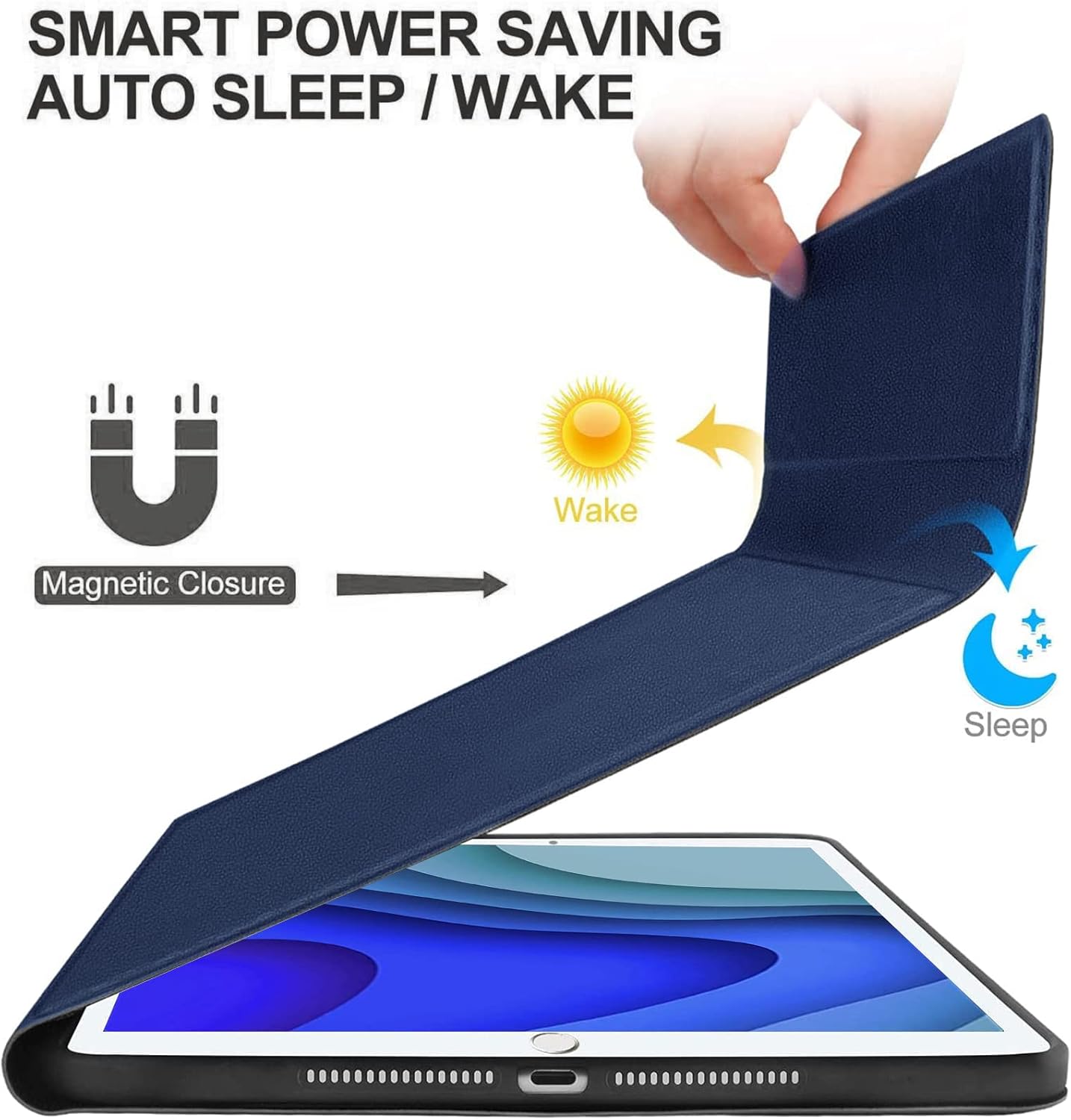
Image: A hand opening the keyboard case, with arrows indicating the 'Wake' function, and the case closing, indicating the 'Sleep' function.
5.3 Adjusting Viewing Angles
The magnetic design allows for flexible positioning of your iPad Mini, providing multiple viewing angles for typing, viewing, reading, or video calls.

Image: The keyboard case configured in 'Laptop', 'Stand', and 'Tent' modes, showcasing different viewing angles for the iPad Mini.
5.4 Changing Operating Systems
The wireless keyboard is compatible with multiple operating systems. To switch between them, press the following key combinations:
- For iOS: Press Fn + Q
- For Android: Press Fn + W
- For Windows: Press Fn + E
6. Maintenance
6.1 Cleaning
To clean the keyboard and case, use a soft, damp cloth. Avoid using harsh chemicals or abrasive materials that could damage the surfaces. Ensure the keyboard is powered off and disconnected from any power source before cleaning.
6.2 Battery Care
To prolong battery life, avoid fully discharging the keyboard frequently. Charge the keyboard regularly, even if not in constant use. Store the keyboard in a cool, dry place when not in use for extended periods.
7. Troubleshooting
- Keyboard not connecting:
- Ensure the keyboard is powered on and fully charged.
- Make sure Bluetooth is enabled on your iPad Mini.
- Try unpairing and re-pairing the keyboard from your iPad's Bluetooth settings.
- Restart both your iPad Mini and the keyboard. - Keys not responding:
- Check if the keyboard is charged and connected via Bluetooth.
- Ensure no debris is lodged under the keys.
- Try restarting the keyboard. - Backlight not working:
- Ensure the keyboard is powered on.
- Press Fn + Light Bulb icon to cycle through backlight modes. - Auto Wake/Sleep not functioning:
- Ensure your iPad Mini is properly seated in the case.
- Check your iPad's settings to ensure 'Lock/Unlock' (or similar) is enabled under 'Display & Brightness' or 'General'.
8. Specifications
| Product Dimensions | 8.07 x 5.71 x 0.59 inches |
| Item Weight | 1.09 pounds |
| Manufacturer | JADEMALL |
| Batteries | 1 A battery (included) |
| Connectivity Technology | Bluetooth, USB |
| Keyboard Description | Multi Functional, Wireless, Bluetooth Connection |
| Special Feature | Detachable Keyboard, Adjustable Backlit, Magnetic Attachment |
| Material | Acrylonitrile Butadiene Styrene (ABS) |
| Keyboard Backlighting Color Support | RGB (7 colors) |
9. Customer Service and Support
If you encounter any issues or have questions regarding your JADEMALL Keyboard Case, please do not hesitate to contact our customer service team. We are committed to providing support and resolving any concerns within 24 hours.
Please refer to the contact information provided with your purchase or visit the official JADEMALL website for support details.