
Introduction
This manual provides comprehensive instructions for the setup, operation, maintenance, and troubleshooting of your PINKCAT Multi-Device Bluetooth Keyboard. Please read this manual thoroughly before using the product to ensure optimal performance and longevity.

Image 1: Angled view of the PINKCAT Multi-Device Bluetooth Keyboard, featuring yellow keys on a gray base.
Setup
1. Battery Installation
- Locate the battery compartment on the underside of the keyboard.
- Open the battery compartment cover.
- Insert two (2) AAA batteries, ensuring correct polarity (+/-). (Batteries are not included.)
- Close the battery compartment cover securely.
2. Bluetooth Pairing
The keyboard can be paired with up to three devices simultaneously. Follow these steps to pair your keyboard:
- Ensure the keyboard has fresh batteries and is powered on.
- Activate Bluetooth on your device (e.g., laptop, tablet, smartphone).
- Press and hold one of the Bluetooth channel keys (F10 for Device 1, F11 for Device 2, or F12 for Device 3) for 3-5 seconds until the corresponding Bluetooth indicator light above the key begins to flash. This indicates the keyboard is in pairing mode.
- On your device, search for available Bluetooth devices. The keyboard should appear as "PINKCAT Keyboard" or similar.
- Select the keyboard from the list to complete the pairing process. If prompted, enter the displayed code on the keyboard and press Enter.
- The indicator light will stop flashing and remain solid for a few seconds, then turn off, indicating successful pairing.
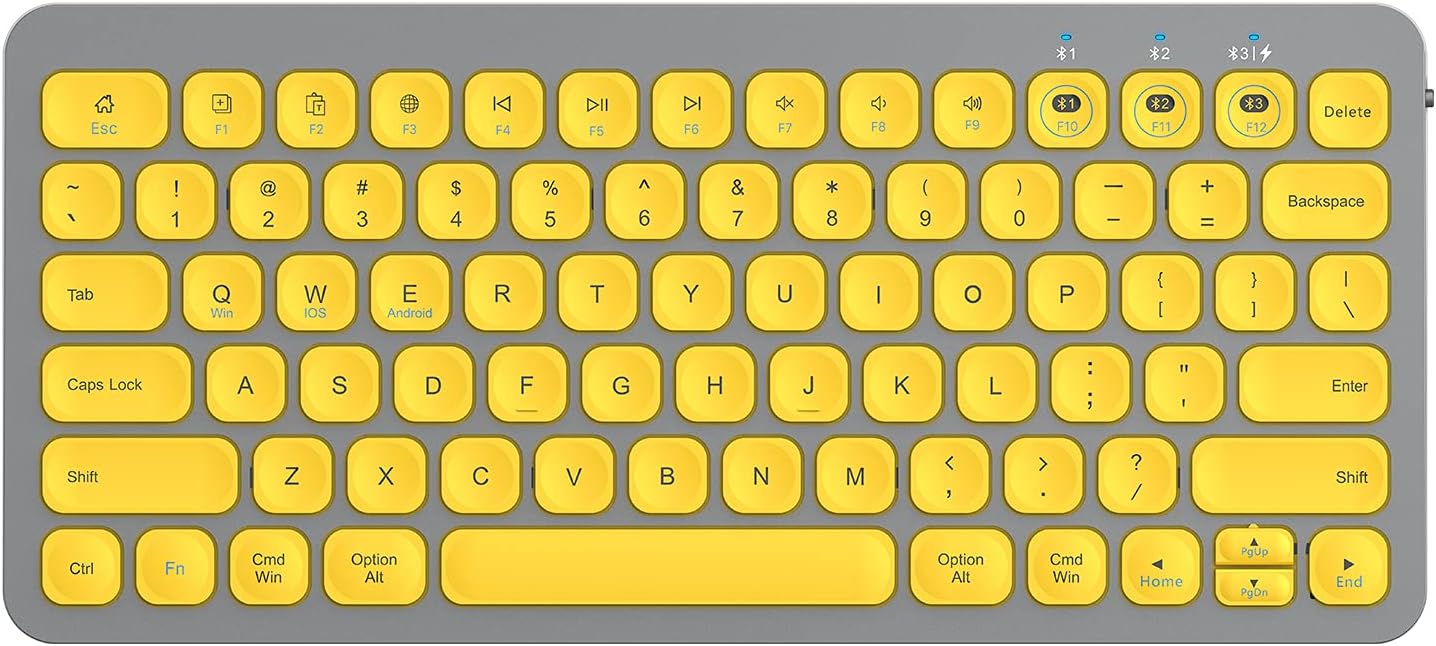
Image 2: Top-down view of the keyboard, showing the F10, F11, and F12 keys used for Bluetooth device selection and pairing.

Image 3: Illustration demonstrating how the keyboard can pair with and switch between a laptop, tablet, and smartphone.
Operating Instructions
1. Switching Between Paired Devices
To switch between your paired devices, simply press the corresponding Bluetooth channel key:
- Press F10 to switch to Device 1.
- Press F11 to switch to Device 2.
- Press F12 to switch to Device 3.
2. Operating System Selection
For optimal functionality, select the correct operating system mode for your connected device:
- Press Fn + Q for Windows devices.
- Press Fn + W for iOS/macOS devices.
- Press Fn + E for Android devices.

Image 4: Close-up of the Q, W, and E keys, indicating their function for selecting Windows, iOS/macOS, and Android operating systems when used with the Fn key.
3. Multimedia and Hotkeys
The keyboard features 16 hotkeys and programmable F-keys for quick access to various functions. These include:
- Internet access
- Play/Pause media
- Volume control (up, down, mute)
- Switching systems/devices

Image 5: The keyboard layout, highlighting the dedicated multimedia and function keys for quick access to common tasks.
4. Typing Experience
The keyboard features a compact, ergonomic design with 78 keys and a stable scissor mechanism beneath each key for a smooth and precise typing experience. The design guides your hands into a comfortable position for quiet typing.
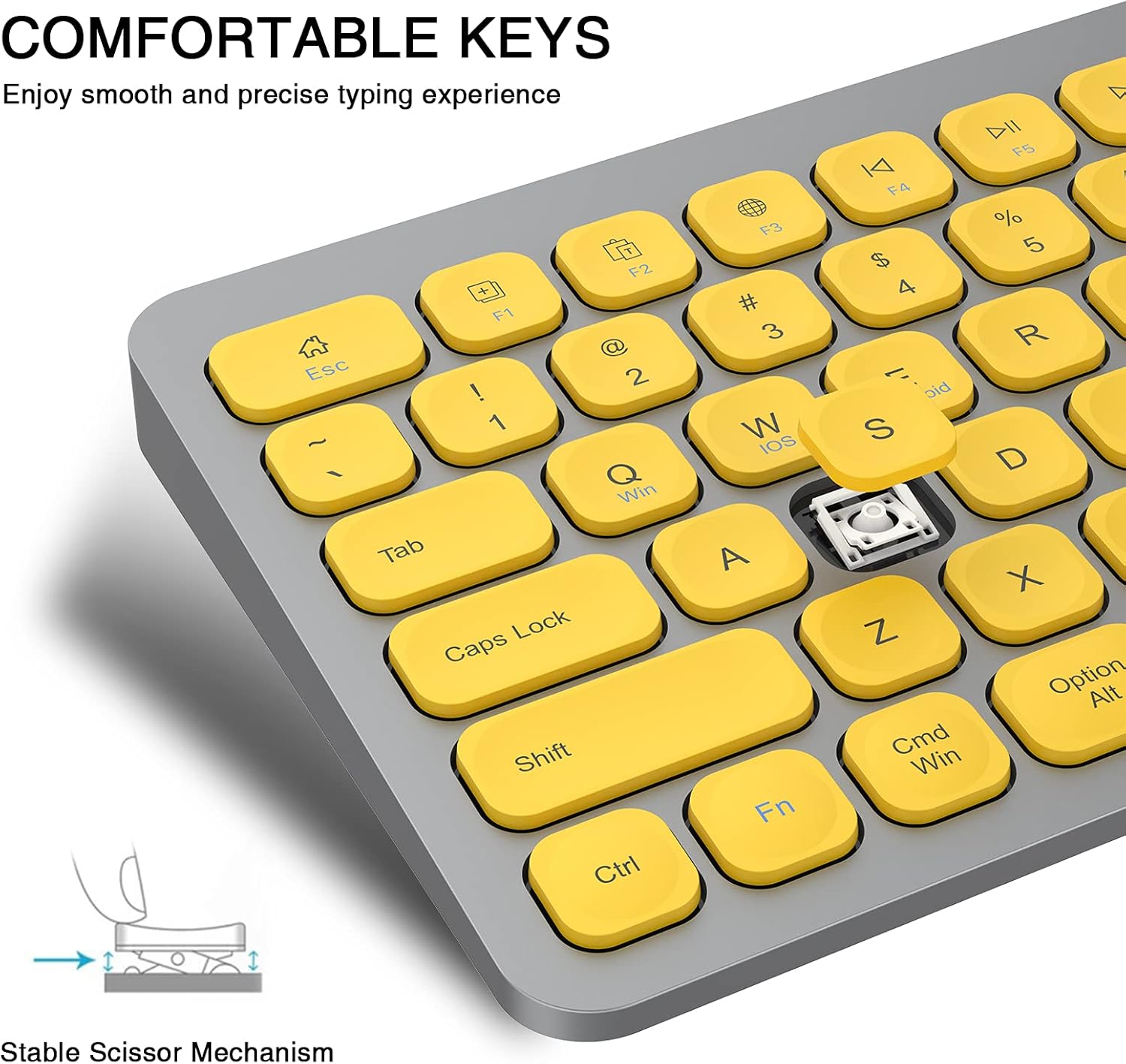
Image 6: A close-up view of a key, illustrating the stable scissor mechanism that provides a responsive and comfortable typing feel.
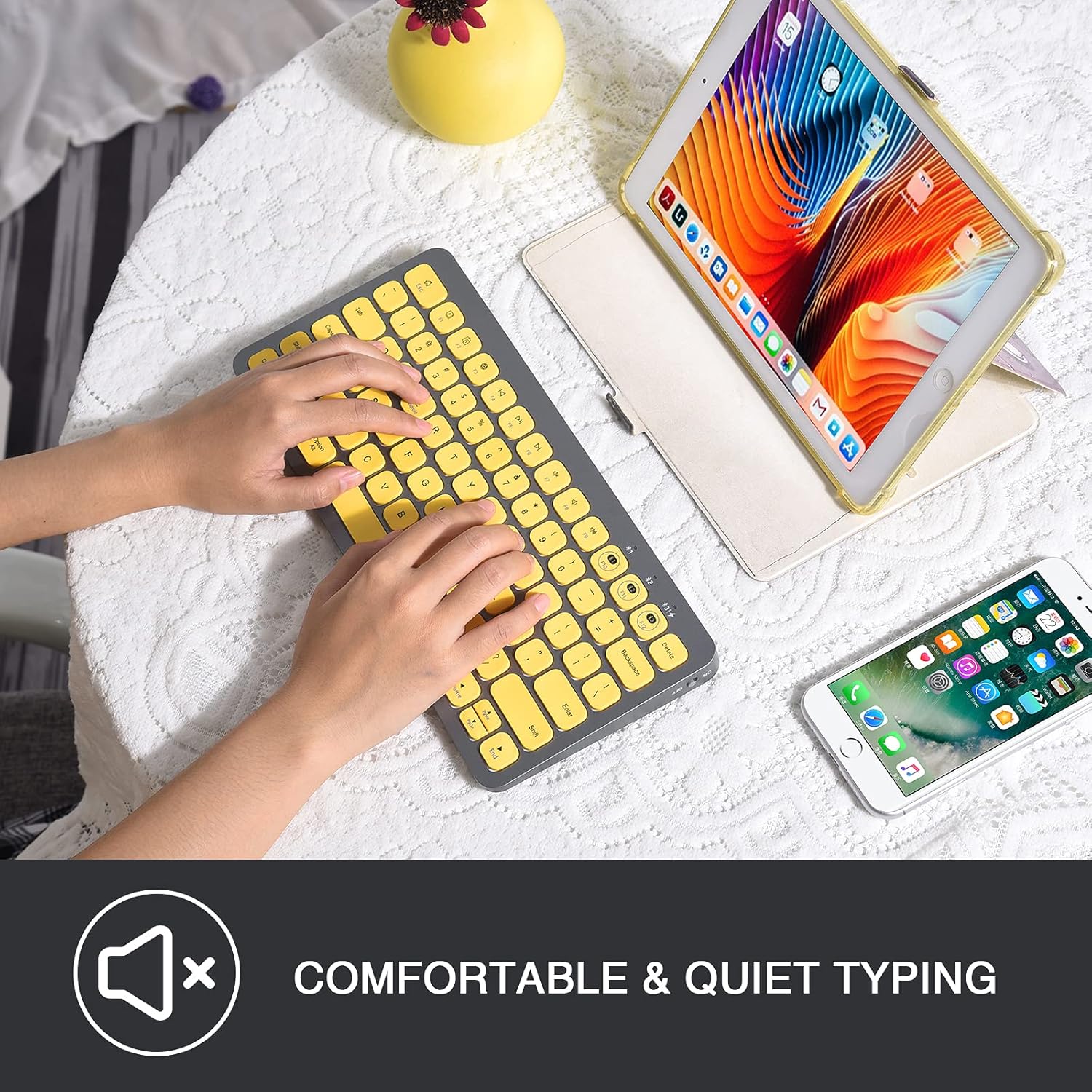
Image 7: A user's hands positioned on the keyboard, demonstrating its compact size and ergonomic design during use.
Maintenance
1. Cleaning
To clean your keyboard, gently wipe the surface with a soft, damp cloth. Avoid using harsh chemicals or abrasive materials, as these can damage the finish. Ensure no liquid enters the keycaps or internal components.
2. Battery Replacement
When the keyboard's performance diminishes or it fails to connect, it may be time to replace the AAA batteries. Refer to the 'Battery Installation' section under Setup for instructions.
3. Smart Sleep Mode
The keyboard features a smart sleep mode to conserve battery life. After 30 minutes of inactivity, the keyboard will enter sleep mode. To wake it up, simply press any key.
Troubleshooting
- Keyboard not connecting or frequently disconnecting:
- Ensure the keyboard has fresh batteries.
- Verify that Bluetooth is enabled on your device.
- Make sure the keyboard is within the 10-meter (33ft) Bluetooth range of your device.
- Try re-pairing the keyboard by following the 'Bluetooth Pairing' steps. Sometimes, multiple attempts may be necessary to establish a stable connection.
- Ensure the correct operating system mode (Fn+Q/W/E) is selected for your device.
- Remove any potential sources of interference (e.g., other wireless devices, large metal objects).
- Keys not responding:
- Check battery levels.
- Ensure the keyboard is properly connected to your device.
- If the keyboard is in sleep mode, press any key to wake it up.
- Incorrect characters appearing:
- Verify that the correct operating system mode (Fn+Q/W/E) is selected for your device.
- Check your device's language and keyboard layout settings.
If you continue to experience issues, please refer to the support section for contact information.
Specifications
| Brand | PINKCAT |
| Model | B09P53GW3R |
| Connectivity Technology | Bluetooth |
| Compatible Devices | Laptop, PC, Smart TV, Tablet (Windows, MacOS, iOS, Android) |
| Number of Keys | 78 |
| Product Dimensions (L x W x H) | 11.3" x 5.1" x 0.6" (28.5 cm x 13 cm x 1.5 cm) |
| Item Weight | 12.7 ounces |
| Power Source | 2 x AAA Batteries (not included) |
| Bluetooth Range | Up to 10 meters (33 feet) |

Image 8: A diagram illustrating the physical dimensions of the keyboard, including length, width, and height.
Warranty Information
Specific warranty details for the PINKCAT Multi-Device Bluetooth Keyboard are typically provided at the point of purchase or within the product packaging. Please retain your proof of purchase for any warranty claims. For further information regarding warranty coverage, please contact the manufacturer or your retailer.
Support
For technical assistance, troubleshooting not covered in this manual, or general inquiries about your PINKCAT Multi-Device Bluetooth Keyboard, please contact PINKCAT customer support. Contact information can usually be found on the product packaging, the official PINKCAT website, or through your retailer.