
Pothunder P10BF
Pothunder P10BF Smart Fingerprint Padlock User Manual
Model: P10BF
1. Safety Information
Please read all instructions carefully before using the Pothunder P10BF Smart Fingerprint Padlock. Keep this manual for future reference.
- Do not expose the padlock to extreme temperatures or corrosive environments.
- Ensure the charging port is dry before connecting the Type-C cable.
- Do not attempt to disassemble or modify the padlock, as this may void the warranty and cause damage.
- Keep the physical keys in a safe place, separate from the padlock, for emergency access.
- Regularly check the battery level to ensure continuous operation.
2. Product Overview
The Pothunder P10BF Smart Fingerprint Padlock offers advanced security with multiple unlocking options and durable construction.
2.1 Key Features
- Multiple Unlocking Methods: Fingerprint, Bluetooth App, and Physical Key.
- Durable Construction: Made from aluminum alloy and stainless steel for excellent cutting resistance.
- Weatherproof Design: IPX65 rating protects against dust and water, suitable for outdoor use.
- Long Standby Time: Low power consumption with a rechargeable lithium battery.
- App Management: Remote authorization, unlocking history, and fingerprint registration via the app.
2.2 Package Contents
Verify that all items are included in your package:
- Pothunder P10BF Smart Fingerprint Padlock
- USB Type-C Charging Cable
- 2 x Physical Keys
- Instruction Manual (this document)

Image: Package contents of the Pothunder P10BF Smart Fingerprint Padlock, showing the padlock, two keys, and a USB-C charging cable.
2.3 Product Components

Image: Detailed diagram illustrating the components of the Pothunder P10BF Smart Fingerprint Padlock, including the stainless steel lock beam, zinc alloy body, LED indicator, fingerprint reader, battery indicator, dust cover, key port, and charging port.
- Stainless Steel Lockbeam: Provides robust security.
- Zinc Alloy Body: Durable and resistant to tampering.
- LED Indicator: Displays status (e.g., unlocked, low battery).
- Fingerprint Reader: For biometric unlocking.
- Battery Indicator: Shows current battery level.
- Dust Cover (IP65 Waterproof and Dustproof): Protects the key and charging ports.
- Key Port: For emergency mechanical unlocking.
- Charging Port (Type-C): For recharging the internal battery.
3. Setup
3.1 Initial Charging
Before first use, fully charge the padlock using the provided USB Type-C cable. The battery indicator lights will show charging progress.

Image: The Pothunder P10BF Smart Fingerprint Padlock connected to a Type-C charging cable, illustrating the charging process and battery level indicators.
- A full charge takes approximately 1 hour.
- One full charge provides approximately 2000 lock/unlock cycles or 6 months of standby time.
3.2 App Download and Connection
Download the "eSmartLock" app from your smartphone's app store (Android or iOS). Follow these steps to connect your padlock:
- Install the "eSmartLock" app on your smartphone.
- Register and log in to your account.
- Ensure Bluetooth and GPS are enabled on your phone.
- In the app, select "Add Smart Lock".
- Wake up the padlock by touching the fingerprint sensor until the blue light is on.
- The app will search for and display the padlock. Select it to bind.
Video: Instructions on how to bind the Pothunder P10BF Smart Fingerprint Padlock to the eSmartLock app and register fingerprints.

Image: A visual guide to the eSmartLock app settings, detailing the process of logging in, adding a smart padlock, connecting, setting Bluetooth unlock times, accessing app settings, and registering an administrator fingerprint.
3.3 Registering Fingerprints
After connecting the padlock to the app, you can register up to 15 fingerprints (2 administrator, 13 general users).
- In the app, navigate to "User Management".
- Select "Add Fingerprint" and follow the on-screen prompts.
- Place your finger on the fingerprint reader, lift, and repeat 5 times as instructed by the app until registration is complete.
Video: This video demonstrates how to bind the Pothunder P10BF Smart Fingerprint Padlock to the eSmartLock app and register fingerprints for unlocking.
3.4 Setting Up Sub-accounts and Unlocking Schedules
The app allows you to authorize other users (sub-accounts) and set specific unlocking times or limited uses.
- In the app, go to "Authorization Management".
- Enter the sub-account's username.
- Set the desired unlocking timeframes (e.g., specific days, hours) or the number of unlocks allowed.
- Confirm the settings to authorize the sub-account.
Video: A demonstration of how to set up sub-accounts and configure unlocking schedules for the Pothunder P10BF Smart Fingerprint Padlock using the app.
4. Operating Instructions
4.1 Unlocking with Fingerprint
To unlock the padlock using a registered fingerprint:
- Place a registered finger on the fingerprint reader.
- The LED indicator will flash green, and the padlock will unlock.
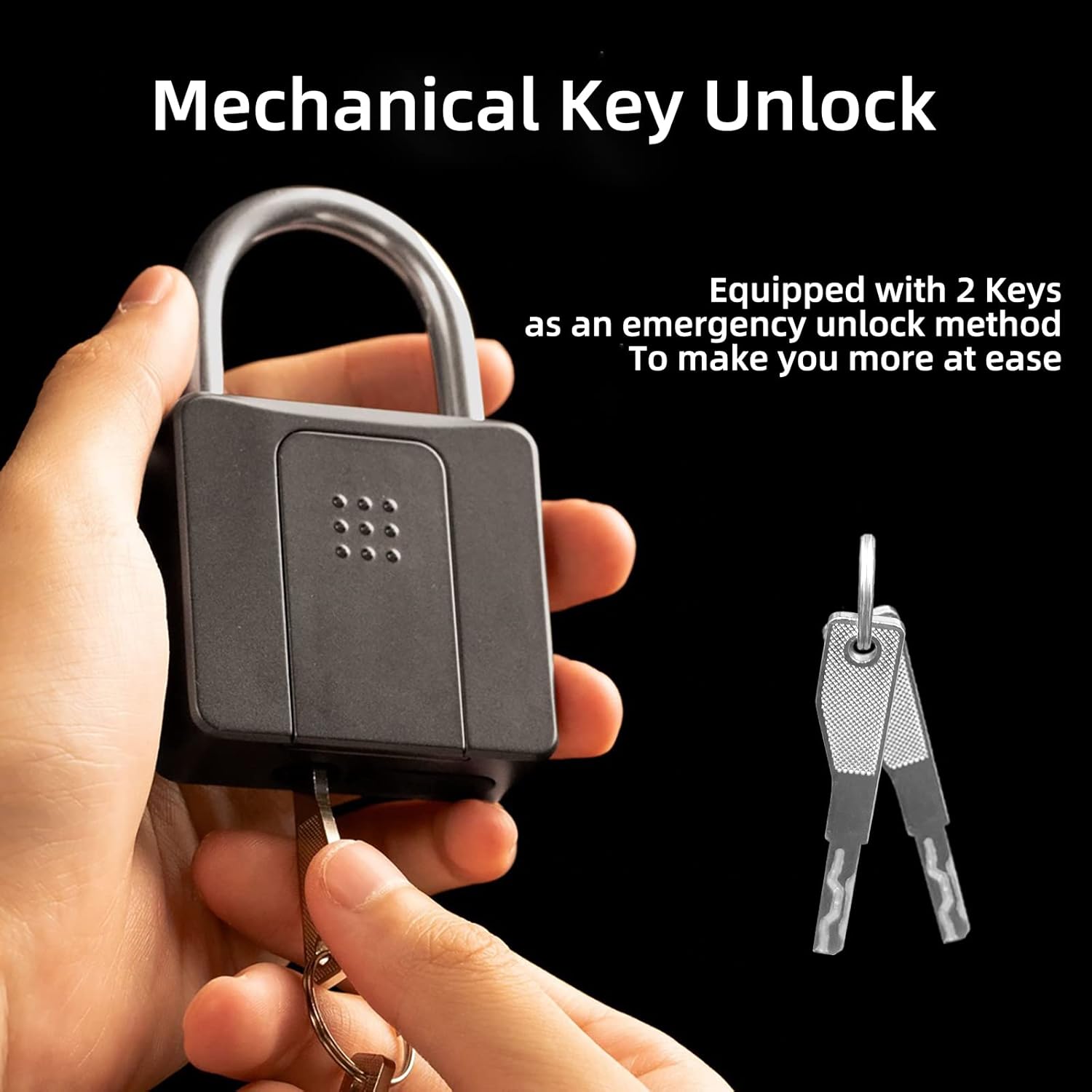
Image: A hand demonstrating fingerprint unlock on the Pothunder P10BF Smart Fingerprint Padlock.
Video: This video shows that a new Pothunder P10BF Smart Fingerprint Padlock can be unlocked by any fingerprint in factory mode, indicated by a blue light.
4.2 Unlocking with App (Bluetooth)
To unlock the padlock using the eSmartLock app:
- Open the eSmartLock app on your smartphone.
- Ensure Bluetooth is enabled and the padlock is within range.
- Wake up the padlock by touching the fingerprint sensor.
- Tap the "Unlock" button in the app.

Image: A smartphone screen showing the eSmartLock app, ready to unlock the Pothunder P10BF Smart Fingerprint Padlock via Bluetooth.
4.3 Unlocking with Physical Key
In case of low battery or other emergencies, use the physical key:
- Slide open the dust cover at the bottom of the padlock to reveal the key port.
- Insert the physical key and turn to unlock.

Image: A hand demonstrating the mechanical key unlock method for the Pothunder P10BF Smart Fingerprint Padlock.
Video: This video demonstrates how to use the physical key to unlock the Pothunder P10BF Smart Fingerprint Padlock.
5. Maintenance
- Charging: Recharge the padlock when the battery indicator shows low power. Use the provided Type-C cable.
- Cleaning: Wipe the padlock with a soft, dry cloth. Do not use abrasive cleaners or solvents. Ensure the fingerprint sensor and charging port are clean and dry.
- Water Resistance: The IPX65 rating provides protection against splashes and dust. Avoid submerging the padlock in water.

Image: The Pothunder P10BF Smart Fingerprint Padlock shown with water droplets, emphasizing its IPX65 waterproof capability.
6. Troubleshooting
| Problem | Possible Cause | Solution |
|---|---|---|
| Padlock does not unlock with fingerprint. | Finger not registered, sensor dirty, or finger wet. | Ensure finger is registered and clean. Try a different registered finger. Clean the sensor. |
| App cannot connect to padlock. | Bluetooth off, padlock not awake, or out of range. | Ensure Bluetooth and GPS are on. Wake up the padlock by touching the sensor. Move closer to the padlock. |
| Padlock is unresponsive. | Low battery. | Charge the padlock using the Type-C cable. Use the physical key for immediate access. |
| Need to reset the padlock to factory mode. | To remove all user data and settings. | In the app, navigate to the padlock's settings and select "Delete lock" or "Unbind smart lock". This will restore it to factory mode. |
Video: This video demonstrates how to delete a sub-account and restore the Pothunder P10BF Smart Fingerprint Padlock to factory mode using the app.
7. Specifications
- Model: P10BF
- Brand: Pothunder
- Material: Aluminum Alloy, Stainless Steel
- Lock Type: Biometric, Keypad (via app)
- Special Features: Heavy Duty, Fingerprint, Smart Lock, Waterproof (IPX65), Anti-theft
- Connectivity: Bluetooth
- Control Method: App, Touch (fingerprint)
- Compatible OS: Android, iOS
- Dimensions (L x W x H): 2.28 x 0.78 x 3.74 inches
- Weight: 0.79 Pounds
- Battery: Rechargeable Lithium Battery (Type-C charging)
- Fingerprint Capacity: Up to 15 (2 administrator, 13 general users)
8. Warranty and Support
Pothunder offers a 6-month limited warranty and free lifetime customer service for the P10BF Smart Fingerprint Padlock.
For any questions or support needs, please contact us. We aim to reply within 24 hours and resolve any issues.
If returning the item, please ensure you reset the padlock and delete all administrator fingerprints from the device and app.
Ask a question about this manual
Ask about setup, troubleshooting, compatibility, parts, safety, or missing instructions. Manuals+ will review the question and use this page’s manual context to help answer it.