
1. Introduction
This manual provides comprehensive instructions for the installation, operation, and maintenance of the Midzooparts WPCE Computer Remote Switch Module XY-WPCE. This module enables remote control of your computer's power functions, including power on, off, restart, and forced shutdown, via a mobile phone or other remote access methods. Please read this manual carefully before use to ensure proper functionality and safety.
2. Product Overview
The WPCE Computer Remote Switch Module XY-WPCE is a compact device designed to integrate with your computer's motherboard via a PCIE slot, allowing for remote management of its power state. It includes the main module and a DuPont cable for connection.

Figure 2.1: WPCE Computer Remote Switch Module and included DuPont cable.
Component Identification

Figure 2.2: Key components of the WPCE module.
- LD1: Power and distribution network status indicator.
- Switch distribution network status: Indicates the status of the network connection.
- P-KEY: Connection point for the host power button.
- P-SW: Connection point for the motherboard's POWER SW header.
3. Specifications
- Model: XY-WPCE
- Dimensions: Approximately 43mm (length) x 36mm (width)
- Weight: Module approx. 5g, Cable approx. 4g (Total approx. 9g)
- Functionality: Remote power on/off, restart, forced shutdown, automatic turn on on incoming call, timing/delay switch, WeChat reminder, operation log.
- Compatibility: Standard PCIE slot.

Figure 3.1: Module dimensions and weight.
4. Setup Instructions
Follow these steps to properly install the WPCE Computer Remote Switch Module into your computer system.
- Power Down: Completely cut off power to your computer or shut it down safely. Ensure the power supply is disconnected from the wall outlet.
- Locate POWER SW: Find the 'POWER SW' header on your computer's motherboard. Note its location and carefully disconnect the existing power switch cable from it.
- Connect DuPont Cable: Install the provided DuPont cable into the now-unplugged 'POWER SW' position on the motherboard. The other end of the DuPont cable connects to the 'P-SW' pin on the WPCE module. The original 'POWER SW' connector that was removed from the motherboard should now be connected to the 'P-KEY' pin on the WPCE module. If the provided cable is not long enough, a suitable extension cable may be used.
- Insert Module: After all cable connections are securely made, insert the WPCE module into an available PCIE slot on your computer's motherboard. Ensure it is seated firmly.
- Power On: Reconnect your computer's power supply and power on the system.
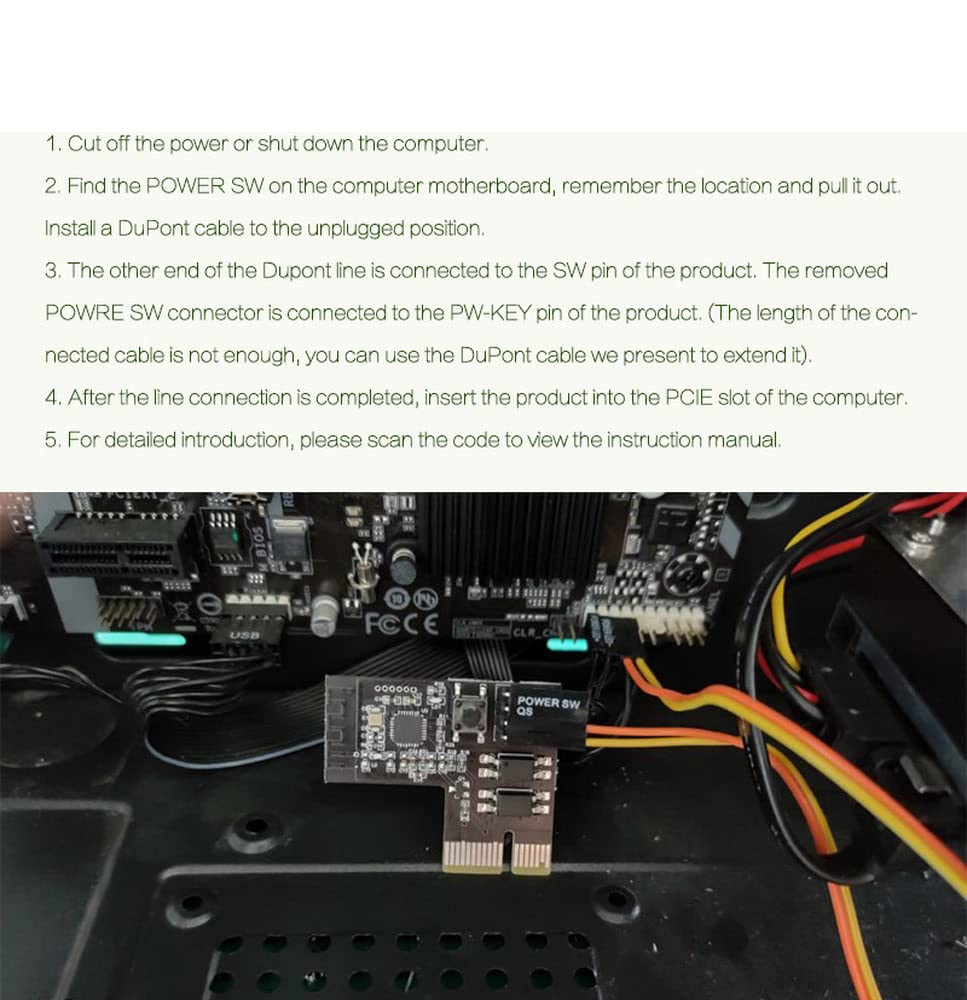
Figure 4.1: WPCE module installed in a PCIE slot with cable connections.
5. Operating Instructions
Once installed, the WPCE module enables various remote control functionalities for your computer.
- Remote Power Control: Initiate computer power on/off, restart, or forced shutdown remotely.
- Lockable Chassis Button: Provides a physical button on the module for local control, which can be locked to prevent accidental use.
- Automatic Turn On: Configure the module to automatically power on the computer upon an incoming call (specific setup required, refer to advanced configuration).
- Timing/Delay Switch: Schedule power operations with timing or delay functions.
- WeChat Reminder & Operation Log: Receive reminders and view a log of operations via WeChat (specific setup required).
- Real-time Status Display: Monitor the computer's status in real-time through the associated application.
- Voice Control Support: Supports integration with voice control platforms such as Tmall Genie, Xiaodu Voice, and Xiaoai Classmate Voice Control (specific setup required).
- Multiplayer Control: Allows for multiple users to control the computer remotely.

Figure 5.1: Overview of module features.
6. Maintenance
The WPCE module is designed for low maintenance. Follow these general guidelines:
- Keep Dry: Ensure the module is kept in a dry environment to prevent moisture damage.
- Cleanliness: Periodically inspect the module for dust accumulation. If necessary, gently clean with a soft, dry brush or compressed air. Do not use liquid cleaners.
- Secure Connections: Ensure all cables remain securely connected to prevent intermittent operation.
- Firmware Updates: Check the manufacturer's website for any available firmware updates to ensure optimal performance and access to new features.
7. Troubleshooting
If you encounter issues with your WPCE module, consider the following troubleshooting steps:
- Module Not Responding:
- Verify the module is correctly seated in the PCIE slot.
- Check all cable connections (DuPont cable to motherboard and module, original power switch cable to module).
- Ensure the computer's power supply is functioning correctly.
- Remote Control Issues:
- Confirm your mobile device or remote control application is properly configured and connected to the module's network.
- Check your internet connection or local network connectivity.
- Ensure the module's network status indicator (LD1) is showing normal operation.
- Computer Fails to Power On/Off:
- Temporarily bypass the module by connecting the original power switch cable directly to the motherboard's 'POWER SW' header to confirm the computer's power system is functional.
- If the computer powers on directly, the issue may lie with the module or its connections. Re-check installation steps.
If problems persist after attempting these steps, please contact customer support.
8. Warranty and Support
For warranty information and technical support, please refer to the documentation provided with your purchase or contact Midzooparts customer service directly. Details can typically be found on the product packaging or the official Midzooparts website.