
1. Introduction
This manual provides instructions for the proper use and maintenance of your JADEMALL Samsung Galaxy Tab A8 Case with Keyboard. This product is designed to enhance the functionality and protection of your Samsung Galaxy Tab A8 10.5-inch tablet, transforming it into a versatile workstation.
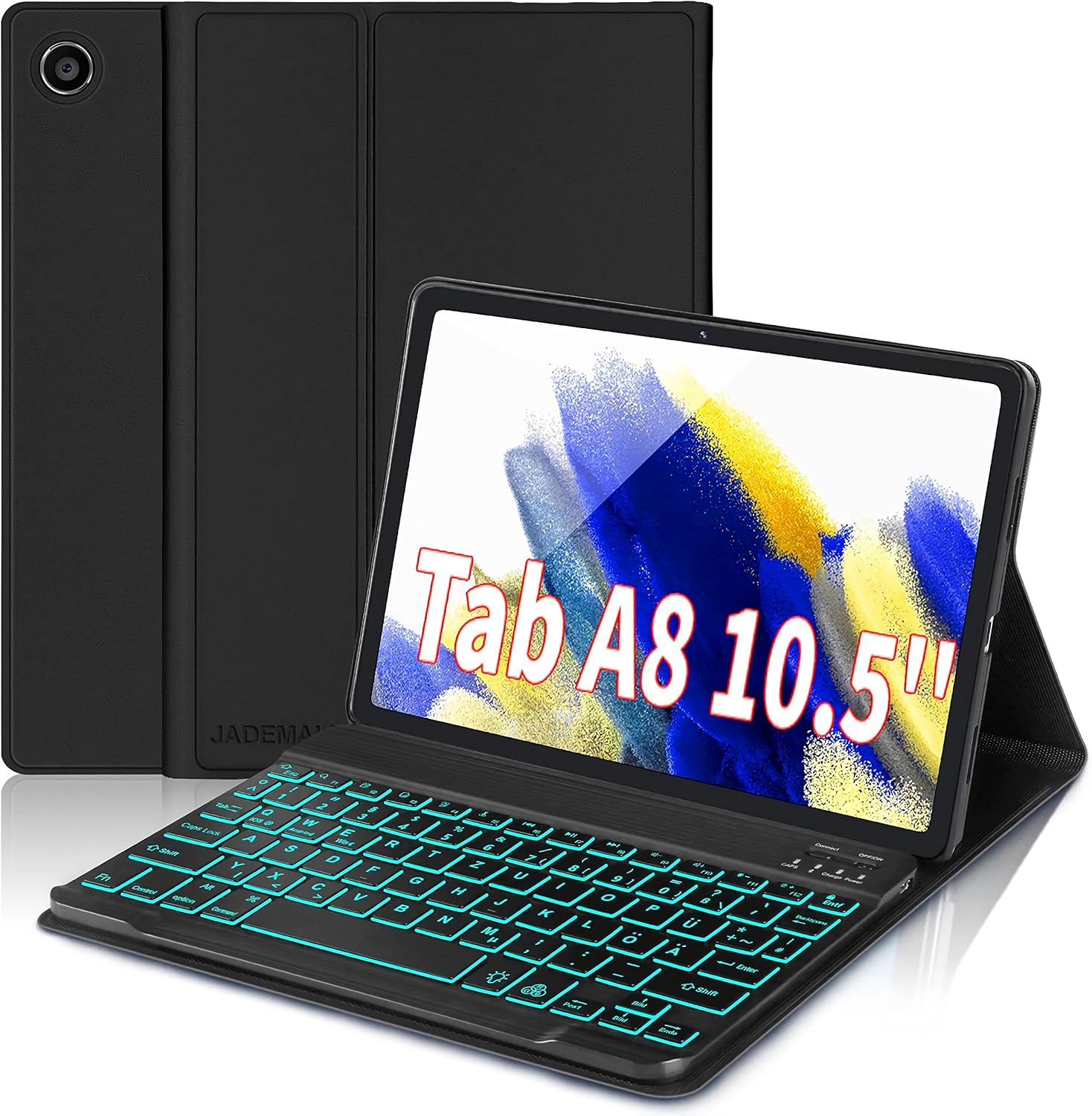
Image 1.1: JADEMALL Samsung Galaxy Tab A8 Case with Keyboard. The image displays the black case with a tablet inserted, featuring a QWERTZ keyboard with blue backlighting.
2. Package Contents
Please verify that all items are present in the package:
- 1 x JADEMALL Samsung Galaxy Tab A8 Case
- 1 x Wireless Bluetooth Keyboard (QWERTZ German Layout)
- 1 x USB Charging Cable
- 1 x User Manual (this document)
3. Product Overview
The JADEMALL keyboard case offers robust protection and enhanced functionality for your Samsung Galaxy Tab A8. Key features include a magnetic, removable Bluetooth keyboard, multiple viewing angles, and a durable, non-slip design.

Image 3.1: Key features of the case. This diagram highlights the accurate camera cutout, the power switch location, heat dissipation design, and the non-slip texture of the case material.

Image 3.2: Removable Bluetooth Keyboard. The image illustrates the keyboard detached from the case and indicates its compatibility with iOS, Android, and Windows devices.
4. Setup Instructions
4.1. Compatibility Check
This keyboard case is specifically designed for the Samsung Galaxy Tab A8 10.5-inch (2021 models SM-X200, SM-X205, SM-X207). Ensure your tablet model matches these specifications for proper fit and function.
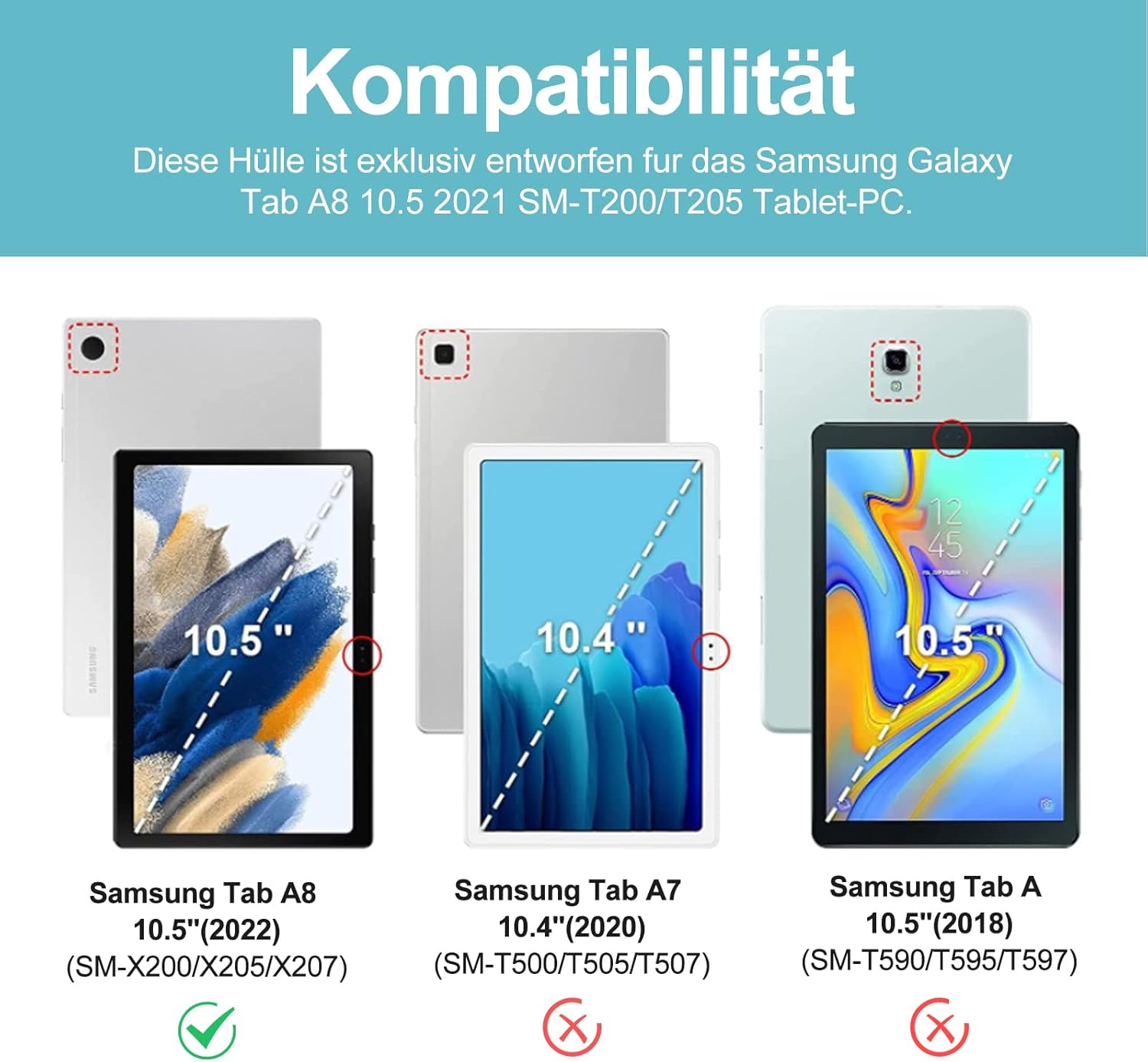
Image 4.1: Device Compatibility. This chart visually confirms compatibility with the Samsung Tab A8 10.5" (2022 models SM-X200/X205/X207) and indicates incompatibility with other Samsung Tab models.
4.2. Charging the Keyboard
- Connect the provided USB charging cable to the keyboard's charging port.
- Connect the other end of the USB cable to a standard USB power adapter (not included) or a computer's USB port.
- Allow the keyboard to charge fully. A full charge typically takes 2-3 hours. The charging indicator light will change or turn off once charging is complete.
A fully charged keyboard provides up to 100 hours of working time without backlighting, and 10 hours with backlighting. Standby time is up to 220 hours.
4.3. Connecting the Bluetooth Keyboard
- Ensure the keyboard is fully charged and powered on. Locate the 'ON/OFF' switch on the keyboard and slide it to the 'ON' position.
- Press the 'Connect' button on the keyboard. The Bluetooth indicator light will begin to flash, indicating it is in pairing mode.
- On your Samsung Galaxy Tab A8, go to 'Settings' > 'Connections' > 'Bluetooth'.
- Turn on Bluetooth on your tablet.
- Your tablet will search for available devices. Select 'Bluetooth Keyboard' (or a similar name) from the list of found devices.
- Follow any on-screen prompts to complete the pairing process. Once connected, the Bluetooth indicator light on the keyboard will stop flashing.
The Bluetooth connection range is approximately 32 feet (10 meters).
4.4. Inserting the Tablet into the Case
- Align your Samsung Galaxy Tab A8 with the case, ensuring the camera cutout and ports match the case openings.
- Gently press the tablet into the case until it is securely seated. The case provides 360° full protection.
- The keyboard attaches magnetically to the case, allowing for easy positioning and removal.
5. Operating Instructions
5.1. Keyboard Functions
The QWERTZ German layout keyboard features comfortable buttons with tactile feedback for efficient typing. It also includes special function keys for quick access to tablet features.

Image 5.1: QWERTZ German Keyboard Layout. This image provides a detailed view of the keyboard, highlighting the QWERTZ layout, function keys, and the option for 7 different backlight colors.
Backlighting Control:
- To turn on/off the backlighting, press the Light Bulb key (usually near the spacebar or arrow keys).
- To change backlight colors (7 available), press Fn + Light Bulb key.
- To adjust backlight brightness, press Fn + Up Arrow or Fn + Down Arrow.
Function Keys:
The top row of keys (F1-F12) often includes special functions when pressed in combination with the Fn key. Common functions include volume control, media playback, screen lock, and home screen access.
5.2. Using the Case Modes
The case is designed to support multiple usage modes, allowing you to adapt your tablet for various tasks.

Image 5.2: Multiple Usage Modes. This visual guide demonstrates how to adjust the case to achieve different angles for typing, sketching, display, and reading.
- Typing Mode: Position the tablet upright with the keyboard in front for a laptop-like experience. The case offers stable viewing angles for comfortable typing.
- Sketching Mode: Adjust the tablet to a lower, angled position, ideal for drawing or taking notes with a stylus.
- Display Mode: Remove the keyboard and adjust the case to a comfortable viewing angle for watching videos, presentations, or browsing content hands-free.
- Reading Mode: Remove the keyboard entirely and fold the case back to hold the tablet comfortably for reading e-books or articles.
6. Maintenance
6.1. Cleaning
- To clean the case, gently wipe it with a soft, damp cloth. Avoid harsh chemicals or abrasive cleaners.
- For the keyboard, use a soft, dry cloth. A small brush or compressed air can be used to remove debris from between the keys.
- Ensure the keyboard is powered off before cleaning.
6.2. Battery Care
- To prolong battery life, avoid fully discharging the keyboard battery frequently.
- If the keyboard will not be used for an extended period, charge it to about 50% and store it in a cool, dry place.
- Recharge the keyboard periodically (e.g., every 3-6 months) even if not in use to prevent deep discharge.
7. Troubleshooting
7.1. Keyboard Not Connecting via Bluetooth
- Check Power: Ensure the keyboard is powered on and has sufficient battery charge.
- Re-enter Pairing Mode: Press the 'Connect' button on the keyboard to put it back into pairing mode.
- Tablet Bluetooth: Verify that Bluetooth is enabled on your Samsung Galaxy Tab A8.
- Forget Device: If previously paired, go to your tablet's Bluetooth settings, 'forget' or 'unpair' the keyboard, then attempt to pair again.
- Restart Devices: Restart both your tablet and the keyboard, then try the pairing process again.
- Distance: Ensure the keyboard and tablet are within the 32-foot (10-meter) Bluetooth range.
7.2. Keys Not Responding
- Battery Level: Check if the keyboard battery is low. Charge the keyboard fully.
- Bluetooth Connection: Confirm the keyboard is still connected to your tablet via Bluetooth. If not, re-establish the connection.
- Restart: Turn the keyboard off and then on again.
7.3. Backlighting Not Working
- Battery Level: Backlighting consumes more power. Ensure the keyboard has sufficient charge.
- Toggle Backlight: Press the Light Bulb key to cycle through backlight states (on/off).
8. Specifications
- Brand: JADEMALL
- Model Name: Samsung Galaxy Tab A8 10.5 2021 SM-T200 SM-T205
- Compatible Devices: Tablet (Samsung Galaxy Tab A8 10.5-inch 2021 SM-X200 /X205/207)
- Connectivity Technology: Bluetooth
- Keyboard Description: Flexible, QWERTZ German Layout
- Special Features: Ergonomic, Removable Magnetic Keyboard, Backlit (7 colors)
- Color: Black
- Keyboard Backlighting Color Support: RGB (7 colors)
- Included Components: USB Cable
- Item Weight: 665 g
- Keyboard Thickness: 8 mm
- Keyboard Weight: 214 g
- Charging Time: 2-3 hours
- Working Time (without lighting): Up to 100 hours
- Working Time (with lighting): Up to 10 hours
- Standby Time: Up to 220 hours
- Bluetooth Range: Up to 32 feet (10 meters)
9. Warranty and Support
JADEMALL is committed to providing quality products and customer satisfaction. If you encounter any issues with your keyboard case, please contact our customer support team.
9.1. Customer Service
For assistance, please refer to the contact information provided with your purchase or visit the official JADEMALL website. Our team is available to help with product inquiries, troubleshooting, and warranty claims.
We aim to ensure a positive shopping experience for all our customers.