
70mai M310
70mai Dash Cam M310 User Manual
Your comprehensive guide to setup, operation, and maintenance.
Product Overview
The 70mai Dash Cam M310 is a compact and intelligent dash camera designed to provide reliable recording and surveillance for your vehicle. It captures high-resolution video, offers advanced imaging technologies for various lighting conditions, and includes smart features for enhanced safety and convenience.

Image: The 70mai Dash Cam M310, a compact cylindrical dash camera, shown alongside a smartphone displaying its app interface with live footage.
What's in the Box
Upon unboxing your 70mai Dash Cam M310, you should find the following components:
- Dash Cam ×1
- Power Cord ×1
- Car Charger ×1
- Electrostatic Sticker ×2
- Adhesive Sticker ×1
- Wiring Trim Tool ×1
- User Manual ×1
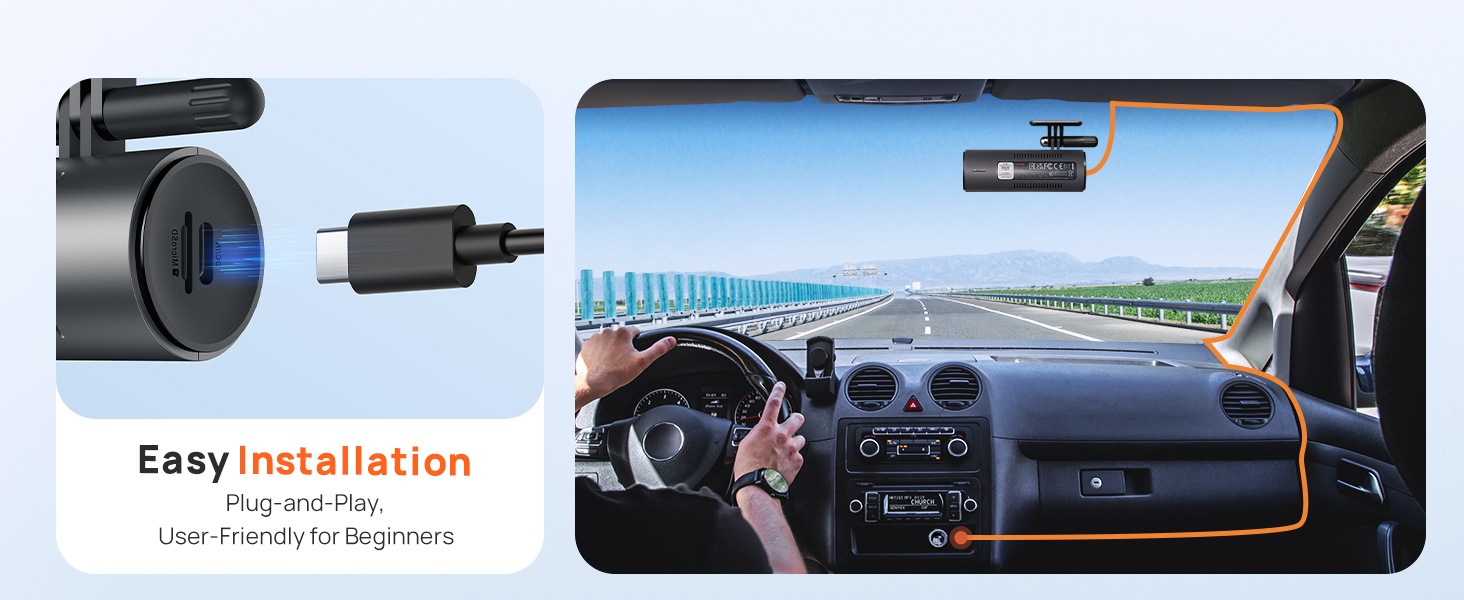
Image: A flat lay showing all components included in the 70mai Dash Cam M310 package, neatly arranged.
Product Features
High-Resolution Recording
The M310 records in 2304 x 1296P QHD resolution, providing nearly 1.5 times clearer footage than standard 1080P dash cams. This allows for easy capture of critical details like license plates and road signs.

Image: A visual demonstrating the clarity of 1296P QHD recording, highlighting how license plates are easily readable.
Enhanced Night Vision & WDR
Equipped with 3D Noise Reduction and Wide Dynamic Range (WDR) technology, the M310 delivers clear and smooth image quality even in low-light conditions, such as tunnels or during nighttime driving.

Image: A comparison showing the effectiveness of WDR technology in improving visibility and clarity in both dark and light conditions during night driving.
130° Wide-Angle FOV
The 130° wide-angle field of view allows the dash cam to monitor more lanes with fewer blind spots, providing a broader perspective of the road.

Image: Visual comparison of different FOV angles, illustrating how the 130° FOV of the M310 provides optimal coverage without distortion.
Parking Monitoring & G-Sensor
A built-in G-sensor detects sudden shakes or collisions while your vehicle is parked, automatically initiating recording to capture potential incidents. This provides 24-hour surveillance. A voice alert will notify you when the dash cam is turned back on. Note: The 70mai Hardwire Kit UP03 (sold separately) is required for parking surveillance mode.

Image: An illustration depicting the 24-hour parking surveillance feature, showing the dash cam protecting a parked car from potential damage or theft.

Image: A visual representation of the G-Sensor Emergency Lock feature, showing the dash cam automatically locking footage upon detecting a collision.
Time-lapse Recording
When parked, the M310 can compress 30 minutes of footage into 1 minute, enabling long-term continuous recording at one frame per second. This allows for quick review of hours-long surveillance. Note: The 70mai Hardwire Kit UP03 (sold separately) is required for time-lapse recording.

Image: An illustration showing how time-lapse recording compresses long periods of footage into shorter, reviewable clips.
Loop Recording & Evidence Protection
The dash cam automatically overwrites the oldest footage with the newest to ensure continuous recording. In the event of a collision, the current video is locked to prevent overwriting, safeguarding crucial evidence.

Image: A visual representation of the seamless loop recording process, showing older footage being overwritten by new footage while important events are protected.
MicroSD Card Compatibility
The dash cam supports microSD cards with capacities ranging from 16GB to 256GB and requires read/write speeds of Class 10 or higher for optimal performance. Lower-class cards may lead to slower write speeds and video recording errors. Note: SD Card is not included.

Image: A graphic illustrating the compatibility of the dash cam with various microSD card sizes and the recommended Class 10 speed rating.
Setup & Installation
Installing your 70mai Dash Cam M310 is a straightforward process. Follow these steps for proper setup:
- Insert MicroSD Card: Before powering on, insert a compatible microSD card (Class 10 or higher, 16GB-256GB) into the designated slot on the dash cam.
- Mounting: Clean the area on your windshield where you intend to mount the dash cam. Apply the electrostatic sticker first, then attach the dash cam's adhesive mount to the electrostatic sticker. Position it to ensure a clear view of the road without obstructing your driving vision.
- Power Connection: Use the provided power cord and car charger to connect the dash cam to your vehicle's cigarette lighter socket. Route the cable neatly using the wiring trim tool to avoid interference.
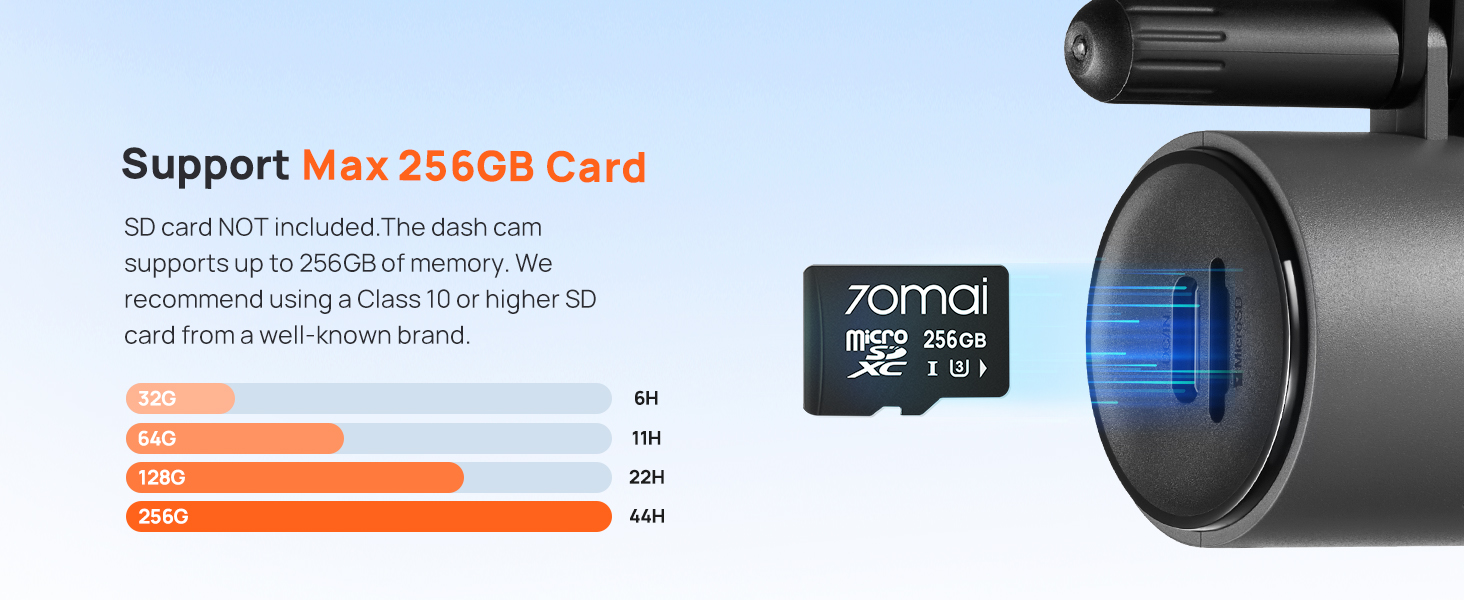
Image: A visual guide demonstrating the simple plug-and-play installation process of the dash cam in a car.
Initial Setup & App Connection
To fully utilize your dash cam's features, connect it to the 70mai mobile app:
- Download App: Download the 70mai App from your smartphone's app store (iOS/Android).
- Add Device: Open the app and follow the on-screen instructions to add your new dash cam. You will typically need to select the dash cam model and connect to its Wi-Fi hotspot.
- Authorize Connection: The app will guide you to press the power button on the dash cam to authorize the connection.
- Format SD Card: Once connected, the app may prompt you to format the microSD card. Confirm to proceed.
Video: A step-by-step guide on how to connect your 70mai Dash Cam M300 (similar model) to the mobile application for the first time, including inserting the memory card, powering on, and authorizing the connection.

Image: A detailed flowchart showing the steps to connect the 70mai Dash Cam to the mobile app, from adding the camera to successful connection.
Operating Instructions
Power Button Functions
The single power button on the dash cam serves multiple functions:
- Press once: Turn on/off Wi-Fi hotspot.
- Press three times: Format memory card.
- Press five times: Factory reset.
- Press and hold: Turn off dash cam.
Indicator Light Ring
The light ring around the power button indicates the dash cam's status:
- Green: Recording
- Blue: Not in Recording Mode
- Red: Recording Error
Video: A basic user guide for the 70mai Dash Cam M310, demonstrating the functions of the power button and the meaning of the indicator light ring.
Voice Control
The M310 supports voice commands for hands-free operation. You can directly instruct the dash cam to record video, take photos, or record audio.

Image: An illustration showing a driver using voice commands to control the dash cam, highlighting commands like "Record Video," "Take Photo," and "Record audio."
App Control & Connectivity
The 70mai App provides full control over your dash cam, allowing you to view, download, and manage videos, as well as adjust settings.
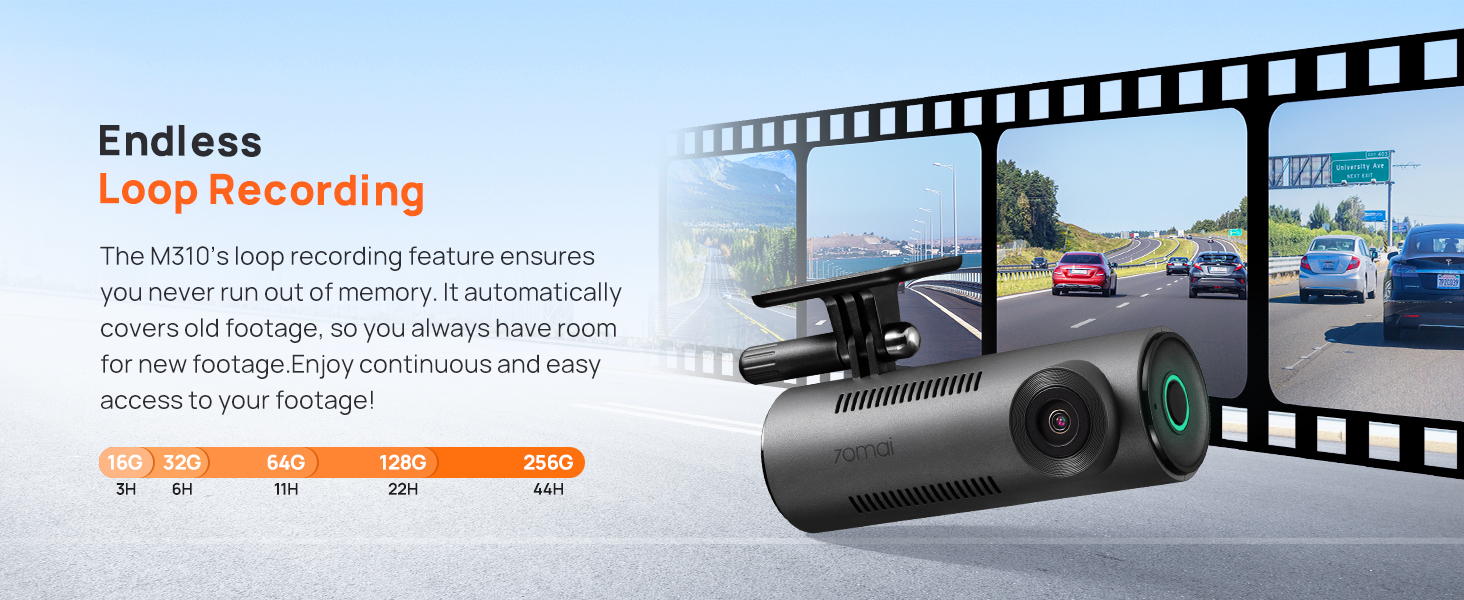
Image: A visual showing the dash cam connected to a smartphone via Wi-Fi, with various app icons indicating easy sharing and management of footage.
Innovative Timeline Review
The app features a timeline review function, allowing you to quickly browse through your videos by swiping or tapping the timeline. This simplifies finding key moments or events.

Image: A smartphone screen displaying the 70mai app's timeline review interface, allowing users to easily navigate and find specific video segments.
Wireless OTA Updates
Keep your dash cam up-to-date with the latest features and improvements through wireless Over-The-Air (OTA) updates via the 70mai App.
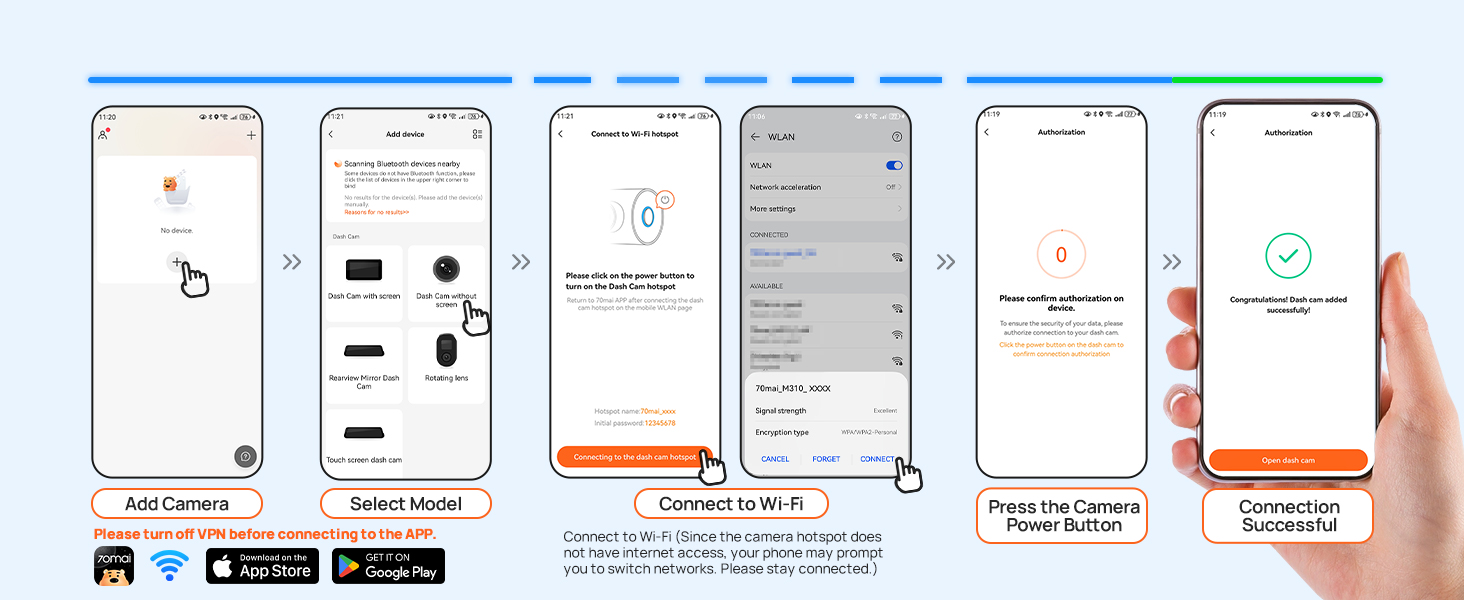
Image: A visual showing the dash cam receiving a wireless OTA update via the 70mai App on a smartphone.
Maintenance
To ensure the longevity and optimal performance of your 70mai Dash Cam M310, regular maintenance is recommended:
- Clean Lens: Regularly wipe the camera lens with a soft, lint-free cloth to ensure clear video quality. Avoid abrasive materials that could scratch the lens.
- SD Card Formatting: It is recommended to format the microSD card every two weeks to prevent data corruption and ensure smooth recording. This can typically be done through the 70mai app.
- Firmware Updates: Keep the dash cam's firmware updated via the 70mai app to benefit from performance improvements and new features.
- Temperature Control: Avoid exposing the dash cam to extreme temperatures for prolonged periods, as this can affect battery life and component integrity.
Troubleshooting
If you encounter issues with your 70mai Dash Cam M310, try the following troubleshooting steps:
- Dash Cam Not Turning On: Ensure the power cord is securely connected to both the dash cam and the car charger, and that the car charger is properly inserted into the vehicle's power outlet. Check if the vehicle's power outlet is functioning.
- Recording Errors: If the dash cam is not recording or showing errors, ensure a Class 10 or higher microSD card is inserted and properly formatted. Try formatting the card again via the app or a computer.
- Wi-Fi Connection Issues: Make sure the dash cam's Wi-Fi hotspot is enabled (single press of the power button). Ensure your phone's Wi-Fi is on and connected to the dash cam's network. Try restarting both the dash cam and your phone.
- App Not Responding: Close and reopen the 70mai app. If the issue persists, try reinstalling the app.
- Factory Reset: If other troubleshooting steps fail, perform a factory reset by pressing the power button five times. Note that this will erase all settings and require re-setup.
Specifications
| Specification | Detail |
|---|---|
| Product Dimensions | 3.95 x 1.42 x 2.07 inches |
| Item Weight | 9.9 ounces |
| Video Capture Resolution | 2304 x 1296P |
| Field of View (FOV) | 130° |
| Connectivity Technology | Wi-Fi |
| Mounting Type | Windshield Mount |
| MicroSD Card Support | 16GB to 256GB (Class 10 or higher) |
| Special Features | WDR Night Vision, Loop Recording, Built-In WiFi, Parking Monitor & G-Sensor & Time-Lapse, App Control, Voice Control |
Warranty & Support
70mai is committed to providing quality products and excellent customer service.
- Warranty: The 70mai Dash Cam M310 comes with a 12-month warranty from the date of purchase.
- Technical Support: For any questions, technical assistance, or warranty claims, please contact the 70mai support team.
Contact information for support is typically available in the user manual or on the official 70mai website.
Ask a question about this manual
Ask about setup, troubleshooting, compatibility, parts, safety, or missing instructions. Manuals+ will review the question and use this page’s manual context to help answer it.