1. Introduction
The LogiLink ID0205 is a versatile dual-mode wireless mouse designed for seamless connectivity. It offers two connection options: a 2.4 GHz wireless USB receiver and Bluetooth 4.0. This allows you to switch between two different devices, such as a laptop, desktop computer, or tablet, with ease. The mouse features adjustable DPI settings (800/1200/1600 dpi) for precise control and an automatic sleep mode to conserve battery life. It is compatible with Windows, Mac OS, Android, and iOS operating systems.
2. Package Contents
- 1 x LogiLink ID0205 Dual Wireless and Bluetooth Mouse
- 1 x 2.4 GHz USB Receiver
- 1 x USB-C Charging Cable
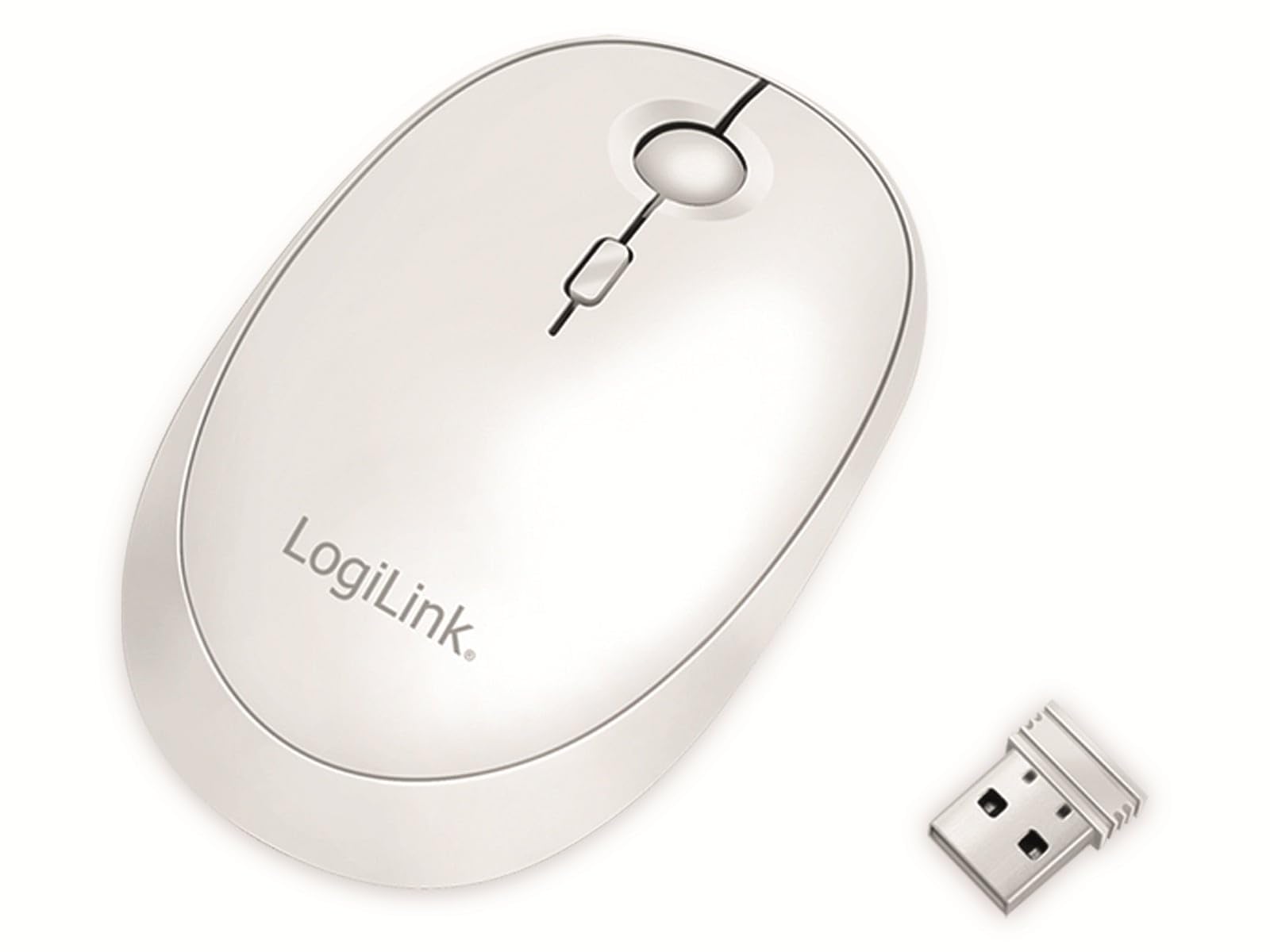
Image: The LogiLink ID0205 mouse shown alongside its 2.4 GHz USB receiver.
3. Setup
3.1 Powering On/Off
Locate the ON/OFF switch on the bottom of the mouse. Slide the switch to the "ON" position to power on the mouse. Slide it to "OFF" when not in use to conserve battery.

Image: Bottom view of the mouse, highlighting the ON/OFF switch and mode selection button.
3.2 2.4 GHz Wireless Connection
- Insert the 2.4 GHz USB receiver into an available USB port on your computer or device.
- Power on the mouse using the ON/OFF switch.
- Press the "Mode" button on the bottom of the mouse until the indicator light for 2.4 GHz (usually the first LED) is active.
- The mouse should automatically connect to your device. If not, try moving the mouse or re-inserting the USB receiver.
3.3 Bluetooth Connection
- Power on the mouse using the ON/OFF switch.
- Press the "Mode" button on the bottom of the mouse until the indicator light for Bluetooth (usually the second or third LED) is active.
- On your computer or device, navigate to the Bluetooth settings.
- Search for new Bluetooth devices. The mouse should appear as "LogiLink Mouse" or similar.
- Select the mouse to pair. Follow any on-screen prompts to complete the pairing process.
4. Operating Instructions
4.1 Basic Functions
The LogiLink ID0205 mouse features standard left-click, right-click, and a scroll wheel for navigation. The scroll wheel also functions as a middle-click button.
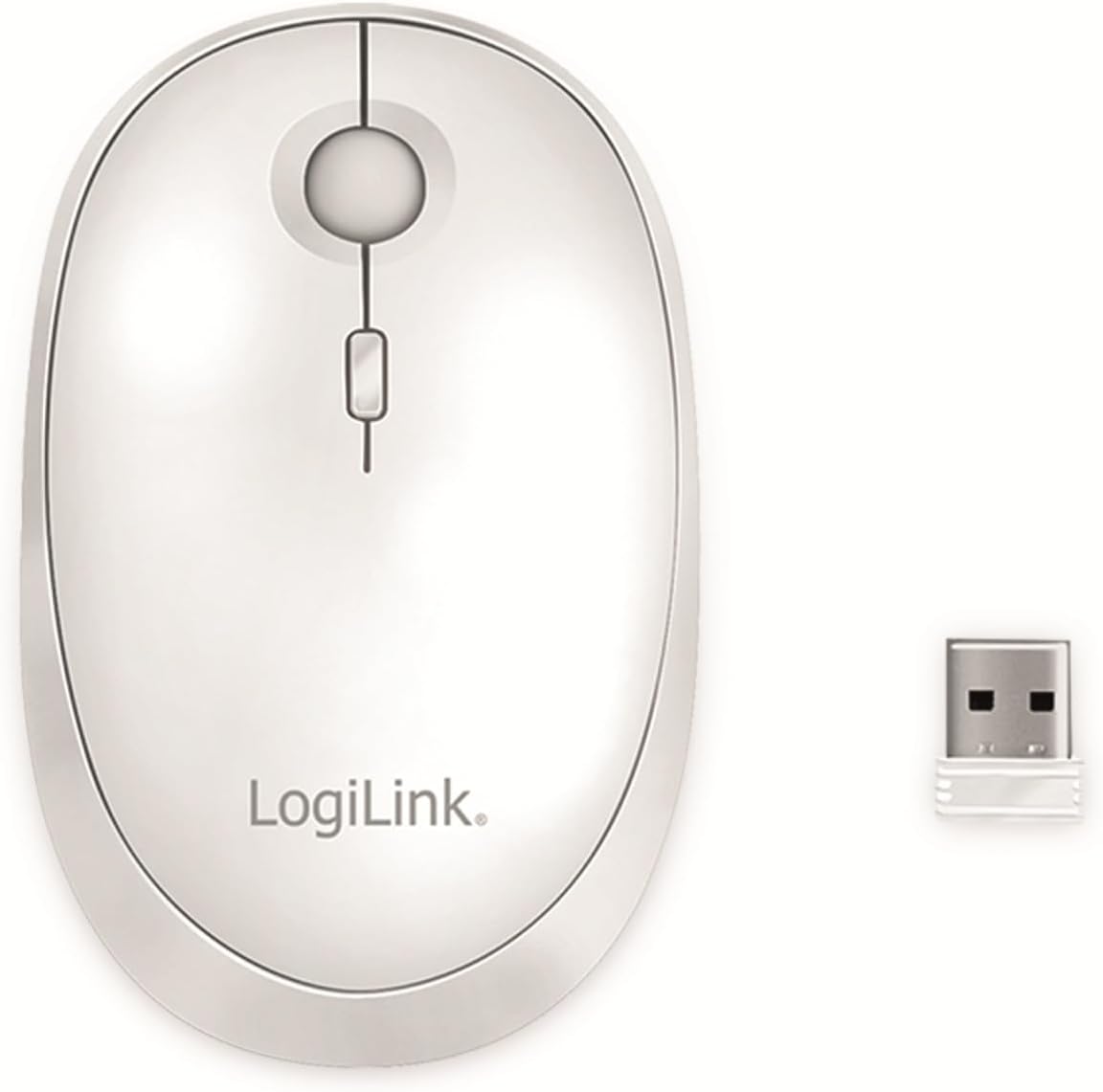
Image: Top view of the mouse, showing the left, right, and scroll wheel buttons.
4.2 DPI Adjustment
The mouse features a DPI On-The-Fly button, typically located behind the scroll wheel. Press this button to cycle through the available DPI settings: 800, 1200, and 1600 dpi. A higher DPI setting results in faster cursor movement, while a lower DPI provides more precise control.
4.3 Dual Mode Switching
To switch between the 2.4 GHz wireless mode and Bluetooth mode, press the "Mode" button located on the bottom of the mouse. The indicator lights will show which mode is currently active. This allows you to quickly switch control between two paired devices.
4.4 Automatic Sleep Mode
To conserve battery life, the mouse will automatically enter sleep mode after 10 minutes of inactivity. To wake the mouse, simply move it or click any button.
5. Charging
The LogiLink ID0205 mouse is equipped with a built-in rechargeable battery. When the battery is low, the indicator light may flash. To charge the mouse:
- Connect the included USB-C charging cable to the USB-C port on the front of the mouse.
- Connect the other end of the USB-C cable to a USB power source (e.g., computer USB port, USB wall adapter).
- The indicator light will show the charging status. Once fully charged, the light will change or turn off.

Image: The mouse being charged via its USB-C port with the included cable.
6. Maintenance
- Cleaning: Use a soft, dry cloth to clean the surface of the mouse. For stubborn dirt, slightly dampen the cloth with water. Avoid using harsh chemicals or abrasive cleaners.
- Storage: When not in use for extended periods, store the mouse in a cool, dry place. Ensure the mouse is powered off to preserve battery life.
- Battery Care: Avoid fully discharging the battery frequently. Charge the mouse when the low battery indicator appears.
7. Troubleshooting
- Mouse not responding:
- Ensure the mouse is powered on.
- Check the battery level and charge if necessary.
- For 2.4 GHz mode, ensure the USB receiver is securely plugged into a working USB port. Try a different USB port.
- For Bluetooth mode, ensure Bluetooth is enabled on your device and the mouse is paired. Try re-pairing the mouse.
- Ensure the correct mode (2.4 GHz or Bluetooth) is selected on the mouse using the mode button.
- Erratic cursor movement:
- Clean the optical sensor on the bottom of the mouse.
- Ensure you are using the mouse on a suitable surface. Avoid highly reflective or transparent surfaces.
- Try adjusting the DPI setting.
- Connection drops frequently:
- Ensure the mouse is within the operating range (up to 10 meters).
- Reduce interference from other wireless devices.
- For 2.4 GHz, ensure the USB receiver is not obstructed.
8. Specifications
| Brand | LogiLink |
| Model Number | ID0205 |
| Color | White |
| Connectivity Technology | 2.4 GHz Wireless, Bluetooth 4.0 |
| Motion Detection Technology | Optical |
| DPI Resolution | 800 / 1200 / 1600 dpi (adjustable) |
| Number of Buttons | 4 (Left, Right, Scroll Wheel/Middle, DPI) |
| Hand Orientation | Ambidextrous |
| Operating Range | Up to 10 meters |
| Charging Port | USB-C |
| Compatible Operating Systems | Windows, Mac OS, Android, iOS |
| Compatible Devices | Personal Computer, Tablet |
| Item Weight | 74 Grams |
9. Warranty and Support
For warranty information and technical support, please refer to the documentation provided with your purchase or visit the official LogiLink website. Keep your proof of purchase for warranty claims.


