
Product Overview
The HP LaserJet MFP M140we is the world's smallest multifunction laser printer in its class, designed for efficient black and white printing, scanning, and copying. It is ideal for tight workspaces and includes the HP+ Smart Printing System for enhanced features and connectivity.

Front view of the HP LaserJet MFP M140we printer.
Key Features
- BEST FOR TIGHT WORK SPACES: Print, scan, and copy high-quality black and white documents and forms.
- WORLD'S SMALLEST LASER IN ITS CLASS: Efficient black and white precision laser printing, scanning, and copying that fits anywhere.
- INCLUDES HP+ SMART PRINTING SYSTEM: HP+ makes your printer Smarter with advanced features that make it easy to print from any device or app. This printer only works with Original HP Toner and requires an HP account and internet connection.
- 6 FREE MONTHS OF INSTANT INK: For lasers with HP+, print up to 1500 pages a month for 6 months. Cartridges ship automatically.
- FAST PRINT SPEEDS: Print up to 21 pages per minute.
- STAY CONNECTED: Wireless with self-reset to help you stay connected.
- EASILY COPY ID CARDS AND MORE: Copy both sides of ID cards or other small-size documents onto the same side of one sheet of paper.
- HP SMART APP: Print, scan and copy from your phone—from anywhere. Get advanced features for 24 months with HP+.
Setup Guide
Unboxing
Carefully remove all components from the product packaging. Ensure all packing materials, tapes, and protective foams are removed from the printer and its internal compartments before proceeding with setup.

The printer, power cord, toner cartridge, and setup guides are included in the box.
Initial Printer Setup
After unboxing, connect the power cord to the printer and a wall outlet. Do not connect a USB cable at this time. Press the power button to turn on the printer. Follow the on-screen prompts or use the HP Smart App for guided setup, including connecting to your wireless network.

The printer features an intuitive control panel and supports mobile printing.
Loading Paper
Open the paper input tray and extend the paper width guides. Load plain white paper into the input tray with the short edge forward and the print side up. Adjust the paper width guides until they rest against the edges of the paper. Pull out the output tray extension.
*Note: No official "Seller" videos for setup were provided in the product data.*
Operating Your Printer
Printing
The HP LaserJet MFP M140we allows you to print from various devices, including smartphones, PCs, tablets, and laptops. Utilize the HP Smart App for seamless printing from anywhere. The printer supports print speeds of up to 21 pages per minute for monochrome documents.
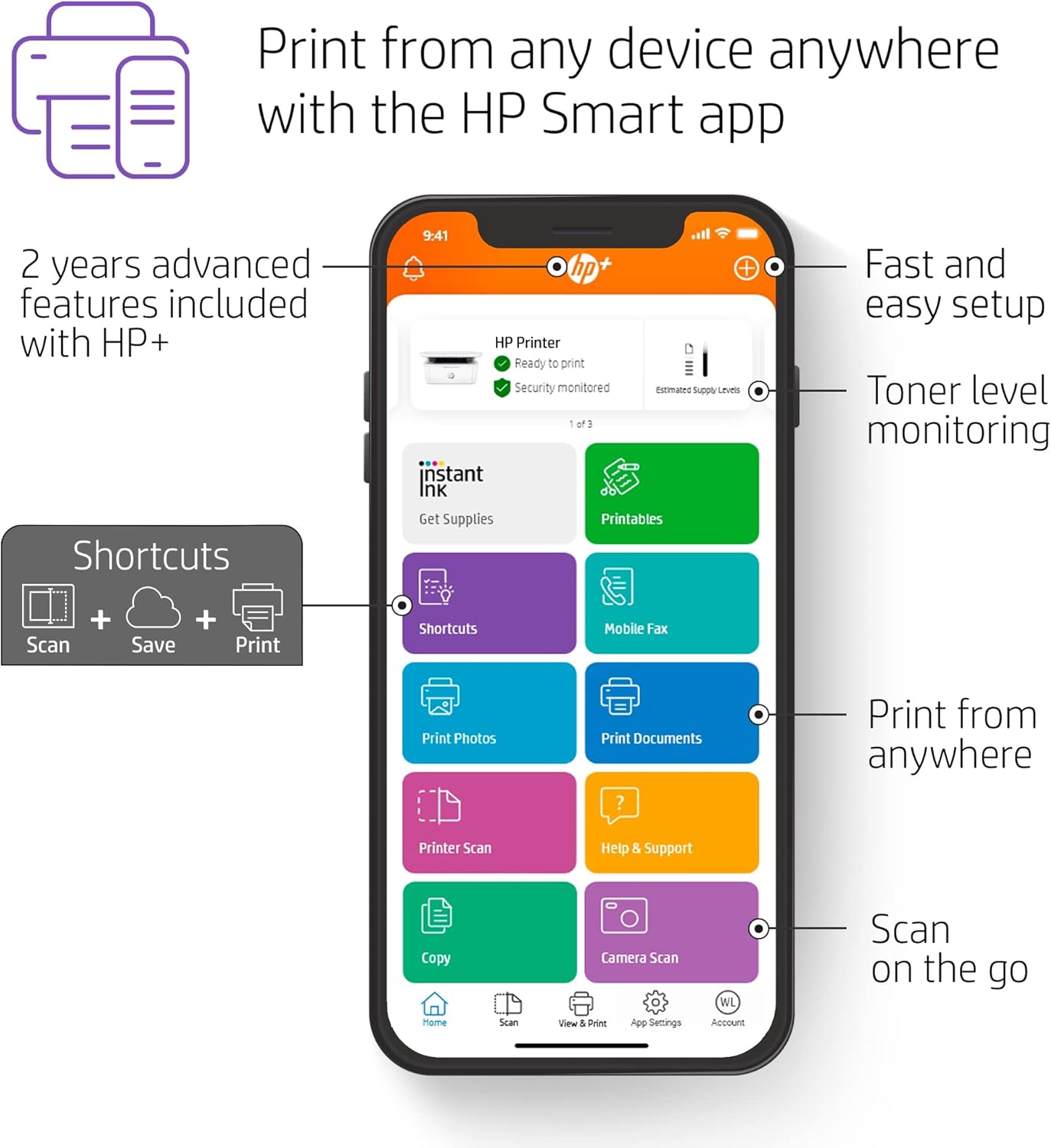
Manage printing, scanning, and copying directly from the HP Smart App.
Scanning
Place the document face-down on the flatbed scanner glass. Close the scanner lid. You can initiate a scan directly from the printer's control panel or through the HP Smart App on your connected device. Scanned documents can be saved to your device or cloud storage.
Copying
Place the document face-down on the flatbed scanner glass. Close the scanner lid. Use the control panel buttons to select the number of copies and start the copying process. The printer also supports copying both sides of ID cards or other small-sized documents onto a single sheet of paper.

Easily copy both sides of ID cards onto one side of paper.
*Note: No official "Seller" videos for operating instructions were provided in the product data.*
Maintenance
Toner Cartridge Replacement
When the toner cartridge is low or empty, the printer will indicate this on its display or through the HP Smart App. To replace the cartridge, open the toner access door. Carefully remove the old cartridge and dispose of it properly. Insert the new HP 141A Black LaserJet Toner Cartridge, ensuring it clicks into place. Close the toner access door.

The internal compartment where the toner cartridge is installed.
Cleaning
Regular cleaning helps maintain optimal printer performance. Use a soft, lint-free cloth to wipe the exterior of the printer. For the scanner glass, use a glass cleaner applied to the cloth (not directly to the glass) to avoid streaks. Avoid using abrasive cleaners or solvents.
*Note: No official "Seller" videos for maintenance were provided in the product data.*
Troubleshooting
If you encounter issues with your HP LaserJet MFP M140we, try the following basic troubleshooting steps:
- Check Connections: Ensure the power cord is securely connected and the printer is powered on. For wireless issues, verify your Wi-Fi connection.
- Restart Printer: Turn the printer off, wait for a few seconds, and then turn it back on. This can resolve temporary errors.
- Check Toner Levels: Monitor toner levels via the HP Smart App to ensure you don't run out.
- HP Smart App: Use the HP Smart App for diagnostics and guided solutions to common problems.
For more detailed troubleshooting guides and solutions, please refer to the official HP user manuals available online:
Technical Specifications
| Feature | Specification |
|---|---|
| Brand | HP |
| Model Name | New Version: HP+, M140we |
| Printing Technology | Laser |
| Printer Output | Monochrome |
| Max Print Speed Monochrome | 21 ppm |
| Max Copy Speed (Black & White) | 21 cc/min |
| Max Black and White Print Resolution | 600 x 600 Dots Per Inch |
| Scanner Type | Flatbed |
| Connectivity Technology | Wi-Fi |
| Hardware Interface | USB 2.0 |
| Product Dimensions | 10.4 x 14.2 x 7.8 inches |
| Item Weight | 11.9 pounds |
| Power Consumption | 357 watts |
| Included Components | HP LaserJet MFP M140we Printer; Preinstalled HP Original Introductory Black LaserJet Toner Cartridge; Getting Started Guide; Setup Poster; Support flyer; Warranty guide; Power cord |
Warranty and Support
The HP LaserJet MFP M140we comes with a standard warranty. With the HP+ Smart Printing System, you may be eligible for an extended 2-year warranty, providing additional peace of mind.
For further assistance, product registration, and access to the latest drivers and software, please visit the official HP support website at 123.hp.com. You can also find comprehensive support resources and contact customer service through the HP Smart App.