
Lifyn2 ZK X628-C
Lifyn2 ZK X628-C Biometric Fingerprint Time Clock User Manual
Model: ZK X628-C | Brand: Lifyn2
1. Introduction
This user manual provides detailed instructions for the installation, operation, and maintenance of the Lifyn2 ZK X628-C Biometric Fingerprint Time Clock. This device is designed to efficiently manage employee attendance using advanced fingerprint and card recognition technology, suitable for various office environments.

Image: Front view of the Lifyn2 ZK X628-C Biometric Fingerprint Time Clock, showing the screen, keypad, and fingerprint scanner.
2. Package Contents
Please verify that all items listed below are included in your package. If any items are missing or damaged, please contact customer support.
- ZK X628-C Time Clock Unit
- Back Plate for mounting
- Power Adapter
- Mini USB Cable
- 1.5 Meter Network Parallel Line
- Screws and Holders for installation

Image: Diagram illustrating the ZK X628-C unit, back plate, power adapter, Mini USB cable, 1.5M network cable, and mounting screws with holders.
3. Setup and Installation
3.1 Physical Installation
- Choose a Location: Select a suitable wall or surface near a power outlet and network access point. Ensure the location is stable and free from excessive dust or moisture.
- Mount the Back Plate: Use the provided screws and holders to securely attach the back plate to the chosen surface. Ensure it is level.
- Attach the Device: Carefully align the ZK X628-C unit with the mounted back plate and slide it down until it clicks into place.
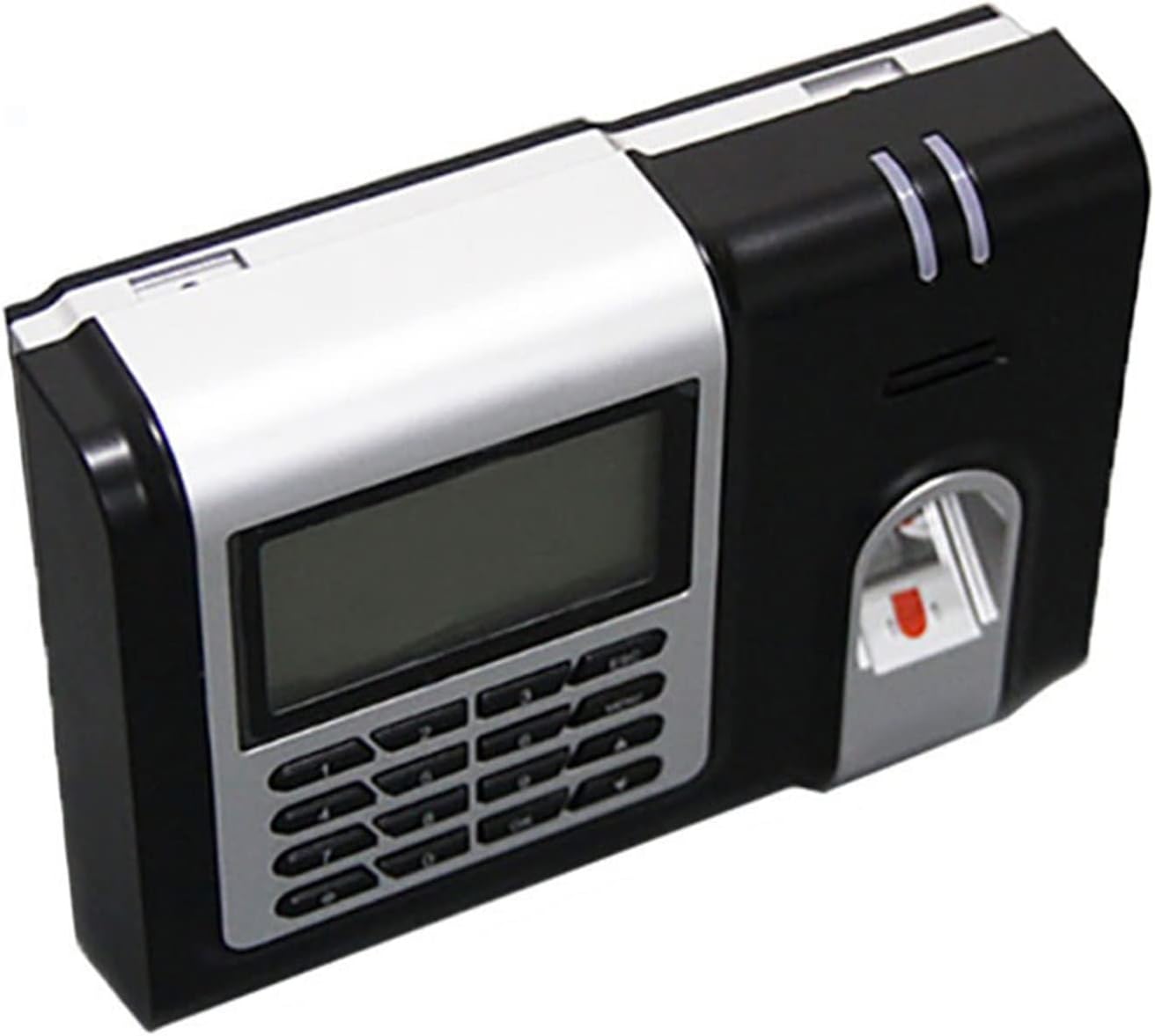
Image: Side view of the ZK X628-C device, highlighting its compact design and potential mounting points.
3.2 Power Connection
Connect the provided power adapter to the DC IN port on the device and then plug the adapter into a standard electrical outlet. The device will power on automatically.
3.3 Network Connection (TCP/IP)
For network communication and data synchronization with a PC or server, connect the device using the provided 1.5M Network Parallel Line to your network hub or router.

Image: Network diagram showing how multiple ZK X628-C devices can connect to a central PC via a network hub using TCP/IP protocol for centralized management.
3.4 Initial Configuration
- Set Administrator: Upon first power-on, follow the on-screen prompts to set up an administrator account. This account will have full access to system settings and user management.
- Register Users: Navigate to the "User Mgt" menu. Select "New User" to register employees. You can register fingerprints, RFID cards, or passwords for each user.
- Configure Network Settings: In the "COMM" menu, configure the device's IP address, subnet mask, and gateway to match your network's settings.
4. Operating Instructions
4.1 Clocking In/Out
- Fingerprint Recognition: Place your registered finger firmly on the fingerprint scanner. The device will confirm successful recognition with a visual and auditory cue.
- RFID Card Recognition: Hold your registered RFID card near the card reader area. The device will confirm successful recognition.
- Password Entry: Enter your user ID using the keypad, press "M/OK", then enter your password and press "M/OK" again.

Image: The ZK X628-C time clock showing a user interacting with the RFID card reader, demonstrating a common method for clocking in or out.
4.2 User Management
Access the "User Mgt" menu (requires administrator privileges) to perform the following actions:
- Add User: Register new employees, assigning them a unique ID and registering their biometric data (fingerprint) or RFID card.
- Modify User: Update existing user information, such as changing their password or re-registering a fingerprint.
- Delete User: Remove an employee's record from the system.
- User Role: Assign different roles (e.g., Administrator, General User) to control access levels.
4.3 Data Management
The device stores attendance records internally. You can manage this data via:
- USB Manager: Connect a USB flash drive to the device's USB port to download attendance logs or upload user data.
- Data Mgt: Access the menu to view attendance records directly on the device, clear logs, or backup data.
- Attendance Search: Search for specific attendance records by user ID or date range.
5. Maintenance
- Cleaning: Regularly wipe the device's screen and fingerprint scanner with a soft, dry, lint-free cloth. Do not use abrasive cleaners or solvents.
- Software Updates: Check the manufacturer's website periodically for firmware updates. Updates can improve performance, add features, or fix bugs. Follow the provided instructions carefully for any update process.
- Data Backup: Periodically back up attendance data to a USB drive or connected PC to prevent data loss.
6. Troubleshooting
| Problem | Possible Cause | Solution |
|---|---|---|
| Device does not power on. | Power adapter not connected or faulty. | Check power connections. Ensure the outlet is working. Try a different power adapter if available. |
| Fingerprint not recognized. | Finger is dirty, wet, or improperly placed. Fingerprint not registered or poorly registered. | Ensure finger is clean and dry. Place finger firmly and completely on the scanner. Re-register fingerprint if issue persists. |
| Cannot connect to network. | Incorrect network settings (IP, gateway). Network cable disconnected or faulty. | Verify network settings in the "COMM" menu. Check network cable connection. Consult your network administrator. |
| Data download via USB fails. | USB drive not formatted correctly or full. USB port faulty. | Ensure USB drive is FAT32 formatted and has sufficient space. Try a different USB drive. |
7. Specifications
| Feature | Detail |
|---|---|
| Brand | Lifyn2 |
| Model | ZK X628-C |
| Display Type | Digital |
| Special Feature | Biometric (Fingerprint) |
| Power Source | Corded Electric |
| Room Type | Office |
| Shape | Rectangular |
| Item Weight | 1000 Grams (2.2 pounds) |
| Mounting Type | Tabletop |
| Operation Mode | Electrical |
| Connectivity | TCP/IP, USB |
8. Warranty and Support
For warranty information and technical support, please refer to the documentation provided with your purchase or contact Lifyn2 customer service. Keep your purchase receipt as proof of purchase.
For further assistance, please visit the official Lifyn2 support website or contact their customer service hotline.
Related Documents - ZK X628-C
 |
Quantek CP5-RX User Manual: Proximity Keypad and Wiegand Reader User manual for the Quantek CP5-RX, a Wiegand output keypad with integrated proximity reader. Covers specifications, installation, wiring, programming, data signals, and keypad transmission formats for EM and Mifare cards. |
 |
Access Control Fingerprint & Proximity Reader FPN User Manual User manual for the C Prox Ltd (inc Quantek) FPN Access Control Fingerprint & Proximity Reader. This guide provides detailed information on installation, wiring, programming, specifications, features, and operation for secure door access control. |
 |
Sky-Fi Wireless Adapter WA-1 User Instructions | Colorado Time Systems User instructions for the Colorado Time Systems Sky-Fi Wireless Adapter (WA-1). Learn how to set up, configure switches, select channels, mount, and connect the WA-1 for transmitting and receiving scoreboard data. |
 |
Kimberly-Clark UKG Pro: My Time & Pay - First-Time Login Guide Step-by-step instructions for Kimberly-Clark employees to access the UKG Pro time reporting and pay system for the first time, from both K-C computers and personal devices. |
 |
Bodet Sigma C Master Clock: Installation and Operating Instructions Comprehensive installation and operating instructions for the Bodet Sigma C master clock, covering setup, connections, programming, safety, and technical specifications for wall and rack-mounted models. |
 |
CMOS RC Clock with Projector User Instructions - C-873AMB, C-873ADB User instructions for the CMOS RC Clock with Projector (Models C-873AMB, C-873ADB). This guide details setup, operation of the projector, time and alarm settings, display symbols, and important usage notes for optimal performance. |
Ask a question about this manual
Ask about setup, troubleshooting, compatibility, parts, safety, or missing instructions. Manuals+ will review the question and use this page’s manual context to help answer it.