
1. Introduction
This manual provides instructions for the PUSOKEI 1600DPI 2.4G Ergonomic Wireless Optical Mouse. This device is designed for comfortable use with computers and laptops, featuring a 2.4Ghz wireless connection and adjustable optical resolution.
Key features include:
- Ergonomic design for comfortable handling.
- 2.4Ghz wireless connectivity for a stable connection up to 10 meters.
- Adjustable optical resolution: 800, 1200, and 1600 DPI.
- Four buttons for versatile control.
- Intelligent circuit management for power efficiency.

Figure 1: PUSOKEI 2.4G Ergonomic Wireless Optical Mouse on a desk setup.

Figure 2: Side view of the mouse, showcasing its ergonomic design.
2. Package Contents
Please check the package for the following items:
- 1 x PUSOKEI Wireless Mouse
- 1 x USB Receiver
Note: 2 x AAA batteries are required and are not included in the package.
3. Setup Guide
3.1 Installing Batteries
- Locate the battery compartment cover on the underside of the mouse.
- Gently slide or lift the cover to open the compartment.
- Insert two (2) AAA batteries, ensuring the correct polarity (+/-) as indicated inside the compartment.
- Replace the battery compartment cover until it clicks securely into place.

Figure 3: Battery compartment with cover removed.
3.2 Connecting the USB Receiver
- Locate the USB receiver, typically stored within the mouse's battery compartment or packaged separately.
- Plug the USB receiver into an available USB port on your computer or laptop.
- Your operating system should automatically detect and install the necessary drivers. This may take a few moments.
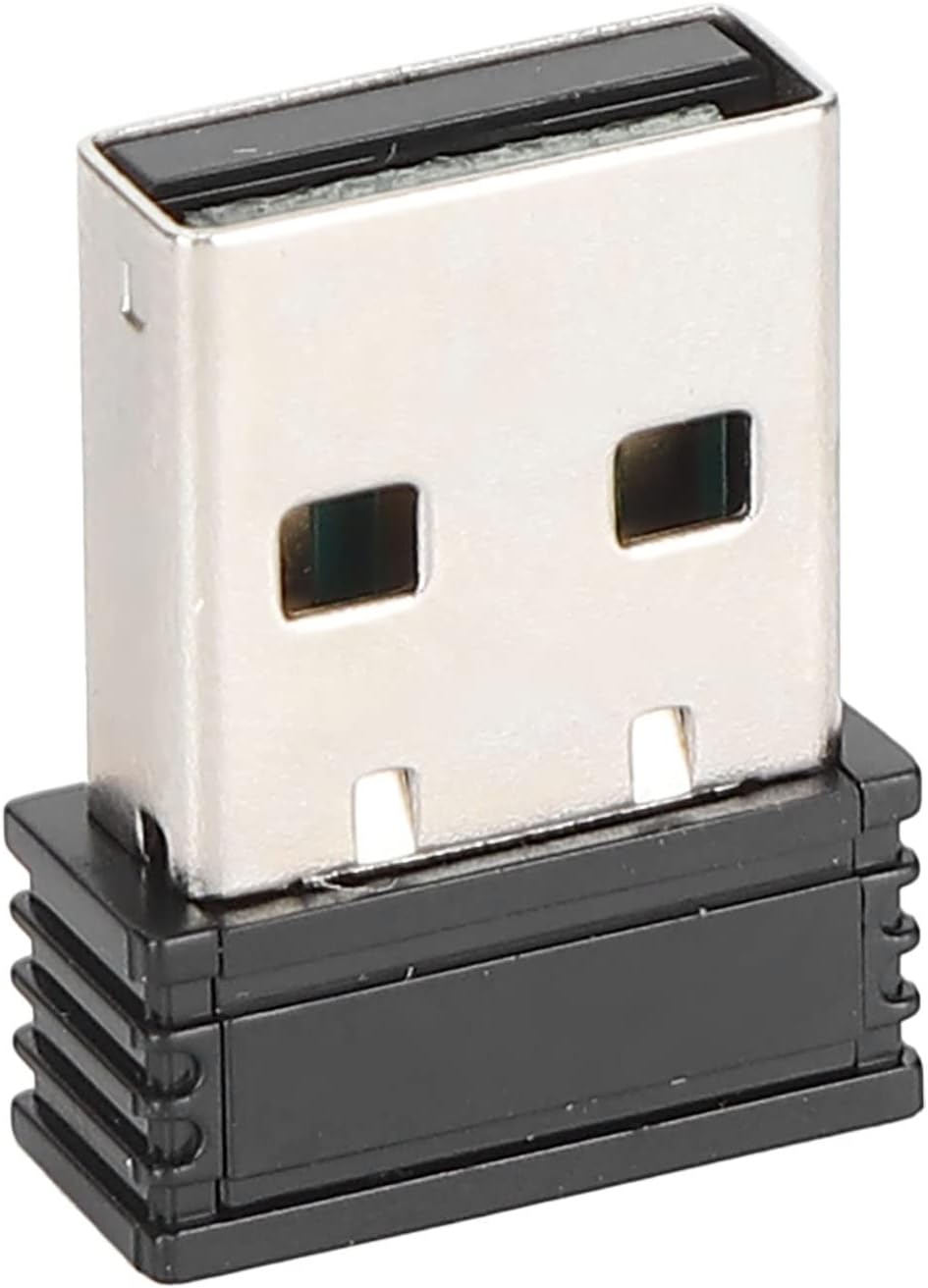
Figure 4: The compact USB receiver.
3.3 Powering On the Mouse
After installing the batteries and connecting the USB receiver:
- Locate the ON/OFF switch on the underside of the mouse.
- Slide the switch to the "ON" position.
- The mouse should now be ready for use. Move the mouse to test its functionality.

Figure 5: Underside of the mouse with the ON/OFF switch.
4. Operating Instructions
4.1 Basic Functions
- Left Click: Primary selection and activation.
- Right Click: Accesses context menus.
- Scroll Wheel: Scrolls through documents and web pages. Can also be clicked for middle-click functionality.
4.2 Adjusting DPI (Sensitivity)
The mouse features an adjustable DPI setting, allowing you to change the cursor sensitivity to suit your preference or task. The available DPI settings are 800, 1200, and 1600 DPI.
- Locate the DPI button, usually positioned below the scroll wheel on the top of the mouse.
- Press the DPI button to cycle through the available sensitivity settings. Each press will switch to the next DPI level.
- Observe the cursor movement on your screen to determine the desired sensitivity.

Figure 6: DPI button for sensitivity adjustment.
4.3 Wireless Range
The mouse operates wirelessly up to a distance of approximately 10 meters (393.7 inches) from the USB receiver. Performance may vary depending on environmental factors and obstacles.
Video 1: Overview of the PUSOKEI 1600DPI 2.4G Ergonomic USB Mouse. This short video demonstrates the mouse's design and highlights its wireless functionality.
5. Maintenance
5.1 Battery Replacement
When the mouse performance degrades or it stops responding, it is likely time to replace the batteries. Follow the steps in Section 3.1 to replace the two (2) AAA batteries.
5.2 Cleaning the Mouse
To maintain optimal performance and hygiene:
- Use a soft, dry cloth to wipe the exterior of the mouse.
- For stubborn dirt, slightly dampen the cloth with water or a mild cleaning solution, then wipe dry immediately.
- Avoid using harsh chemicals, abrasive cleaners, or submerging the mouse in liquid.
- Periodically clean the optical sensor area on the underside of the mouse with a cotton swab to ensure accurate tracking.
6. Troubleshooting
If you encounter issues with your PUSOKEI Wireless Mouse, please refer to the following common solutions:
| Problem | Possible Cause | Solution |
|---|---|---|
| Mouse not responding or intermittent connection | Low batteries, mouse is off, USB receiver disconnected, interference. | 1. Replace AAA batteries. 2. Ensure the ON/OFF switch is in the 'ON' position. 3. Re-insert the USB receiver into a different USB port. 4. Move the mouse closer to the receiver or away from other wireless devices. |
| Cursor movement is erratic or inaccurate | Dirty optical sensor, unsuitable surface, low DPI setting. | 1. Clean the optical sensor on the underside of the mouse. 2. Use the mouse on a clean, non-reflective surface or a mouse pad. 3. Press the DPI button to increase sensitivity. |
| USB receiver not recognized by computer | Driver issue, faulty USB port. | 1. Try plugging the USB receiver into a different USB port. 2. Restart your computer. 3. Ensure your operating system is up to date. |
7. Specifications
| Feature | Detail |
|---|---|
| Brand | PUSOKEI |
| Model Number | PUSOKEIgmh839iocb1355-11 |
| Connectivity Technology | USB, Wireless (2.4Ghz) |
| Movement Detection Technology | Optical |
| Optical Resolution | 800-1200-1600 DPI |
| Number of Buttons | 4 |
| Wireless Distance | Approx. 10m / 393.7in |
| Power Source | Battery Powered (2 x AAA, not included) |
| Compatible Devices | Laptop, Personal Computer |
| Operating System | Windows (Minimum Windows 7) |
| Material | ABS |
| Hand Orientation | Ambidextrous |
8. Warranty and Support
Specific warranty information for this product is not provided in the available documentation. For warranty claims, technical support, or further assistance, please contact the retailer or manufacturer directly through their official support channels.