
Introduction
This manual provides detailed instructions for the setup, operation, and maintenance of your new 61-Key Electronic Music Keyboard Piano. Designed for both beginners and intermediate users, this instrument offers a rich set of features to enhance your musical journey. Please read this manual thoroughly to ensure proper use and to maximize your enjoyment of the product.
The keyboard features 255 Timbres, 255 Rhythms, 61 keyboard percussions, and 10 demonstration songs, providing a wide range of sounds and styles for practice and performance. Its portable design allows for use with either batteries or the included AC adapter.
Package Contents
- 61-Key Electronic Music Keyboard Piano
- 120V UL A/C Adaptor
- Sheet Music Stand
- Microphone
- Owner's Manual (this document)
Setup
1. Unpacking
Carefully remove all components from the packaging. Inspect the keyboard and accessories for any signs of damage. Retain the packaging for future storage or transport.
2. Powering the Keyboard
Your keyboard can be powered in two ways:
- AC Power: Connect the included 120V UL A/C adaptor to the DC IN jack on the back of the keyboard and plug the other end into a standard wall outlet.
- Battery Power: For portable use, insert 6 AA batteries (not included) into the battery compartment located on the underside of the keyboard. Ensure correct polarity.
3. Attaching the Sheet Music Stand
Insert the sheet music stand into the designated slots on the top rear of the keyboard until it is securely in place.
4. Connecting the Microphone
Plug the microphone into the MIC IN jack on the keyboard. The microphone allows for vocal accompaniment during play or practice.

Image: The 61-key electronic keyboard piano, shown with the included microphone and sheet music stand. This view highlights the overall design and key components.
Operating Instructions
1. Power On/Off
Press the POWER button located on the control panel to turn the keyboard on or off. The LCD display will illuminate when the keyboard is on.
2. Volume Control
Adjust the master volume using the MASTER VOL knob or buttons on the control panel.

Image: A top-down view of the 61-key electronic keyboard piano, showing the full layout of the keys, speakers, and the central control panel.
3. Selecting Timbres (Instrument Sounds)
The keyboard features 255 Timbres. To select a timbre:
- Press the TIMBRE button.
- Use the number pad or the +/- buttons to enter the desired timbre number (000-254). The selected timbre will be displayed on the LCD.
4. Selecting Rhythms (Accompaniment Styles)
The keyboard includes 255 Rhythms. To select a rhythm:
- Press the RHYTHM button.
- Use the number pad or the +/- buttons to enter the desired rhythm number (000-254).
- Press START/STOP to begin or end the rhythm.
5. Demonstration Songs
The keyboard has 10 demonstration songs. To play a demo song:
- Press the DEMO SONG button.
- Use the +/- buttons to select a song.
- Press PLAY to start the song. Press again to stop.
6. Recording and Playback
The built-in recorder allows you to capture your performances:
- Press the REC button to enter recording mode.
- Play your desired melody. The keyboard will record the notes played.
- Press the PLAY button to listen to your recorded performance.
7. Advanced Controls and Effects
The control panel offers various functions to customize your sound:
- Single-Fingered / Fingered Auto-Bass Chords: Use the dedicated buttons to switch between chord modes.
- Chord Timbre: Adjust the timbre of the accompanying chords.
- Program/Edit Rhythm: Create or modify rhythm patterns.
- Effects: Apply VIBRATO, SUSTAIN, and ENSEMBLE effects using their respective buttons.
- Rhythm Sync and Fill-in: Synchronize rhythm playback or add fill-ins.
- Tempo Adjustment: Use the TEMPO +/- buttons to increase or decrease the speed of rhythms and demo songs.
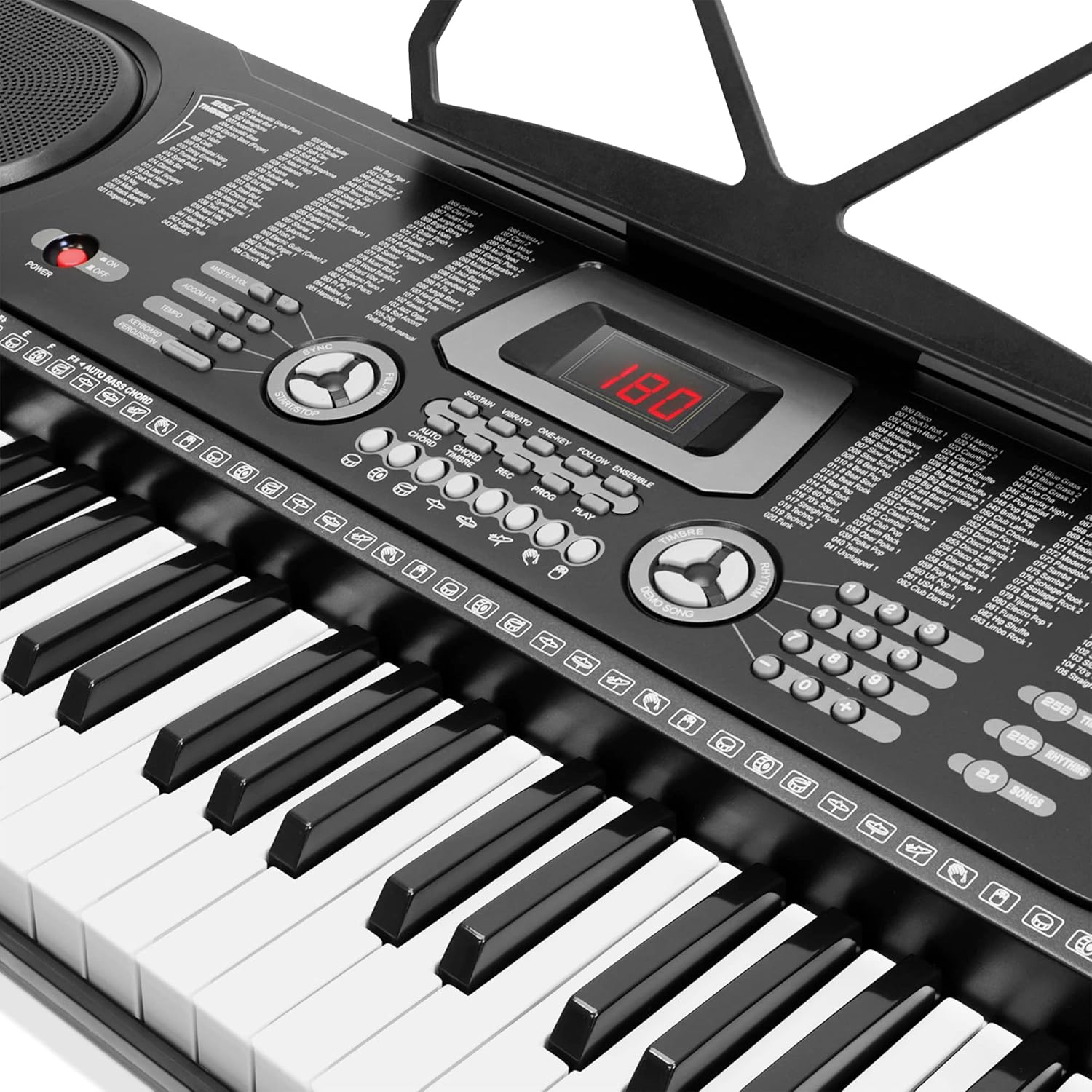
Image: A detailed view of the keyboard's central control panel, showing the LCD display, various function buttons for timbre, rhythm, tempo, effects, and recording controls.
Maintenance
1. Cleaning
Wipe the keyboard surface with a soft, dry cloth. For stubborn dirt, slightly dampen the cloth with water and a mild detergent, then wipe dry immediately. Do not use abrasive cleaners, solvents, or waxes, as they may damage the finish.
2. Storage
When not in use, store the keyboard in a cool, dry place away from direct sunlight and extreme temperatures. If storing for an extended period, remove the batteries to prevent leakage.
3. Battery Replacement
If the keyboard's performance degrades when using battery power, replace all 6 AA batteries with new ones. Ensure correct polarity when inserting new batteries.
Troubleshooting
| Problem | Possible Cause | Solution |
|---|---|---|
| No sound from keyboard. | Keyboard is off; Volume is too low; Batteries are depleted; AC adapter is not connected properly. | Ensure keyboard is powered on. Increase master volume. Replace batteries or connect AC adapter securely. |
| Microphone not working. | Microphone not plugged in correctly; Microphone is faulty. | Ensure microphone is fully inserted into the MIC IN jack. Test with another microphone if available. |
| Keys are unresponsive or sound incorrect. | Dust or debris under keys; Internal malfunction. | Gently clean around the keys. If problem persists, contact customer support. |
| Rhythm or demo song tempo is incorrect. | Tempo setting is adjusted. | Use the TEMPO +/- buttons to adjust to the desired speed. |
Specifications
| Feature | Detail |
|---|---|
| Model Name | 21621732 |
| Number of Keys | 61 |
| Dimensions (L x W x H) | 33.5" x 13" x 4" (approx. 4"D x 13"W x 4"H) |
| Item Weight | 7 Pounds |
| Timbres | 255 |
| Rhythms | 255 |
| Keyboard Percussions | 61 |
| Demonstration Songs | 10 |
| Power Source | Battery Powered (6 AA batteries, not included), Corded Electric (120V UL A/C Adaptor) |
| Connectivity | 3.5mm Jack (Microphone Input, Headphone Output, Audio Input) |
| Display | LCD Display |
| UPC | 842364114418 |
Warranty and Support
This product is manufactured by Generic. For warranty information, technical support, or service inquiries, please refer to the contact information provided with your purchase documentation or visit the manufacturer's official website. Keep your purchase receipt as proof of purchase for any warranty claims.
For common issues, please refer to the Troubleshooting section of this manual. If the issue persists, professional assistance may be required.


