
1. Introduction
This manual provides detailed instructions for the setup, operation, and maintenance of your WAVLINK DisplayLink Laptop Docking Station. This docking station is designed to expand your laptop's connectivity, supporting dual monitors up to 5K/4K resolution, 100W power delivery, and multiple USB ports for versatile peripheral connections. Please read this manual thoroughly before using the device to ensure optimal performance and safety.
2. Product Overview
2.1 Package Contents
- WAVLINK DisplayLink Laptop Docking Station
- 130W Power Adapter
- USB-C to USB-C Cable
- USB-C to USB-A Cable
- Quick Start Guide
- Driver CD (Drivers also available for download online)
2.2 Device Layout and Ports
The WAVLINK docking station features a comprehensive array of ports for various connectivity needs. Below is an illustration of the front and rear panels with their respective ports.

Figure 2.2.1: Front and Rear view of the WAVLINK DisplayLink Laptop Docking Station, showing all available ports.
Front Panel:
- USB 3.0 Ports (x2): For connecting USB peripherals such as keyboards, mice, and flash drives.
- USB-C Ports (x2): One for host connection (with Power Delivery up to 100W), one for data.
- LED Indicator: Indicates power and connection status.
- Audio Out Port: For connecting headphones or speakers.
- Mic In Port: For connecting a microphone.
Rear Panel:
- Power On/Off Switch: To power the device on or off.
- DC 20V Power Input: Connects to the 130W power adapter.
- Gigabit Ethernet Port: For wired network connection.
- HDMI 2.0 Ports (x2): For connecting external displays.
- DisplayPort 1.2 Ports (x2): For connecting external displays.
- USB 3.0 Ports (x4): For connecting additional USB peripherals.
- USB-C Host Port (with PD): Connects to your laptop for data and power delivery.
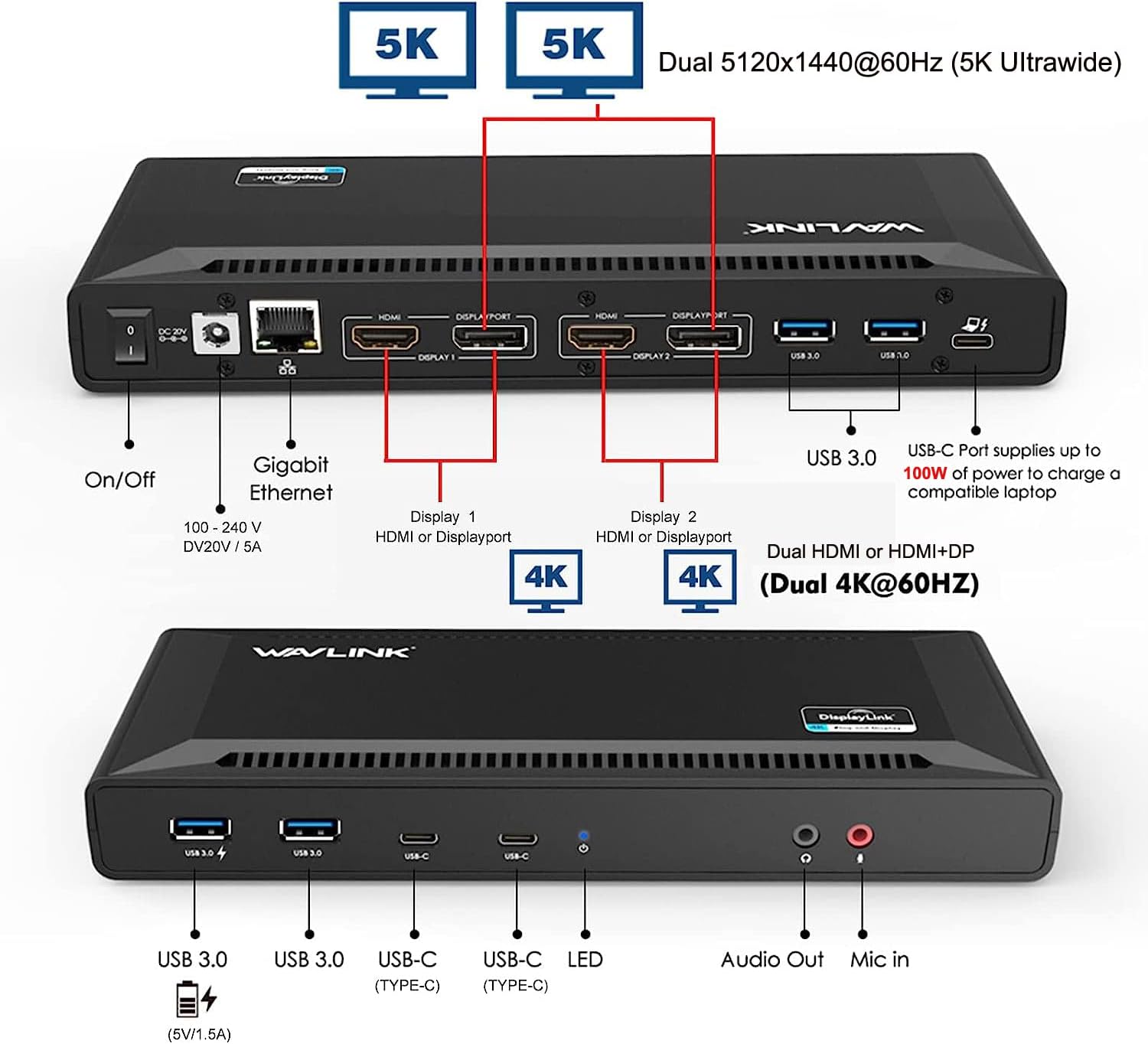
Figure 2.2.2: Detailed diagram of the WAVLINK Docking Station ports, highlighting their functions and capabilities including 5K/4K display support and 100W Power Delivery.
3. Setup and Installation
3.1 Driver Installation
The WAVLINK DisplayLink Docking Station requires the DisplayLink driver to function correctly. It is crucial to install the latest driver from the official DisplayLink website for optimal performance and compatibility.
- Download Driver: Visit the official DisplayLink website (www.synaptics.com/products/displaylink-graphics/downloads) and download the latest DisplayLink Manager application compatible with your operating system (Windows, macOS, ChromeOS, Ubuntu).
- Run Installer: Double-click the downloaded file to start the application installer.
- Follow On-Screen Prompts: Proceed through the installation steps, accepting the license agreement and providing necessary system permissions.
- System Password: You may be prompted to enter your system password to authorize the installation.
- Screen Recording Permission (macOS only): For macOS users, you must grant "Screen Recording" permission to the DisplayLink Manager in your system settings (System Settings > Privacy & Security > Screen Recording). This allows the DisplayLink driver to access and render pixels for mirrored or extended displays. After granting permission, you may need to quit and reopen the DisplayLink Manager application.
For a visual guide on installing the DisplayLink Manager application on macOS, please refer to the video below:
Video 3.1.1: Instructions on how to download and install the DisplayLink Manager application for macOS. This video is provided by WAVLINK Direct.
3.2 Connecting the Docking Station
- Power Connection: Connect the 130W power adapter to the DC 20V input port on the rear of the docking station, then plug the adapter into a power outlet.
- Host Connection: Connect the docking station to your laptop using either the provided USB-C to USB-C cable or the USB-C to USB-A cable. Use the USB-C Host Port on the rear panel of the docking station.
- Monitor Connection: Connect your external monitors to the docking station using the HDMI or DisplayPort outputs. The docking station supports dual displays with resolutions up to 5K (5120x1440@60Hz) or 4K (4096x2160@60Hz).
- Peripheral Connection: Connect your USB peripherals (keyboard, mouse, external hard drives, etc.) to the available USB 3.0 ports on the front and rear panels.
- Network Connection: For a stable wired network, connect an Ethernet cable from your router/modem to the Gigabit Ethernet port on the docking station.
- Audio Connection: Connect headphones or speakers to the Audio Out port, and a microphone to the Mic In port on the front panel.
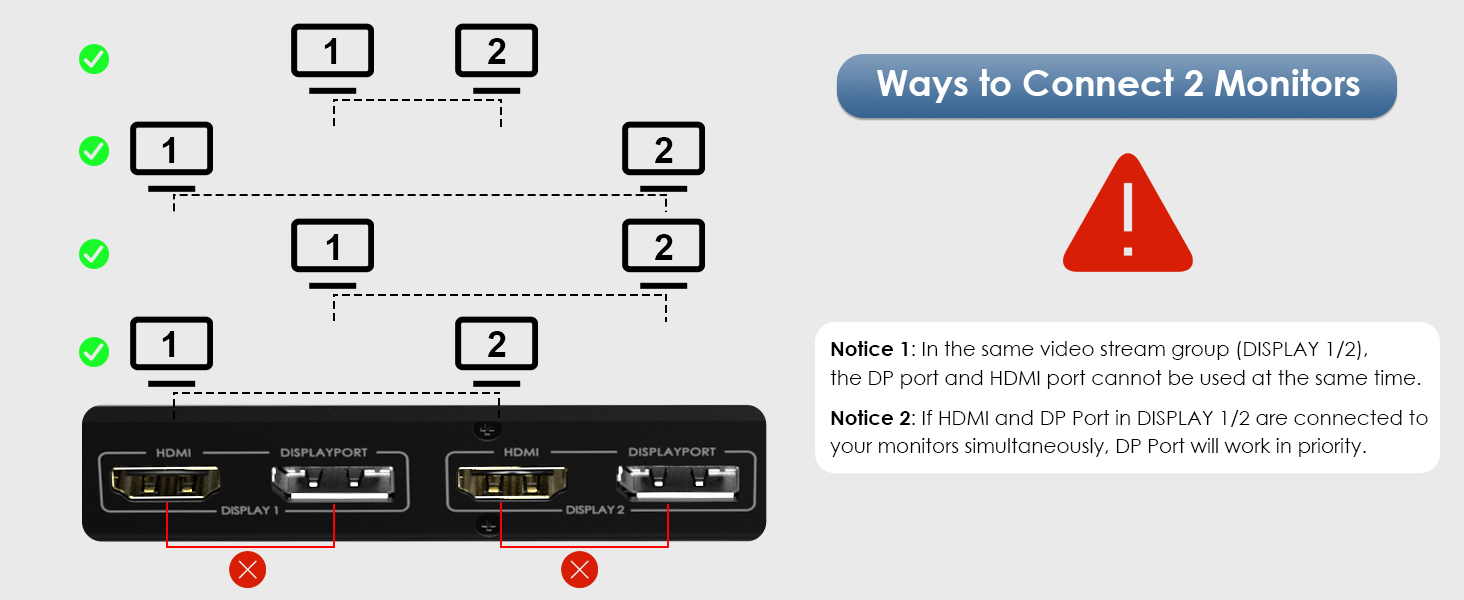
Figure 3.2.1: The docking station supports both USB-C and USB-A host connections, making it compatible with a wide range of laptops.
4. Operating Instructions
4.1 Display Modes
The docking station supports various display configurations, including Mirror Mode and Extend Mode, across different operating systems.
Mirror Mode:
In Mirror Mode, the external displays mirror the content of your laptop's screen. This is useful for presentations or sharing content with a larger audience.

Figure 4.1.1: Illustration of Mirror Mode, where external displays show the same content as the laptop screen. Supported on Windows and macOS.
Extend Mode:
In Extend Mode, each external display acts as an independent screen, extending your desktop workspace. This allows for multitasking and increased productivity.

Figure 4.1.2: Illustration of Extend Mode, where external displays provide additional screen real estate. Supported on Windows and macOS.
4.2 Power Delivery (PD) Functionality
The docking station provides up to 100W Power Delivery through its USB-C host port, allowing you to charge your compatible laptop while connected. This eliminates the need for a separate laptop charger, simplifying your workspace.
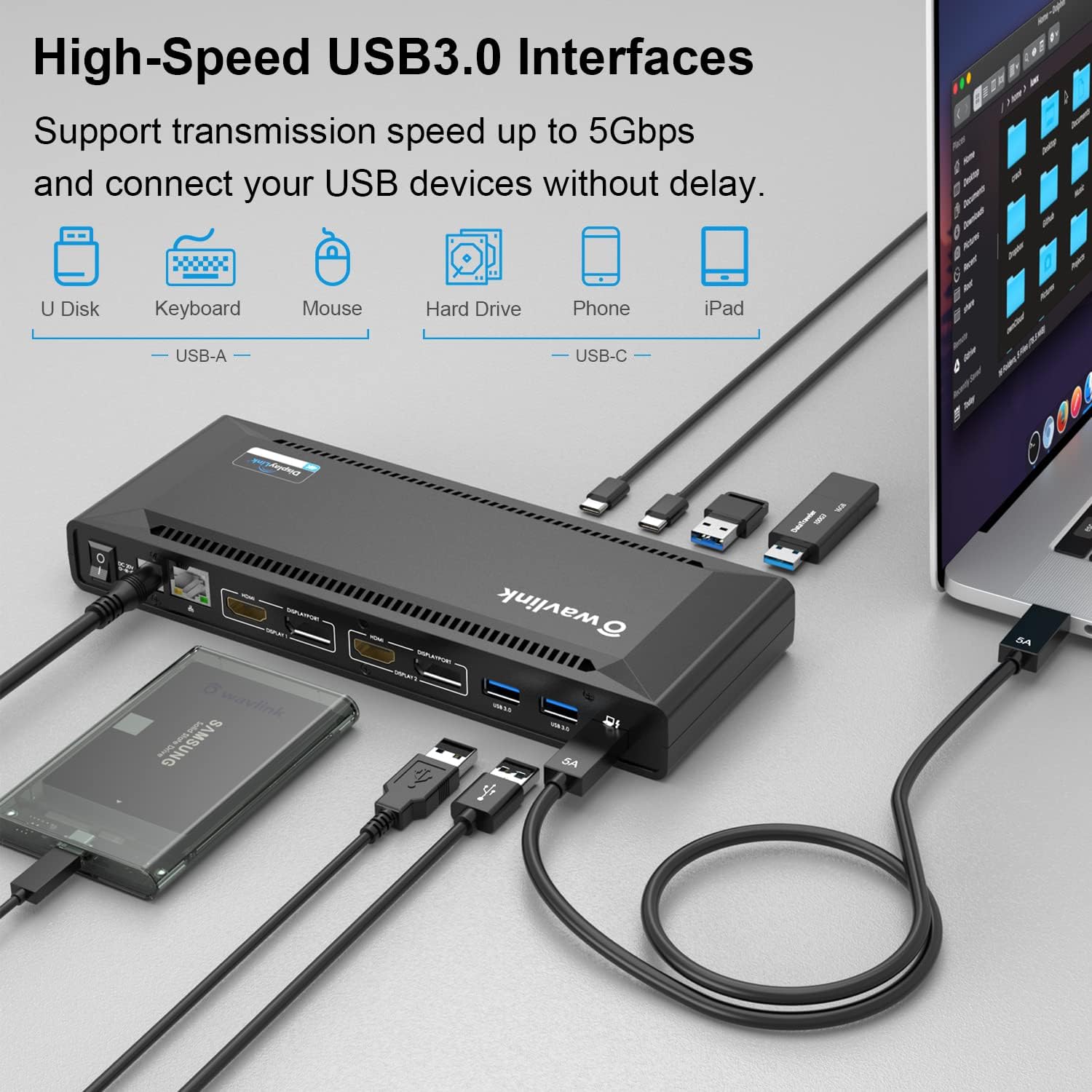
Figure 4.2.1: The docking station providing 100W power to a connected laptop, reducing cable clutter.
4.3 Universal Compatibility
The WAVLINK DisplayLink Docking Station is compatible with a wide range of operating systems and devices, including:
- Windows 11/10/8.1/8/7
- macOS 10.14 or later (including M1/M2 Macs)
- ChromeOS
- Ubuntu 20.04 and 22.04
Note: This docking station does not support plug-and-play functionality without the DisplayLink driver. Please ensure the latest driver is installed for proper operation.

Figure 4.3.1: The docking station demonstrating compatibility with various operating systems and devices, including Windows, macOS, ChromeOS, and Ubuntu.
5. Troubleshooting
If you encounter issues with your WAVLINK DisplayLink Laptop Docking Station, please refer to the following common troubleshooting steps:
| Problem | Solution |
|---|---|
| No display on external monitors. |
|
| Laptop not charging via docking station. |
|
| USB peripherals not recognized. |
|
| Network connection issues. |
|
For more detailed troubleshooting, please refer to the official Troubleshooting Guide (PDF) provided by WAVLINK.
6. Specifications
| Feature | Detail |
|---|---|
| Model Number | WL-UG69PD2-Pro-US |
| Product Dimensions | 8.78 x 3.15 x 1.02 inches |
| Item Weight | 2.9 pounds (1.32 Kilograms) |
| Power Delivery | Up to 100W for host PC |
| Video Outputs | 2x HDMI 2.0, 2x DisplayPort 1.2 |
| Max Resolution (Dual DisplayPort) | 5120x1440@60Hz (5K Ultrawide) or 4096x2160@60Hz (Cinema 4K) |
| Max Resolution (Dual HDMI / HDMI+DP) | 3840x2160@60Hz or 4096x2160@60Hz (Cinema 4K) |
| USB Ports | 5x USB 3.0, 2x USB-C (1x Host with PD, 1x Data) |
| Network | Gigabit Ethernet |
| Audio | Audio Out, Mic In |
| Compatible OS | Windows, macOS, ChromeOS, Ubuntu |
7. Maintenance
To ensure the longevity and optimal performance of your WAVLINK DisplayLink Laptop Docking Station, follow these maintenance guidelines:
- Cleaning: Use a soft, dry cloth to clean the exterior of the docking station. Avoid using liquid cleaners or aerosols.
- Ventilation: Ensure the docking station is placed in a well-ventilated area to prevent overheating. Do not block the ventilation openings.
- Cable Management: Keep cables organized and untangled to prevent damage and ensure proper airflow.
- Software Updates: Regularly check the official DisplayLink website for the latest driver updates to ensure compatibility and performance improvements.
- Storage: When not in use for extended periods, store the docking station in a cool, dry place away from direct sunlight and extreme temperatures.
8. Warranty and Support
WAVLINK products are designed for reliability and performance. For warranty information and technical support, please refer to the following resources:
- Official Website: Visit the WAVLINK official website for product registration, FAQs, and support resources.
- Customer Service: For direct assistance, you can contact WAVLINK customer support.
- Protection Plans: Extended protection plans may be available for purchase to cover your device beyond the standard warranty period.
For specific contact details and the most up-to-date warranty information, please visit the WAVLINK Store on Amazon or their official website.


