
Bsimb GAYI
BSIMB 10.1 Inch WiFi Digital Picture Frame User Manual
Model: GAYI
Introduction
This user manual provides comprehensive instructions for setting up, operating, and maintaining your BSIMB 10.1 Inch WiFi Digital Picture Frame. This smart electronic photo frame allows you to easily share and display photos and videos from anywhere via the VPhoto app and email, offering a vivid display for your cherished memories.
Safety Information
- Do not expose the device to water or excessive humidity.
- Avoid placing the frame in direct sunlight or near heat sources.
- Use only the provided power adapter.
- Keep out of reach of children.
- Do not attempt to disassemble or repair the device yourself. Contact customer support for assistance.
Package Contents
Please check the box for the following items:
- BSIMB 10.1 Inch WiFi Digital Picture Frame
- Power Adapter
- User Manual (this document)
Product Overview
The BSIMB Digital Picture Frame features a 10.1-inch HD IPS touch screen display, designed for vibrant and clear image presentation. It includes various ports for expanded storage and connectivity.

Image: Front view of the BSIMB Digital Picture Frame with a family photo displayed, alongside a smartphone showing the VPhoto app.

Image: Detailed view of the frame's display, emphasizing its Full HD (1920x1200) IPS touch screen capabilities.
Key Features:
- 1920x1200 FHD IPS Display: Provides vivid and crisp images with wide viewing angles.
- 32GB Internal Memory: Stores up to 80,000 pictures (300KB/pc).
- Extended Storage: Supports Micro SD card and USB drive (up to 64 GB).
- Wi-Fi Connectivity: Enables wireless sharing via VPhoto app and email.
- Multi-functionalities: Includes music, weather, alarm, and calendar features.
- Auto-Rotate: Automatically adjusts display orientation for landscape or portrait.
- Mounting Options: Can be freestanding or wall-mounted.
Setup
1. Powering On/Off
- Connect the power adapter to the frame and plug it into a power outlet. The frame will automatically power on.
- To power off, press and hold the power button until the shutdown prompt appears, then confirm.
2. Connecting to Wi-Fi
Upon first power-on, the frame will guide you through the initial setup, including Wi-Fi connection. Select your network and enter the password. The product description states it works with both 2.4 GHz and 5GHz networks. If you encounter connectivity issues with a 5GHz network, please ensure your router supports it or try connecting to a 2.4GHz network.
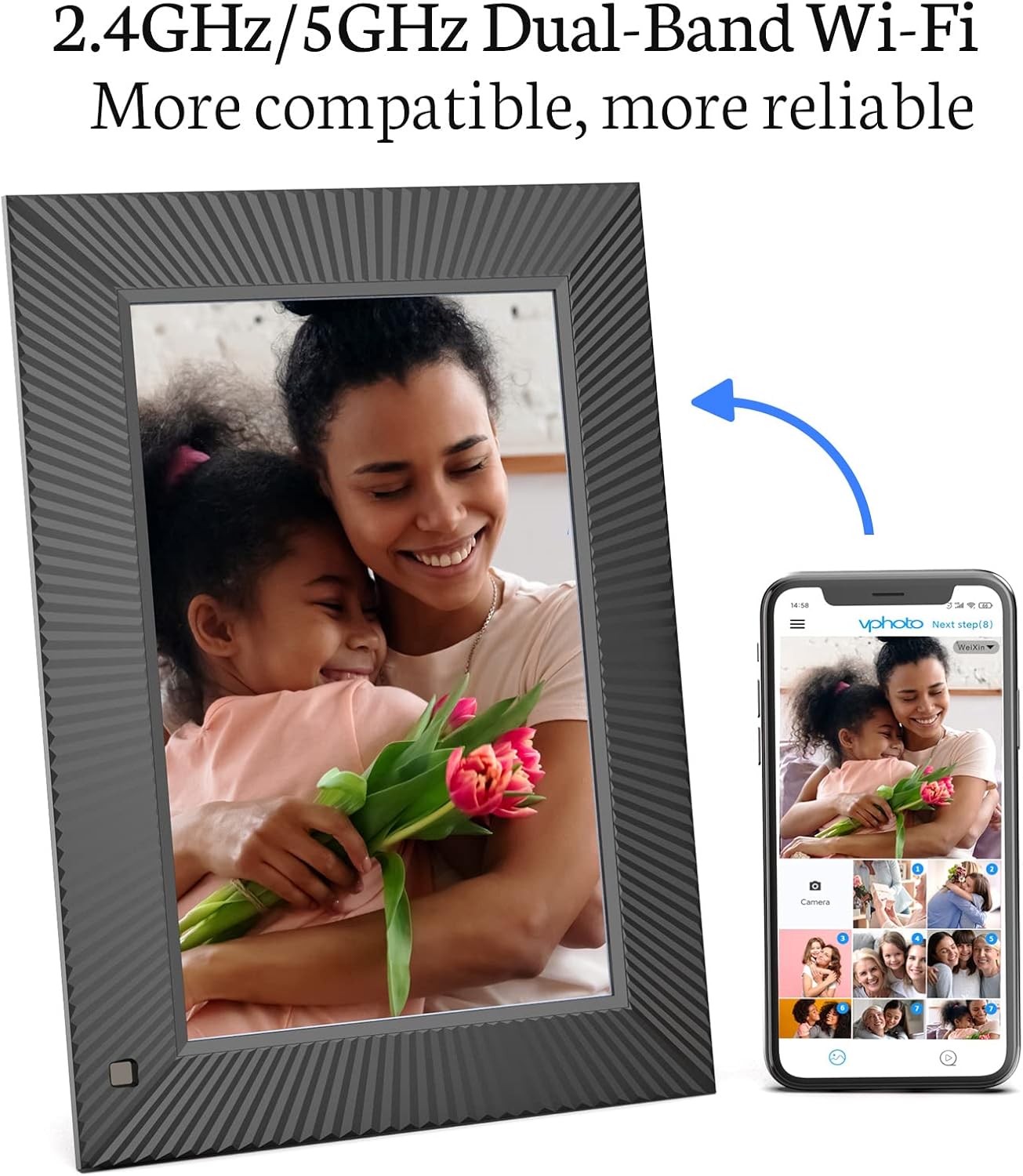
Image: The digital frame and a smartphone illustrating the dual-band Wi-Fi connection process.
3. App Installation and Pairing (VPhoto App)
The VPhoto app is essential for sharing photos and videos wirelessly.
- Download VPhoto App: Search for "VPhoto" in your smartphone's app store (App Store for iOS or Google Play Store for Android) and install it.
- Create an Account: Open the VPhoto app and follow the on-screen instructions to create a new account.
- Connect Your Frame: On your digital picture frame, navigate to the settings to find the unique frame ID or QR code. In the VPhoto app, select the option to add a new frame and scan the QR code or manually enter the frame ID.

Image: A visual guide to the three-step setup process: app download, frame connection via QR code, and content upload.
4. Placement and Orientation
Your BSIMB Digital Picture Frame can be placed freestanding on a surface or mounted on a wall. The auto-rotate feature ensures your photos are always displayed in the correct orientation, whether in landscape or portrait mode.

Image: Examples of the digital frame in freestanding and wall-mounted configurations, showcasing its auto-rotation capability.
Operating the Frame
1. Uploading Photos and Videos
There are several ways to add content to your frame:
- Via VPhoto App: Open the VPhoto app on your smartphone, select the frame, and choose the photos or videos you wish to upload. You can upload up to 50 photos at one time.
- Via Email: The frame has a unique email address. You can send photos and short videos directly to this email address, and they will appear on your frame.
- Via USB Drive/Micro SD Card: Insert a USB drive or Micro SD card (up to 64 GB, not included) into the designated slot on the frame. You can then import content directly from these storage devices to the frame's internal memory.

Image: Illustrates the instant sharing capability of the frame via Wi-Fi and cloud storage.

Image: Shows the frame's 32GB internal storage and options for extending storage via Micro SD card and USB drive.
2. Navigating the Touch Screen
The frame features an intuitive touch screen interface. Swipe left/right to browse photos, tap to access menus, and pinch to zoom (if supported by the software version).
3. Multi-functionalities
Your BSIMB frame offers more than just photo display:
- Slideshow: Customize slideshow intervals, transition effects, and playback order in the settings.
- Music: Play background music during slideshows.
- Weather: Display local weather information (requires internet connection).
- Alarm: Set alarms for reminders.
- Calendar: View the current date and schedule.
- Text Captions: Add captions to your photos.

Image: Icons representing the various smart features available on the frame, including text captions, slideshow, weather, music, alarm, and calendar.
4. Video Playback
The frame supports video playback. Videos uploaded via the VPhoto app or external storage will automatically play within your slideshow or can be selected individually.
Video: A demonstration of the BSIMB WiFi digital picture frame in various home settings, showcasing its ability to display family photos and blend into decor. This video highlights the frame's aesthetic appeal and its function as a central display for memories.
Video: A 360-degree view of the BSIMB FHD smart WiFi frame, demonstrating its physical design, including the stand and wall-mounting options. This video provides a detailed look at the frame's construction and versatility in placement.
Maintenance
1. Cleaning the Frame
To clean the screen, gently wipe it with a soft, lint-free cloth. For stubborn smudges, slightly dampen the cloth with water or a screen-cleaning solution. Do not spray liquid directly onto the screen.
2. Software Updates
The frame may receive periodic software updates to improve performance and add new features. Ensure your frame is connected to Wi-Fi to receive these updates. You can check for updates in the frame's settings menu.
Troubleshooting
| Problem | Possible Cause | Solution |
|---|---|---|
| Frame does not turn on. | No power or faulty adapter. | Ensure the power adapter is securely connected to the frame and a working power outlet. Try a different outlet. |
| Cannot connect to Wi-Fi. | Incorrect password, weak signal, or network incompatibility. | Double-check the Wi-Fi password. Move the frame closer to the router. Ensure your router is broadcasting a 2.4GHz signal. While the product description states 5GHz compatibility, some users have reported issues; if 5GHz fails, try 2.4GHz. |
| Photos/Videos not uploading via app. | App issue, network error, or frame not paired. | Ensure the frame is connected to Wi-Fi. Restart the VPhoto app and your phone. Re-pair the frame with the app if necessary. Check for app updates. |
| Screen is unresponsive. | Temporary software glitch. | Restart the frame by holding the power button until it shuts down, then power it back on. |
Specifications
- Product Dimensions: 11 x 1 x 8 inches
- Item Weight: 1.96 pounds
- Model Number: GAYI
- Brand: Bsimb
- Color: Black
- Resolution: 1920x1200 (FHD)
- Compatible Devices: Smartphone
- Screen Size: 10.1 Inches (Visible screen diagonal: 10" / 26 cm)
- Internal Storage: 32GB
- External Storage Support: Micro SD card and USB drive (up to 64 GB)
- Wi-Fi: 2.4 GHz and 5GHz networks (as per product description)
Warranty and Support
BSIMB offers a 30-day money-back guarantee and a 1-year worry-free warranty for this product. For any questions, technical support, or warranty claims, please contact BSIMB customer service. Refer to the contact information provided with your product packaging or visit the official BSIMB website for the most up-to-date support details.
Related documentsGAYI


Ask a question about this manual
Ask about setup, troubleshooting, compatibility, parts, safety, or missing instructions. Manuals+ will review the question and use this page’s manual context to help answer it.