
1. Introduction
The Briidea 50 Amp Smart Management Module (SMM) is an advanced device designed to protect your generator from overload conditions. By intelligently managing electrical loads, the SMM ensures that your generator operates efficiently and reliably, especially during power outages. This module automatically sheds non-critical loads when the electrical demand exceeds the generator's capacity, thereby preventing damage and extending the generator's lifespan. It is compatible with any home standby generator and transfer switches, offering a flexible solution for power management.
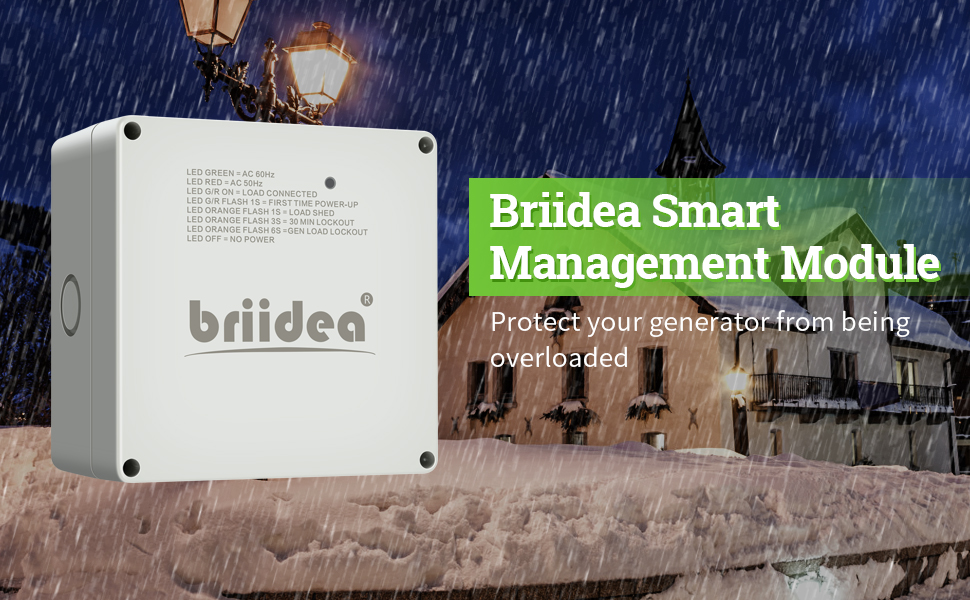
Image 1.1: The Briidea Smart Management Module, designed to protect generators from overload by managing electrical loads.
2. Key Features
- Automatic Operation: The SMM is self-aware and operates autonomously. It monitors the frequency of power produced by generators and automatically shuts down connected circuits or devices if the frequency falls to an unacceptable level, protecting the generator from overload.
- Load Priority: Allows users to select and prioritize critical circuits. During an outage, the module ensures electricity is supplied to the highest priority circuits first, maximizing the utility of your generator. Up to eight SMMs can be installed per system.
- Lock-Out Function: Features a lock-out function for non-critical loads under generator power. This prevents power from being supplied to loads that are not essential during an outage, offering a cost-effective power management solution.
- Maximum Compatibility: Designed to work seamlessly with any home standby generator and transfer switches.
- Frequency Selection: Offers 50 Hz/60 Hz selection, adjustable via a button without needing to open the electrical box.
3. Setup and Installation
Installation of the Briidea SMM should be performed by a qualified electrician to ensure safety and proper functionality. The module integrates with your existing electrical panel and generator system. Multiple modules can be installed to manage various loads throughout your home.

Image 3.1: Illustration of Briidea Smart Management Modules connected to an electrical panel, demonstrating autonomous load management.
The SMMs are typically mounted near the main electrical panel or sub-panels, with wiring connecting them to the circuits they manage. Ensure all local electrical codes and safety regulations are followed during installation.
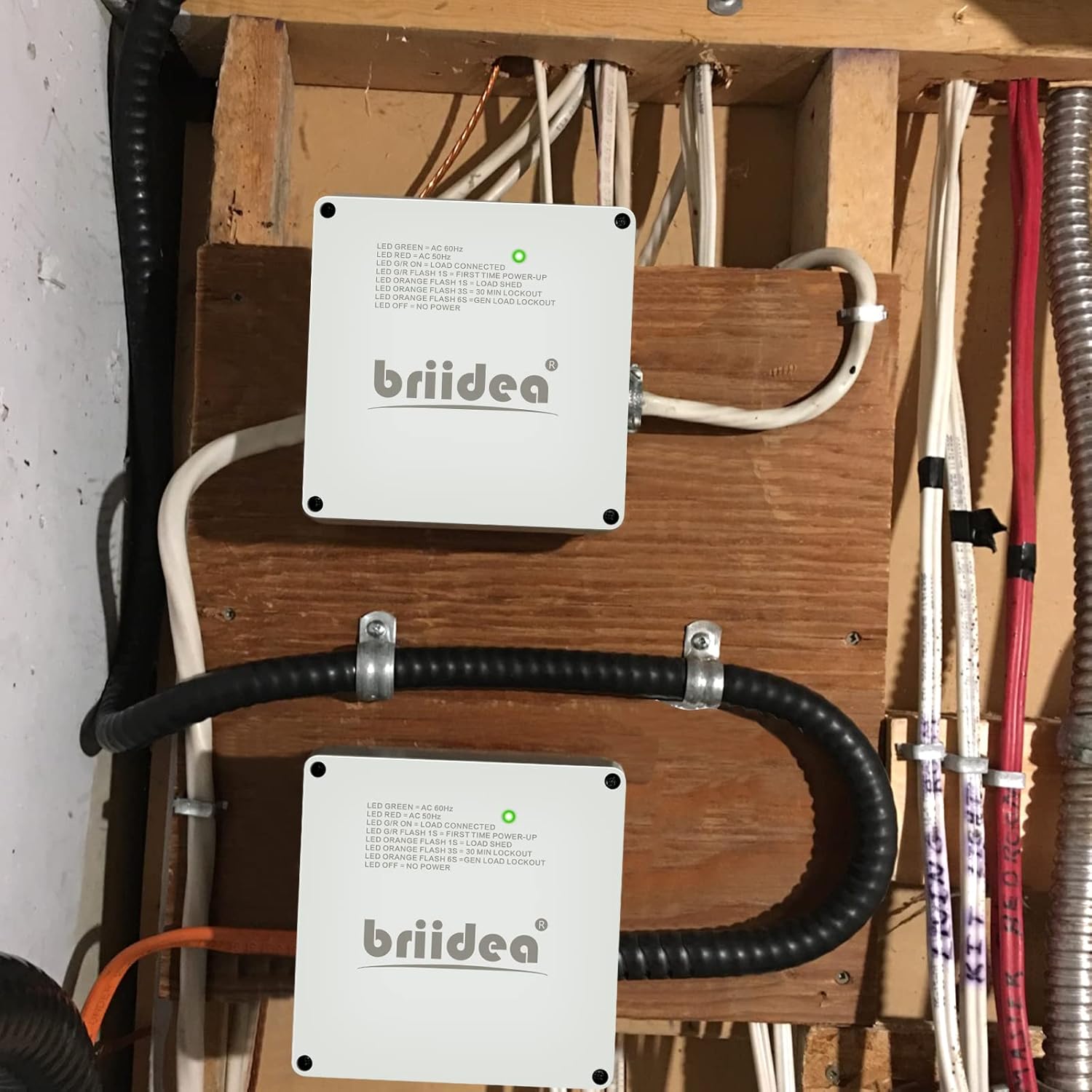
Image 3.2: Example of two Briidea Smart Management Modules installed in a utility area, connected to electrical wiring.
When setting up load priority, identify which appliances or circuits are most critical during a power outage (e.g., refrigerator, well pump, heating system). The SMM allows you to configure these priorities to ensure essential services remain operational.

Image 3.3: Diagram illustrating how the Briidea Smart Management Module prioritizes electrical loads, ensuring essential appliances receive power during an outage.
4. Operating Instructions
Once installed, the Briidea SMM operates automatically. User interaction primarily involves setting the frequency and understanding the LED status indicators.
4.1. Frequency Selection
The module supports both 50 Hz and 60 Hz frequencies. This can be adjusted using a button located inside the module, accessible without fully opening the main electrical box. Consult your electrician for proper frequency setting based on your generator and local power grid.

Image 4.1: Internal view of the Briidea Smart Management Module showing the frequency selection button and LED status indicators.
4.2. Lock-Out Function
The lock-out function allows you to disable power to non-critical loads when operating on generator power. This is typically set during installation based on your household's needs. A switch inside the module controls this function.

Image 4.2: Close-up view of the Briidea Smart Management Module's internal components, highlighting the lockout switch for disabling non-critical loads.
4.3. LED Status Indicators
The module features external LED lights to provide quick status updates. Understanding these indicators is crucial for monitoring the SMM's operation:
- LED Green: Indicates AC 60Hz operation.
- LED Red: Indicates AC 50Hz operation.
- LED G/R ON: Indicates a load is connected.
- LED G/R Flash 1S: Indicates first time power-up.
- LED Orange Flash 1S: Indicates a load shed event.
- LED Orange Flash 3S: Indicates a 30-minute lockout.
- LED Orange Flash 6S: Indicates a generator load lockout.
- LED OFF: Indicates no power to the module.

Image 4.3: Close-up of the Briidea SMM's external LED light, providing operational status at a glance.
5. Maintenance
The Briidea SMM is designed for durability and minimal maintenance. Regular checks can help ensure its continued performance:
- Visual Inspection: Periodically inspect the module for any visible signs of damage, corrosion, or loose connections.
- Cleanliness: Ensure the area around the module is kept clean and free from dust, debris, or obstructions that could impede ventilation or access.
- Professional Check: It is recommended to have a qualified electrician inspect your entire generator and load management system annually.
Do not attempt to open the module or perform internal repairs yourself. Always contact a qualified technician for any internal inspection or service.
6. Troubleshooting
If you encounter issues with your Briidea SMM, refer to the LED status indicators (Section 4.3) for initial diagnosis. Common troubleshooting steps include:
- No Power (LED OFF): Check the power supply to the module and ensure all connections are secure. Verify the generator or utility power source is active.
- Unexpected Load Shedding (Orange Flash 1S): This indicates the generator is operating near or at its overload capacity. Reduce the number of active loads or ensure the generator is functioning optimally.
- Incorrect Frequency Indication (Red/Green LED): Verify the frequency setting inside the module matches your power source (50 Hz or 60 Hz).
- Persistent Issues: If problems persist after basic checks, contact a qualified electrician or Briidea customer support for further assistance.
7. Specifications
| Brand | briidea |
| Model Number | SF20251008B09NBZ6KN3 |
| Current Rating | 50 Amps |
| Frequency | 60 Hz (50 Hz selectable) |
| Color | Gray |
| Special Feature | Automatic Load Management |
| Dimensions (Approx.) | 6.2 in x 6.2 in x 3.6 in |
| Material Properties | Weatherproof, Dust Resistant, Flame Retardant |

Image 7.1: Physical dimensions of the Briidea Smart Management Module.

Image 7.2: Visual representation of the module's weatherproof, dust resistant, and flame retardant material properties.
8. Warranty and Support
For information regarding product warranty, technical support, or service, please contact Briidea customer service directly. When contacting support, please have your product model number (SF20251008B09NBZ6KN3) and proof of purchase readily available to expedite assistance.
You can typically find contact information on the manufacturer's official website or through your purchase documentation.