
Bysameyee MIC-HB
Bysameyee 4K Wireless Digital Microscope MIC-HB User Manual
Comprehensive instructions for setup, operation, and maintenance of your Bysameyee 4K Wireless Digital Microscope.
1. Introduction
The Bysameyee 4K Wireless Digital Microscope MIC-HB is a versatile inspection tool designed for detailed observation. Featuring 3840x2160P resolution and 50x-1000x magnification, it provides clear, high-definition images and videos. This device is compatible with various operating systems including iOS, Android, Windows, and Mac, offering both wireless and wired connectivity options. Its portable design and integrated LED illumination make it suitable for a wide range of applications, from educational purposes to professional inspections.
2. Safety Information
- Do not disassemble or modify the device. Unauthorized modifications can lead to malfunction or injury.
- Avoid exposing the microscope to extreme temperatures, humidity, or corrosive substances.
- Keep the device away from water and other liquids to prevent electric shock or damage.
- Use only the provided charging cable and a compatible power adapter (5V DC) to charge the device.
- Ensure proper ventilation during operation and charging.
- Keep out of reach of children unless under adult supervision.
3. Package Contents
Please verify that all items are present in your package:
- Bysameyee 4K Wireless Digital Microscope MIC-HB
- Adjustable Stand
- USB Charging/Data Cable
- User Manual
- Calibration Ruler (if included with specific models)

Image: Contents of the Bysameyee 4K Wireless Digital Microscope package, including the microscope, stand, and cables.
4. Product Overview
Familiarize yourself with the components of your digital microscope:

Image: Detailed diagram illustrating the various parts and controls of the Bysameyee digital microscope.
- Charging Port/Indicator (DC5V): Used for charging the internal battery and for wired PC connection. An indicator light shows charging status.
- Focusing Wheel: Rotates to adjust the focus for clear images.
- Brightness Adjustment Pulley: Controls the intensity of the LED illumination.
- Camera/Switch Button: Press to capture an image or to power the device on/off.
- Zoom In/Zoom Out Button: Adjusts digital zoom (Note: Digital zoom functionality may vary or be unavailable on PC connections).
- Universal Bracket: Attaches the microscope to the included stand.
- LED Light/HD Lens: Provides illumination for the subject and captures high-definition images.
5. Setup
5.1 Charging the Device
Before first use, fully charge the microscope. Connect the provided USB cable to the microscope's charging port and to a 5V USB power adapter (not included) or a computer USB port. The charging indicator light will illuminate during charging and turn off when fully charged. A full charge typically provides approximately 4 hours of operation.
5.2 Assembling the Stand
Attach the microscope to the universal bracket on the adjustable stand. Ensure the microscope is securely fastened. The stand allows for stable positioning and fine adjustment of the microscope's height and angle over the subject.
5.3 Software Installation
For mobile devices (iOS/Android) and computers (Windows/Mac), you will need to install a compatible application to view the microscope's feed.
- For iOS/Android: Search for "WiFi Check" or a similar recommended application in your device's app store. Follow the on-screen instructions to install.
- For Windows/Mac: When connected via USB, the microscope functions as a standard webcam. You can use built-in camera applications (e.g., Camera app on Windows, Photo Booth on Mac) or third-party webcam software like Xplodeview or AMCAP (check manufacturer's website for recommendations).

Image: Universal compatibility of the microscope with various devices.
5.4 Connecting to Devices
- Wireless Connection (Mobile/Tablet):
- Power on the microscope by pressing and holding the Camera/Switch button.
- On your mobile device, go to Wi-Fi settings and connect to the Wi-Fi network broadcast by the microscope (usually named "UHF-XXXX" or similar).
- Open the installed microscope application (e.g., "WiFi Check"). The live feed from the microscope should appear.
- Wired Connection (PC):
- Connect the microscope to your computer using the provided USB cable.
- The computer should recognize the microscope as a webcam.
- Open your preferred webcam software or camera application. Select the microscope as the video input device.
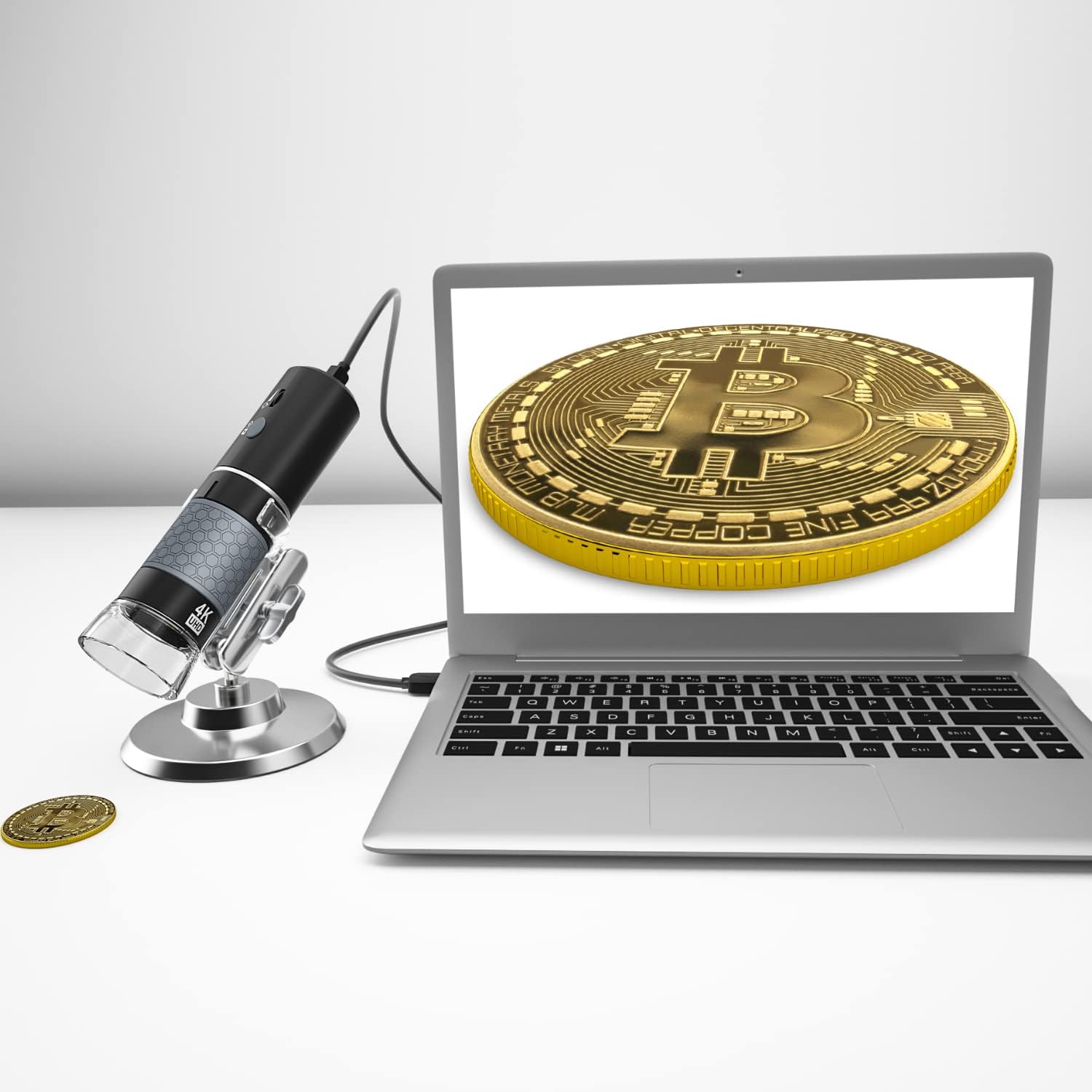
Image: Microscope connected to a laptop for wired viewing.
6. Operating Instructions
6.1 Power On/Off
To power on the microscope, press and hold the Camera/Switch button for a few seconds until the indicator light illuminates. To power off, press and hold the Camera/Switch button again until the indicator light turns off. Some models may require pressing the Camera/Switch button and the Zoom + button simultaneously to power off.
6.2 Adjusting Magnification and Focus
Place the object you wish to observe directly under the microscope lens. Rotate the Focusing Wheel to achieve a clear and sharp image on your connected device's screen. The microscope offers 50x-1000x magnification, which is adjusted by the distance between the lens and the object, and fine-tuned with the focusing wheel.
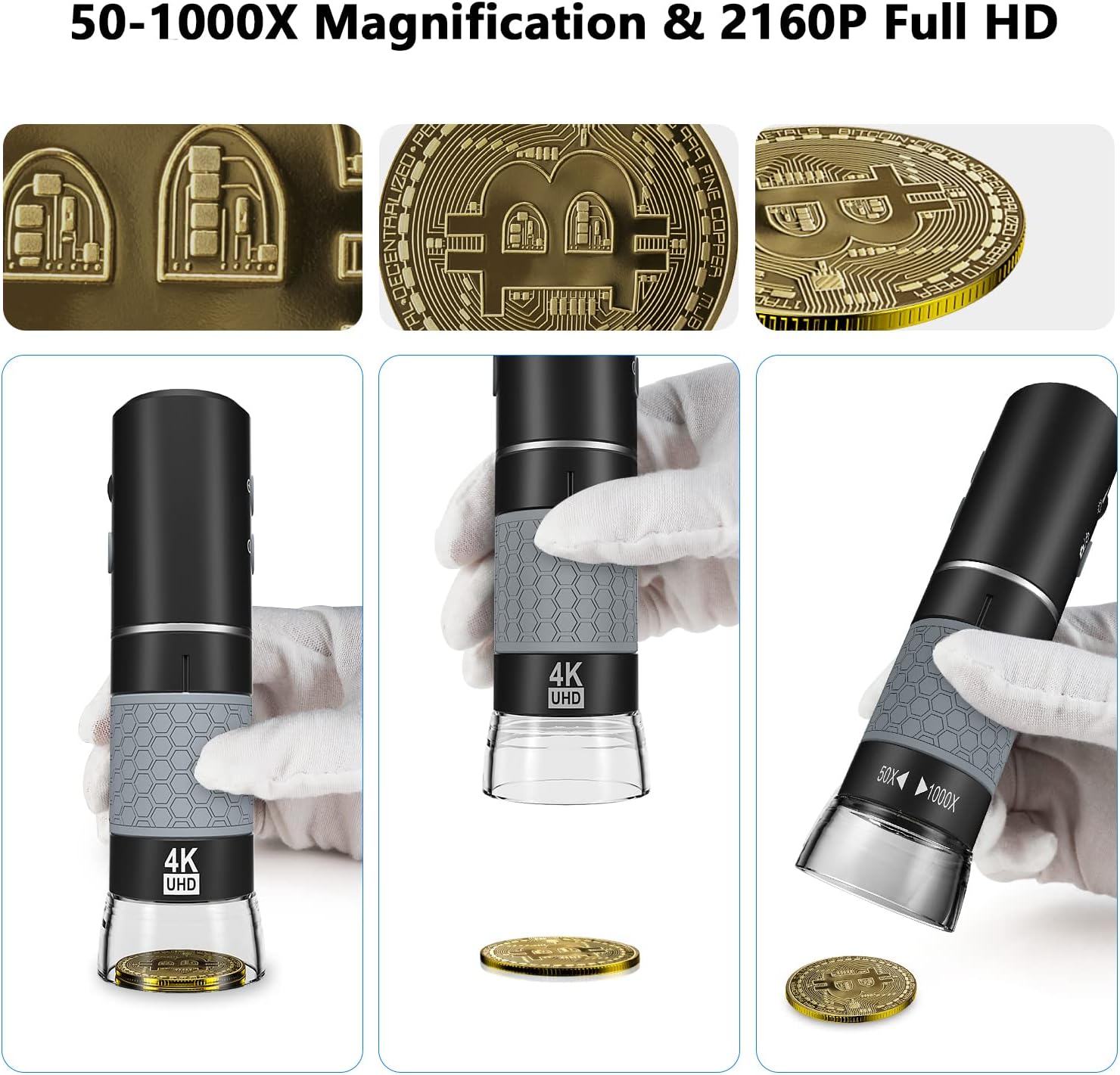
Image: Examples of 50x-1000x magnification and 2160P Full HD resolution.
6.3 Adjusting LED Brightness
The microscope features 8 built-in LED lights with adjustable illumination. Rotate the Brightness Adjustment Pulley to increase or decrease the light intensity. This allows you to optimize lighting conditions for different subjects and environments, ensuring optimal image clarity.
6.4 Capturing Images and Recording Videos
Once connected to your device and viewing the live feed:
- Capture Image: Press the Camera/Switch Button on the microscope or tap the corresponding button within the mobile application to take a still photograph.
- Record Video: Tap the video recording button within the mobile application to start and stop video recording.
- Digital Zoom: Use the Zoom In/Zoom Out Buttons on the microscope for digital magnification. Note that digital zoom functionality may be limited or unavailable when connected to a PC.

Image: Microscope functions for photography and video recording.
6.5 Application Examples
The Bysameyee 4K Wireless Digital Microscope is suitable for a variety of applications:
- Coin and stamp collection inspection
- Printed Circuit Board (PCB) inspection and soldering
- Skin and scalp care analysis
- Plant and insect observation
- Jewelry and watch repair
- Educational purposes for students and hobbyists
- Textile quality checks

Image: Diverse application examples for the digital microscope.
7. Maintenance
- Cleaning the Lens: Use a soft, lint-free cloth specifically designed for optical lenses to gently wipe the microscope lens. Avoid using abrasive materials or harsh chemicals.
- Cleaning the Body: Wipe the microscope body with a soft, dry cloth. If necessary, a slightly damp cloth can be used, but ensure no moisture enters the device.
- Battery Care: To prolong battery life, avoid fully discharging the battery frequently. If storing the device for an extended period, charge it to approximately 50% and recharge every few months.
- Storage: Store the microscope in a cool, dry place, away from direct sunlight and dust. Use the lens cap when not in use.
8. Troubleshooting
| Problem | Possible Cause | Solution |
|---|---|---|
| No image on screen / Cannot connect. |
|
|
| Image is blurry or out of focus. |
|
|
| Image lagging or freezing (on phone). |
|
|
| Stand is unstable. |
|
|
9. Specifications
| Model Number | MIC-HB |
| Resolution | 3840x2160P (4K) |
| Magnification | 50x - 1000x |
| Light Source | 8 Adjustable LED Lights |
| Connectivity | Wireless (Wi-Fi), USB (Wired) |
| Compatibility | iOS (iPhone, iPad), Android (Smartphone, Tablet), Windows 7/8/10, Mac OS, Chrome OS, Linux |
| Battery Type | Lithium Polymer (Rechargeable) |
| Battery Life | Approx. 4 hours (fully charged) |
| Item Weight | 9.5 ounces (0.27 Kilograms) |
| Package Dimensions | 6.02 x 4.53 x 1.93 inches |
| Material | Plastic |
| Voltage | 5 Volts |
10. Warranty and Support
Bysameyee products are designed for reliability and performance. For warranty information, technical support, or any questions regarding your Bysameyee 4K Wireless Digital Microscope MIC-HB, please refer to the contact information provided on the official Bysameyee website or contact your retailer. Please retain your proof of purchase for warranty claims.
For additional resources and product information, visit the Bysameyee Store on Amazon.
Related documentsMIC-HB


Ask a question about this manual
Ask about setup, troubleshooting, compatibility, parts, safety, or missing instructions. Manuals+ will review the question and use this page’s manual context to help answer it.