
Evil eye Evil eye
Evil eye 200X Phone Mini Pocket Microscope Instruction Manual
Model: Evil eye
1. Introduction
Welcome to the micro-world! The Evil eye 200X Phone Mini Pocket Microscope is a useful and practical lens designed for students, collectors, engineers, testers, and anyone interested in exploring the microscopic world. This portable accessory transforms your smartphone into a powerful microscope, allowing you to capture amazing enlarged high-resolution photos and videos. It is compatible with 95% of smartphones, including iPhone, Samsung, Google, Huawei, and Xiaomi.
2. Package Contents
- Evil eye 200X Phone Mini Pocket Microscope Unit
- USB-C Charging Cable
- Storage Bag
- Dust-proof Cloth
- Product Instruction Manual

Image showing the microscope package contents: microscope unit, USB-C charging cable, storage bag, dust-proof cloth, and instruction manual.
3. Features
- 200X Magnification: This super lightweight accessory (only 17.5g) turns your phone into a professional microscope. The microscope cooperates with your mobile phone's magnification function to achieve 200 times magnification.
- Easy to Use & No App Needed: Simply attach to your phone camera. No additional app download is required.
- Built-in LED Light: Features 6 LED lights with 2 levels of brightness adjustment for clear and bright magnified images.
- Optional CPL (Polarizing Filter): Effectively eliminates reflections and restores true colors of objects, reducing chromatic aberration.
- Strong Compatibility: The universal clip is designed to fit 95% of smartphones.

The microscope attached to a phone, illustrating its 200X magnification capability with an inset of a magnified insect part.

A smartphone with the microscope attached, showing the phone's camera interface, emphasizing that no additional app is needed.

An exploded view of the microscope lens assembly, highlighting the CPL (polarizing filter) and its effect on reducing reflections in magnified images.
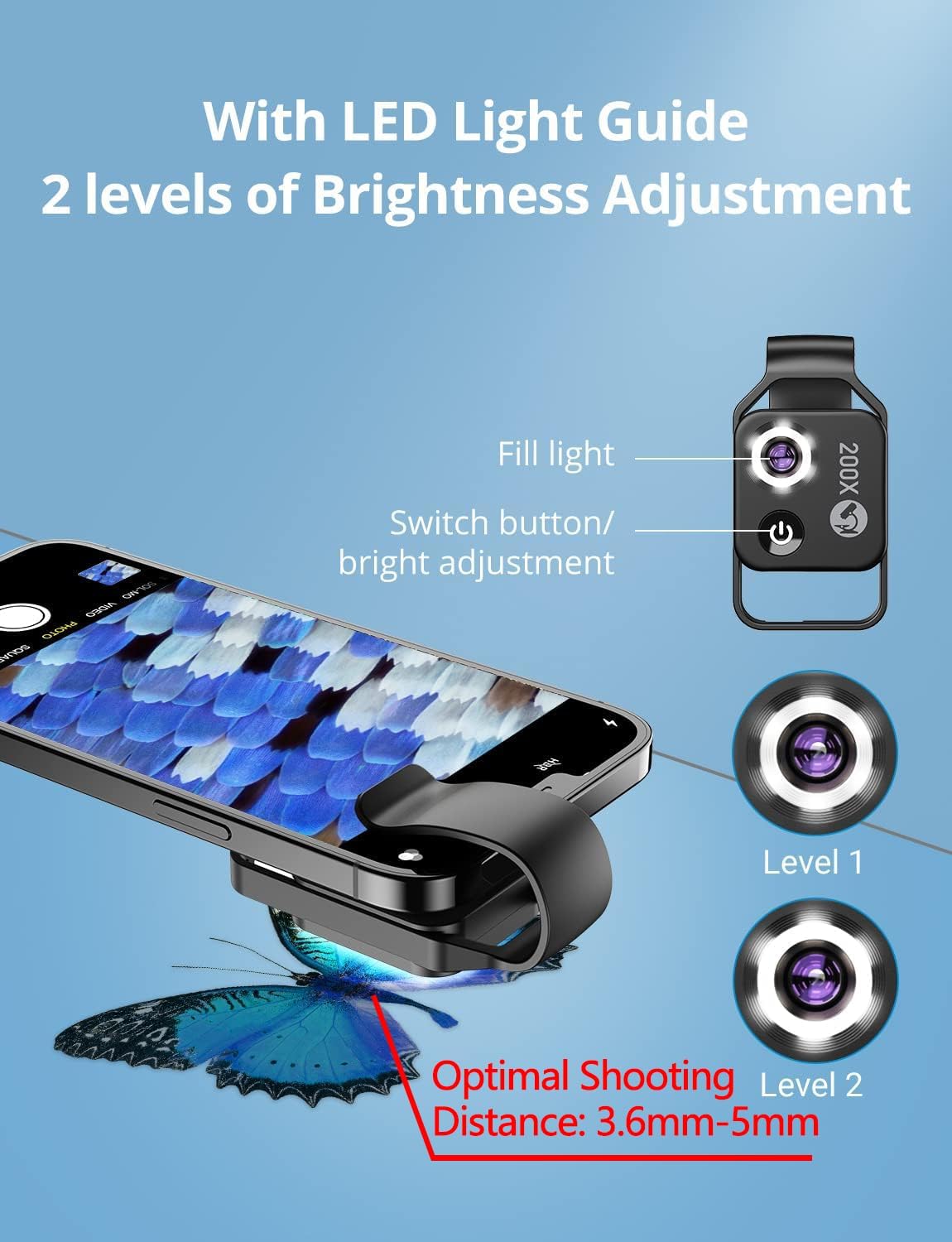
The microscope unit showing its built-in LED light with two brightness levels and optimal shooting distance.
4. Setup
Follow these steps to set up your Evil eye 200X Phone Mini Pocket Microscope:
- Charge the Microscope: Before first use, ensure the microscope is fully charged using the provided USB-C charging cable.
- Attach the Microscope: Adjust the microscope clip onto your phone camera. Ensure the microscope lens is aligned with your phone's main camera. The universal clip is designed for broad compatibility, but may not be suitable for phones with very high lens protrusion (e.g., some iPhone 14 Pro models).
- Turn on LED Light: Long press the power button for three seconds to turn on the LED light. You can short press to switch between two brightness levels.

Step 1 of installation: Slide the microscope clip downwards onto the phone.

Step 2 of installation: Adjust the microscope horizontally to align with the phone's main camera.

Step 3 of installation: Press the power button on the microscope to turn on the LED light.

Step 4 of installation: View the magnified image on your smartphone screen.
Setup Video Tutorial
Video: A step-by-step tutorial on how to install and use the microscope with a smartphone.
5. Operating Instructions
Once the microscope is attached and the LED light is on, you are ready to explore the micro-world. Simply use your phone's native camera application. The microscope works by utilizing your phone's existing camera and its digital zoom capabilities to achieve the 200X magnification.
- Optimal Focal Distance: For the clearest images, the best focal distance is 6.5-7.0mm (0.255-0.275 inches) from the object. Position the microscope as close as possible, almost touching the object you wish to view.
- Adjust Brightness: Use the power button to cycle through the two LED brightness levels to achieve optimal lighting for your subject.
- Capture Photos/Videos: Use your phone's standard camera controls to take high-resolution photos and videos of the magnified view.
- Sharing: Easily share your discoveries with friends and family directly from your phone's gallery.
Operation Video Tutorials
Video: Official product video for the APEXEL 200X Microscope, detailing its features and capabilities when used with a smartphone.
Video: Demonstration of the microscope's compatibility and performance with the iPhone 13 Pro Max.
Video: A comprehensive overview of the APEXEL Phone Portable Digital Microscope, showcasing its design and functionality.
6. Maintenance
To ensure the longevity and optimal performance of your Evil eye 200X Phone Mini Pocket Microscope, follow these maintenance guidelines:
- Cleaning the Lens: Use the provided dust-proof cloth to gently wipe the microscope lens. Avoid using abrasive materials or chemical cleaners that could damage the lens coating.
- Storage: When not in use, store the microscope in its provided storage bag to protect it from dust, scratches, and impacts.
- Avoid Extreme Conditions: Do not expose the microscope to extreme temperatures, high humidity, or direct sunlight for prolonged periods.
- Handle with Care: The microscope is a precision optical instrument. Avoid dropping it or subjecting it to strong vibrations.
7. Troubleshooting
If you encounter any issues while using your microscope, refer to the following common problems and their solutions:
| Problem | Solution |
|---|---|
| Blurry or black pictures | Ensure the LED lights are on. Position the microscope lens as close as possible to the object (almost touching it). The optimal focal distance is 6.5-7.0mm (0.255-0.275 inches). |
| Circular picture instead of full screen | Once the circular image appears, use your phone's screen to zoom in to achieve a full-screen view. |
| Problem switching lenses on iOS 15.2+ (e.g., iPhone 13 Pro/Pro Max) | Update your iOS system to 15.2 or higher. Go to Settings > Camera, and turn on 'Macro Control'. Then return to the camera app and turn off the flower icon (if present). |
| Difficulty attaching or aligning with phone camera (e.g., iPhone 14 Pro) | The microscope may not be suitable for phones with significant lens protrusion. Ensure proper alignment by sliding the clip horizontally and vertically. Remove any phone cases before attaching. |

Image illustrating troubleshooting tips for iOS settings and dark circle issues.
8. Specifications
| Attribute | Value |
|---|---|
| Brand | Evil eye |
| Model Number | Evil eye |
| Product Dimensions | 2.2 x 1.5 x 1.5 inches (or 2.68"L x 1.38"W x 1.1"H) |
| Item Weight | 2.46 ounces (0.07 Kilograms) |
| Magnification Maximum | 200 x |
| Light Source Type | LED |
| Material | ABS, Stainless steel |
| Color | Black |
| Compatible Devices | Smartphone |
| Batteries | 1 Lithium Ion battery required (included) |
| Country of Origin | China |
9. Warranty and Support
For any warranty claims, technical support, or product inquiries, please contact the seller directly. The primary seller for this product is Sunny Direct. Please refer to your purchase documentation for specific warranty terms and contact information.
You can also visit the official Evil eye store on Amazon for more information and support resources: Evil eye Store
Ask a question about this manual
Ask about setup, troubleshooting, compatibility, parts, safety, or missing instructions. Manuals+ will review the question and use this page’s manual context to help answer it.