
1. Introduction
The Denver PFF-1037W is a 10.1-inch digital picture frame designed to display your cherished photos and videos. It features a vibrant IPS touch screen and 16GB of internal storage. The integrated FRAMEO software facilitates easy content management and sharing, allowing you to receive media directly from friends and family via a dedicated app.
2. Package Contents
Before proceeding with the setup, please ensure all items are present in the package:
- Denver PFF-1037W Digital Picture Frame
- Power Adapter
- Mounting Hardware
- Quick Start Guide (if included)
3. Setup
3.1 Initial Power On
- Unpack the digital picture frame and its components.
- Connect the power adapter to the frame's power input port.
- Plug the power adapter into a wall outlet. The frame will automatically power on.
- Follow the on-screen instructions to select your language and region.
3.2 Wi-Fi Connection
To enable photo and video sharing, connect the frame to a Wi-Fi network:
- On the frame's screen, navigate to the Wi-Fi settings.
- Select your desired Wi-Fi network from the list.
- Enter the Wi-Fi password using the on-screen keyboard.
- Confirm the connection. Once connected, a Wi-Fi icon will appear on the screen.
3.3 FRAMEO App Setup
The FRAMEO app allows you to send photos and videos to your frame from a smartphone.
- Download the free FRAMEO app from the App Store (iOS) or Google Play Store (Android).
- Open the app and create an account or log in.
- On your digital picture frame, locate the unique frame ID.
- In the FRAMEO app, enter the frame ID to link your smartphone to the frame.
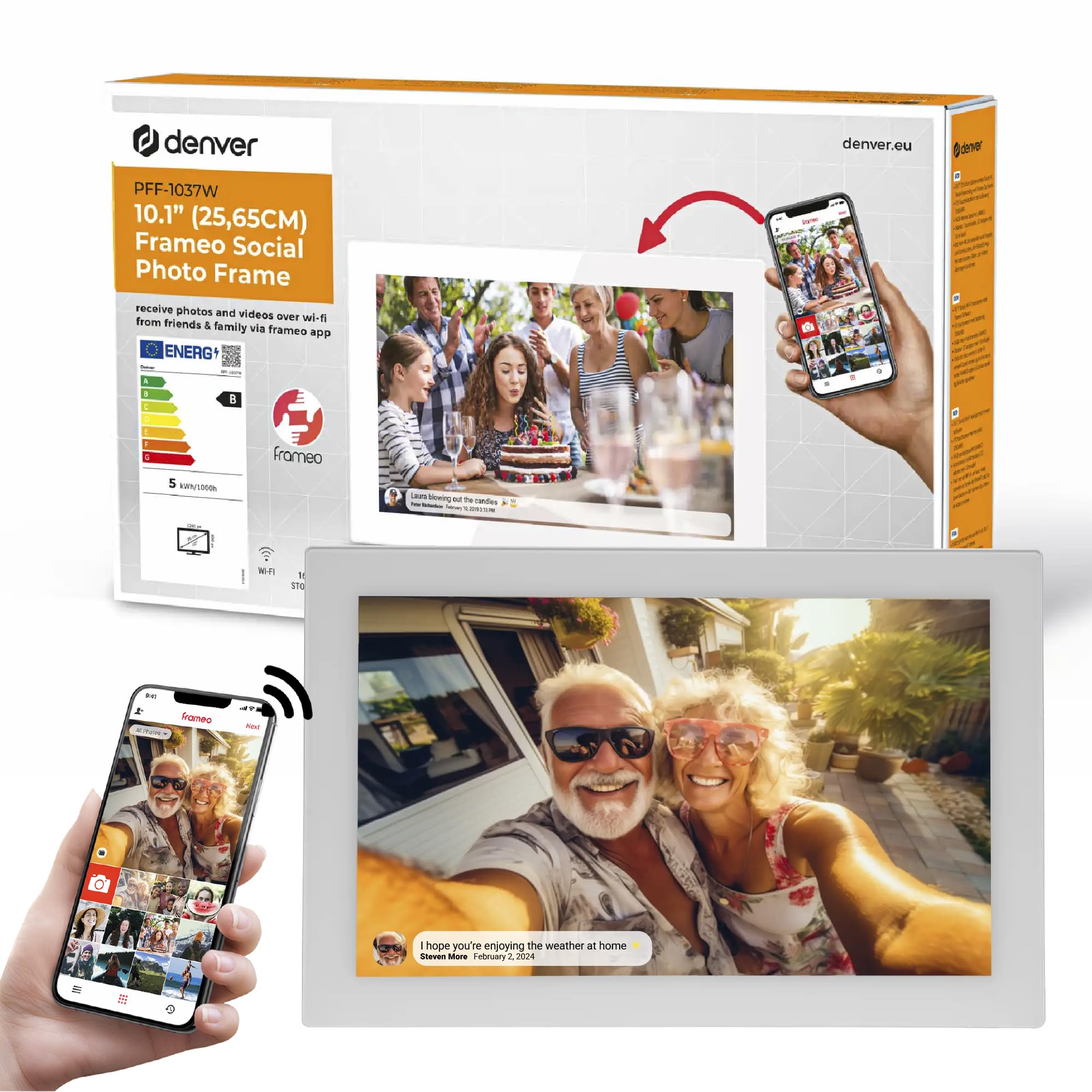
Image: The Denver PFF-1037W frame displaying a photo, with a smartphone illustrating the FRAMEO app for instant sharing.
4. Operating the Digital Picture Frame
4.1 Basic Navigation
The frame features a touch screen for easy navigation. Swipe left or right to browse photos, tap to view options, and use pinch gestures to zoom.
4.2 Sending Photos and Videos
Use the FRAMEO app on your smartphone to send media to the frame:
- Open the FRAMEO app and select the photos or short videos you wish to send.
- Add a caption if desired.
- Tap 'Send' to upload the media to your linked digital picture frame.
- The frame will automatically display new content as it is received.

Image: Illustration of multiple users connecting to the digital picture frame to share photos and videos, highlighting the multi-user connection feature.
4.3 Slideshow and Auto-Rotation
The frame automatically plays a slideshow of received media. It also supports adaptable auto-rotation, adjusting the display orientation based on how the frame is positioned.

Image: The Denver PFF-1037W frame shown in both horizontal and vertical orientations, demonstrating its adaptable auto-rotation capability.
4.4 Timer Function
Set a timer for the frame to automatically turn off during specific hours, such as overnight, to conserve energy.
- Access the frame's settings menu.
- Locate the 'Timer' or 'Sleep Schedule' option.
- Configure the desired on/off times.
4.5 Adding Captions and Reactions
Enhance your photos with personalized captions and interact with received media using reaction features.
- Captions: Add short descriptions to photos when sending them via the FRAMEO app.
- Reactions: On the frame, tap on a photo to bring up reaction options (e.g., heart, smile) to send feedback to the sender.

Image: The digital picture frame displaying various reaction icons, illustrating the interactive feedback feature.
4.6 Storage Management
The frame has 16GB of internal memory. For additional storage or to transfer a large number of photos, a Micro SD card can be used.
- Insert a Micro SD card into the designated slot on the frame.
- Access the frame's settings to manage content on the SD card or transfer files.

Image: An illustration emphasizing the 16GB built-in memory and the option to expand storage with a Micro SD card for the Denver PFF-1037W.
5. Maintenance
5.1 Cleaning the Screen
To clean the touch screen, gently wipe it with a soft, lint-free cloth. For stubborn smudges, slightly dampen the cloth with water or a screen-safe cleaning solution. Avoid abrasive materials or harsh chemicals.
5.2 Software Updates
Periodically check for software updates in the frame's settings menu. Updates can provide new features, performance improvements, and security enhancements. Ensure the frame is connected to Wi-Fi during updates.
6. Troubleshooting
This section addresses common issues you might encounter with your digital picture frame.
6.1 Frame Not Powering On
- Ensure the power adapter is securely connected to both the frame and a working electrical outlet.
- Try a different outlet to rule out power supply issues.
6.2 Unable to Connect to Wi-Fi
- Verify that your Wi-Fi network is active and within range.
- Double-check the Wi-Fi password for accuracy.
- Restart your Wi-Fi router and the digital picture frame.
6.3 Photos Not Appearing on Frame
- Confirm the frame is connected to Wi-Fi.
- Ensure the photos were successfully sent from the FRAMEO app. Check the app's history.
- Verify that the frame ID in your app matches the frame's ID.
- Check the frame's internal storage capacity. If full, delete old photos or use a Micro SD card.
6.4 Screen Unresponsive
- Perform a soft reset by disconnecting and reconnecting the power adapter.
- Ensure the screen is clean and free of debris.
7. Specifications
| Feature | Specification |
|---|---|
| Model Number | PFF-1037W |
| Screen Size | 10.1 Inches |
| Display Type | HD IPS Touch Screen |
| Resolution | 720p |
| Internal Memory | 16GB |
| Connectivity | Wi-Fi |
| Compatible Devices | Smartphone (via FRAMEO app) |
| Product Dimensions | 11.42 x 8.27 x 0.99 inches |
| Item Weight | 2 pounds |
| Manufacturer | Denver |
8. Warranty Information
For detailed warranty information, please refer to the warranty card included with your product or visit the official Denver website. Keep your proof of purchase for any warranty claims.
9. Support
If you require further assistance or encounter issues not covered in this manual, please contact Denver customer support. Contact details can typically be found on the manufacturer's website or in your product documentation.


