
AVM 20002974
AVM FRITZ!Repeater 1200 AX User Manual
Model: 20002974
1. Introduction
This manual provides essential information for the proper installation, operation, and maintenance of your AVM FRITZ!Repeater 1200 AX. Please read this manual carefully before using the device to ensure optimal performance and safety. The FRITZ!Repeater 1200 AX is designed to extend your existing Wi-Fi network, providing faster and more stable connections throughout your home or office.
2. Safety Information
Please observe the following safety instructions to prevent injury and damage to the device:
- Do not open the device casing.
- Do not expose the device to moisture, dust, or extreme temperatures.
- Use the device only in dry indoor environments.
- Ensure adequate ventilation around the device.
- Disconnect the device from the power outlet before cleaning.
3. Package Contents
Verify that all items are present in the package:
- AVM FRITZ!Repeater 1200 AX
- Quick Installation Guide

Image: The retail packaging for the FRITZ!Repeater 1200 AX, showing the device and key features.
4. Product Overview
The FRITZ!Repeater 1200 AX is a compact Wi-Fi 6 repeater designed to seamlessly integrate with your existing FRITZ!Box or other Wi-Fi router to expand network coverage.
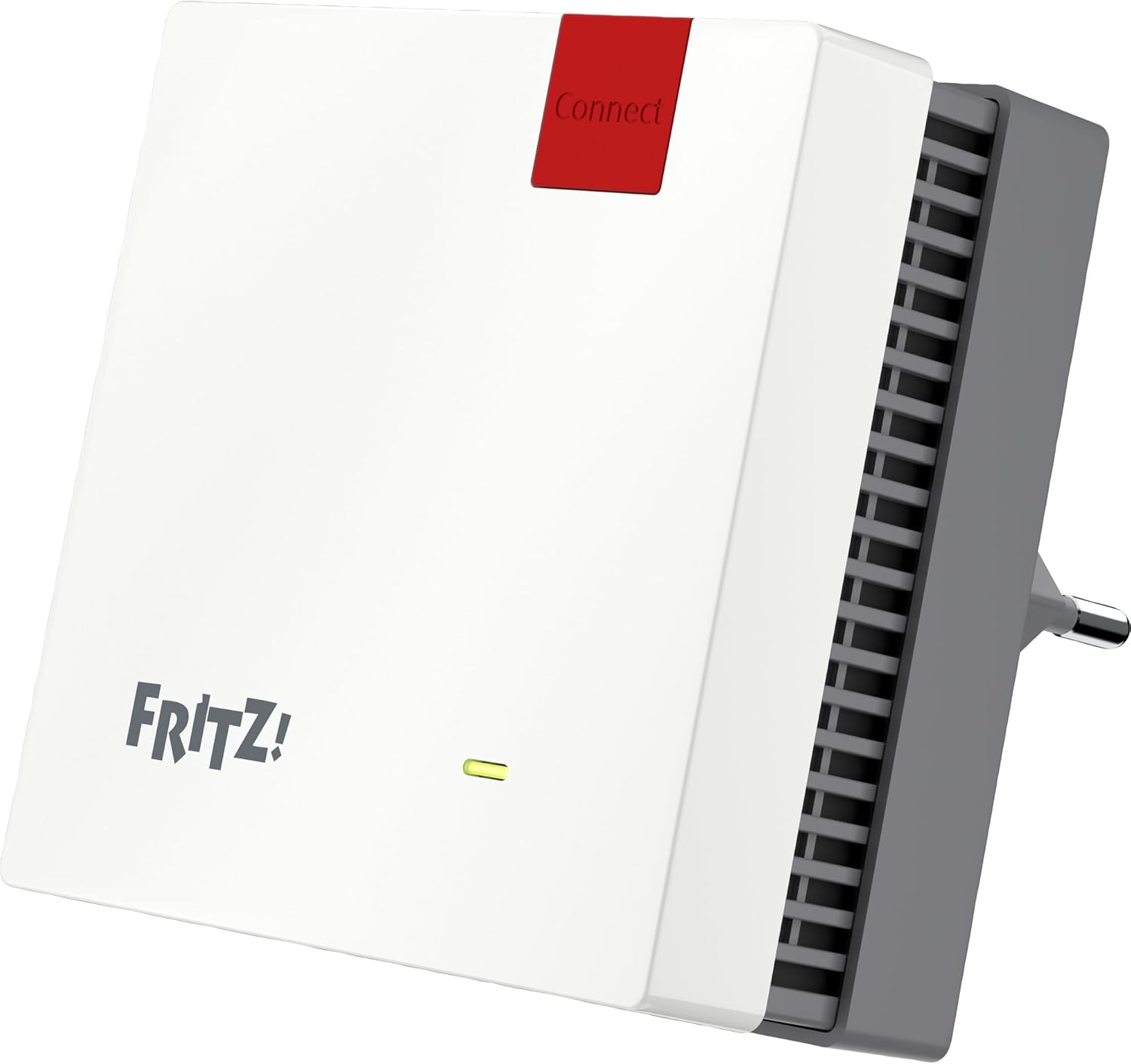
Image: Front view of the FRITZ!Repeater 1200 AX, showing the 'Connect' button and status LED.
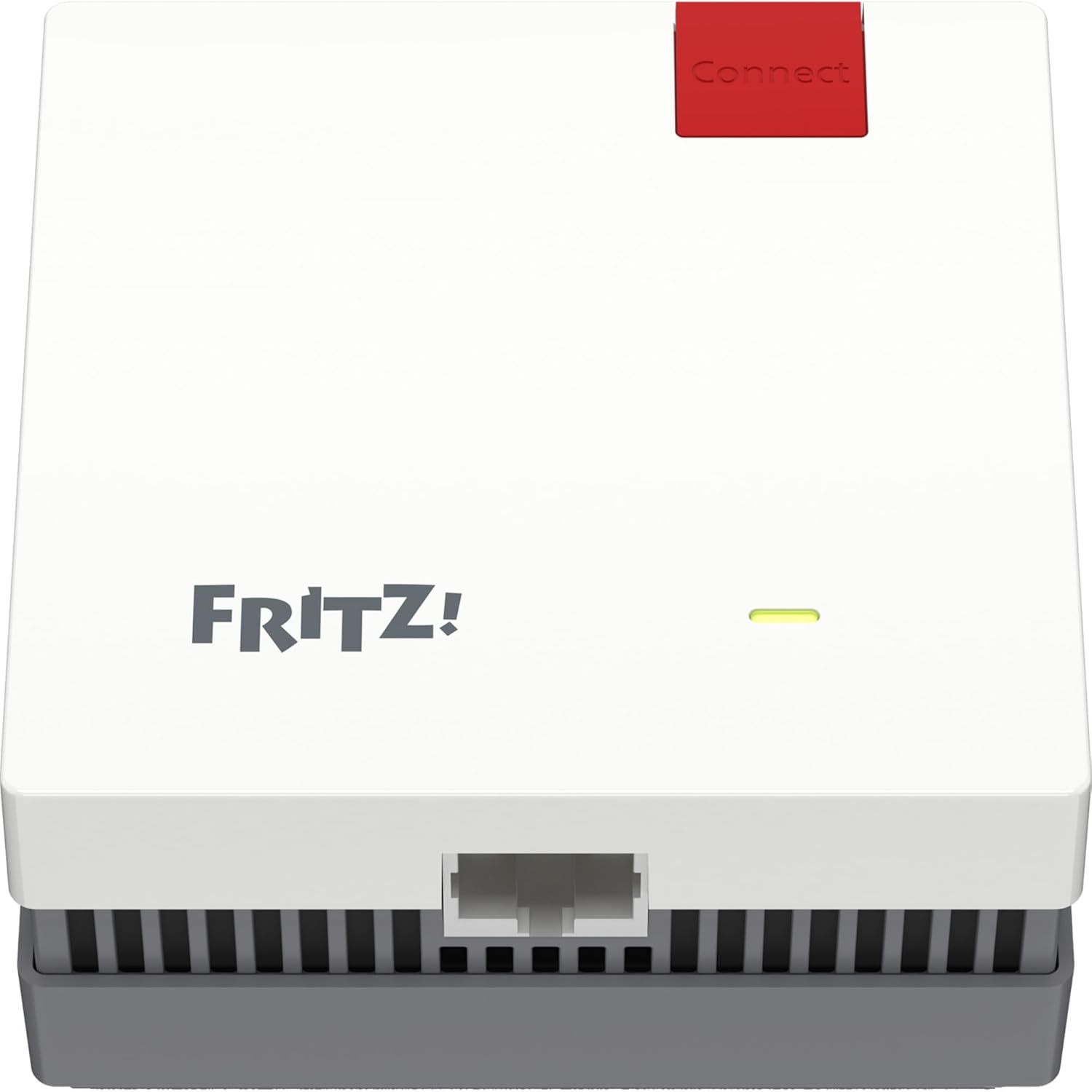
Image: Bottom view of the FRITZ!Repeater 1200 AX, highlighting the Gigabit LAN port.
Key Components:
- Connect Button: Used for WPS (Wi-Fi Protected Setup) to quickly connect to your router.
- Status LED: Indicates the device's operational status and connection quality.
- Gigabit LAN Port: For connecting wired devices such as smart TVs, gaming consoles, or PCs.
5. Setup
The FRITZ!Repeater 1200 AX offers two primary methods for setup: WPS (Wi-Fi Protected Setup) and manual configuration via the user interface.
5.1. Setup via WPS (Recommended)
- Plug the FRITZ!Repeater 1200 AX into a power outlet near your FRITZ!Box or Wi-Fi router.
- Wait for the status LED on the repeater to flash slowly.
- Press and hold the Connect button on the FRITZ!Repeater for approximately 1 second until the status LED flashes rapidly.
- Within 2 minutes, press the WPS button on your FRITZ!Box or Wi-Fi router. (Refer to your router's manual for the exact location of the WPS button, often labeled 'WPS' or with a Wi-Fi symbol).
- The status LED on the repeater will light up continuously once the connection is established.
- Unplug the repeater and place it in a central location between your router and the area where you need improved Wi-Fi coverage. Ensure the status LED indicates a good connection quality.
5.2. Manual Setup via Web Interface
- Plug the FRITZ!Repeater 1200 AX into a power outlet.
- Connect your computer or mobile device to the repeater's Wi-Fi network (the network name and password are on the label on the back of the device).
- Open a web browser and enter
http://fritz.repeaterorhttp://192.168.178.2in the address bar. - Follow the on-screen instructions to configure the repeater, selecting your existing Wi-Fi network and entering its password.
- Once configured, the repeater will connect to your main Wi-Fi network.
6. Operating
Once set up, the FRITZ!Repeater 1200 AX operates automatically to extend your Wi-Fi network. Devices connected to the repeater will benefit from the extended range and improved signal strength.
6.1. Wi-Fi Mesh Functionality
When used with a FRITZ!Box, the FRITZ!Repeater 1200 AX integrates into a Wi-Fi Mesh network. This creates a single, unified Wi-Fi network with optimal performance and seamless roaming for your devices.

Image: Illustrates how the FRITZ!Repeater extends Wi-Fi coverage from a FRITZ!Box throughout a multi-story home.

Image: Depicts a FRITZ! Mesh network where the FRITZ!Box and FRITZ!Repeater work together to create a unified network.
6.2. Connecting Wired Devices
You can connect a network-compatible device (e.g., a smart TV, game console, or PC) to the Gigabit LAN port on the repeater using an Ethernet cable. This device will then be integrated into your home network via the repeater's Wi-Fi connection.
7. Maintenance
The FRITZ!Repeater 1200 AX requires minimal maintenance.
- Cleaning: Use a soft, dry, lint-free cloth to clean the device. Do not use liquid or abrasive cleaners.
- Firmware Updates: AVM regularly provides firmware updates to improve performance and add new features. You can check for and install updates via the repeater's web interface (
http://fritz.repeater). - Optimal Placement: Periodically check the repeater's placement to ensure it is still in an optimal location for signal strength. The status LED can help indicate connection quality.
8. Troubleshooting
If you encounter issues with your FRITZ!Repeater 1200 AX, try the following steps:
- No Power: Ensure the repeater is securely plugged into a working power outlet.
- No Connection (LED off or flashing slowly):
- Move the repeater closer to your main Wi-Fi router.
- Repeat the WPS setup process.
- Check your main router's Wi-Fi settings and ensure it is broadcasting.
- Poor Connection Quality (LED indicates weak signal):
- Relocate the repeater to a more central position between your router and the desired coverage area.
- Avoid placing the repeater near large metal objects, microwaves, or cordless phones, which can cause interference.
- Forgotten Password: You can reset the repeater to factory settings by holding the Connect button for approximately 15 seconds until the status LED flashes rapidly, then release. Note that this will erase all custom settings.
9. Specifications
| Feature | Specification |
|---|---|
| Model Number | 20002974 |
| Wireless Standard | 802.11a/g/n/ac (Wi-Fi 6) |
| Data Transfer Rate | Up to 2400 Mbps (5 GHz), Up to 600 Mbps (2.4 GHz) |
| Frequency Band Class | Dual-Band |
| Connector Type | RJ45 (Gigabit LAN) |
| Product Dimensions | 1.46 x 3.15 x 3.15 inches |
| Item Weight | 3.56 ounces |
10. Warranty and Support
AVM provides a manufacturer's warranty for this product. For detailed warranty terms and conditions, please refer to the warranty card included with your product or visit the official AVM website.
For technical support, firmware updates, and additional resources, please visit the AVM support portal:
AVM Support Website: https://en.avm.de/service/

Image: A person working on a laptop, symbolizing product configuration or accessing online support resources.
Related documents20002974


Ask a question about this manual
Ask about setup, troubleshooting, compatibility, parts, safety, or missing instructions. Manuals+ will review the question and use this page’s manual context to help answer it.