
1. Introduction
The G-Wolves Hati HTS ACE Wireless Gaming Mouse is a high-performance peripheral designed for precision and agility in gaming. Featuring a lightweight honeycomb design and advanced sensor technology, it offers a responsive and comfortable experience for hybrid-claw and fingertip grip users.
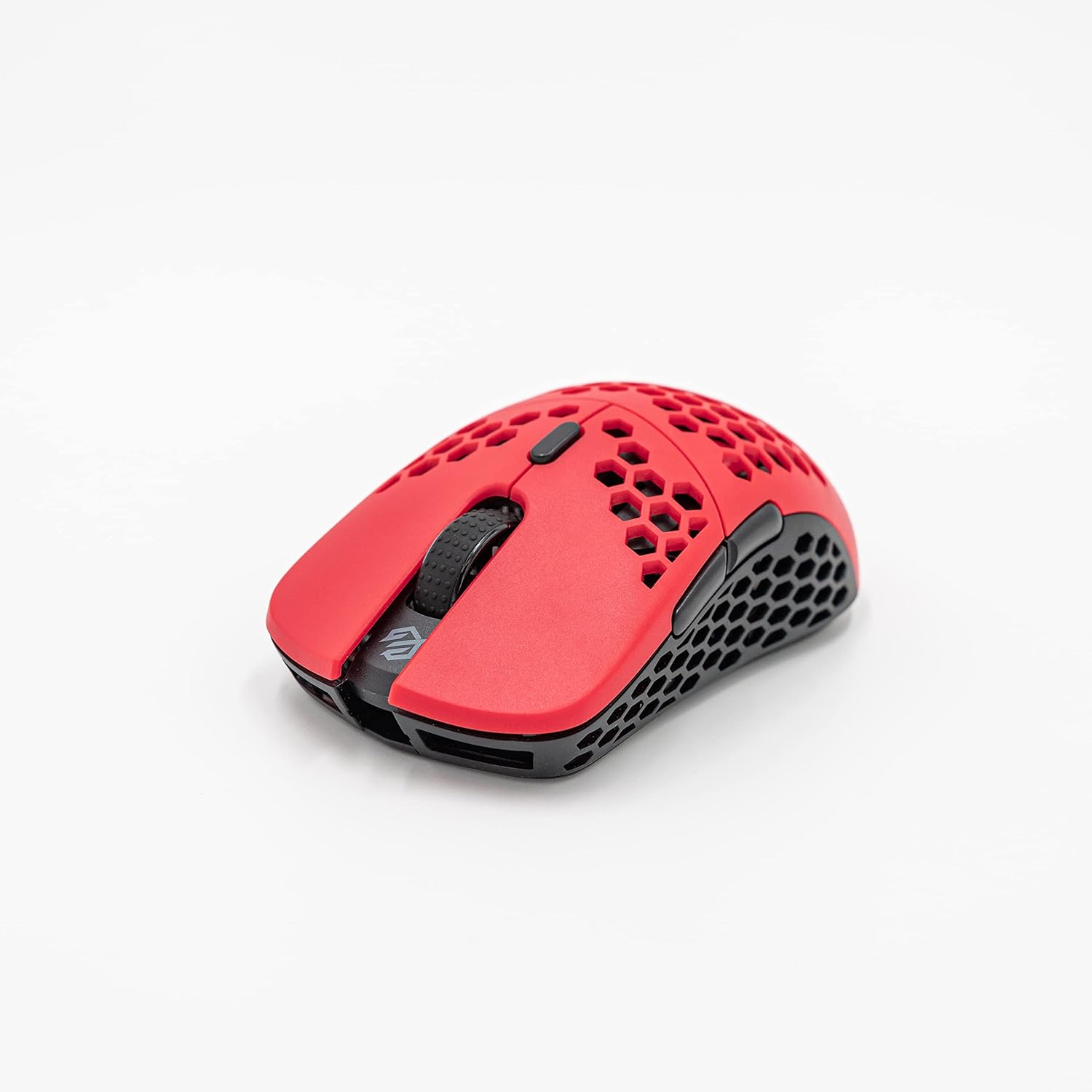
Figure 1: G-Wolves Hati HTS ACE Wireless Gaming Mouse (Red)
2. Setup
To begin using your G-Wolves Hati HTS ACE Wireless Gaming Mouse, follow these steps:
- Unboxing: Carefully remove the mouse, 2.4 GHz wireless dongle, USB-C charging/data cable, extra Teflon skates, Teflon dot skates, and grip tape from the packaging.
- Charging: Connect the USB-C cable to the mouse and to a USB port on your computer or a power adapter to charge the internal Lithium Polymer battery.
- Wireless Connection: Insert the 2.4 GHz wireless dongle into an available USB port on your computer. Turn on the mouse using the switch located on the underside. The mouse should automatically connect.
- Wired Connection: For a wired connection, simply connect the USB-C cable from the mouse to your computer. The mouse will function as a wired device and charge simultaneously.
- Software Installation: For full customization options, download and install the official G-Wolves software from www.gm-wolves.com.

Figure 2: Mouse with included USB-C cable and 2.4 GHz wireless dongle.
Video 1: Overview of the G-Wolves Hati HTS ACE Wireless Gaming Mouse in red, demonstrating its lightweight design and included accessories.
3. Operating the Mouse
The Hati HTS ACE mouse is designed for intuitive use with customizable features.
3.1 Buttons and Controls
The mouse features a symmetrical design with the following buttons:
- Left Button: Primary click function.
- Right Button: Secondary click function.
- Middle Button/Scroll Wheel: Clickable scroll wheel for navigation and middle-click actions.
- Side Buttons (2): Configurable for forward/back or other custom functions via software.
- DPI Button: Located on the underside, allows cycling through preset DPI stages.

Figure 3: Software interface for button assignment and customization.
3.2 DPI and Polling Rate Adjustment
The PixArt PAW3370 sensor offers a resolution up to 19,000 CPI. DPI and polling rate can be adjusted using the G-Wolves software. The polling rate can be set to ensure a response time under 1ms.
- DPI Settings: Customize individual X/Y CPI settings and save them to 4 onboard profiles.
- Polling Rate: Adjust the polling rate to optimize responsiveness for your gaming style.
- LOD (Lift-Off Distance): Fine-tune the sensor's lift-off distance for precise control.
- Debounce Time: Adjust the debounce time for click responsiveness.
- Macro Functions: Program custom macros for complex actions.
Video 2: Demonstration of the G-Wolves Hati HTS ACE Wireless Gaming Mouse in red and purple, highlighting its design and features.
4. Maintenance
To ensure optimal performance and longevity of your G-Wolves Hati HTS ACE mouse:
- Cleaning: Regularly clean the mouse surface and sensor with a soft, dry cloth. Avoid using harsh chemicals or abrasive materials.
- Skates: The mouse comes with pre-installed Teflon skates for smooth gliding. Replacement sets of Teflon skates and Teflon dot skates are included for customization or replacement.
- Grip Tape: High-quality grip tape is included in the box for enhanced grip and comfort. Apply it to desired areas of the mouse.
5. Troubleshooting
If you encounter any issues with your G-Wolves Hati HTS ACE mouse, consider the following:
- Connectivity Issues:
- Ensure the wireless dongle is securely plugged into a USB port.
- Verify the mouse is powered on using the switch on the underside.
- Try connecting the mouse via the USB-C cable to rule out wireless interference or battery issues.
- Sensor Tracking Problems:
- Clean the mouse sensor with a soft cloth to remove any dust or debris.
- Ensure you are using the mouse on a suitable surface (e.g., a mouse pad).
- Check the G-Wolves software for any available firmware updates for the mouse and dongle.
- Button Malfunctions:
- Check button assignments in the G-Wolves software to ensure they are configured correctly.
- Adjust the debounce time in the software if experiencing double-clicking or unresponsive clicks.
- Battery Life:
- Ensure the mouse is fully charged.
- Reduce polling rate or disable RGB lighting (if applicable) via software to extend battery life.
For further assistance, refer to the support information in Section 7.
6. Specifications
| Feature | Detail |
|---|---|
| Model Number | Hati HT-S |
| Sensor | PixArt PAW3370 Optical Sensor |
| CPI/DPI Range | 50 to 19,000 CPI |
| Tracking Speed | 400 IPS |
| Connectivity | 2.4 GHz Wireless, USB-C Wired |
| Response Time | Under 1ms (2.4 GHz wireless) |
| Switches | Kailh switches (80 million clicks durability), TTC Golden Color Encoder |
| Design | Ultra Lightweight Honeycomb Design |
| Weight | 54 ± 2g (1.8 oz) |
| Dimensions (L x W x H) | 113 mm x 61 mm x 40 mm (4.45 x 2.4 x 0.04 inches) |
| Battery | 1 Lithium Polymer battery (included) |
| Special Features | Ergonomic Design, Lightweight, Portable, Rechargeable, Customizable Software (DPI, Polling Rate, LOD, RGB, Macro, Debounce Time, Onboard Profiles) |

Figure 4: Mouse dimensions and weight.
7. Warranty and Support
7.1 Warranty Information
The G-Wolves Hati HTS ACE Wireless Gaming Mouse comes with a 1-year warranty from the date of purchase. This warranty covers manufacturing defects and ensures the product meets its specified performance standards under normal use. Please retain your proof of purchase for warranty claims.
7.2 Customer Support
For technical support, warranty claims, or any inquiries regarding your G-Wolves product, please contact us through the following channels:
- Website: www.gm-wolves.com
- Email Support: support@g-wolves.com
- Business Inquiries: business@g-wolves.com

Figure 5: Underside of the mouse with model and manufacturer information.