
MICROPACK Digitally Yours USB Wireless Black
Ergonomic Wireless Mouse User Manual
Model: USB Wireless Black
Brand: MICROPACK Digitally Yours
Introduction
Welcome to the user manual for your new MICROPACK Ergonomic Wireless Mouse. This manual provides detailed instructions on setting up, operating, maintaining, and troubleshooting your device to ensure optimal performance and a comfortable user experience. Please read this manual thoroughly before using the mouse.
Product Overview
The MICROPACK Ergonomic Wireless Mouse is designed for comfort and efficiency, featuring a vertical handshake position to reduce wrist strain. It operates wirelessly via a USB receiver and offers adjustable DPI settings for precise control.
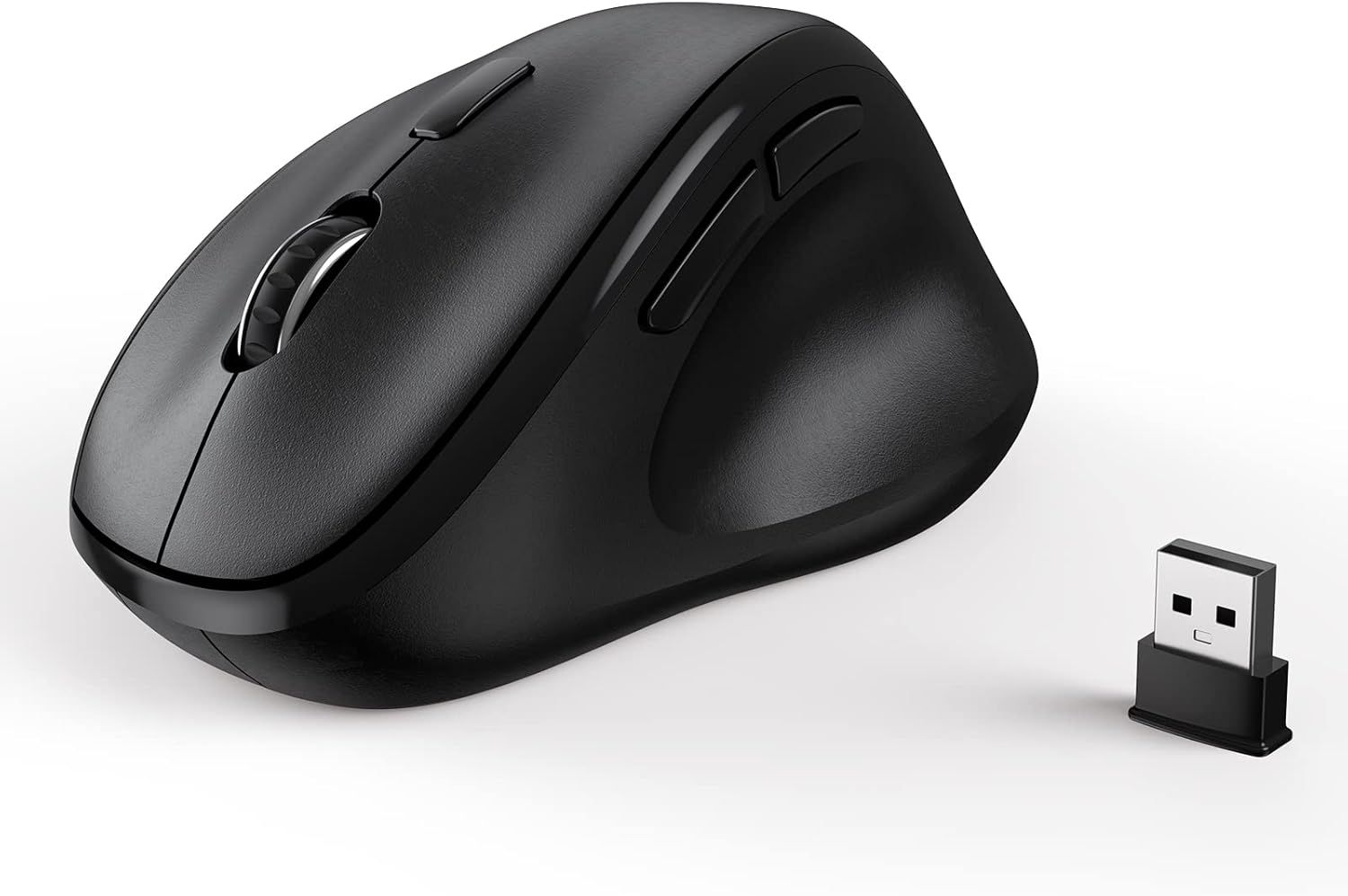
Figure 1: The Ergonomic Wireless Mouse and its accompanying USB receiver.

Figure 2: Various views highlighting the vertical ergonomic design for comfortable grip.

Figure 3: A close-up view demonstrating the natural hand position on the ergonomic mouse.
Key Features:
- Ergonomic Design: Vertical handshake position for reduced muscular strain and wrist pressure.
- Plug and Play Connectivity: Reliable wireless connection via USB dongle, no additional drivers required.
- Comfort Shape: Designed for medium to large palm sizes (11.8cm/4.6in*7.5cm/3in*5.8cm/2.2in).
- Ultra-Quiet Clicks: Silent operation for a quieter working environment.
- Well-Placed Thumb Controls: Front and back buttons for intuitive navigation.
- Long-Lasting Battery Life: Up to 16 months with one AA battery, featuring auto-sleep power saving mode and on/off switch.
- Adjustable DPI: Multiple DPI levels (1000, 1200, 1600) for customizable cursor sensitivity.
- Wide Compatibility: Supports Windows XP/7/8/10/2003 and Mac OS.

Figure 4: The mouse is compatible with various operating systems, including Windows and Mac OS.
Components:
- Ergonomic Wireless Mouse
- USB Wireless Receiver
- User Manual (this document)
- 1x AA Battery (may be pre-installed or included separately)
Setup
- Install the Battery:
Locate the battery compartment on the underside of the mouse. Open the cover and insert one AA battery, ensuring the polarity (+/-) matches the diagram inside the compartment. Close the battery cover securely.

Figure 5: Insert the AA battery and the USB wireless dongle into their respective slots.
- Connect the USB Receiver:
Remove the USB wireless receiver from its storage slot, typically located near the battery compartment. Plug the USB receiver into an available USB port on your computer, laptop, or desktop.
- Power On the Mouse:
Locate the On/Off switch on the underside of the mouse. Slide the switch to the "ON" position. The mouse should now be recognized by your computer automatically (Plug and Play).

Figure 6: The ergonomic mouse connected wirelessly to a laptop via its USB receiver.
Operating Instructions
Basic Functions:
- Left Click: Primary button for selecting items, opening files, etc.
- Right Click: Secondary button for context menus and additional options.
- Scroll Wheel: Scroll up or down through documents and web pages. The scroll wheel also functions as a middle click button.
- Forward/Backward Buttons: Located on the thumb side of the mouse, these buttons allow for quick navigation in web browsers and file explorers.
Adjusting DPI (Sensitivity):
The mouse features adjustable DPI levels to change cursor sensitivity. Press the DPI button, usually located behind the scroll wheel, to cycle through the available DPI settings (1000, 1200, 1600). Each press will change the sensitivity, allowing you to find the optimal speed for your tasks.

Figure 7: Illustration of the adjustable DPI settings (1000, 1200, 1600) and the DPI switch button.
Automated Power Efficiency Mode:
To conserve battery life, the mouse is equipped with an automated power efficiency mode. After 60 seconds of inactivity, the mouse will enter a sleep mode. To reactivate the mouse, simply click any button or move the mouse. This feature helps extend the battery life significantly.

Figure 8: Diagram illustrating the mouse's power saving states: Working, Stand By, Auto-Sleep, and Clock To Activate.
Maintenance
- Battery Replacement: When the mouse performance degrades or stops responding, it is likely time to replace the AA battery. Follow the steps in the "Setup" section to replace the battery.
- Cleaning: Use a soft, dry cloth to clean the exterior of the mouse. For optical sensor, use a cotton swab lightly dampened with rubbing alcohol to gently clean the sensor area. Avoid using harsh chemicals or abrasive materials.
- Storage: When not in use for extended periods, turn off the mouse using the On/Off switch to further conserve battery life. Store the USB receiver in its designated slot within the mouse to prevent loss.
Troubleshooting
| Problem | Possible Cause | Solution |
|---|---|---|
| Mouse not responding or erratic movement. |
|
|
| Scroll wheel is not smooth or "wigging out". |
|
|
| Mouse clicks are not silent. | This mouse is designed for ultra-quiet clicks, but some minimal sound may be present. | Ensure you are not pressing buttons excessively hard. If the sound is significantly loud or new, contact support. |
| Forward/Backward buttons not working. | Application specific or software conflict. | Ensure the application you are using supports these navigation buttons. Try restarting the application or your computer. |
Specifications
| Feature | Detail |
|---|---|
| Brand | MICROPACK Digitally Yours |
| Model | USB Wireless Black |
| Connectivity Technology | Wireless, USB (2.4 GHz) |
| Movement Detection Technology | Optical |
| DPI Levels | 1000, 1200, 1600 |
| Power Source | 1x AA Battery |
| Battery Life | Up to 16 months (varies with usage) |
| Product Dimensions | 4.6 x 3 x 0.04 inches (11.8cm x 7.5cm x 5.8cm) |
| Item Weight | 4.2 ounces |
| Compatibility | Windows XP/7/8/10/2003, Mac OS |
| Special Feature | Ergonomic Vertical Design, Silent Clicks, Auto-Sleep Mode |
Warranty and Support
For warranty information and technical support, please refer to the warranty card included with your product or visit the official MICROPACK Digitally Yours website. You may also contact their customer service for assistance with product inquiries, troubleshooting, or warranty claims.
Manufacturer: MICROPACK Digitally Yours
For further assistance, please visit: www.micropack.com (Note: This is a placeholder URL as the actual support URL is not provided in the input data. Users should refer to product packaging for exact details.)
Ask a question about this manual
Ask about setup, troubleshooting, compatibility, parts, safety, or missing instructions. Manuals+ will review the question and use this page’s manual context to help answer it.