
ANYSECU A970S
ANYSECU A970S 4G Zello Radio POC Push to Talk Unlocked Mobile Phone User Manual
Model: A970S
Introduction
Thank you for choosing the ANYSECU A970S 4G Zello Radio. This device is a versatile Push-to-Talk (PoC) network radio designed for reliable communication over 4G LTE networks. It supports popular applications like Zello and Real PTT, offering a wide range of communication possibilities without distance limitations. This manual provides essential information for setting up, operating, maintaining, and troubleshooting your A970S radio.
Safety Information
- Read all instructions carefully before using the device.
- Do not expose the device to extreme temperatures, direct sunlight, or excessive moisture.
- Use only manufacturer-approved accessories and chargers.
- Do not attempt to disassemble or repair the device yourself. Refer all servicing to qualified personnel.
- Keep the device away from medical devices, as it may interfere with their operation.
- Dispose of batteries and electronic components responsibly according to local regulations.
Package Contents
Ensure all items are present in the package:
- ANYSECU A970S Radio x 1
- USB Cable x 1
- USB Adapter (EU/US/AU/UK optional) x 1
- Antenna x 1
- Belt Clip x 1
- Strap x 1

Figure 1: Standard Package Contents. This image displays all components included with the ANYSECU A970S radio: the main radio unit, a USB charging cable, a power adapter, the detachable antenna, a belt clip for portability, and a hand strap.
Product Overview
Familiarize yourself with the key components and features of your ANYSECU A970S radio.

Figure 2: A970S Component Diagram. This diagram labels the main parts of the radio, including the Antenna, PTT (Push-to-Talk) button, 3-inch Screen, Up Key, Back button, Power On/Off button, Down Key, Confirm button, and the P1 Programmable key (shortcut to app group).
- Antenna: For network signal reception.
- PTT Button: Push-to-Talk button for instant communication.
- 3-inch Screen: Touchscreen display for navigation and application interaction.
- Navigation Keys (Up/Down/Confirm/Back): For menu navigation and selection.
- Power On/Off Button: To power the device on or off.
- P1 Programmable Key: A customizable shortcut button, often used for quick access to specific app groups.
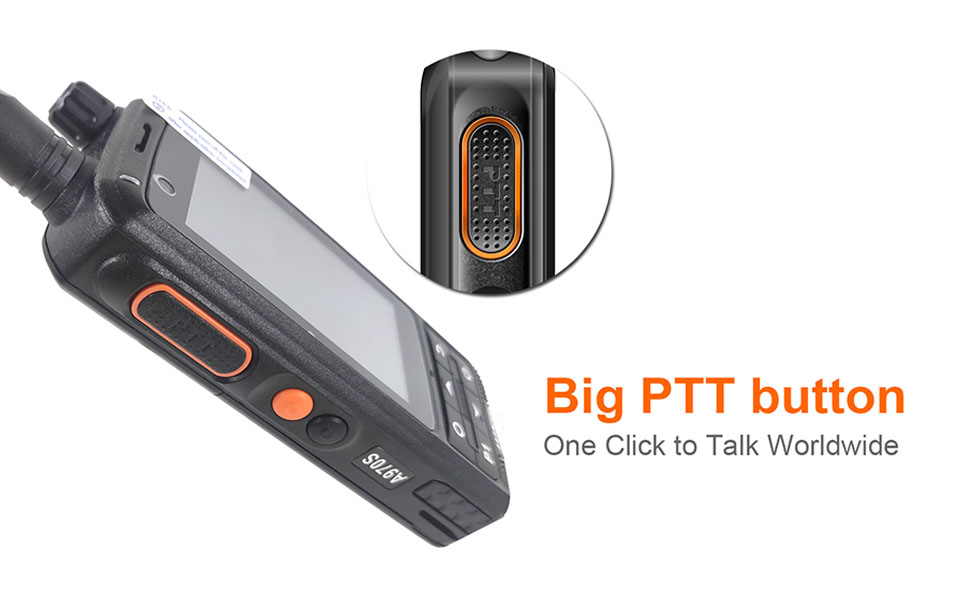
Figure 3: Large PTT Button. This image highlights the prominent Push-to-Talk button on the side of the radio, designed for easy and quick activation of voice communication.
Setup
1. Battery Installation
The A970S comes with a pre-installed battery. Ensure it is securely seated before first use.
2. SIM Card Installation
The A970S supports 4G LTE connectivity via SIM cards. To install SIM cards:
- Locate the SIM card slot cover on the back of the device.
- Carefully open the cover.
- Insert your 4G LTE SIM card(s) into the designated slots. The device supports multiple SIM cards.
- Close the cover securely to ensure water resistance (if applicable).
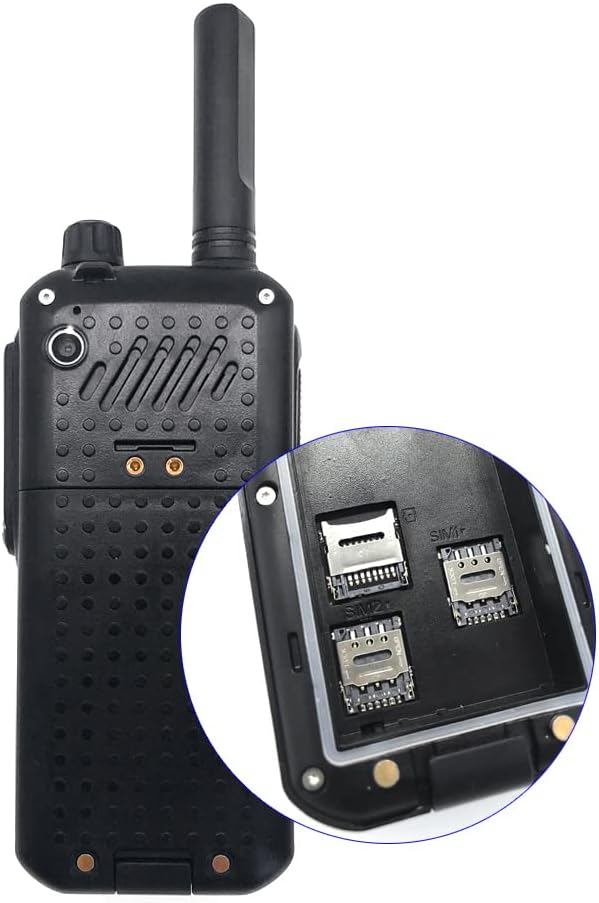
Figure 4: SIM Card Slots. This image shows the back of the radio with a close-up of the dual SIM card slots, indicating where to insert your cellular network cards for 4G connectivity.
3. Initial Power On
Press and hold the Power On/Off button until the screen illuminates. Follow the on-screen prompts for initial Android setup, including Wi-Fi connection and Google account setup.
Operating Instructions
1. Network Connectivity
The A970S can connect to the internet via 4G LTE (with SIM card) or Wi-Fi. Ensure you have an active data connection for Push-to-Talk applications.
2. Using Push-to-Talk (PoC) Applications
The device is designed to work seamlessly with PoC applications such as Zello and Real PTT. These applications allow for instant voice communication over cellular or Wi-Fi networks.
- Download and install your preferred PoC application (e.g., Zello, Real PTT) from the Google Play Store.
- Launch the application and log in or create an account.
- Configure the PTT button within the application settings. The PTT key code is typically 230.
- To transmit, press and hold the PTT button. Release to listen.
Video 1: A970S working with Zello. This video demonstrates the ANYSECU A970S radio's compatibility and functionality with the Zello Push-to-Talk application, showcasing how to initiate and receive communications.
3. Connecting External Accessories
The A970S supports external accessories for enhanced communication.
- Professional M6 Earphone Port: Connect compatible M6 style earpieces for private listening.
- Bluetooth PTT: Pair Bluetooth PTT devices (e.g., B02 PTT) via the device's Bluetooth settings for wireless PTT control.
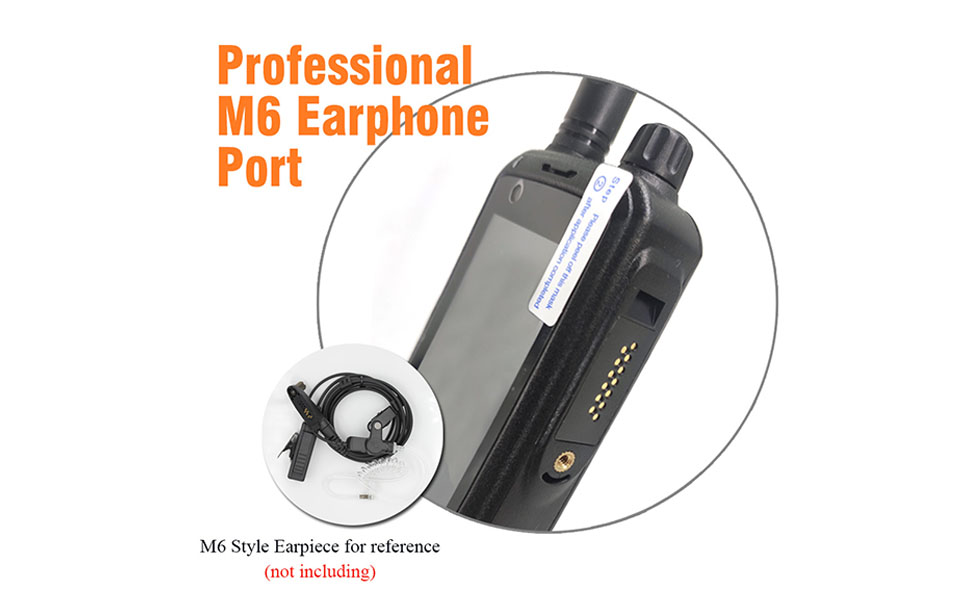
Figure 5: Professional M6 Earphone Port. This image highlights the dedicated M6 style earphone port on the radio, allowing for connection of external audio accessories for discreet communication.
4. GPS Location Tracking
The device supports GPS functionality, allowing for location tracking and display within compatible applications like Real PTT or Google Maps.

Figure 6: GPS Location Feature. This image illustrates the radio's ability to display and track GPS location, with an overlay indicating Real PTT platform support for map display and tracking.
Charging the Device
The A970S offers multiple convenient charging methods:
- USB Direct Charging: Connect the provided USB cable directly to the device and a power source.
- Car Charging: Use a compatible car charger with the USB cable.
- Power Bank Charging: Charge on the go using a portable power bank.
- PC USB Charging: Connect to a computer's USB port for charging.
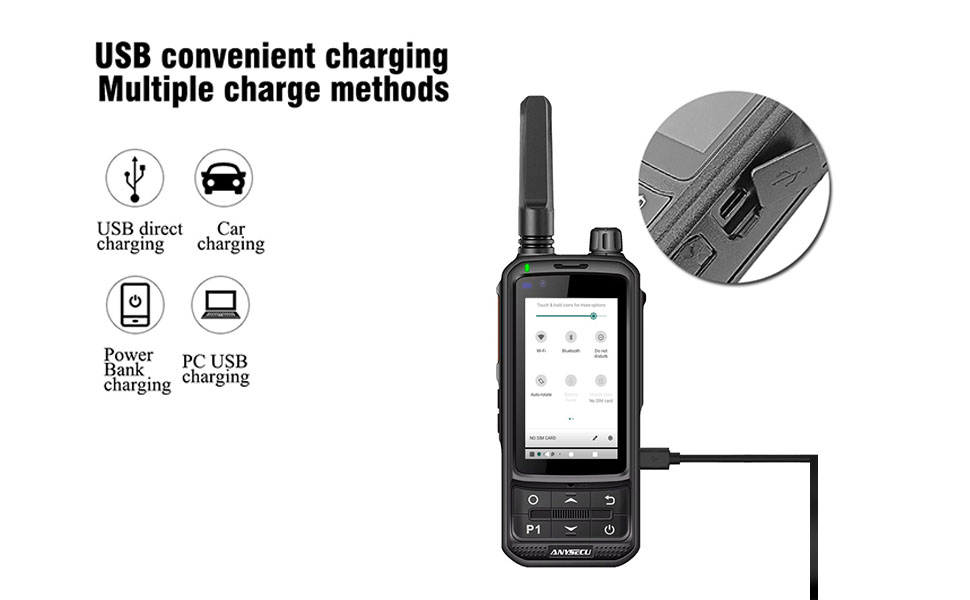
Figure 7: Multiple Charging Methods. This diagram illustrates the various ways to charge the A970S, including direct USB charging, car charging, power bank charging, and PC USB charging, highlighting its versatility.
Maintenance
- Cleaning: Use a soft, dry cloth to clean the device. Do not use harsh chemicals or abrasive cleaners.
- Storage: Store the device in a cool, dry place away from direct sunlight and extreme temperatures when not in use.
- Battery Care: To prolong battery life, avoid fully discharging the battery frequently. Charge the device regularly.
Troubleshooting
| Problem | Possible Cause | Solution |
|---|---|---|
| Device does not power on. | Low battery; device malfunction. | Charge the device for at least 30 minutes. If still unresponsive, contact support. |
| PTT button not working with app. | App not configured; conflicting apps; screen off. | Check PTT button mapping in app settings (key code 230). Ensure no other apps are hijacking the PTT function. Note: PTT may not work when the screen is off for some applications. |
| No audio from earpiece/speaker. | Volume too low; earpiece not connected properly; app audio settings. | Increase volume. Re-seat earpiece connection. Check audio output settings within the PoC application. |
| GPS not working. | GPS disabled; poor signal; app permissions. | Ensure GPS is enabled in device settings. Move to an open area for better signal. Grant location permissions to relevant applications. |
| Annoying chime when adjusting volume. | System sound setting. | Check Android system sound settings for options to disable volume adjustment chimes or haptics. |
Specifications
| Feature | Detail |
|---|---|
| Model Number | A970S |
| Operating System | Android 9.0 |
| Memory | 1GB RAM + 8GB ROM |
| Network Support | 4G LTE (FDD-LTE: B2/B4/B5/B7/B12/B13/B17/B28A/B28B, TDD-LTE: B38), WCDMA: B1/B2/B5/B8, GSM: B2/B3/B5/B8 |
| Screen Size | 3 inches |
| Battery | 1 A battery (included) |
| Charging Port | Micro USB |
| Earphone Port | Professional M6 Style |
| Item Weight | 9.2 ounces |
| Dimensions | 9.45 x 9.06 x 3.74 inches |
| Water Resistance Level | Waterproof |
| Number of Channels | 1000 (software defined) |
| Talking Range Maximum | 5000 Kilometer (network dependent) |
Warranty and Support
Specific warranty information for the ANYSECU A970S is not provided in this manual. Please refer to the product packaging or contact your retailer for warranty details. For technical support, please reach out to the manufacturer or authorized service center.
If you require a Real PTT account, please contact the seller directly as the cost is not included with the device purchase.
Ask a question about this manual
Ask about setup, troubleshooting, compatibility, parts, safety, or missing instructions. Manuals+ will review the question and use this page’s manual context to help answer it.