
Instachew IC081C
INSTACHEW Purechew Smart Automatic Pet Feeder User Manual
Model: IC081C
Introduction
The INSTACHEW Purechew Smart Automatic Pet Feeder is an advanced app-enabled food dispenser designed for both cats and dogs. It offers automated feeding, precise portion control, and features to keep food fresh. This manual provides comprehensive instructions for setting up, operating, and maintaining your Purechew Smart Pet Feeder.

Image: The Purechew Smart Automatic Pet Feeder, showcasing its sleek design and the accompanying mobile application for remote control.
Product Features
- Interactive App Enabled Feeding: Automate feeding schedules and dispense food instantly from anywhere using the dedicated app.
- HD Camera: Equipped with night vision, motion detection, video recording, and two-way audio for monitoring your pet.
- Kibble Support: Compatible with kibble sizes ranging from 5mm to 10mm.
- Portion Control: Customize food portions to ensure your pet receives the correct amount of food.
- Storage Capacity: Features a 4-liter food storage capacity, designed to keep food sealed and fresh.
What's in the Box
Upon unboxing, please ensure all the following components are present:
- Purechew Smart Automatic Pet Feeder (Main Body)
- Top Cover
- Grain Barrel
- Food Bowl
- Power Adapter
- User Manual (this document)

Image: Diagram illustrating the various parts of the feeder for easy assembly and cleaning.
Setup Guide
- Assemble the Feeder:
Place the Grain Barrel onto the Main Body. Secure the Top Cover onto the Grain Barrel. Attach the Food Bowl to the front base of the Main Body.
- Power On:
Connect the power adapter to the feeder and plug it into a wall outlet. The device will power on, and an indicator light will begin to flash.
- Download the App:
Download the "INSTACHEW INFINITY" app from your smartphone's app store (iOS or Android).
- Add Device to App:
Open the INSTACHEW INFINITY app. Tap on "Add Device" or the "+" icon. Select "Purechew Smart Pet Feeder" from the list of devices.
Video: A step-by-step guide on how to set up the Purechew Smart Pet Feeder device within the INSTACHEW app, including Wi-Fi connection and QR code scanning.
- Connect to Wi-Fi:
Ensure the indicator light on the feeder is blinking rapidly. If not, reset the device by pressing and holding the reset button until it blinks. Enter your 2.4GHz Wi-Fi network name and password in the app. Note: The feeder only supports 2.4GHz Wi-Fi networks.
- Scan QR Code:
The app will generate a QR code. Hold your phone with the QR code 15-20 cm (6-8 inches) in front of the feeder's camera. The feeder will scan the QR code and emit a prompt sound when connected successfully. Once connected, the app will confirm the device has been added.
Operating Instructions
Once your Purechew Smart Pet Feeder is set up and connected to the app, you can utilize its various functions:
Video: A detailed tutorial on how to use the various features of the INSTACHEW app to control your Purechew Smart Pet Feeder, including feeding, scheduling, and camera functions.
1. Instant Feeding
To dispense food immediately:
- Open the app and select your Purechew feeder.
- Tap the "Feed" icon (represented by a bone).
- Choose the desired portion size (up to 80g) and confirm. Food will be dispensed instantly.
2. Scheduling Meals
To set up automatic feeding times:
- Tap the "Schedule" icon (represented by a clock).
- Tap "Add Timer" to create a new feeding schedule.
- Set the exact hour and minute for the feeding.
- Select the days of the week for the schedule to repeat.
- Specify the serving size for each scheduled meal.
- Save the timer. You can add multiple schedules throughout the day.
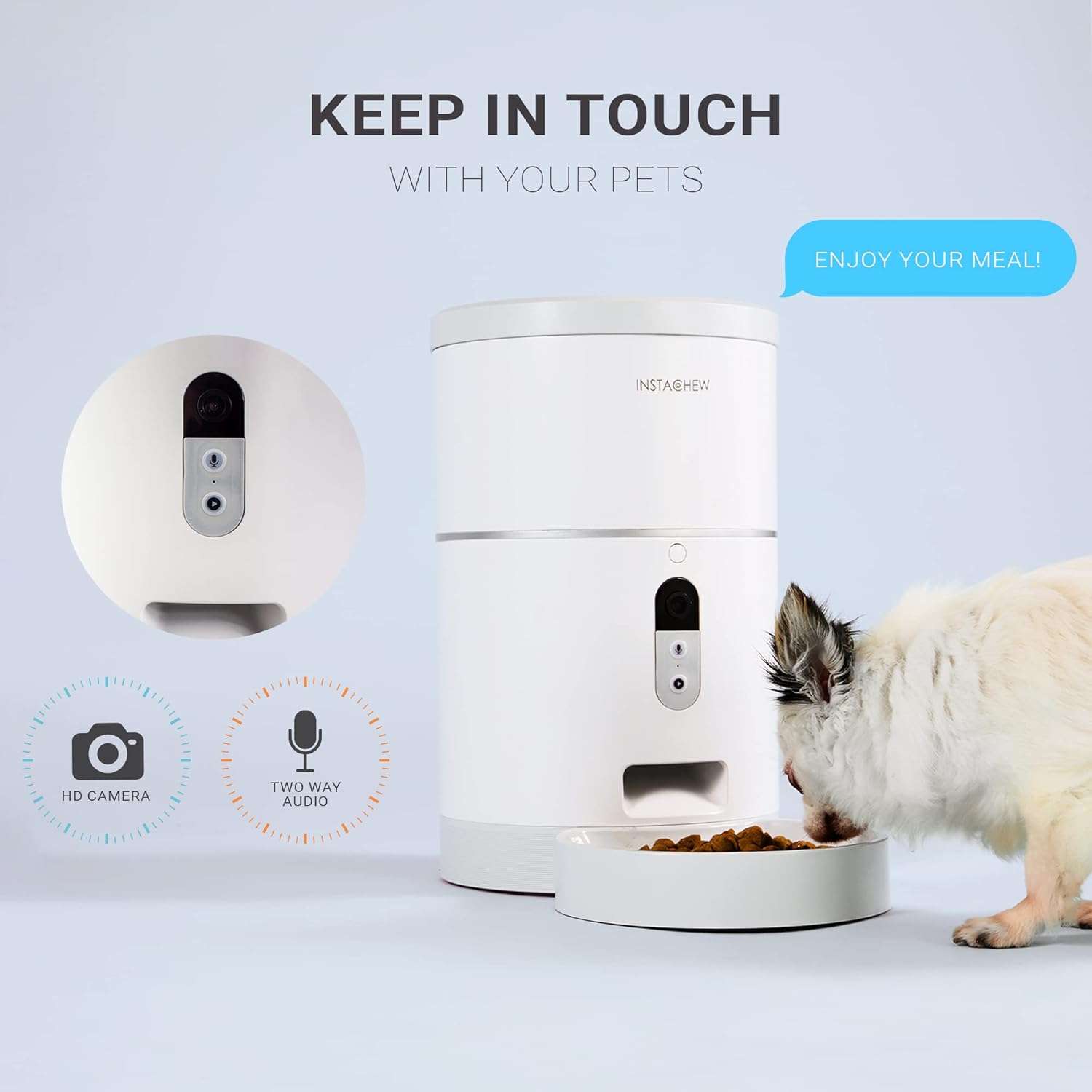
Image: Visual representation of the meal scheduling capabilities, highlighting portion control and capacity.
3. Camera Functions (Monitoring)
The built-in HD camera allows you to monitor your pet and surroundings:
- Live View: The top section of the app displays a live video feed from the feeder's camera.
- Screenshot: Tap the "Screenshot" icon to capture a still image from the live feed, which will be saved to your phone's gallery.
- Record: Tap the "Record" icon to start recording video. Tap again to stop. Recorded videos are saved to the SD card (if inserted) and can be accessed via the "Playback" function.
- Playback: Tap the "Playback" icon to view recorded videos stored on the SD card. You can select specific dates and times to review footage.

Image: Highlighting the HD camera and two-way audio features for remote interaction with your pet.
4. Two-Way Audio (Speak)
Communicate with your pet remotely:
- Tap the "Speak" icon (represented by a microphone).
- Hold down the icon to speak into your phone's microphone. Your voice will be projected through the feeder's speaker.
- Release the icon to stop speaking.

Image: Demonstrating the ability to record and play a short message for your pet at meal times.
Maintenance
Cleaning Instructions
Regular cleaning ensures optimal performance and hygiene for your pet.
- Food Bowl: The food bowl can be easily detached for cleaning. Hand wash the food bowl with mild soap and water. Rinse thoroughly and dry completely before reattaching.
- Grain Barrel & Top Cover: These components can also be removed for cleaning. Hand wash with mild soap and water, rinse, and dry completely.
- Main Body: Wipe the exterior of the main body with a soft, damp cloth. Do not submerge the main body in water or allow water to enter the electronic components.
- Kibble Path: Periodically check the kibble dispensing path for any blockages or residue. The anti-clog design minimizes this, but occasional inspection is recommended.
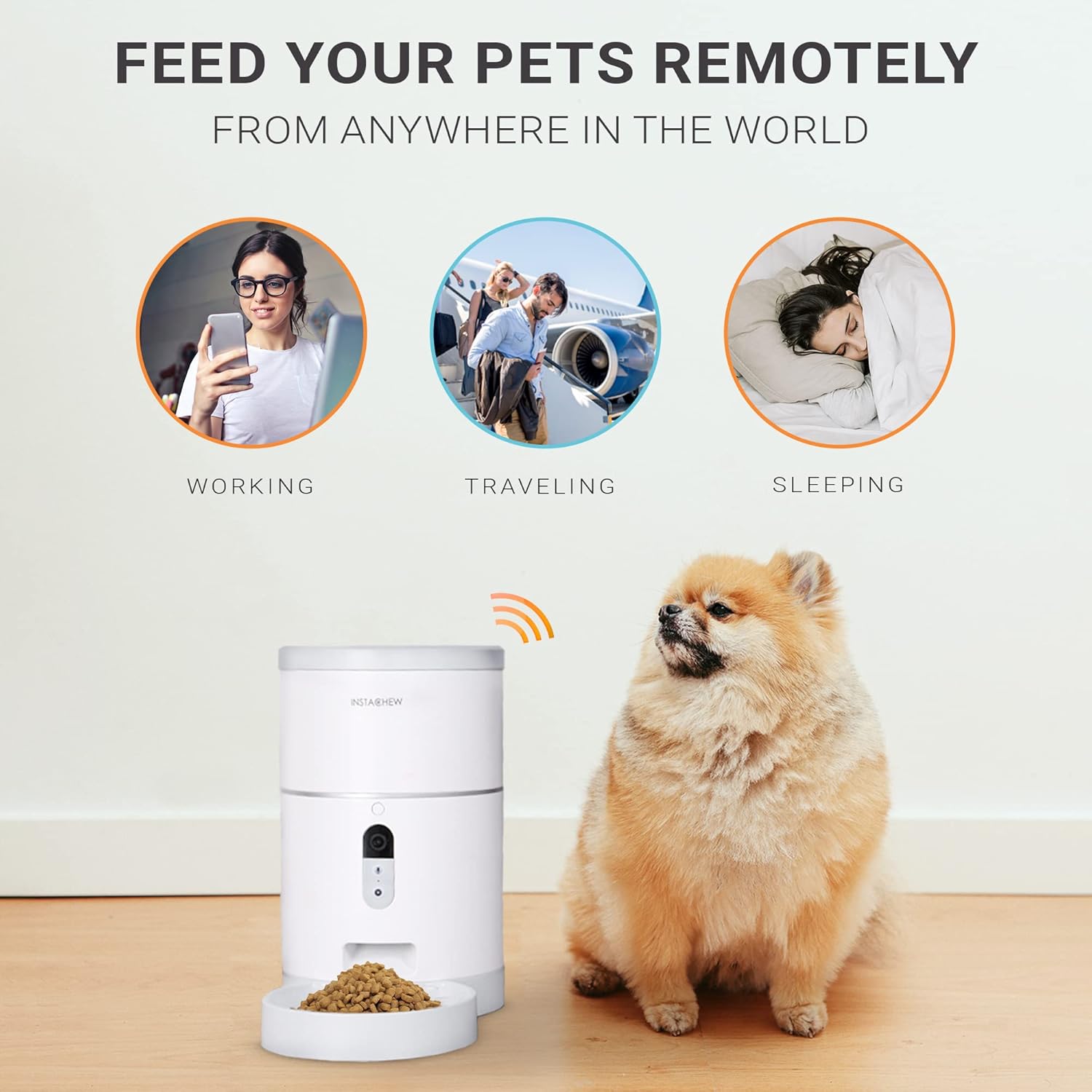
Image: Illustration of the feeder's internal mechanism, emphasizing its anti-clog design for smooth food dispensing.
Food Storage
To maintain food freshness, ensure the top cover is securely placed after refilling the grain barrel. Store the feeder in a cool, dry place away from direct sunlight.
Troubleshooting
| Problem | Possible Cause | Solution |
|---|---|---|
| Feeder not connecting to Wi-Fi. | Incorrect Wi-Fi band (5GHz), wrong password, or weak signal. | Ensure you are connecting to a 2.4GHz Wi-Fi network. Double-check your Wi-Fi password. Move the feeder closer to your Wi-Fi router. Reset the device and try connecting again. |
| Food not dispensing. | Kibble size too large/small, food jammed, or empty grain barrel. | Verify kibble size is between 5-10mm. Check for any food blockages in the dispensing mechanism. Refill the grain barrel if empty. |
| Camera feed is black or blurry. | Poor lighting, camera lens obstructed, or connectivity issue. | Ensure adequate lighting in the room (night vision activates in low light). Clean the camera lens gently. Check Wi-Fi connection stability. |
| Two-way audio not working. | Microphone/speaker issues, or app permissions. | Check your phone's microphone permissions for the INSTACHEW app. Ensure the feeder's speaker is not obstructed. Restart the app or feeder. |
| Scheduled feedings not occurring. | Incorrect schedule settings, or feeder offline. | Review your feeding schedules in the app for accuracy (time, days, portion size). Confirm the feeder is online and connected to Wi-Fi. |
Specifications
| Attribute | Detail |
|---|---|
| Brand | Instachew |
| Model Number | IC081C |
| Item Weight | 4.14 pounds |
| Product Dimensions (LxWxH) | 13 x 8 x 14 inches |
| Material | Acrylonitrile Butadiene Styrene |
| Color | White |
| Food Capacity | 4 Liters |
| Kibble Size Supported | 5 - 10 mm |
| Special Features | Portion Control, Voice Recording, HD Camera, Night Vision, Motion Detection, Two-Way Audio |
| Care Instructions | Hand Wash Only (for removable parts) |
Warranty & Support
INSTACHEW is committed to providing high-quality products. If you encounter any issues or have questions regarding your Purechew Smart Automatic Pet Feeder, please do not hesitate to contact our customer service team.
For support, please reach out to us via email:
service@instachew.com
We strive for your satisfaction and are here to assist you with any concerns.
Related Documents - IC081C
 |
Instachew Purrsight Mini 5G Smart Pet Camera Instruction Manual Comprehensive instruction manual for the Instachew Purrsight Mini 5G Smart Pet Camera, covering setup, operation, FAQs, return policy, and warranty information. |
 |
Instachew PurrClean Smart Litter Box: User Manual & Setup Guide Comprehensive instruction manual for the Instachew PurrClean Smart Litter Box. Learn about setup, operation, app connectivity, maintenance, and troubleshooting for this automated pet care device. |
 |
InstaChew PurrClean Smart Litter Box: Features and Specifications Discover the InstaChew PurrClean Smart Litter Box, an automated and app-controlled solution for cat owners. Learn about its features like odor control, safety sensors, easy maintenance, and app connectivity for managing your pet's litter box. |