
1. Introduction
This manual provides detailed instructions for the installation, operation, and maintenance of your Qiumi Zigbee Smart Thermostatic Radiator Valve (TRV) and its accompanying Zigbee Gateway. Please read this manual thoroughly before use to ensure proper functionality and safety.
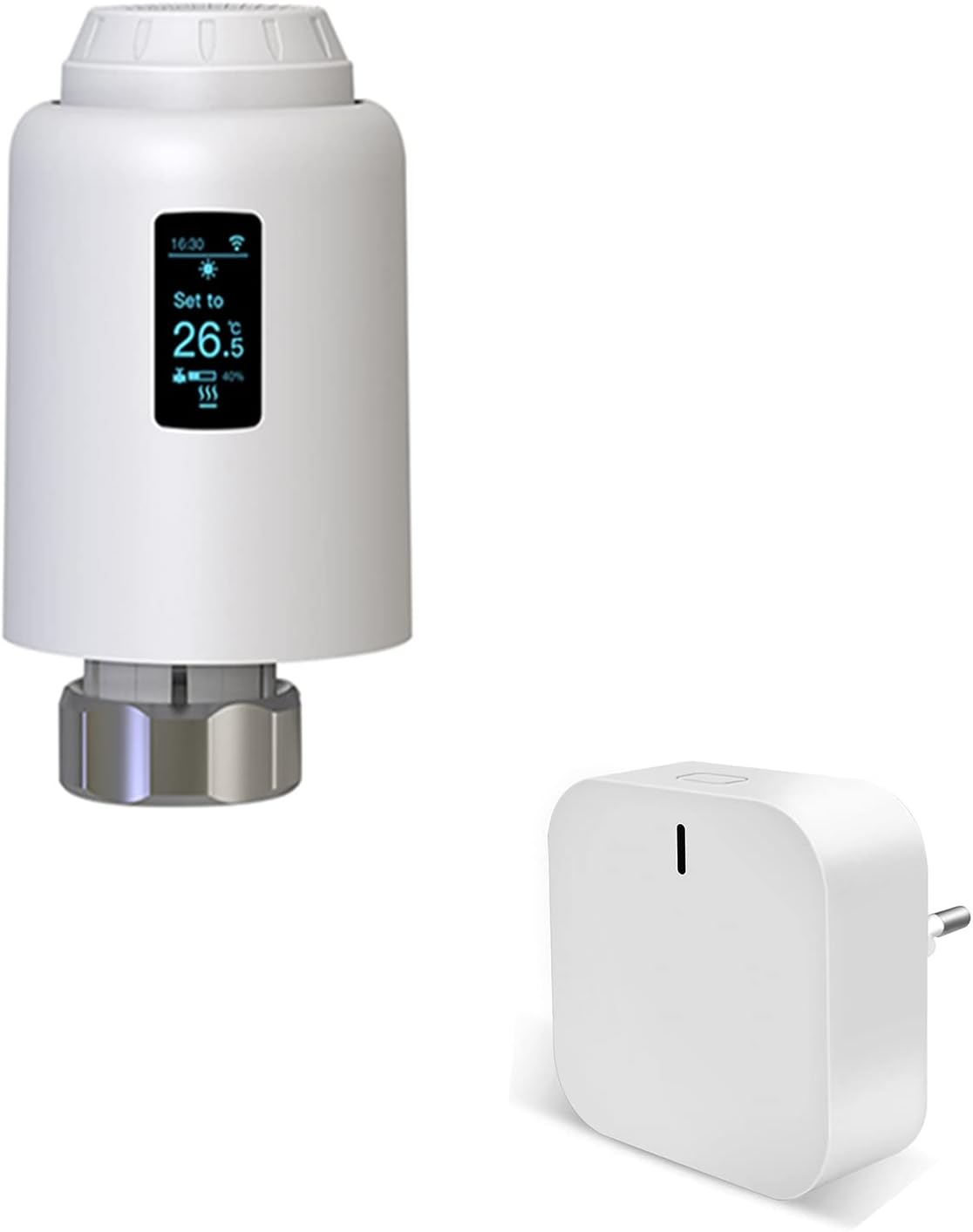
Image 1.1: Qiumi Zigbee Smart Thermostatic Radiator Valve (left) and Zigbee Gateway (right).
2. Product Overview
2.1 Components
- Qiumi Zigbee Smart Thermostatic Radiator Valve (TRV-602)
- Zigbee Gateway (RTYGWZ-01)
- User Manual
2.2 Display Symbols and Physical Features

Image 2.1: Diagram illustrating the TRV's display symbols and physical components, including the middle button, knob button, set button, battery compartment lock, and union nut for the heating valve. Dimensions are also shown.
The TRV features an OLED display and several control elements:
- Time Display: Shows current time.
- Wake up (am), Leave (am), Return (pm), Sleep: Indicators for programmed schedule events.
- Auto mode / Manual mode: Indicates the current operating mode.
- Heating: Indicates when the valve is actively heating.
- Middle button: Used for navigation and selection.
- Knob button: Rotates to adjust temperature, press for confirmation.
- Low battery: Icon indicates low battery level.
- Wi-Fi: Indicates connection status (likely Zigbee signal strength).
- Child lock: Icon indicates child lock is active.
- Setting temperature: Displays the target temperature.
- Valve opening: Indicates the percentage of valve opening.
- Set button: Used for entering settings or confirming selections.
- Battery compartment lock: Secures the battery compartment.
- Union nut for heating valve: Connects the TRV to the radiator valve body.
3. Setup
3.1 Physical Installation
- Ensure your radiator valve is compatible with the Qiumi TRV.
- Remove your existing thermostatic head (if any) from the radiator valve.
- Install the Qiumi TRV onto the radiator valve body using the provided union nut. Ensure a secure fit.
- Insert batteries into the TRV's battery compartment.
3.2 Zigbee Gateway and App Setup
The Qiumi TRV requires a Zigbee Gateway (Model RTYGWZ-01) and the Smart Life application for smart control features.
- Plug in the Zigbee Gateway to a power outlet.
- Download the "Smart Life" app from your smartphone's app store.
- Register or log in to your Smart Life account.
- Add the Zigbee Gateway to the app by following the in-app instructions.
- Once the gateway is added, add the Qiumi TRV to the gateway through the Smart Life app. The TRV will enter pairing mode automatically or by a specific button press (refer to the TRV's display for pairing indicators).

Image 3.1: The Qiumi TRV integrates with the Smart Life app and supports voice control via Amazon Alexa and Google Assistant.
4. Operating Instructions
4.1 Manual Temperature Adjustment
To manually adjust the temperature, rotate the handwheel knob on the TRV. The display will show the target temperature, which can be set in 0.5°C increments. Press the knob to confirm the setting.

Image 4.1: Adjusting the temperature using the handwheel knob on the TRV.
4.2 Weekly Programming
The TRV supports weekly programming, allowing you to set up to 6 customized temperature events per day. This feature is configured via the Smart Life application.

Image 4.2: The Smart Life app displaying the weekly programming interface for setting temperature schedules.
4.3 Voice Control
The Qiumi TRV is compatible with Amazon Alexa and Google Assistant. Once integrated with your smart home system, you can control the temperature using voice commands.
- Example Command (Google Assistant): "Hey Google, set the temperature to 22 degrees."
- Example Command (Amazon Alexa): "Alexa, set the living room temperature to 22 degrees."

Image 4.3: A user interacting with a voice assistant to control the Qiumi TRV.
4.4 Child Lock Function
Activate the child lock feature to prevent unauthorized changes to the TRV settings, especially useful in households with children or in public spaces. When activated, the device cannot be controlled directly via its buttons.

Image 4.4: The child lock feature prevents accidental adjustments, indicated by a lock icon on the device and in the app.
4.5 Dormancy Function
After approximately 5 seconds of no operation, the TRV enters a dormancy (sleep) mode to conserve battery life. The display will dim or turn off. To reactivate, simply press any button.

Image 4.5: The TRV transitions between dormancy state (left) and active work interface (right) to save energy.
4.6 Open Window Function
When an open window is detected (indicated by a sharp drop in room temperature), the TRV will automatically signal the valve to close, preventing energy waste. This function can be enabled via the Smart Life app.
- Activation: Enable the window detection function in the Smart Life app.
- Detection: If the ambient temperature drops by more than 1.5°C within 4.5 minutes, the open window function activates. The screen displays "OP", and the temperature is set to 12°C.
- Termination: The open window function will terminate if:
- A temperature setting operation is performed on the app or device.
- The detected temperature rises by more than 1.5°C within 4.5 minutes.
- No operation is performed on the app or device within 30 minutes.

Image 4.6: The TRV's open window function detects sudden temperature drops and adjusts heating to save energy.
5. Maintenance
5.1 Anti-scaling Function
The radiator thermostat performs a routine descaling operation every Saturday at 00:00 (midnight) to prevent valve calcification and ensure smooth operation.

Image 5.1: The TRV includes an automatic descaling function for long-term performance.
5.2 Battery Replacement
When the low battery indicator appears on the display, replace the batteries promptly to ensure continuous operation. Refer to the battery compartment lock for access.
6. Troubleshooting
If you encounter issues with your Qiumi TRV, consider the following:
- Device not responding: Check battery level. Ensure the child lock is not active.
- No connection to app: Verify the Zigbee Gateway is powered on and connected to your network. Ensure the TRV is within range of the gateway. Re-pair the device if necessary.
- Incorrect temperature readings: Ensure the TRV is not obstructed or exposed to direct heat sources (e.g., sunlight, other appliances) that could affect its internal sensor.
- Valve not opening/closing: Check for physical obstructions. Ensure the anti-scaling function is operating correctly.
7. Specifications
| Feature | Specification |
|---|---|
| Brand | Qiumi |
| Model Number (TRV) | TRV-602 |
| Model Number (Gateway) | RTYGWZ-01 |
| Manufacturer | jiamiyun |
| Dimensions (TRV) | 58.4 mm (Width) x 97 mm (Height) |
| Item Weight | 117.7 Grams |
| Power Source | Battery powered |
| Special Features | Smart Thermostat, Weekly Programmable, Voice Control, Anti-scaling, Dormancy, Child Lock, Open Window Function |
| Control Type | Remote Control, Voice Control (Alexa, Google Assistant) |
| Mounting Type | Wall Mount (for Gateway, TRV mounts on radiator valve) |
8. Warranty and Support
Information regarding product warranty and customer support was not available in the provided product data. Please refer to the product packaging or the seller's website for details on warranty coverage and how to contact customer support.