
Introduction
This manual provides detailed instructions for the setup, operation, and maintenance of your Jay-tech G10.11 4G/LTE Tablet PC. Please read this manual thoroughly before using your device to ensure proper functionality and to maximize its lifespan.

Image: The Jay-tech G10.11 Tablet PC showcasing its home screen with pre-installed applications.
Package Contents
Verify that all items are present in the package:
- Jay-tech G10.11 4G/LTE Tablet PC (10.1 inches)
- Power Adapter (100-240 V input, 5.0 V/2.0 A output)
Setup
1. Charging the Tablet
Before initial use, fully charge the tablet. Connect the provided power adapter to the tablet's USB Type-C port and plug it into a power outlet. The charging indicator will show the charging status.
2. Powering On/Off
- To Power On: Press and hold the Power button until the screen lights up.
- To Power Off: Press and hold the Power button, then select "Power off" from the options that appear on the screen.
- To Restart: Press and hold the Power button, then select "Restart" from the options.
3. Inserting SIM and MicroSD Cards
The tablet supports a MicroSIM card for 4G/LTE connectivity and a MicroSD card (up to 64GB) for expanded storage.
- Locate the SIM/MicroSD card tray on the side of the tablet.
- Use the provided ejector tool (if included) or a small paperclip to gently press into the small hole next to the tray to eject it.
- Place the MicroSIM card and/or MicroSD card into the tray with the gold contacts facing down, ensuring they are correctly oriented.
- Carefully reinsert the tray into the tablet until it clicks into place.

Image: Detail of the tablet's side, illustrating the MicroSIM and MicroSD card insertion points.
Operating Instructions
1. Basic Navigation
- Touchscreen: Tap to select, swipe to scroll, pinch to zoom.
- Home Screen: Access your apps and widgets.
- Notification Panel: Swipe down from the top of the screen to view notifications and quick settings.
- Navigation Bar: Use the Back, Home, and Recent Apps buttons at the bottom of the screen.
2. Connecting to Wi-Fi and Mobile Data
- Wi-Fi: Go to Settings > Network & internet > Wi-Fi. Turn Wi-Fi on, select your network, and enter the password if required.
- Mobile Data (4G/LTE): Ensure a MicroSIM card is inserted. Go to Settings > Network & internet > Mobile network. Enable Mobile data.
- Bluetooth: Go to Settings > Connected devices > Bluetooth. Turn Bluetooth on to pair with compatible devices like headphones or keyboards.
3. Using Applications
The tablet comes with Android 11 and access to the Google Play Store for downloading additional applications. Tap on an app icon to open it.

Image: Enjoying multimedia content on the tablet.

Image: Conducting video calls with the tablet.

Image: Gaming experience on the tablet.

Image: Watching sports on the tablet.
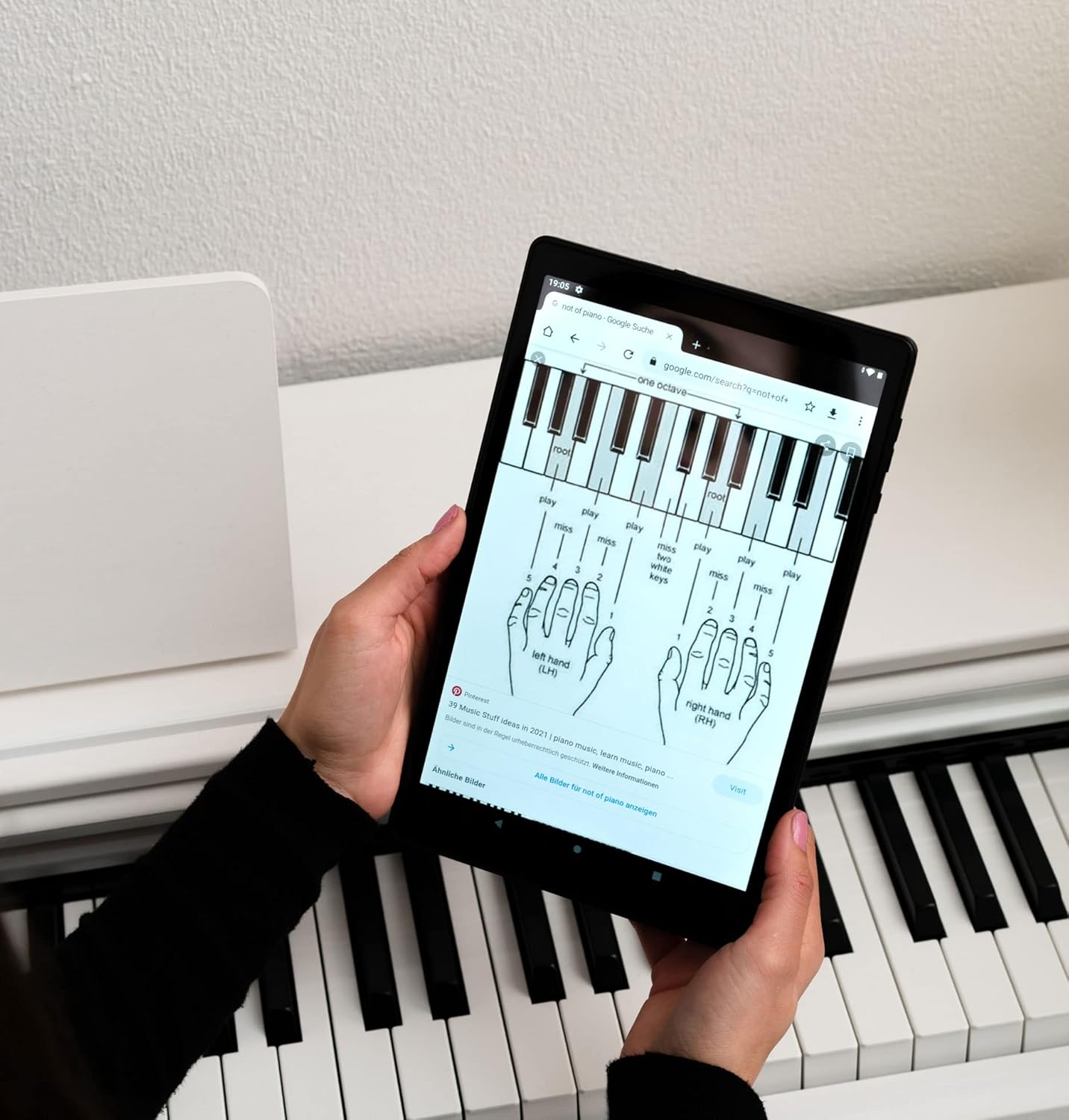
Image: Using the tablet for educational or hobby purposes.
Maintenance
1. Cleaning
Use a soft, lint-free cloth to clean the screen and body of the tablet. Avoid using harsh chemicals or abrasive materials, which can damage the surface.
2. Battery Care
- Avoid exposing the tablet to extreme temperatures.
- Do not allow the battery to fully discharge frequently.
- Use only the original or certified compatible charger.
Troubleshooting
If you encounter issues with your tablet, refer to the following common problems and solutions:
| Problem | Solution |
|---|---|
| Tablet does not turn on | Ensure the battery is charged. Press and hold the Power button for at least 10 seconds. |
| Cannot connect to Wi-Fi | Check if Wi-Fi is enabled in settings. Restart your router and the tablet. Verify the Wi-Fi password. |
| Applications are slow or crashing | Close unnecessary background apps. Clear app cache (Settings > Apps > [App Name] > Storage > Clear cache). Restart the tablet. |
| Poor battery life | Reduce screen brightness. Disable unused features like Bluetooth or GPS. Close background apps. |
| No mobile data connection | Ensure a MicroSIM card is properly inserted and mobile data is enabled in settings. Check your data plan with your service provider. |
Specifications

Image: Visual representation of key technical specifications.
| Feature | Detail |
|---|---|
| Brand | Jay-tech |
| Model Number | G10.11 |
| Operating System | Android 11 |
| Processor | Unisoc SC9863A Cortex-A55, 8-Core, 1.6 GHz, 64-bit |
| RAM | 3 GB |
| Internal Storage | 16 GB (Note: Actual available storage is less due to system software) |
| Expandable Storage | MicroSD card slot (up to 64 GB) |
| Display Size | 10.1 Inches |
| Display Resolution | 1280 x 800 pixels (HD, IPS Touch Screen) |
| Graphics Card | Integrated |
| Connectivity | 4G/LTE (B1, B3, B7, B8, B20), Wi-Fi (802.11n), Bluetooth 4.2, GPS, Beidou |
| SIM Card Slot | MicroSIM |
| Cameras | 0.3 MP Front Camera, 2.0 MP Rear Camera |
| Battery | 3.7 V / 5000 mAh Lithium-Polymer (up to 8 hours battery life) |
| Ports | USB Type-C, 3.5 mm Stereo Headphone Jack |
| Dimensions | 245.7 x 152.7 x 9.15 mm |
| Weight | Approx. 500 grams |
| Color | Black |
Warranty and Support
For warranty information and technical support, please refer to the documentation included with your purchase or visit the official Jay-tech website. Keep your proof of purchase for warranty claims.


