1. Introduction
This manual provides detailed instructions for the setup, operation, and maintenance of your Mars Gaming MKULTRA mechanical keyboard. The MKULTRA is a compact 96% mechanical keyboard designed for performance and durability, featuring PBT pudding keycaps, full RGB Chroma lighting, and Outemu SQ mechanical switches.

Figure 1: Mars Gaming MKULTRA Mechanical Keyboard (Pink RGB, Portuguese-US Layout)
2. Package Contents
Verify that all items are present in the package:
- Mars Gaming MKULTRA Mechanical Keyboard
- Detachable USB-C to USB-A Cable
- User Manual (this document)
3. Setup Instructions
3.1 Connecting the Keyboard
- Locate the detachable USB-C to USB-A cable.
- Connect the USB-C end of the cable to the port on the keyboard.
- Connect the USB-A end of the cable to an available USB port on your computer (PC, Mac, PS4, PS5, Xbox One, Xbox Series S-X).
- The keyboard will be automatically recognized by your operating system.
3.2 Software Installation (Optional)
For advanced customization of RGB lighting and macro settings, download the dedicated control software from the official Mars Gaming website. Refer to the software's documentation for installation and usage details.
Video 1: Overview of the Mars Gaming MKULTRA keyboard, demonstrating its compact design and RGB lighting. This video highlights the keyboard's features and aesthetic appeal.
4. Operating Instructions
4.1 Keyboard Layout and Form Factor
The MKULTRA features a 96% compact layout, which includes a full set of keys, including a numeric keypad, in a space-saving design. It supports a dual Portuguese + US layout.

Figure 2: The 96% compact format of the Mars Gaming MKULTRA keyboard, illustrating its space-saving design while retaining essential keys.
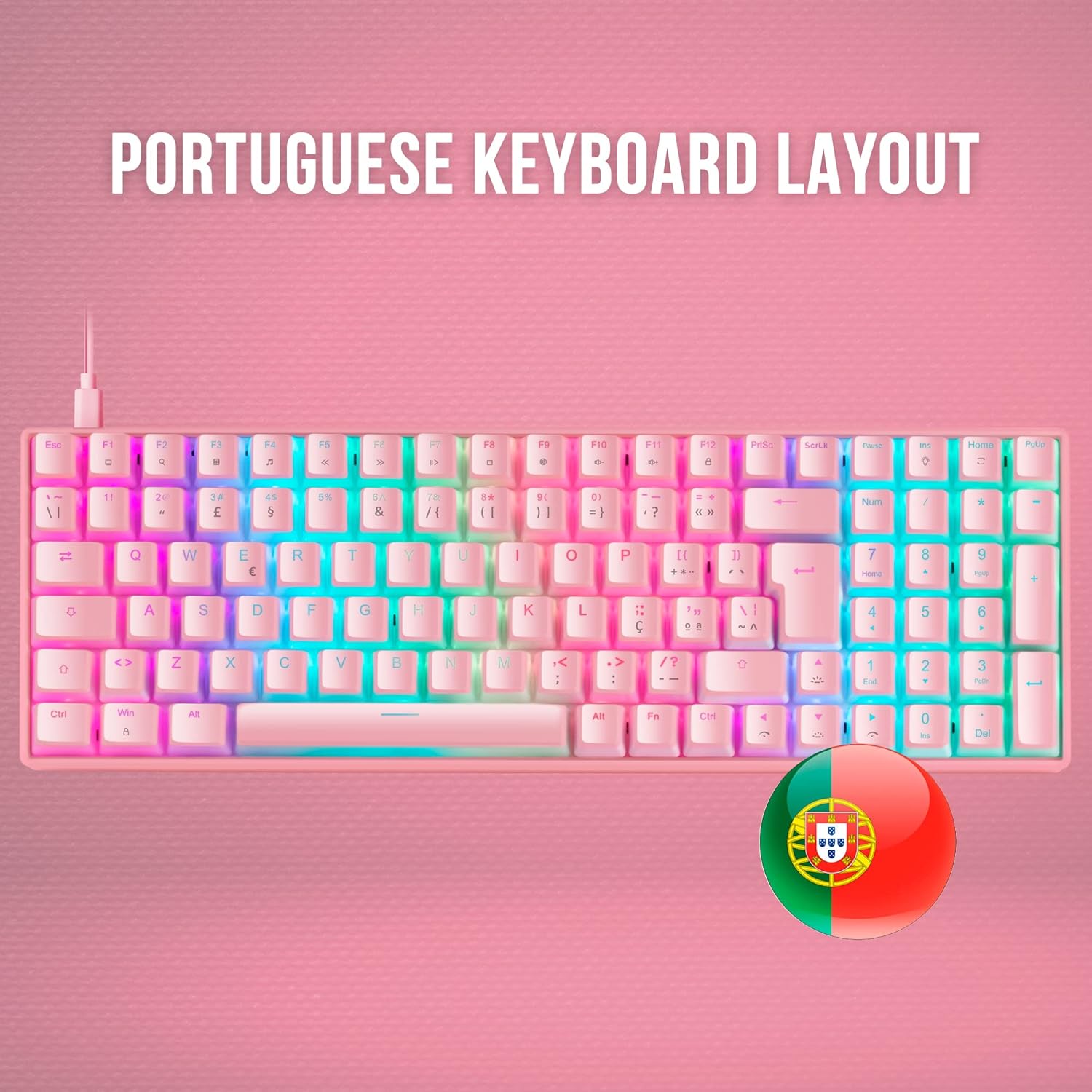
Figure 3: The Portuguese keyboard layout of the Mars Gaming MKULTRA, showing specific key placements for this regional standard.
4.2 PBT Pudding Keycaps
The keyboard is equipped with double-injected PBT pudding keycaps. These keycaps are highly durable and designed to enhance the RGB lighting effects, creating a 'floating' light appearance.

Figure 4: Close-up view of the PBT pudding keycaps on the Mars Gaming MKULTRA, highlighting their translucent sides for enhanced RGB illumination.
4.3 RGB Chroma Lighting
The MKULTRA features a customizable RGB LED lighting system with 16.8 million colors. You can select from various special effects and create custom profiles using the control software. The lighting enhances both aesthetics and visibility.

Figure 5: The full RGB illumination of the Mars Gaming MKULTRA keyboard, showcasing the vibrant and customizable lighting effects.
4.4 Outemu SQ Mechanical Switches
The keyboard utilizes Outemu SQ mechanical switches, which provide precise and reliable key actuation. These switches are designed with dust protection to ensure longevity and consistent performance. The specific model features Outemu SQ Brown switches, known for their tactile feedback without an audible click.

Figure 6: A close-up of the Outemu SQ mechanical switches on the Mars Gaming MKULTRA, highlighting their design for durability and dust protection.
4.5 Anti-Ghosting and Polling Rate
The MKULTRA supports full anti-ghosting, ensuring that every keypress is registered accurately, even during rapid simultaneous inputs. It also features a 1000Hz polling rate for professional-grade response without lag.
5. Maintenance
5.1 Cleaning the Keyboard
- Disconnect the keyboard from your computer before cleaning.
- Use a soft, lint-free cloth slightly dampened with water or a mild cleaning solution to wipe the keycaps and chassis.
- For dust and debris between keys, use compressed air.
- Avoid using harsh chemicals, abrasive cleaners, or excessive moisture, as these can damage the keyboard.
5.2 Keycap Removal (Advanced)
If you need to remove keycaps for deeper cleaning or replacement, use a keycap puller. Gently pull the keycap straight up to avoid damaging the switch. Realign the keycap and press down firmly to reattach.
6. Troubleshooting
6.1 Keyboard Not Responding
- Ensure the USB cable is securely connected to both the keyboard and the computer.
- Try connecting the keyboard to a different USB port on your computer.
- Test the keyboard on another computer to rule out system-specific issues.
- Restart your computer.
6.2 RGB Lighting Issues
- Check the keyboard's control software for lighting settings and ensure they are configured correctly.
- Ensure the software is up to date.
- If using onboard controls, refer to the software documentation for key combinations to adjust lighting.
6.3 Incorrect Key Input
- Verify that the correct keyboard layout is selected in your operating system settings.
- If specific keys are not working, try removing and reattaching their keycaps to ensure proper seating.
- Consider performing a factory reset via the control software if available.
7. Specifications
| Feature | Detail |
|---|---|
| Brand | Mars Gaming |
| Model Number | MKULTRAPBRPT |
| Keyboard Description | Mechanical |
| Connectivity Technology | USB-C |
| Compatible Devices | PC |
| Special Feature | Backlit (RGB) |
| Keyboard Backlighting Color Support | RGB |
| Material | Polybutylene Terephthalate (PBT) |
| Product Dimensions | 14.57 x 4.84 x 1.57 inches |
| Item Weight | 1.62 pounds |
| Manufacturer | Mars Gaming |
| ASIN | B09MJ8WCD2 |
| Date First Available | January 9, 2025 |
8. Warranty and Support
For warranty information and technical support, please refer to the documentation provided with your purchase or visit the official Mars Gaming website. Keep your proof of purchase for warranty claims.


