
Introduction
This manual provides comprehensive instructions for the PHILIPS USB Wired Gaming Mouse, model SPK9201B/00. It covers setup, operation, customization, maintenance, and troubleshooting to ensure optimal performance and user experience.

Image: Front view of the PHILIPS USB Wired Gaming Mouse SPK9201B/00, showcasing its ergonomic design and blue LED lighting.
Package Contents
- PHILIPS USB Wired Gaming Mouse (SPK9201B/00)
- User Manual (this document)

Image: Retail packaging of the PHILIPS USB Wired Gaming Mouse, showing the product name and key features.
Setup
- Connect the Mouse: Insert the USB connector of the PHILIPS SPK9201B/00 gaming mouse into an available USB port on your computer (PC or laptop).
- Driver Installation: The mouse is plug-and-play. Your operating system (Windows, macOS, Linux) will automatically detect and install the necessary drivers. No additional software installation is typically required for basic functionality.
- Initial Use: Once the drivers are installed, the mouse is ready for use. The LED lighting will illuminate, indicating power.
Operating Instructions
Button Functions
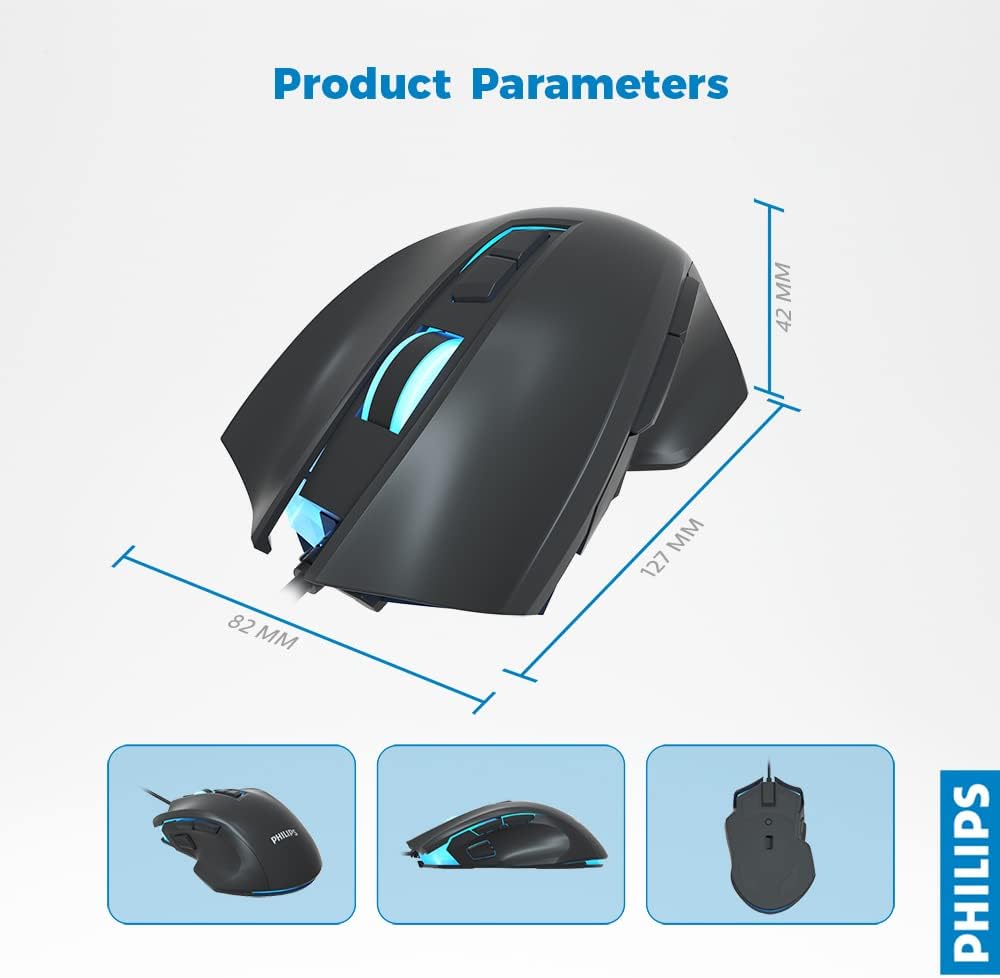
Image: Detailed diagram illustrating the various buttons and components of the PHILIPS SPK9201B/00 gaming mouse, including the scrolling wheel, left/right buttons, forward/backward buttons, DPI adjustment buttons, gaming fire key, optical sensor, and non-slip feet.
- Left/Right Buttons: Standard mouse click functions.
- Scrolling Wheel: For vertical scrolling and as a middle click button.
- Forward/Backward Buttons: Located on the side, typically used for navigation in web browsers or file explorers.
- DPI Adjustment Buttons: Used to cycle through different DPI sensitivity settings.
- Gaming Fire Key: A dedicated button for rapid actions in gaming.
DPI Adjustment
The mouse features a six-speed adjustable DPI setting, allowing you to change sensitivity on the fly. Press the DPI adjustment buttons to cycle through the following settings:
- 800 DPI
- 1600 DPI
- 2400 DPI
- 3200 DPI
- 4800 DPI
- 6400 DPI (Maximum)

Image: Visual representation of the six-speed adjustable DPI settings (800-6400 DPI) available on the PHILIPS SPK9201B/00 gaming mouse.
Lighting Effects
The mouse incorporates 7-way backlit lighting effects, providing visual feedback and enhancing the gaming experience. These effects are pre-programmed and cycle automatically.

Image: An illustration highlighting the ergonomic design and 7-color breathing light effects of the PHILIPS SPK9201B/00 gaming mouse, along with icons for up to 6400 DPI and 9 programmable buttons.
Customization and Macro Programming
The PHILIPS SPK9201B/00 gaming mouse features nine programmable buttons. Macro programming functionality is available with preinstalled drivers, allowing users to assign custom commands or sequences of actions to these buttons. Refer to your operating system's mouse settings or Philips support resources for detailed instructions on advanced customization.
Specifications
| Feature | Detail |
|---|---|
| Model Number | SPK9201B/00 |
| Connectivity | USB Wired |
| Movement Detection | Optical |
| DPI Settings | 800, 1600, 2400, 3200, 4800, 6400 DPI |
| Buttons | 9 (Programmable) |
| Lighting | 7-Way Backlit Effects |
| Frame Rate | Up to 6,600 FPS |
| Return Rate | 1000 Hz |
| Hand Orientation | Ambidextrous |
| Color | Black |
| Product Dimensions | 12.7 x 8.2 x 4.2 cm |
| Item Weight | 145 g |

Image: Diagram showing the dimensions of the PHILIPS SPK9201B/00 gaming mouse: 127 mm length, 82 mm width, and 42 mm height.
Compatibility
The PHILIPS SPK9201B/00 gaming mouse offers universal compatibility with various operating systems:
- Windows (e.g., Windows 10)
- macOS
- Linux
It is compatible with Laptops, PCs, Gaming Consoles, and HDTVs.

Image: Illustration demonstrating the universal compatibility of the PHILIPS SPK9201B/00 gaming mouse with Windows, Mac OS, and Linux operating systems.
Maintenance
- Cleaning: Use a soft, dry cloth to clean the mouse surface. For stubborn dirt, slightly dampen the cloth with water. Avoid using harsh chemicals or abrasive materials.
- Optical Sensor: Ensure the optical sensor on the underside of the mouse remains clean and free of dust or debris for accurate tracking.
- Cable Care: Avoid sharp bends or excessive pulling on the USB cable to prevent damage.
- Storage: When not in use, store the mouse in a clean, dry environment away from extreme temperatures.
Troubleshooting
- Mouse Not Responding:
- Ensure the USB cable is securely plugged into a working USB port on your computer.
- Try plugging the mouse into a different USB port.
- Restart your computer.
- Inaccurate Tracking/Jumpy Cursor:
- Clean the optical sensor on the bottom of the mouse.
- Ensure you are using the mouse on a suitable surface (e.g., a mouse pad, not a reflective or transparent surface).
- Adjust the DPI settings to a lower value if the cursor is too sensitive.
- Buttons Not Working:
- Check if any software or game settings are overriding the mouse button functions.
- Ensure the mouse is properly connected.
- LED Lights Not On:
- Verify the mouse is connected and receiving power.
- The lighting effects are automatic; if they are not present, ensure the mouse is functioning otherwise.
Warranty and Support
The PHILIPS USB Wired Gaming Mouse SPK9201B/00 comes with a 24-month trouble-free replacement warranty covering all manufacturing defects. For warranty claims, technical support, or further assistance, please contact Philips customer service or visit the official Philips support website. Keep your proof of purchase for warranty validation.
Online Support: For additional resources, FAQs, and driver updates, please visit the official Philips website or the Philips store on Amazon.
Visit the PHILIPS Store on Amazon