
Introduction
This manual provides essential information for the setup, operation, and maintenance of your RegiisJoy W88 Pro Arcade Game Console. Please read these instructions carefully before using the product to ensure proper function and longevity.
What's in the Box
Verify that all items listed below are included in your package:
- Arcade Game Console (Main Unit)
- HDMI Cable
- VGA Adapter
- USB Cable
- Power Adapter
- Connection Cable (for separate units)
- Replacement Buttons (x2)

Image: Package contents of the RegiisJoy W88 Pro Arcade Game Console.
Setup Instructions
1. Initial Preparation
Before connecting, ensure the console is placed on a stable, flat surface. If your console has a protective film, gently remove it.

Image: Removing the transparent protective film from the console surface.
Video: Demonstration of removing the protective film from the arcade console. This step is important for optimal visual clarity and to prevent scratches during initial use.
2. Connecting to a Display
The RegiisJoy W88 Pro console supports various display types including 4K TVs, PCs, and projectors. Use the appropriate cable provided:
- For HDMI-compatible displays (TVs, monitors): Use the provided HDMI cable.
- For VGA-compatible displays (older monitors, projectors): Use the provided HDMI to VGA adapter and a VGA cable.
- For PC connection (as a controller): Use the provided USB cable.

Image: Rear panel connections of the arcade console.

Image: Connection diagram for various display types and external controllers.
3. Powering On
Connect the power adapter to the console's DC 12V port and then to a power outlet. Locate the power switch on the console (typically on the rear or side) and turn it to the "ON" position. The console will boot up and display the main menu on your connected screen.

Image: Console connected and displaying the loading screen on a TV.
Operating Instructions
1. Navigating the Menu
Use the joystick and buttons on the arcade control panel to navigate through the game selection and system settings. The main menu provides access to built-in games, game categories, and system options.
2. Game Features
- Built-in Games: The console comes with 36,800 built-in games, including over 300 3D titles.
- Search/Hide/Save/Load/Pause: Easily manage your gaming experience. The P1 pause button allows you to save games and pin favorites to the top.
- Favorite List: Create a personalized list of your most played games for quick access.
- Recently Played: Access a list of your recently played games.
- Multi-language Support: Supports 6 languages: English, Spanish, Japanese, Korean, Simplified Chinese, and Traditional Chinese.
3. Adding More Games (Wi-Fi Function)
The W88 Pro features Wi-Fi and Ethernet connectivity, allowing you to download additional games from the online game market. Access the "Game Market" option in the system settings to browse and download from over 50,000 extra games.

Image: System settings menu, including Wi-Fi options for downloading games.
4. Customizing Buttons
You can customize the button layout to suit your preferences. Navigate to the "Key Settings" or "Redefine Keys" option within the system menu to remap buttons.
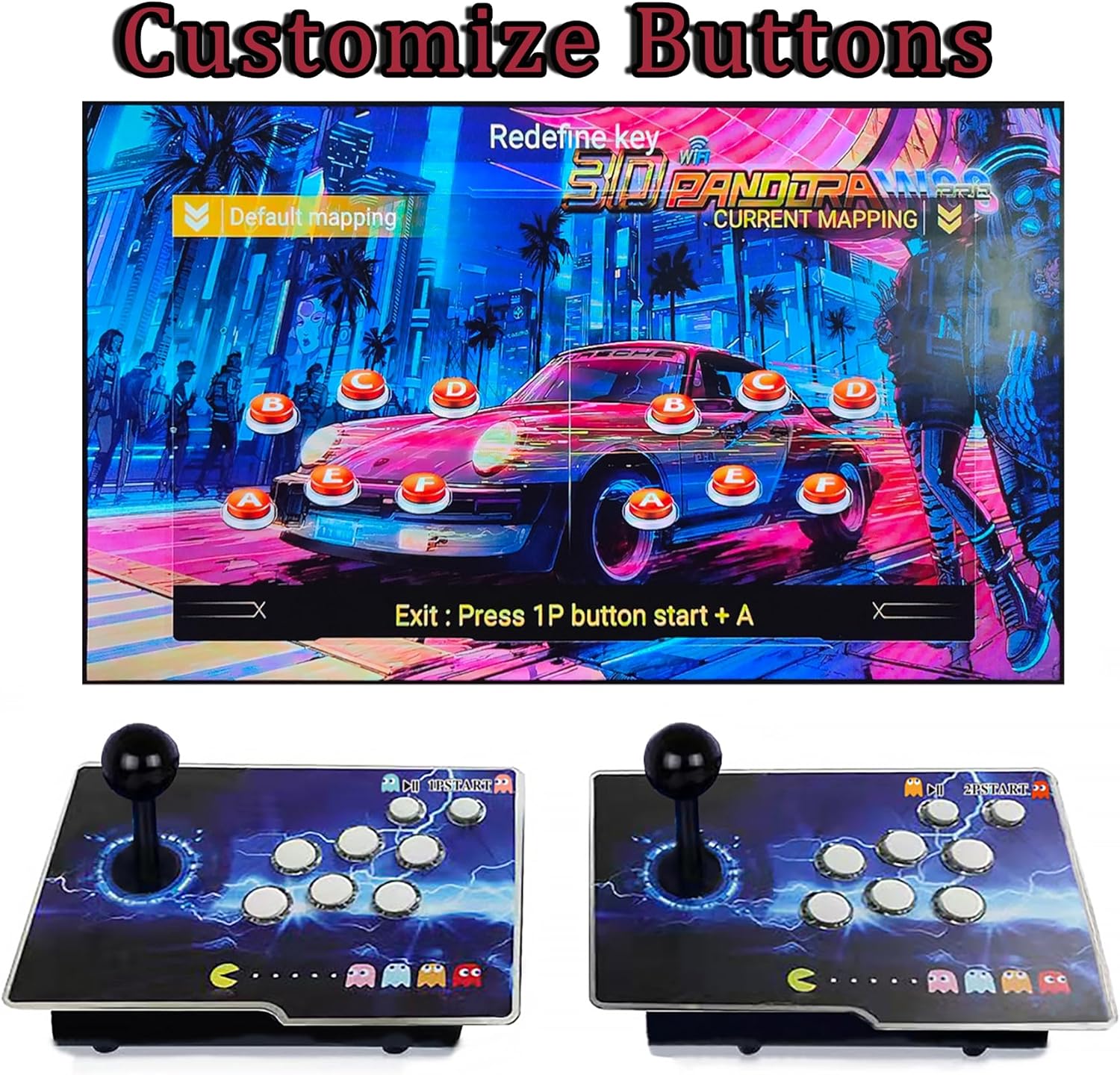
Image: Button customization interface.
5. Multi-Player Gaming
The console supports 2-4 players. For 3-4 player games, you will need to connect two additional USB controllers (not included) to the console's USB ports.
Maintenance
- Cleaning: Use a soft, dry cloth to clean the console's surface. Avoid abrasive cleaners or solvents.
- Storage: When not in use, store the console in a cool, dry place away from direct sunlight and extreme temperatures.
- Ventilation: Ensure the console has adequate ventilation during operation to prevent overheating. Do not block any vents.
- Cable Care: Handle all cables with care. Avoid bending or twisting them sharply to prevent damage.
Troubleshooting
No Power / Console Not Turning On
- Ensure the power adapter is securely connected to both the console and a working power outlet.
- Verify the power switch on the console is in the "ON" position.
- Test the power outlet with another device to confirm it is functional.
No Image on Screen
- Check that the HDMI or VGA cable is securely connected to both the console and the display.
- Ensure your display is set to the correct input source (e.g., HDMI 1, VGA).
- Try a different HDMI or VGA cable if available.
No Sound
- Check the volume settings on both the console (using the volume knob on the rear panel) and your connected display.
- Ensure external speakers or headphones are properly connected to the 3.5mm audio jack if used.
- If using the console's built-in speakers, ensure the TV sound is not overriding them or that the console's internal volume is not muted.
Games Not Loading / "No Games Installed" Error
- Restart the console.
- Ensure the internal memory card (128GB) is properly seated and not corrupted.
- If downloading games, ensure a stable internet connection via Wi-Fi or Ethernet. Server issues can occur; try again later.
Slow Performance / Lag in Games
- While the S812 chip is powerful, some highly demanding 3D games or emulated titles might experience occasional slowdowns.
- Ensure no background processes are consuming resources if connected to a network.
Wi-Fi Connection Issues / Download Problems
- Verify your Wi-Fi password and network selection are correct in the system settings.
- Ensure the console is within range of your Wi-Fi router.
- If downloads fail, the game server might be temporarily unavailable or busy. Try again after some time.
- Check available storage space on the console if downloads consistently fail.
Specifications
| Model | W88 Pro (PCM-F8P) |
| Brand | RegiisJoy |
| Number of Built-in Games | 36,800 (including 300+ 3D games) |
| Processor | S812 chip |
| Memory Card | 128GB |
| Resolution | 1280x720 (HD Output) |
| Connectivity | Wi-Fi, Ethernet, HDMI, VGA, USB |
| Number of Players | 2-4 (requires 2 additional USB controllers for 3-4 players) |
| Controller Type | Button Control (Dual 3D Joysticks) |
| Power Source | Corded Electric (DC 12V) |
| Dimensions (L x W x H) | 25" x 8.6" x 2.7" |
| Material Type | Plastic |
| Supported Languages | English, Spanish, Japanese, Korean, Simplified/Traditional Chinese |
Warranty and Support
For any questions regarding your RegiisJoy W88 Pro Arcade Game Console, including technical support or warranty inquiries, please visit the official RegiisJoy website. Our customer service team is dedicated to assisting you.
While extended protection plans may be available from third-party providers, please refer to your purchase documentation for specific warranty details provided by RegiisJoy.
Online Support: Visit the RegiisJoy Store on Amazon