
1. Introduction
Thank you for choosing the Tekstap Smart RGBIC Ambiance Light Bar. This device is designed to enhance your entertainment experience with dynamic, customizable lighting. Featuring RGBIC technology, Wi-Fi connectivity, and compatibility with voice assistants like Alexa and Google Assistant, these light bars offer a versatile solution for creating immersive atmospheres for gaming, movies, music, and more.
This manual provides essential information for the safe and efficient use of your new light bars. Please read it thoroughly before installation and operation, and retain it for future reference.
2. Package Contents
Please check the package for the following items:
- Tekstap Smart RGBIC Ambiance Light Bars (2 units)
- Power Adapter
- Base Stands (2 units)
- 3M Adhesive Pads (for alternative mounting)
- User Manual

Image: Contents of the Tekstap Smart RGBIC Ambiance Light Bar package, showing the two light bars, their stands, the power adapter, and the instruction manual.
3. Safety Information
- Ensure the power supply voltage is compatible with the device.
- Do not expose the device to water or high humidity.
- Avoid direct exposure to sunlight or high temperatures.
- Do not attempt to disassemble or repair the device yourself. Contact customer support for assistance.
- Keep out of reach of children.
- Use only the provided power adapter.
4. Setup
4.1 Installation Methods
The Tekstap Smart RGBIC Ambiance Light Bars offer two primary installation methods:
- Using Base Stands: Attach the light bars to the provided base stands. These allow for vertical placement on a desk or horizontal placement behind a screen.
- Using 3M Adhesive Pads: For a more permanent setup, attach the light bars directly to the back of your TV or PC using the strong 3M adhesive pads. Ensure the surface is clean and dry before application.

Image: Demonstrates flexible placement options for the light bars, including vertical on a desk and horizontal behind a television screen.
4.2 Connecting to Power
Connect the light bars to the power adapter and then plug the adapter into a standard electrical outlet.
4.3 Smart Life App Installation and Pairing
- Download the App: Search for "Smart Life" in your smartphone's app store (iOS or Android) and download the application.
- Register/Log In: Open the Smart Life app and register for a new account or log in if you already have one.
- Enter Pairing Mode: Power on the light bars. If they do not automatically enter pairing mode (indicated by a flashing light), press and hold the power button on the control unit for several seconds until the lights begin to flash rapidly.
- Add Device: In the Smart Life app, tap the "+" icon to add a new device. Select "Lighting" then "Light Source (Wi-Fi)" or allow the app to auto-discover the device.
- Connect to Wi-Fi: Follow the on-screen instructions to connect the light bars to your 2.4GHz Wi-Fi network. Note: This device does not support 5GHz Wi-Fi networks.
- Pairing Complete: Once connected, the light bars will stop flashing and appear in your Smart Life app. You can then rename the device for easier control.

Image: The Smart Life app interface on a smartphone, demonstrating options for music, brightness, scene, DIY, color, and schedule control for the light bars. Product dimensions are also shown.
5. Operating Instructions
5.1 Basic Control (Manual)
The light bars feature a control unit with buttons for basic functions:
- Power Button: Press to turn on/off. Long press to enter pairing mode.
- Mode Button: Cycle through preset lighting modes.
- Brightness Buttons: Adjust the brightness level.
5.2 Smart Life App Control
The Smart Life app provides comprehensive control over your light bars:
- Color Selection: Choose from 16 million colors using the color wheel.
- Brightness Adjustment: Precisely control the light intensity.
- Scene Modes: Select from over 10 preset scene modes (e.g., Movie, Date, Sunset, Romantic, Christmas Eve, Colorful, Dynamic, Dream, Rainbow, Flowing Water) to instantly change the ambiance. You can also create and save your own DIY scene modes.
- Music Sync Mode: Activate the music mode to synchronize the lights with audio from your TV, PC, or surrounding environment via the built-in microphone. Choose from 4 music modes: Vivid, Rhythm, Strike, and Vibrate.
- Scheduling: Set timers to automatically turn the lights on or off at specific times.
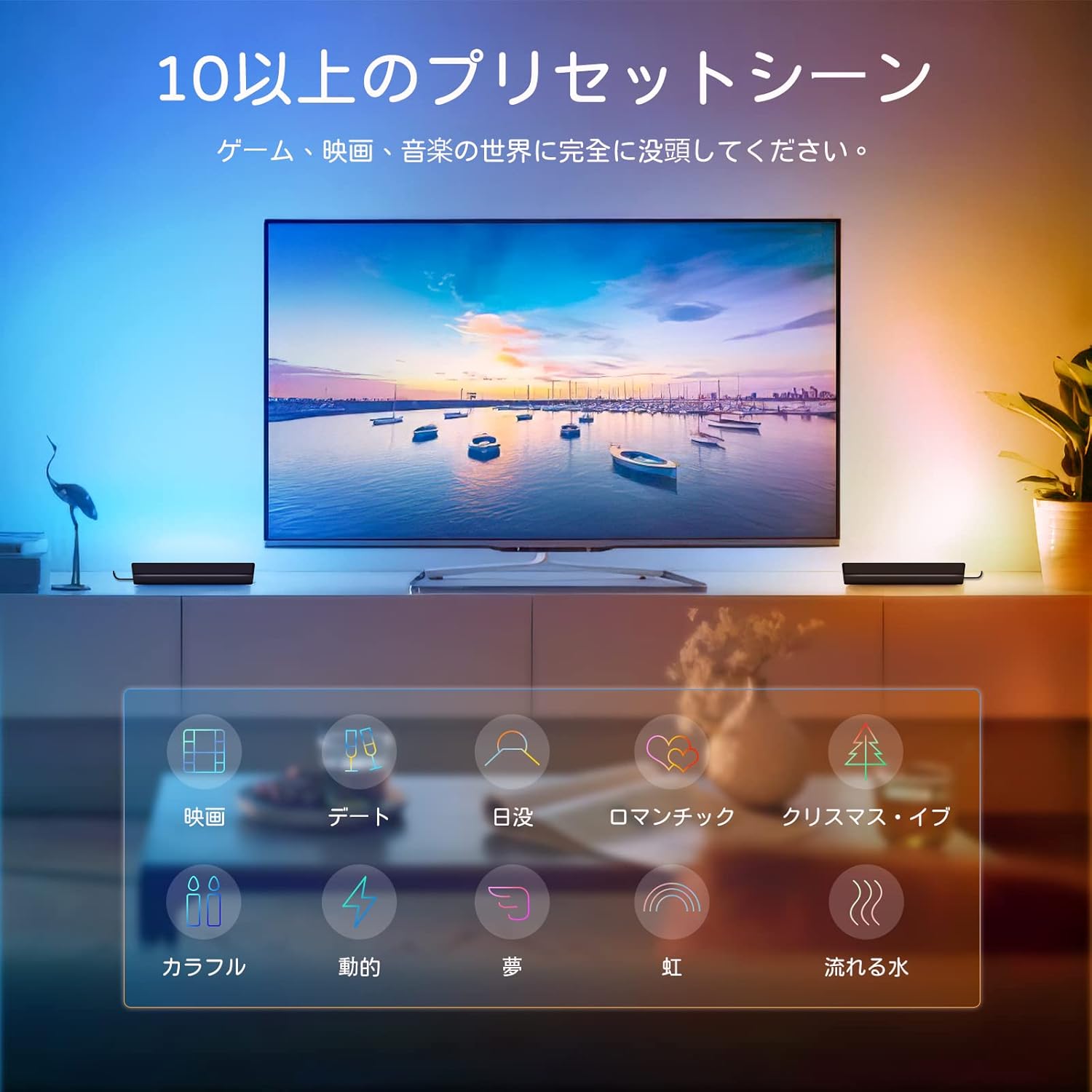
Image: A living room setup showing the light bars behind a television, illustrating various preset scene modes available for different activities like movies, dates, or music.

Image: A smartphone screen showing the scheduling feature within the app, allowing users to set specific times for the light bars to turn on or off automatically.
5.3 Voice Control (Alexa/Google Assistant)
Integrate your Tekstap Smart RGBIC Ambiance Light Bars with Amazon Alexa or Google Assistant for hands-free control:
- Link Smart Life Account: In your Alexa or Google Home app, navigate to the "Skills" or "Works with Google" section. Search for "Smart Life" and enable the skill/service. Log in with your Smart Life account credentials.
- Discover Devices: Once linked, ask your voice assistant to "Discover devices" or manually add them through the app.
- Voice Commands: You can now control your light bars using voice commands. Examples include:
- "Alexa, turn on the Light Bar."
- "Hey Google, set Light Bar to blue."
- "Alexa, dim the Light Bar to 50%."
- "Hey Google, change Light Bar to romantic scene."

Image: A user relaxing on a couch, controlling the light bars behind a TV using voice commands through an Amazon Echo device, demonstrating Alexa and Google Assistant compatibility.
6. Maintenance
- Cleaning: Use a soft, dry cloth to clean the surface of the light bars. Do not use abrasive cleaners or solvents.
- Storage: If storing the device for an extended period, disconnect it from power and store it in a cool, dry place.
- Firmware Updates: Periodically check the Smart Life app for any available firmware updates to ensure optimal performance and access to new features.
7. Troubleshooting
| Problem | Possible Cause | Solution |
|---|---|---|
| Light bars do not turn on. | No power, loose connection. | Check power adapter connection and wall outlet. Ensure the power button is pressed. |
| Cannot connect to Wi-Fi. | Incorrect Wi-Fi password, 5GHz network, device not in pairing mode. | Ensure correct 2.4GHz Wi-Fi network and password. Put device into pairing mode (flashing lights). Move closer to the router. |
| Voice control not working. | Smart Life skill not enabled, incorrect device name, no internet connection. | Ensure Smart Life skill is enabled and linked in Alexa/Google Home app. Verify device name. Check internet connection. |
| Lights are unresponsive. | Temporary glitch, app issue. | Restart the light bars by unplugging and replugging. Close and reopen the Smart Life app. |
8. Specifications
| Feature | Detail |
|---|---|
| Brand | Tekstap |
| Model Number | AALB-BC |
| Product Dimensions | 8 x 4.6 x 26.6 cm (per bar) |
| Weight | 580 g (total package) |
| Color | Multi-colored (RGBIC) |
| Shade Material | Polycarbonate |
| Switch Type | Touch, App, Voice |
| Connectivity | Wi-Fi (2.4GHz only) |
| Voice Assistant Compatibility | Amazon Alexa, Google Assistant |
| Special Features | RGBIC Technology, Music Sync, 10+ Scene Modes, DIY Modes, Scheduling |
9. Warranty and Support
Tekstap products are designed for reliability and performance. For warranty information and customer support, please refer to the contact details provided on the product packaging or visit the official Tekstap website. Please have your model number (AALB-BC) and purchase information ready when contacting support.
For further assistance, you may also refer to the Tekstap Brand Store.