Introduction
This manual provides detailed instructions for the Faceuer Tablet Keyboard Case, designed to enhance your tablet experience with a comfortable typing solution and robust protection. It features a built-in pen slot, automatic sleep/wake functions, and a 7-color backlit keyboard with brightness adjustment.
The package includes: 1 x Protective Case, 1 x Tablet Keyboard, 1 x Charging Cable, 1 x User Manual.
Product Overview

Figure 1: The Faceuer Tablet Keyboard Case in its open position, displaying the integrated keyboard and the protective slot for your tablet.

Figure 2: Side view of the protective case, demonstrating its soft PU material construction which offers anti-drop and anti-scratch performance, and its ability to stand upright.

Figure 3: Detail of the built-in tablet pen slot, designed for convenient storage and easy access to your tablet pen.

Figure 4: The protective case with a tablet securely installed, illustrating the precise cutouts that ensure normal access to all buttons, speakers, and camera functions.
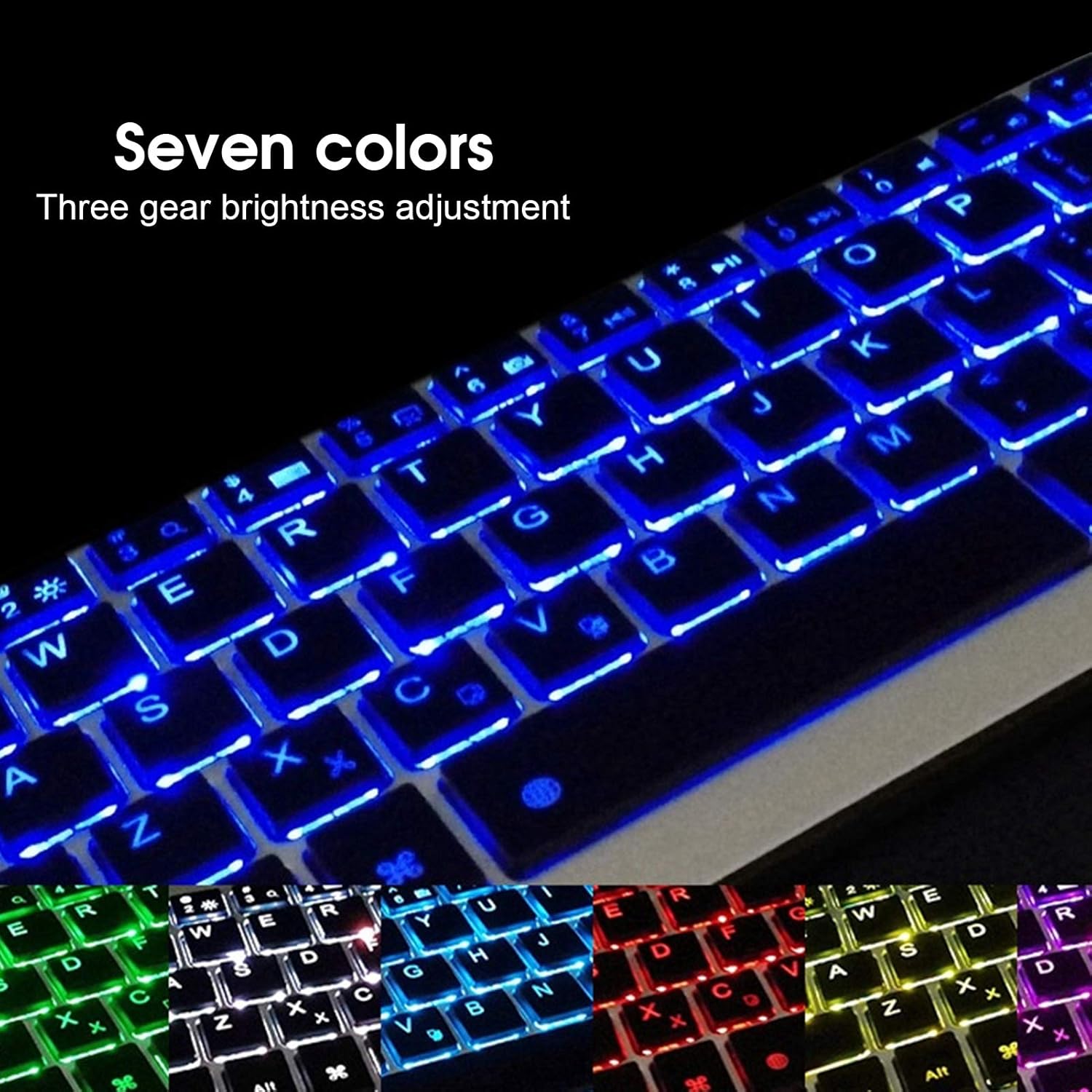
Figure 5: A detailed view of the keyboard demonstrating its seven-color backlighting feature with three levels of brightness adjustment.

Figure 6: The included USB charging cable for recharging the keyboard's internal battery.
Setup
- Charge the Keyboard: Before first use, fully charge the keyboard using the provided USB cable. Connect the small end of the cable to the keyboard's charging port and the other end to a USB power adapter (not included) or a computer's USB port. The charging indicator light will turn off when fully charged.
- Insert Your Tablet: Gently align your compatible tablet (iPad 10.2/Air3/Pro 10.5in) with the protective case. Ensure the tablet snaps securely into place, confirming that all ports, buttons, and the camera are accessible through the precise cutouts.
- Power On the Keyboard: Locate the power switch on the keyboard (usually on the side or top edge) and slide it to the "ON" position. The indicator light will briefly illuminate.
- Enable Bluetooth Pairing: Press the "Connect" or Bluetooth pairing button on the keyboard (often indicated by a Bluetooth symbol). The Bluetooth indicator light will start blinking, signifying that the keyboard is in pairing mode.
- Pair with Your Tablet:
- On your tablet, go to Settings > Bluetooth.
- Ensure Bluetooth is turned ON.
- Your tablet will search for nearby Bluetooth devices. Look for "Bluetooth Keyboard" or a similar name in the list of available devices.
- Tap on the keyboard's name to initiate pairing. If prompted, enter the displayed code on the keyboard and press Enter.
- Once paired, the Bluetooth indicator light on the keyboard will stop blinking and remain solid or turn off, and your tablet will show the keyboard as "Connected".
Operating Instructions
Keyboard Functions:
- Typing: Use the keyboard as you would a standard computer keyboard. The layout is designed for comfortable and efficient typing.
- Backlight Adjustment: The keyboard features a 7-color backlight with three levels of brightness.
- Press the Light Bulb key (often near the spacebar or function keys) to cycle through the 7 colors.
- Press Fn + Light Bulb key to adjust the brightness level (Low, Medium, High, Off).
- Function Keys (Fn): Many keys have secondary functions accessed by holding down the Fn key and pressing the desired function key (e.g., volume control, media playback, screen lock). Refer to the keycap legends for specific functions.
- Automatic Sleep/Wake: The keyboard and case support automatic sleep and wake functions. Closing the case will put your tablet and keyboard to sleep, conserving battery. Opening the case will wake them up.
Case Usage:
- Viewing Stand: The case can be folded into a stand, allowing you to prop up your tablet for comfortable viewing or typing.
- Pen Slot: Utilize the built-in pen slot to securely store your tablet pen when not in use.
- Protection: The soft PU material provides all-round protection against drops, scratches, and daily wear and tear.
Maintenance
- Cleaning:
- For the keyboard: Use a soft, dry, lint-free cloth to wipe the keys and surface. For stubborn dirt, slightly dampen the cloth with water or a mild, non-abrasive cleaner. Avoid excessive moisture.
- For the case: Wipe with a damp cloth. Do not use harsh chemicals or abrasive cleaners, as they may damage the PU material.
- Storage: When not in use for extended periods, turn off the keyboard to conserve battery. Store the case and keyboard in a cool, dry place away from direct sunlight and extreme temperatures.
- Battery Care: To prolong battery life, avoid fully discharging the keyboard frequently. Recharge it when the battery low indicator appears.
Troubleshooting
- Keyboard not connecting/pairing:
- Ensure the keyboard is charged and powered on.
- Make sure Bluetooth is enabled on your tablet.
- Ensure the keyboard is in pairing mode (blinking Bluetooth indicator).
- Forget the device on your tablet's Bluetooth settings and try pairing again.
- Restart both your tablet and the keyboard.
- Ensure the keyboard is within the effective operating distance (approx. 10 meters).
- Keys not responding:
- Check if the keyboard is connected via Bluetooth.
- Recharge the keyboard battery.
- Restart the keyboard and tablet.
- Backlight not working:
- Ensure the keyboard is powered on.
- Press the backlight adjustment key (Light Bulb key) to cycle through colors and brightness levels.
- Recharge the keyboard battery.
- Tablet not sleeping/waking automatically:
- Ensure the tablet is properly seated in the case.
- Check tablet settings for sleep/wake cover functionality.
Specifications
| Feature | Detail |
|---|---|
| Item Type | Tablet Keyboard Case |
| Material | PU+ABS |
| Appearance | Diagonal texture |
| Bluetooth Chip | For Broadcom chip, for Bluetooth 3.0 |
| Effective Operating Distance | About 10 meters (33 feet) |
| Modulation Method | GFSK |
| Keyboard Design | Chocolate keycaps, X scissors foot key structure |
| Backlight | Seven colors, three levels of brightness adjustment |
| Battery | 200mAh Lithium Battery |
| Standby Time | About 30 days |
| Continuous Working Hour | About 60 hours |
| Charging Time | 2-2.5 hours |
| Applicable Model | For iPad 10.2in / Air3 / Pro 10.5in |
Warranty and Support
This product comes with a standard manufacturer's warranty. Please refer to the warranty card included in your package for specific terms and conditions. For technical support, troubleshooting assistance, or warranty claims, please contact Faceuer customer service through the retailer's platform or the contact information provided with your purchase.
Please retain your proof of purchase for warranty purposes.