
Introduction
Thank you for choosing the CIY X79 Mechanical Gaming Keyboard. This ultra-compact 65% layout keyboard offers versatile connectivity options, customizable RGB lighting, and hot-swappable switches for a personalized typing and gaming experience. This manual provides detailed instructions for setup, operation, maintenance, and troubleshooting to ensure optimal performance.

Figure 1: CIY X79 Mechanical Gaming Keyboard
Features
- CIY EVO Red Switches: Hot-swap PCB allows you to replace 3-pin and 5-pin switches freely, compatible with any MX-style switch (e.g., Cherry, Gateron, Kailh). Equipped with linear red switches for a quiet typing experience and swift reactions.
- Triple Connectivity Modes: Supports Bluetooth 5.0, 2.4GHz ISM wireless, and Type-C wired connections.
- Long Battery Life: Features a 2000mAh battery for extended wireless usage.
- Full Key Rollover Anti-ghosting: Ensures all key presses are registered accurately, even during rapid input.
- Full Keys Programmable: Powerful chip enables highly customized RGB lighting and functions.
- Professional Software Support: Remap key combinations, assign macros, and customize RGB lighting effects using the dedicated CIY drive software.
- Compact and Portable: 65% layout saves desk space and is easy to carry, ideal for home, work, and travel.
- Durable Construction: CNC Aluminum Alloy Panel for enhanced durability and ergonomic design.
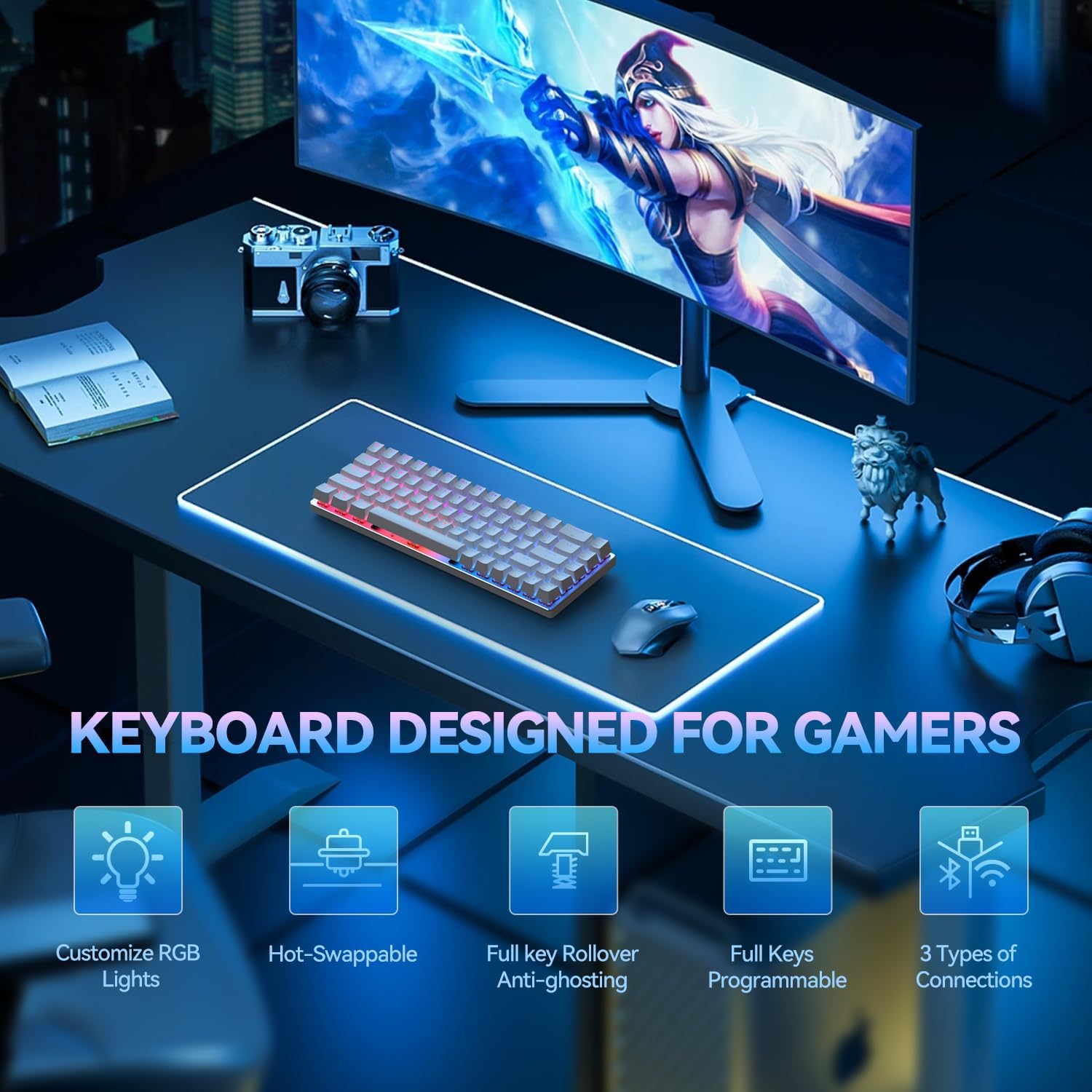
Figure 2: Key features of the CIY X79 Keyboard
What's in the Box
- CIY X79 Mechanical Gaming Keyboard
- USB Type-C Cable
- Keycap Puller
- User Manual (this document)
Setup
1. Initial Connection
The CIY X79 keyboard offers three connection methods: wired, 2.4GHz wireless, and Bluetooth. Choose the method that best suits your needs.

Figure 3: Multiple Connection Methods
Wired Mode (Type-C USB 2.0)
- Connect the provided USB Type-C cable to the keyboard's port.
- Plug the other end of the cable into an available USB port on your computer.
- The keyboard will automatically be recognized and ready for use.
2.4GHz Wireless Mode
- Locate the 2.4GHz USB dongle (usually stored in a compartment on the keyboard).
- Plug the USB dongle into an available USB port on your computer.
- Switch the keyboard to 2.4GHz mode using the switch on the keyboard (refer to keyboard layout for exact switch location).
- The keyboard should connect automatically.
Bluetooth 5.0 Mode
The keyboard supports connecting to up to 3 Bluetooth devices.
- Switch the keyboard to Bluetooth mode using the switch on the keyboard.
- On your computer or device, enable Bluetooth and search for new devices.
- Select "CIY X79" (or similar name) from the list of available devices.
- If prompted, enter the pairing code displayed on your screen.
- The keyboard should now be paired and connected.
Operating Instructions
1. RGB Lighting Control
The CIY X79 features customizable RGB backlighting. Use the Function (Fn) key in combination with other keys to adjust lighting effects.

Figure 4: Adjustable RGB Light Controls
- Switch Brightness Modes: Press Fn + Backspace to toggle RGB lighting on/off.
- Adjust Brightness: Press Fn + Up Arrow to increase brightness, Fn + Down Arrow to decrease brightness.
- Switch Light Color: Press Fn + Enter to cycle through different colors.
- Adjust Speed: Press Fn + Left Arrow to decrease effect speed, Fn + Right Arrow to increase effect speed.
2. Key Rollover and Programmability
The keyboard supports full key rollover (anti-ghosting) ensuring every keypress is registered. For advanced customization, including key remapping and macro assignment, download and install the official CIY drive software from the manufacturer's website.
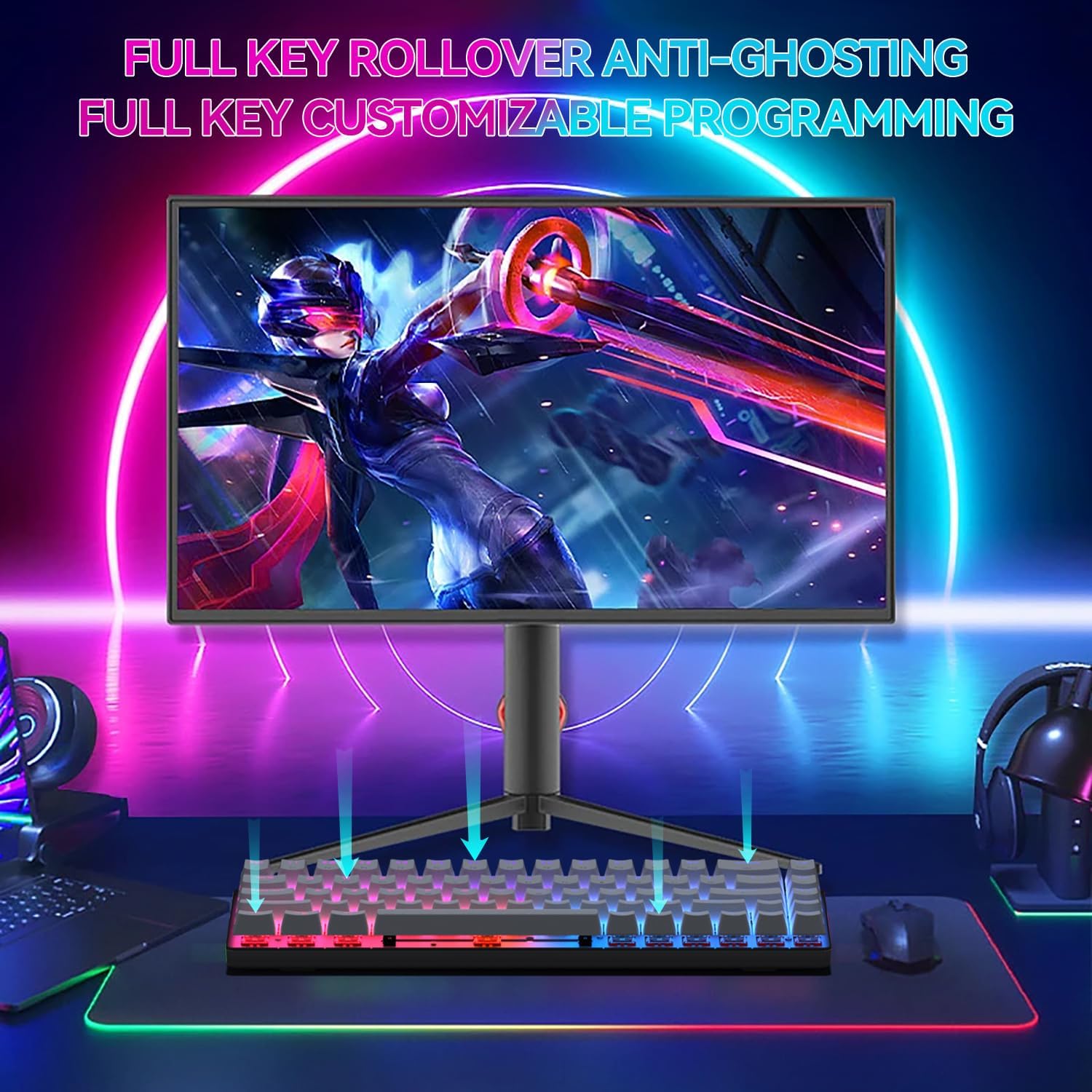
Figure 5: Full Key Rollover Anti-Ghosting
Maintenance
1. Cleaning
To clean your keyboard, disconnect it from your computer. Use a soft, dry cloth to wipe down the keycaps and chassis. For deeper cleaning, you may use a can of compressed air to remove dust and debris from between the keys.
2. Hot-Swappable Switches
The CIY X79 features hot-swappable PCB, allowing you to easily change switches without soldering. Use the provided keycap puller to remove keycaps and a switch puller (not included, but commonly available) to remove switches. Ensure the new switches are aligned correctly before pressing them into place.

Figure 6: Hot-Swappable Switch Support
Troubleshooting
- Keyboard not responding: Ensure the keyboard is properly connected (wired, 2.4GHz dongle, or Bluetooth paired). Check battery level if in wireless mode. Try restarting your computer.
- RGB lighting not working: Ensure the lighting is turned on (Fn + Backspace). Check brightness levels (Fn + Up/Down Arrow).
- Wireless connectivity issues: Ensure the 2.4GHz dongle is securely plugged in or Bluetooth is enabled and paired. Move closer to your device to reduce interference.
- Keys not registering: Ensure the switches are fully seated. If a specific key is not working, try swapping its switch with a known working one to diagnose if the issue is with the switch or the PCB.
Specifications
| Feature | Detail |
|---|---|
| Model Number | X79 |
| Connectivity Technology | Bluetooth 5.0, 2.4GHz ISM, USB Type-C Wired |
| Layout | 65% (68 Keys) |
| Switch Type | CIY EVO Red Switches (Hot-Swappable 3/5-pin) |
| Backlighting | RGB |
| Battery Capacity | 2000mAh Lithium Ion |
| Product Dimensions | 12.2 x 3.94 x 1.38 inches |
| Item Weight | 1.06 pounds |
| Material | Aluminum (CNC Alloy Panel) |
| Compatible Devices | PC (Windows / MacOS / Android) |
Warranty and Support
For warranty information and technical support, please refer to the official CIY website or contact their customer service directly. Keep your purchase receipt for warranty claims.
Visit the CIY Store: CIY Technologies USA Store


