
Hifree 021e723a-26d5-4aa1-b112-8e3dc0aec1a2
Hifree Smart Table Lamp + LED RGB Color Changing Touch Lamp Bundle User Manual
Model: 021e723a-26d5-4aa1-b112-8e3dc0aec1a2
Product Overview
This Hifree Smart Table Lamp + LED RGB Color Changing Touch Lamp Bundle is designed to enhance your living space with versatile lighting options. The bundle includes both a smart version and a normal touch control version of the night light, offering flexibility in control methods.
Key features include:
- Voice Control: Seamless integration with Alexa or Google Assistant via Wi-Fi and Bluetooth for hands-free operation.
- Eye-Care Design: Anti-blue light LED protects children's eyesight, making it suitable for reading and extended use.
- Durable & Safe: Constructed from toy-grade ABS and PC materials, ensuring safety for children.
- DIY Scene Mode: Customize lighting effects, brightness, color flash modes (breath, flash, static), and speed through the "Smart Life" APP.
- Advanced Settings: Natural Rhythm light, timer, and schedule settings for automated on/off, brightness, and color changes.

Image: The Hifree Smart Table Lamp bundle, showcasing two lamps and the mobile application for control.
What's in the Box
Your Hifree Smart Table Lamp bundle includes the following components:
- 2 Hifree Smart Table Lamps
- 2 LED RGB Color Changing Touch Lamps
Specifications
| Feature | Detail |
|---|---|
| Brand | Hifree |
| Model Number | 021e723a-26d5-4aa1-b112-8e3dc0aec1a2 |
| Style | RGB Color Changing Touch Lamp + Smart Table Lamp Bundle |
| Color | Multicolor |
| Light Source Type | LED |
| Control Method | App, Touch, Voice |
| Connectivity Technology | Bluetooth, Wi-Fi |
| Controller Type | Google Assistant, Amazon Alexa |
| Material | Acrylonitrile Butadiene Styrene (ABS) |
| Power Source | Corded Electric |
| Room Type | Bedroom |
| Mounting Type | Tabletop |
| Number of Light Sources | 4 |
| Age Range (Description) | Kid |
Setup Instructions
1. Unpacking and Placement
- Carefully remove all components from the packaging.
- Place the Hifree Smart Table Lamp on a stable, flat surface in your desired location. Ensure it is within reach of a power outlet.
2. Power Connection
- Connect the power adapter to the lamp's power input port.
- Plug the power adapter into a standard electrical outlet. The lamp should illuminate briefly or indicate power.
3. App Installation and Pairing (for Smart Lamp)
For the smart version of the lamp, download and install the "Smart Life" application on your smartphone or tablet.
- Download the "Smart Life" app from your device's app store (App Store for iOS, Google Play Store for Android).
- Open the app and register for a new account or log in if you already have one.
- Ensure your smartphone is connected to a 2.4GHz Wi-Fi network.
- In the "Smart Life" app, tap the "+" icon to add a new device.
- Select "Lighting" or "Light Source (Wi-Fi)" from the device list.
- Follow the on-screen instructions to put the lamp into pairing mode (this usually involves turning the lamp on/off a few times until it blinks rapidly).
- Confirm the lamp is blinking rapidly in the app and enter your Wi-Fi password.
- Wait for the app to connect and add the device. Once connected, you can rename the lamp for easier control.

Image: The "Smart Life" application interface, demonstrating color and brightness controls for the lamp.
Operating Instructions
1. Touch Control (for both Smart and Normal Touch Control Lamps)
The lamp features intuitive touch controls for basic functions.
- Power On/Off: Lightly tap the top surface of the lamp to turn it on or off.
- Brightness Adjustment (Stepless Dimming): Press and hold the top surface to smoothly adjust the brightness level. Release when the desired brightness is reached.
- Color Change (Normal Touch Control Lamp): Tap the top surface to cycle through available colors (e.g., warm white, cool white, RGB colors).
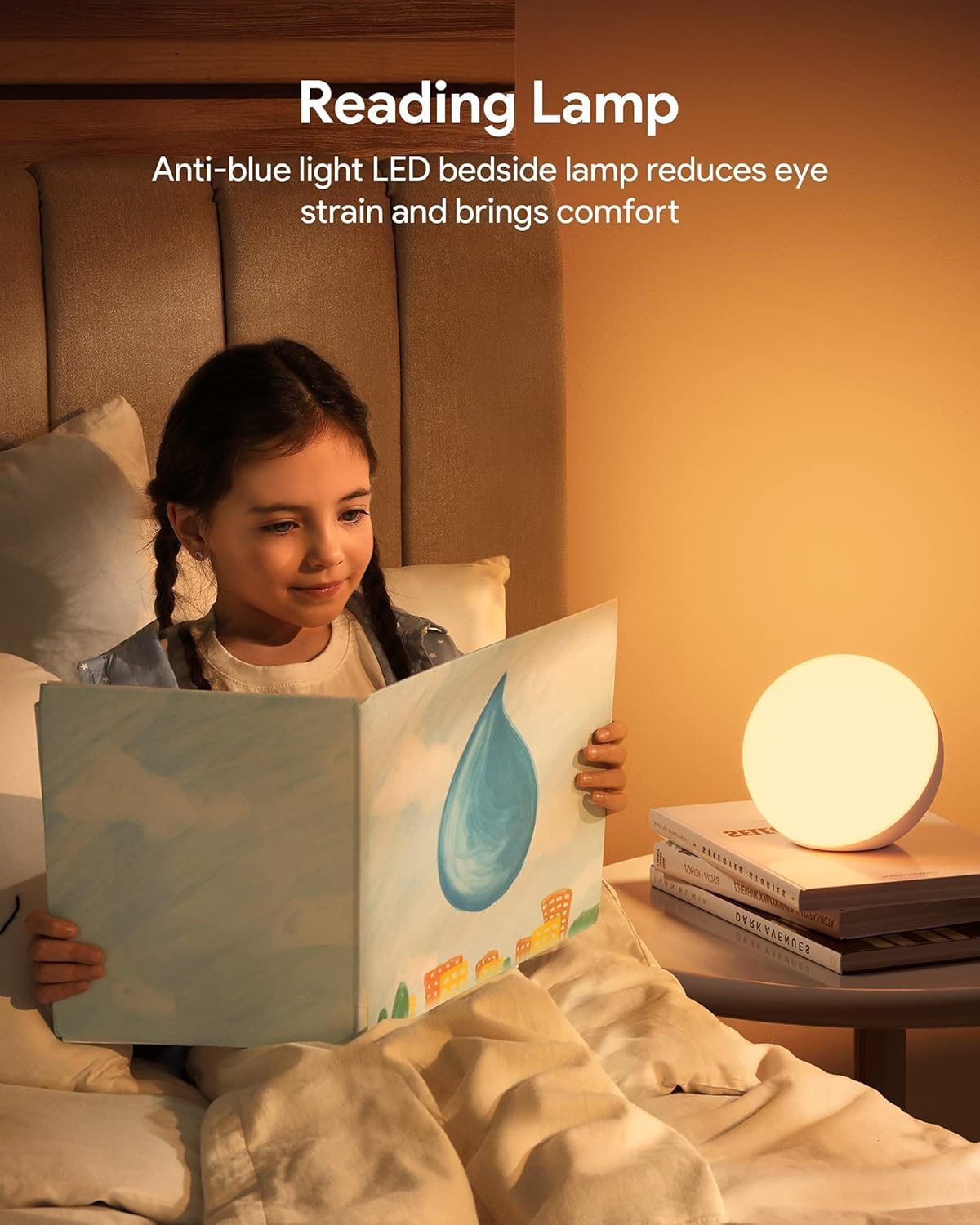
Image: Demonstration of stepless dimming by touching the lamp's surface.
2. App Control (for Smart Lamp)
Utilize the "Smart Life" app for advanced control and customization.
- Color Selection: Use the color wheel in the app to select any RGB color.
- Brightness & Saturation: Adjust brightness and color saturation precisely using sliders.
- DIY Scene Mode: Create custom lighting scenes by selecting colors, flash modes (breath, flash, static), and adjusting light effect speed (0-90%). The app includes eight pre-set scenes like gorgeous, colorful, working, reading, and night light.
- Natural Rhythm Light: Set the lamp to automatically adjust brightness and color throughout the day to mimic natural light cycles.
- Timer & Schedule: Program the lamp to turn on/off at specific times, or to change settings according to a daily schedule.
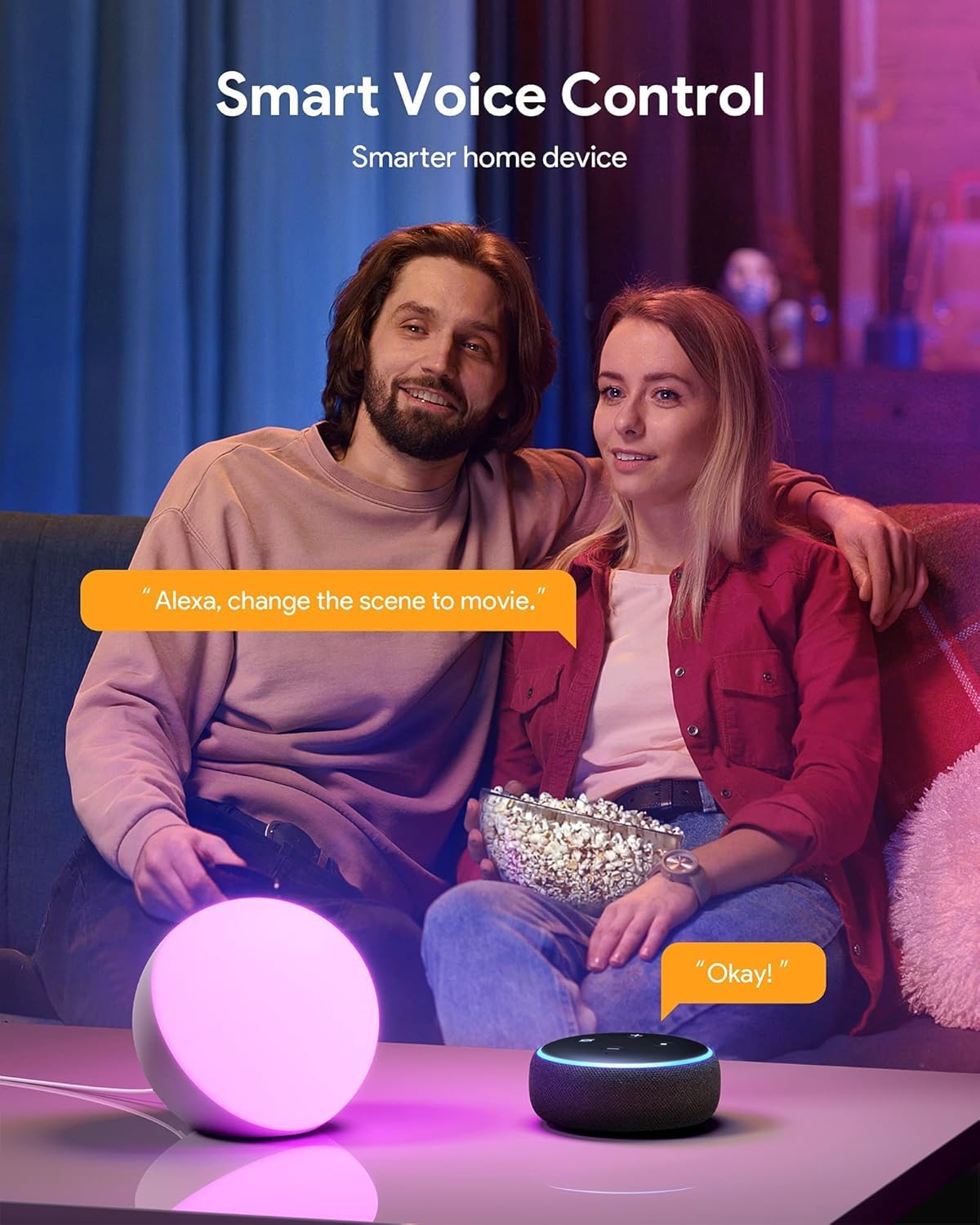
Image: Customizing mood lighting through the "Smart Life" app.
3. Voice Control (for Smart Lamp)
Integrate your smart lamp with Amazon Alexa or Google Assistant for convenient voice commands.
- Link Account: Ensure your "Smart Life" account is linked to your Alexa or Google Home app. Refer to the respective voice assistant's instructions for linking third-party services.
- Discover Devices: Once linked, ask your voice assistant to "Discover devices" to find your Hifree Smart Table Lamp.
- Voice Commands: Use commands such:
- "Alexa, turn on [Lamp Name]."
- "Hey Google, turn off [Lamp Name]."
- "Alexa, set [Lamp Name] to blue."
- "Hey Google, dim [Lamp Name] to 50%."
- "Alexa, change the scene to movie."

Image: Using voice commands with Alexa to control the smart lamp.
4. Specific Use Cases
- Reading Lamp: The anti-blue light LED feature helps reduce eye strain, making it ideal for reading. Adjust brightness to a comfortable level.
- Sleep Night Light Mode: Utilize the warm colors and timer function to help facilitate a peaceful sleep or gentle wake-up.

Image: The lamp used as a reading light, emphasizing its eye-care properties.

Image: The lamp functioning as a night light for sleep.

Image: Overview of the lamp's control features and lighting options.
Maintenance
Proper maintenance ensures the longevity and optimal performance of your Hifree Smart Table Lamp.
- Cleaning:
- Before cleaning, ensure the lamp is unplugged from the power outlet.
- Wipe the lamp's surface with a soft, dry, or slightly damp cloth.
- Do not use abrasive cleaners, solvents, or harsh chemicals, as these may damage the finish.
- Storage: If storing the lamp for an extended period, unplug it and keep it in a cool, dry place away from direct sunlight and extreme temperatures.
- Safety:
- Do not disassemble the lamp. Refer to qualified personnel for any repairs.
- Keep the lamp away from water or excessive moisture. It is not waterproof.
- Ensure proper ventilation around the lamp during operation.
Troubleshooting
If you encounter issues with your Hifree Smart Table Lamp, refer to the following common troubleshooting steps:
| Problem | Possible Cause | Solution |
|---|---|---|
| Lamp does not turn on. | No power connection. | Ensure the power adapter is securely plugged into the lamp and a working electrical outlet. |
| Smart lamp cannot connect to Wi-Fi. | Incorrect Wi-Fi password; 5GHz network; lamp not in pairing mode; network interference. |
|
| Voice control not working. | Account not linked; device not discovered; incorrect commands. |
|
| Touch control is unresponsive. | Temporary glitch; surface obstruction. |
|
If the problem persists after trying these solutions, please contact Hifree customer support for further assistance.
Warranty and Support
This product is sold by YOABO and fulfilled by Amazon. For any issues or support, please contact the seller directly through your Amazon order history. The product is subject to Amazon's standard return policy, which typically allows returns within 30 days of receipt for a refund or replacement.
For technical support or inquiries not covered in this manual, please refer to the Hifree brand store on Amazon or contact the seller YOABO via your Amazon purchase details.
Seller: YOABO
Amazon Return Policy: Learn more about Amazon's return policy
Related documents021e723a-26d5-4aa1-b112-8e3dc0aec1a2


Ask a question about this manual
Ask about setup, troubleshooting, compatibility, parts, safety, or missing instructions. Manuals+ will review the question and use this page’s manual context to help answer it.