
1. Product Overview
The ZONKO K118 is a versatile 10.1-inch Android 11 tablet designed for various uses, from entertainment to productivity. It features an 8-core CPU, ample storage, dual cameras, and robust connectivity options.

Image: The ZONKO K118 tablet showcasing its 10.1-inch display, Android 11 OS, 8-core CPU, 4GB RAM, 64GB ROM, 2.4GHz Wi-Fi support, 3G call capability, and 1280x800 IPS display.
Key Features:
- Operating System: Android 11 for enhanced performance and privacy.
- Processor: 8-core ARM Cortex-A35 CPU for smooth multitasking.
- Display: 10.1-inch 1280x800 IPS HD screen for clear visuals.
- Memory & Storage: 4GB RAM and 64GB internal storage, expandable up to 256GB via MicroSD card.
- Cameras: 13MP rear camera and 5MP front camera for photos and video calls.
- Connectivity: 2.4GHz Wi-Fi, Bluetooth 5.0, 3G/2G dual SIM card support, and GPS.
- Battery: 6000mAh large capacity battery for extended use.
- Audio: Dual speakers for immersive sound.
2. Initial Setup
2.1 Package Contents
Before you begin, ensure all items are present in the package:
- ZONKO K118 Tablet
- Power Adapter
- USB Type-C Data Cable
- User Manual (Japanese, refer to this document for English)
2.2 Charging the Tablet
For optimal performance, fully charge the tablet before first use.
- Connect the USB Type-C data cable to the tablet's Type-C port.
- Connect the other end of the cable to the power adapter.
- Plug the power adapter into a wall outlet.
- The battery icon on the screen will indicate charging status.
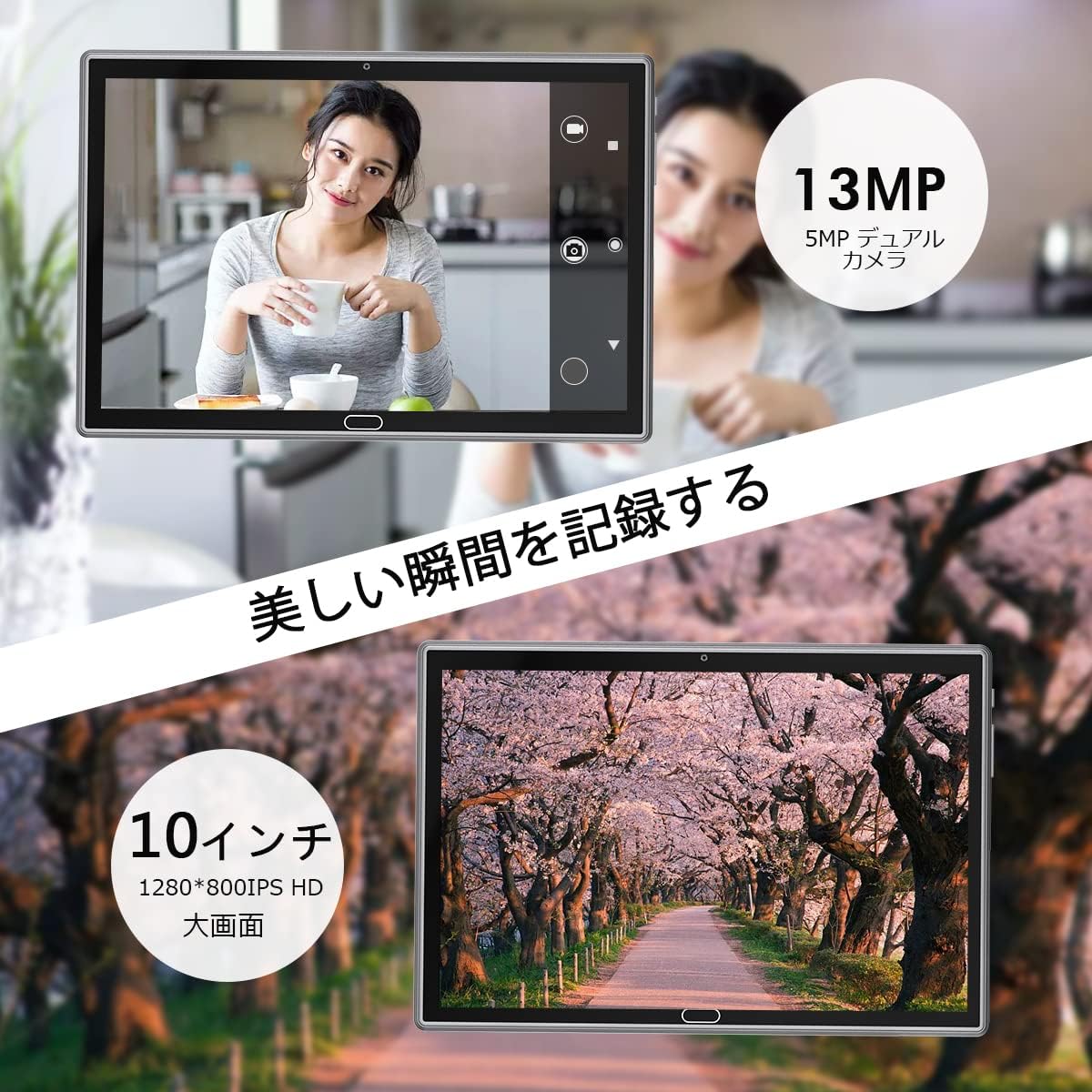
Image: Visual representation of the tablet's 6000mAh battery life, showing estimated usage times for video playback, calls, music, and standby.
2.3 Powering On/Off
- To Power On: Press and hold the Power button located on the side of the tablet until the ZONKO logo appears.
- To Power Off: Press and hold the Power button, then select "Power off" from the options on the screen.
- To Restart: Press and hold the Power button, then select "Restart" from the options.

Image: A detailed diagram illustrating the location of the power switch, volume buttons, reset button, headphone jack, SIM card slots (SIM1, SIM2), MicroSD slot, rear camera (13MP), front camera (5MP), Type-C port, and dual speakers on the ZONKO K118 tablet.
2.4 Inserting SIM and MicroSD Cards
The tablet supports dual SIM cards (3G/2G) and a MicroSD card for expanded storage.
- Locate the SIM/MicroSD card tray on the side of the tablet (refer to the diagram above).
- Carefully open the tray.
- Insert your 3G/2G SIM cards into the designated SIM1 and SIM2 slots.
- Insert a MicroSD card (up to 256GB) into the MicroSD slot.
- Close the tray securely.
Video: This video demonstrates the tablet's features, including the dual SIM card slots and MicroSD card slot, and how to use them for phone calls and internet browsing without Wi-Fi.
3. Operating Instructions
3.1 Basic Navigation
- Touchscreen: Tap to select, swipe to scroll, pinch to zoom.
- Home Screen: Access apps, widgets, and notifications.
- Notifications: Swipe down from the top of the screen to view notifications and quick settings.

Image: The ZONKO K118 tablet screen showing a variety of pre-installed and downloadable applications, highlighting its versatility for different tasks.
3.2 Connecting to Wi-Fi
- Go to Settings > Network & internet > Wi-Fi.
- Toggle Wi-Fi ON.
- Select your desired network from the list.
- Enter the password if prompted and tap Connect.
3.3 Using SIM Card for Calls and Data
With a 3G/2G SIM card inserted, you can make phone calls and access mobile data.
- Making Calls: Open the Phone app, dial the number, and tap the call icon.
- Mobile Data: Ensure mobile data is enabled in Settings > Network & internet > Mobile network.

Image: The tablet demonstrating its utility for video calls and phone communication, emphasizing its high-speed Wi-Fi and mobile network capabilities.
3.4 Camera Operation
The tablet is equipped with a 13MP rear camera and a 5MP front camera.
- Open the Camera app.
- Tap the camera switch icon to toggle between front and rear cameras.
- Tap the shutter button to take a photo.
- Select video mode to record videos.

Image: The tablet's camera interface showing a user taking a photo, alongside a vibrant scenic image captured by the tablet, highlighting its 13MP rear and 5MP front dual cameras and 10.1-inch IPS HD display.
3.5 GPS Navigation
The built-in GPS allows for accurate location tracking and navigation.
- Open a navigation app (e.g., Google Maps).
- Ensure location services are enabled in Settings > Location.
- Download offline maps for navigation without an internet connection.

Image: A user holding the tablet displaying a navigation map, indicating the device's GPS functionality for convenient travel and route planning.
4. Maintenance and Care
- Cleaning: Use a soft, lint-free cloth to clean the screen and body. Avoid abrasive cleaners or solvents.
- Storage: Store the tablet in a cool, dry place away from direct sunlight and extreme temperatures.
- Battery Care: To prolong battery life, avoid fully discharging the battery frequently. Charge it regularly.
- Software Updates: Keep your Android OS and apps updated for security and performance improvements.
- Data Backup: Regularly back up important data to cloud storage or an external device.
5. Troubleshooting
| Problem | Possible Solution |
|---|---|
| Tablet does not power on. | Ensure the tablet is charged. Connect to the charger and wait a few minutes before attempting to power on again. If unresponsive, try a soft reset by pressing the reset button (if available, refer to port diagram) or holding the power button for 10-15 seconds. |
| Wi-Fi connection issues. | Check if Wi-Fi is enabled in settings. Restart your router and the tablet. Forget the network and reconnect. Ensure you are within range of the Wi-Fi signal. |
| SIM card not detected or no mobile data. | Ensure the SIM card is correctly inserted. Check if mobile data is enabled in settings. Verify your SIM card plan is active and has data allowance. Restart the tablet. |
| Apps are slow or crashing. | Close unnecessary background apps. Clear app cache (Settings > Apps > [App Name] > Storage > Clear cache). Restart the tablet. Ensure sufficient storage space is available. |
| Screen is unresponsive. | Restart the tablet. If the issue persists, perform a factory reset (this will erase all data, back up first). |
6. Product Specifications
| Feature | Detail |
|---|---|
| Brand | ZONKO |
| Model Name | ZONKO K118 |
| Operating System | Android 11 |
| Processor | 8-core ARM Cortex-A35 |
| RAM | 4 GB |
| Internal Storage | 64 GB |
| Expandable Storage | MicroSD (TF) up to 256 GB |
| Screen Size | 10.1 inches |
| Display Resolution | 1280x800 IPS HD |
| Rear Camera | 13 MP |
| Front Camera | 5 MP |
| Battery Capacity | 6000 mAh |
| Connectivity | Wi-Fi (2.4GHz), Bluetooth 5.0, 3G/2G Dual SIM, GPS |
| Charging Port | Type-C |
| Dimensions (LxWxH) | 24.1 x 16.8 x 1 cm |
| Color | Gray |
7. Warranty and Support
7.1 Product Warranty
The ZONKO K118 tablet comes with a one-year quality guarantee from the date of purchase. This warranty covers manufacturing defects and malfunctions under normal use.
Please retain your proof of purchase for warranty claims.
7.2 Customer Support
If you encounter any issues or have questions regarding your ZONKO K118 tablet, please contact our customer support team. Details for contacting support are typically provided in the product packaging or on the official ZONKO website.
For faster assistance, please have your product model number (ZONKO K118) and purchase details ready.