
Acer GD711 (MR.JUW11.001)
Acer Predator GD711 DLP Projector User Manual
Model: GD711 (MR.JUW11.001) | Brand: Acer
1. Introduction
This manual provides essential information for the setup, operation, maintenance, and troubleshooting of your Acer Predator GD711 DLP Projector. Please read this guide thoroughly to ensure proper use and to maximize the performance and longevity of your device.

Figure 1.1: Front angled view of the Acer Predator GD711 DLP Projector, showcasing its sleek black design and front lens.
2. What's in the Box
Carefully unpack your projector and ensure all items listed below are present:
- HDMI Cable
- Power supply
- Infrared remote
- Projector Lens Cover
- Quick start guide
3. Setup
3.1. Placement
Position the projector on a stable, flat surface. Ensure adequate ventilation around the unit. The optimal projection distance ranges from 1.60 meters to 8.10 meters, allowing for flexible installation in various room sizes.
3.2. Connections
Connect your source devices (e.g., gaming console, Blu-ray player, PC) to the projector using the appropriate ports. The projector features multiple connectivity options:
- HDMI (2.0): Two ports for high-definition audio and video input.
- USB Type A: Three ports (one for wireless adapter, one for DC Out 5V, one for service).
- Audio Out: For connecting external audio systems.
For wireless connectivity, insert the included wireless adapter into the designated USB Type A port. This enables connection to WLAN devices for a cable-free home cinema experience.
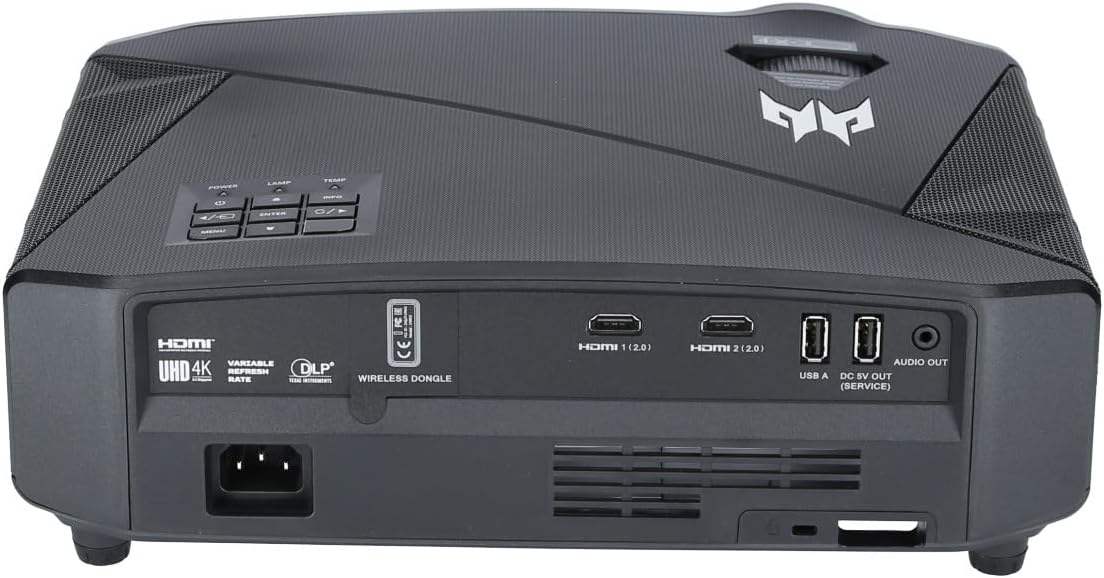
Figure 3.1: Rear view of the projector, highlighting the HDMI, USB, and Audio Out ports for various connections.
3.3. Initial Power On and Image Adjustment
After connecting the power cable, press the power button on the projector or remote control to turn on the unit. The projector features automatic keystone correction to help align the image perfectly on your screen or wall. Further adjustments can be made via the on-screen menu.
4. Operating the Projector
4.1. Controls
The projector can be operated using the control panel located on the top of the unit or via the included infrared remote control.
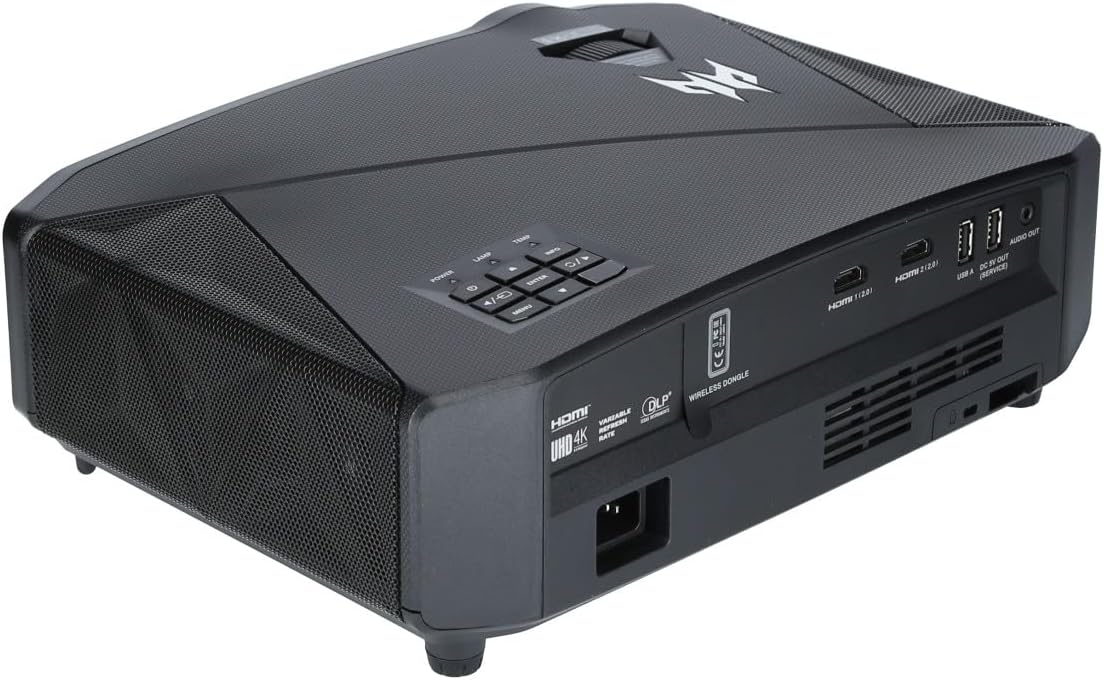
Figure 4.1: Top view of the projector, displaying the control panel with buttons for power, menu navigation, input selection, and volume.
4.2. Input Selection
To switch between input sources (e.g., HDMI 1, HDMI 2), you must use the input selection button directly on the projector's control panel. The remote control does not support direct input source switching, requiring physical interaction with the projector for this function.
4.3. Projection Modes and Features
- 3D Function: The projector supports 3D content. Connect a 3D player device (e.g., PC, 3D Blu-Ray Player) to immerse yourself in a 3D cinema experience.
- Gaming Modes: The projector offers VRR (Variable Refresh Rate) and High-FPS modes. The High-FPS mode is the default. For optimal performance and to mitigate potential coil whine, consider activating the Low-Latency Mode found within the game profile settings.
- Internal Operating System: The projector includes an internal Android 9 operating system. Note that popular streaming applications such as Netflix, Disney, Amazon Video, and YouTube may not function correctly or at all on this older version of Android. External streaming devices connected via HDMI are recommended for these services.
4.4. Audio Output
The projector is equipped with a 1x 10 Watt speaker. For an enhanced audio experience, it is highly recommended to connect external speakers or a soundbar via the Audio Out port. Internal speakers may not provide satisfactory sound quality for all users. Be aware that if an HDMI source is connected to HDMI 1, audio may not output from the projector or connected soundbar; connecting to HDMI 2 may resolve this.
5. Maintenance
Regular maintenance ensures optimal performance and extends the lifespan of your projector.
- Lens Cleaning: Use a soft, lint-free cloth specifically designed for optical lenses to gently clean the projector lens. Avoid abrasive materials or harsh chemicals.
- Ventilation: Ensure that the projector's ventilation openings are clear and unobstructed to prevent overheating. Do not place the projector in enclosed spaces without proper airflow.
- General Cleaning: Wipe the exterior of the projector with a soft, dry cloth. Do not use liquid cleaners directly on the unit.
6. Troubleshooting
This section addresses common issues you might encounter with your projector.
| Problem | Possible Cause | Solution |
|---|---|---|
| Loud noise or coil whine | High-FPS mode enabled; specific operating conditions. | Switch to Low-Latency Mode within the game profile settings. This often mitigates the noise. |
| Remote control unresponsive or limited functionality | Infrared signal obstruction; battery issues; limited remote features. | Ensure clear line of sight to the projector's IR receiver. Replace remote batteries. For input source changes, use the buttons directly on the projector. |
| Image size cannot be adjusted to fit screen | Lack of optical zoom. | The projector does not feature optical zoom. Adjust the projector's physical distance from the screen to achieve the desired image size. |
| No sound from internal speakers or external audio system | Incorrect HDMI port used; audio settings. | If using HDMI, try connecting your source device to HDMI 2. Ensure external audio system is properly connected and selected as output. |
| Screen Door Effect visible | Pixel shift technology; high image sharpness. | This is an inherent characteristic of the display technology. Increasing the viewing distance (e.g., beyond 4 meters) may reduce its visibility. |
| Streaming apps (Netflix, Amazon, YouTube) not working on internal OS | Outdated Android OS version. | The integrated Android 9 system may not support current versions of these apps. Use an external streaming device (e.g., Fire TV Stick, Roku) connected via HDMI. |
7. Specifications
| Feature | Specification |
|---|---|
| Brand Name | Acer |
| Item Weight | 6.82 pounds |
| Product Dimensions | 12.6 x 9.06 x 4.29 inches |
| Item model number | MR.JUW11.001 |
| Color Name | black |
| Special Features | Lightweight |
| Recommended Uses For Product | Gaming |
| Connectivity Technology | HDMI |
| Display resolution | 3840 x 2160 (4K/UHD) |
| ANSI Lumens | 1450 |
| Contrast Ratio | 2,000,000:1 |
| Speaker | 1x 10 Watt |
8. Warranty and Support
8.1. Warranty Information
The Acer Predator GD711 DLP Projector comes with the following warranty coverage:
- Projector: 2 Year PickUp Service
- Lamp: 1 Year
- DLP Chip: 5 Years
Please retain your proof of purchase for warranty claims.
8.2. Customer Support
For technical assistance, service, or further inquiries, please refer to the official Acer support website or contact their customer service. Contact information can typically be found on the Acer website or in the quick start guide included with your product.
Related Documents - GD711 (MR.JUW11.001)
 |
Acer Projector Quick Start Guide: Connecting and Powering On A concise guide to setting up your Acer projector, including connecting to a computer and powering on the device. Covers basic setup and image adjustment. |
 |
Acer Projectors with 3D Technology Quick Guide A quick guide to setting up and using Acer projectors with DLP 3D technology, including instructions for 3D glasses and viewing 3D content from computers and Blu-ray players. |
 |
Acer P1157i/P1257i/P1357Wi Projector Quick Start Guide Quick start guide for Acer P1157i, P1257i, and P1357Wi projectors, covering setup, connections, and image adjustment. Includes essential warnings and product information. |
 |
Acer P7500 Series Projector User's Guide - Setup, Operation & Troubleshooting Comprehensive user's guide for the Acer P7500 Series projector, covering setup, operation, safety, troubleshooting, and specifications for optimal performance. |
 |
Acer Projector User's Guide: X1126H, X1226H, X1326WH Series Comprehensive user's guide for Acer projectors, covering setup, operation, safety, troubleshooting, and specifications for models including X1126H, X1226H, X1326WH series. |
 |
Acer Projector Quick Start Guide - Model X1328WHK Concise guide for setting up and operating your Acer projector, including connection instructions, basic operation, and lamp type identification. |
Ask a question about this manual
Ask about setup, troubleshooting, compatibility, parts, safety, or missing instructions. Manuals+ will review the question and use this page’s manual context to help answer it.