
1. Introduction
This manual provides detailed instructions for the operation and maintenance of your CAMWORLD X35 4K Action Camera. Please read this manual thoroughly before using the camera to ensure proper function and to maximize your experience.
The CAMWORLD X35 is a versatile 4K action camera designed for capturing high-quality photos and videos in various environments, including underwater. It features dual screens, Electronic Image Stabilization (EIS), Wi-Fi connectivity, and a wide-angle lens.
2. Package Contents
Verify that all items listed below are included in your package:
- 1 x CAMWORLD X35 Action Camera
- 1 x Waterproof Case
- 2 x 1050mAh Li-ion Batteries
- 1 x Helmet Mounting Kit
- 1 x Bicycle Mounting Kit
- 1 x Back Clip Protection Frame
- 1 x USB Cable
- 1 x User Manual (this document)
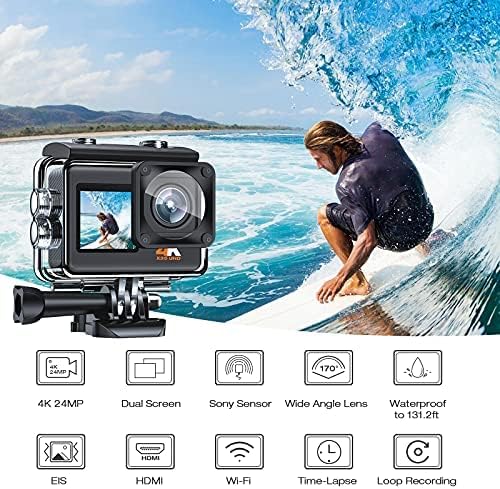
Image 2.1: Overview of the CAMWORLD X35 Action Camera and its key features, including 4K 24MP resolution, dual screen, Sony sensor, wide-angle lens, 40m waterproofing, EIS, HDMI, Wi-Fi, time-lapse, and loop recording.
3. Product Overview
Familiarize yourself with the camera's components:
- Front Screen: For selfies and vlogging.
- Rear Screen: Main display for preview and playback.
- Lens: 170° wide-angle lens.
- Power/Mode Button: Powers the camera on/off and switches between modes.
- Shutter/OK Button: Starts/stops recording or takes photos.
- Up/Down Buttons: Navigation in menus, zoom control, and screen switching.
- Micro SD Card Slot: For memory card insertion.
- USB Port: For charging and data transfer.
- Microphone: For audio recording.
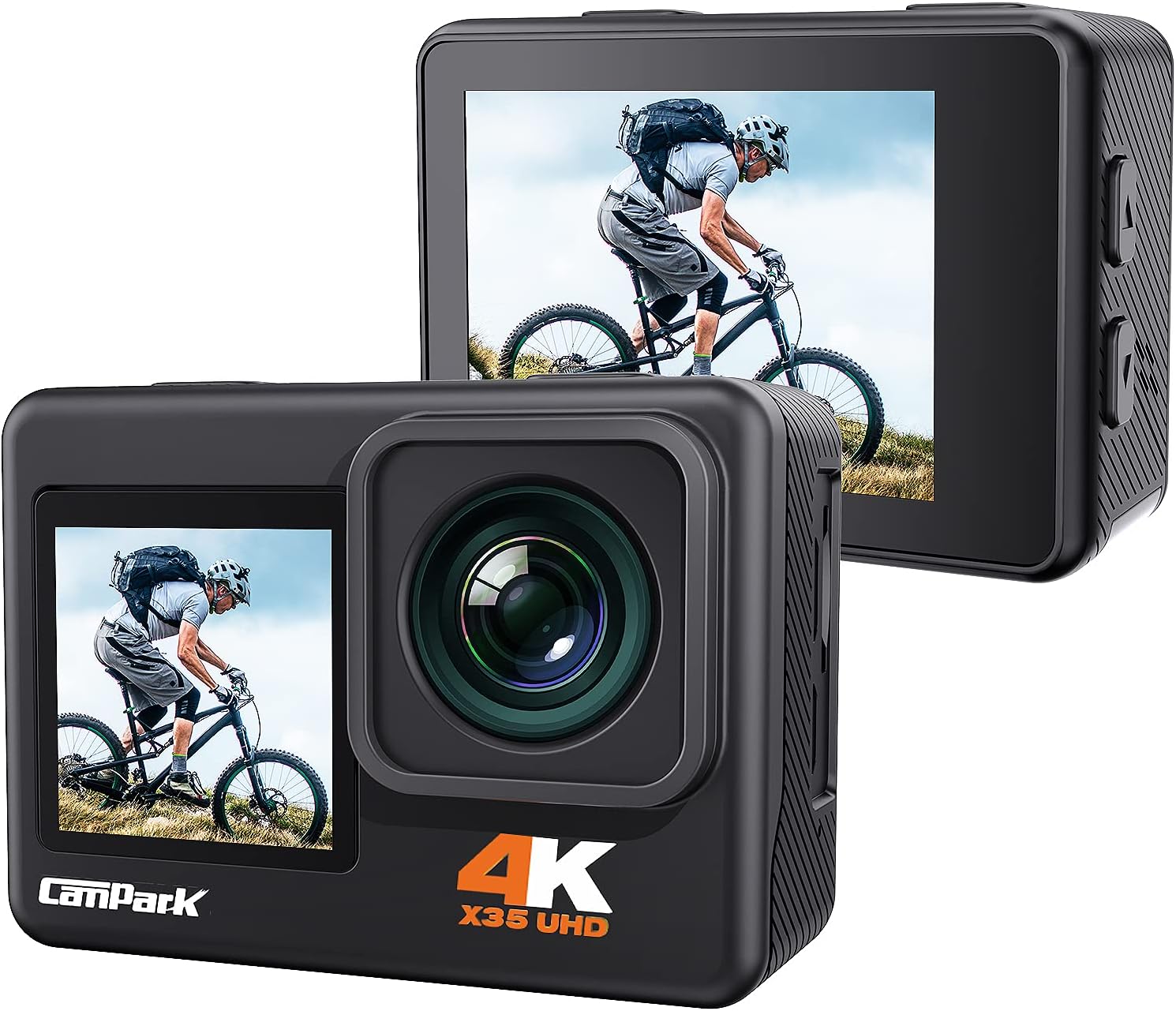
Image 3.1: The CAMWORLD X35 Action Camera displaying its dual screen design, with the front screen visible on the main camera body and the rear screen shown on a separate, angled view.
4. Setup
4.1. Battery Installation and Charging
- Open the battery compartment cover on the bottom of the camera.
- Insert a 1050mAh Li-ion battery, ensuring the correct orientation.
- Close the battery compartment cover securely.
- To charge, connect the camera to a USB power source using the provided USB cable. The charging indicator will illuminate.
4.2. Micro SD Card Installation
A Micro SD card (not included) is required for storing photos and videos.
- Ensure the camera is powered off.
- Locate the Micro SD card slot on the side of the camera.
- Insert a Class 10 or above Micro SD card (8-128GB recommended) with the contacts facing the correct direction until it clicks into place.
- Important: Format the Micro SD card within the camera before first use. Navigate to the camera settings menu to find the format option.
4.3. Using the Waterproof Case
The included waterproof case allows the camera to be used underwater up to 40 meters (131.2 feet).
- Before placing the camera in the waterproof case, ensure the case's rubber seal is clean and free of debris.
- Place the camera inside the case and securely close the latch.
- Perform a leak test with the case empty before first use underwater.
- When using the waterproof case, the camera's audio recording quality will be significantly reduced. For better audio, use the camera without the waterproof case in dry environments.

Image 4.1: A person snorkeling underwater, holding the CAMWORLD X35 Action Camera securely enclosed in its waterproof case, demonstrating its capability for underwater use up to 131 feet.
5. Operating Instructions
5.1. Power On/Off
- Power On: Press and hold the Power/Mode button for a few seconds.
- Power Off: Press and hold the Power/Mode button for a few seconds until the camera shuts down.
5.2. Mode Switching
Press the Power/Mode button repeatedly to cycle through different modes (e.g., Video Recording, Photo Mode, Playback Mode, Settings).
5.3. Dual Screen Operation
The CAMWORLD X35 features both a front and a rear screen. They cannot be used simultaneously.
- To switch between the front screen and the rear screen, press and hold the Down button for 3 seconds.
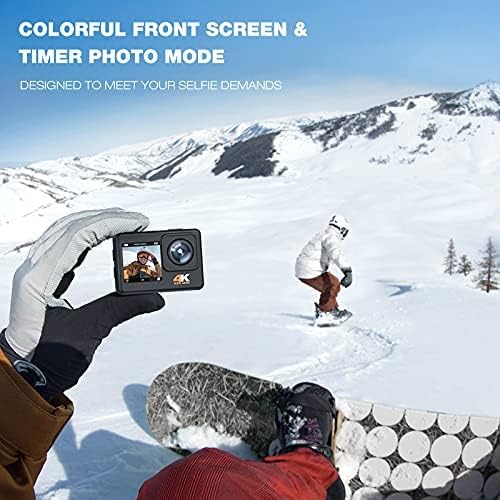
Image 5.1: A person wearing gloves holds the CAMWORLD X35 Action Camera, showcasing its colorful front screen in a snowy outdoor setting, ideal for framing selfies or vlogs.
5.4. Video and Photo Settings
Access the settings menu to adjust video and photo resolutions:
- Video Resolutions: 4K 30fps, 2.7K 30fps, 1080P 120fps, 1080P 60fps, 1080P 30fps, 720P 240fps, 720P 120fps, 720P 60fps, 720P 30fps.
- Photo Resolutions: 24M, 20M, 16M, 13M, 8M.
- Use the Up/Down buttons to navigate and the Shutter/OK button to confirm selections.
5.5. Electronic Image Stabilization (EIS)
The CAMWORLD X35 features built-in EIS to reduce camera shake and produce smoother footage.
- EIS can be enabled or disabled in the camera's settings menu.
- For optimal stability, ensure EIS is activated, especially during dynamic activities.

Image 5.2: A visual comparison demonstrating the effectiveness of Electronic Image Stabilization (EIS), showing a blurry, shaky image on the left (EIS off) and a clear, stable image on the right (EIS on) of a person riding a bicycle.
5.6. Wi-Fi Connection and App Control
Connect your CAMWORLD X35 to a smartphone or tablet via Wi-Fi for remote control and file management.
- Download the 'XDV PRO' app from your device's app store.
- On the camera, enable Wi-Fi through the settings menu.
- On your smartphone/tablet, connect to the camera's Wi-Fi network (SSID and password will be displayed on the camera screen).
- Open the 'XDV PRO' app to control the camera, preview footage, download files, and share to social media.

Image 5.3: A smartphone displaying the 'XDV PRO' app interface, wirelessly connected to the CAMWORLD X35 Action Camera, demonstrating remote control capabilities and file management.
5.7. Special Modes
- Time-lapse Video: Capture a series of photos at set intervals and combine them into a video.
- Car Mode: Functions as a dash cam with loop recording capabilities.
- Long Exposure: For capturing detailed images in low-light conditions.

Image 5.4: Visual examples of the camera's special modes: a time-lapse video sequence of flowers blooming, the camera mounted in a car for 'Car Mode', and a long exposure shot of a starry night sky.
6. Maintenance
- Cleaning: Use a soft, lint-free cloth to clean the camera lens and screens. For the waterproof case, rinse with fresh water after saltwater use and allow to air dry.
- Storage: Store the camera in a cool, dry place away from direct sunlight and extreme temperatures. Remove batteries if storing for extended periods.
- Battery Care: Do not expose batteries to high temperatures or disassemble them. Dispose of used batteries responsibly.
7. Troubleshooting
- Camera not powering on: Ensure the battery is fully charged and correctly inserted. Try using the second included battery.
- Micro SD card error: Ensure the card is Class 10 or above and between 8-128GB. Format the card in the camera. If the issue persists, try a different Micro SD card.
- Dual screens not working simultaneously: This is normal operation. Press and hold the Down button for 3 seconds to switch between the front and rear screens.
- Poor audio quality: When the camera is in the waterproof case, audio quality will be significantly affected. For better sound recording, use the camera without the waterproof case in dry environments.
- Wi-Fi connection issues: Ensure Wi-Fi is enabled on the camera and your mobile device. Restart both devices and try reconnecting. Verify you have the 'XDV PRO' app installed.
8. Specifications
| Feature | Specification |
|---|---|
| Video Resolution | 4K 30fps, 2.7K 30fps, 1080P 120fps/60fps/30fps, 720P 240fps/120fps/60fps/30fps |
| Video Format | MP4 |
| Photo Resolution | 24M, 20M, 16M, 13M, 8M |
| Image Format | JPG |
| Waterproof Depth | 40 meters (131.2 feet) with waterproof case |
| Sensor | SONY |
| Battery | 2 x 1050mAh Li-ion Batteries |
| Wi-Fi Connection | Android/iOS Supported (8-15 meters range) |
| Micro SD Card Support | Class 10 or above, 8-128GB (not included) |
| Screen Size | 2.0 inches (rear screen) |
| Image Stabilization | Digital (EIS) |
| Lens Type | Zoom (170° Wide Angle) |
| Connectivity | USB, Wi-Fi |
9. Warranty and Support
For warranty information and technical support, please refer to the official CAMWORLD website or contact their customer service. Keep your purchase receipt as proof of purchase.
For further assistance, please visit the CAMWORLD Store on Amazon.