
Introduction
This manual provides detailed instructions for the installation, operation, and maintenance of your Reletech P400 M.2 NVMe SSD. The P400 M.2 SSD is an internal solid-state drive designed for laptops and desktops, offering high-speed data transfer rates.
Key features include:
- High-speed data transfer: Up to 3400MB/s read and 1900MB/s write for the 1TB model.
- Utilizes QLC particles for stable performance and reliability.
- Features DDR3 independent buffer for faster and more stable transmission.
- Designed for PCIe Gen 3.0 x 4 mode compatibility.
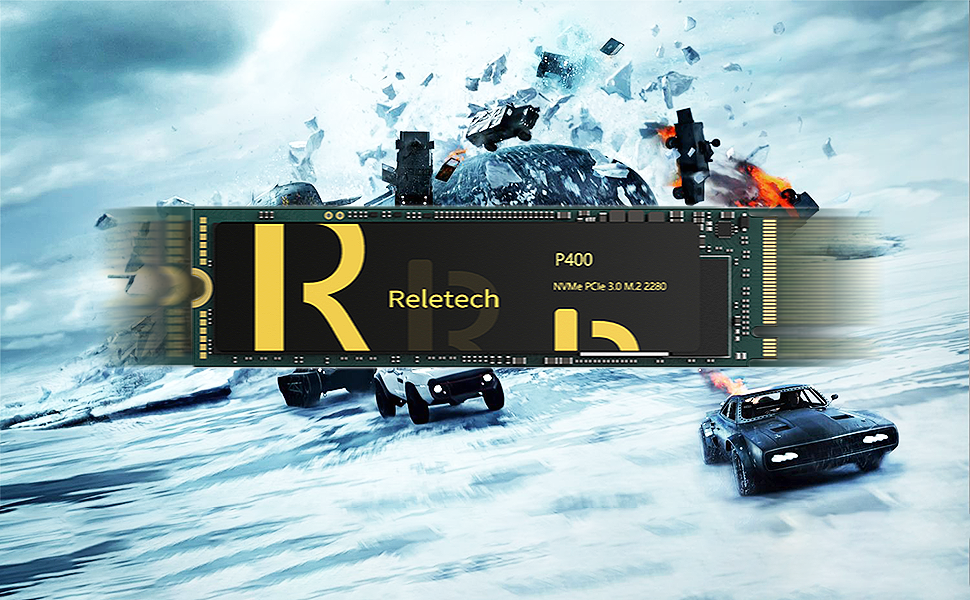
Image: Reletech P400 SSD highlighting 128-layer NAND technology for improved performance.
Setup and Installation
Before installation, ensure your motherboard supports PCIe Gen 3.0 x 4 mode to achieve optimal speed. Older laptops or motherboards operating in PCIe Gen 3.0 x 2 mode may not reach the specified performance.
Required Tools:
- Phillips head screwdriver
- Anti-static wrist strap (recommended)
Installation Steps:
- Power Off: Completely shut down your computer and disconnect all power cables.
- Open Case: Open your computer's case (desktop) or access panel (laptop) to expose the motherboard. Refer to your computer's manual for specific instructions.
- Locate M.2 Slot: Identify an available M.2 slot on your motherboard. It typically looks like a small horizontal slot with a screw hole at the end.
- Insert SSD: Gently insert the Reletech P400 M.2 SSD into the M.2 slot at a 30-degree angle. Push it in until it is fully seated.
- Secure SSD: Press the SSD down towards the motherboard and secure it with the small screw provided with your motherboard or the SSD.
- Close Case: Reassemble your computer's case or access panel.
- Power On: Reconnect power cables and turn on your computer.

Image: A Reletech P400 M.2 SSD shown in a laptop environment, illustrating its intended use.
Operating Instructions
Initial Setup (New SSD):
After physical installation, the SSD needs to be initialized and formatted before use. This process varies slightly depending on your operating system.
- Access Disk Management:
- Windows: Right-click on the Start button, then select "Disk Management".
- macOS: Go to Applications > Utilities > Disk Utility.
- Linux: Use a disk utility like GParted or
fdisk/mkfscommands.
- Initialize Disk: The new SSD should appear as "Unallocated" or "Not Initialized". Right-click on the disk and select "Initialize Disk". Choose GPT (GUID Partition Table) for modern systems.
- Create New Simple Volume: Right-click on the unallocated space on the new SSD and select "New Simple Volume" (Windows) or "Erase" (macOS/Linux). Follow the on-screen prompts to create a partition and format it with a suitable file system (e.g., NTFS for Windows, APFS for macOS, Ext4 for Linux).
- Assign Drive Letter: Assign a drive letter (Windows) or mount point (Linux) if prompted.
Data Migration:
If you are replacing an existing drive, you may want to migrate your operating system and data to the new SSD. This typically requires third-party cloning software. Consult the software's documentation for specific steps.

Image: Illustration of the Reletech P400 SSD connected to a laptop, symbolizing data transfer and storage capabilities.
Maintenance
Solid State Drives generally require less maintenance than traditional Hard Disk Drives. However, some practices can help ensure optimal performance and longevity:
- TRIM Command: Ensure your operating system has TRIM enabled. TRIM helps the SSD manage data more efficiently, preventing performance degradation over time. Most modern operating systems enable TRIM by default for SSDs.
- Avoid Defragmentation: Do not defragment an SSD. Defragmentation is designed for HDDs and can reduce the lifespan of an SSD by causing unnecessary write cycles.
- Keep Firmware Updated: Periodically check the Reletech website for firmware updates for your P400 M.2 SSD. Firmware updates can improve performance, stability, and compatibility.
- Monitor Drive Health: Use S.M.A.R.T. (Self-Monitoring, Analysis and Reporting Technology) tools to monitor the health and lifespan of your SSD.
- Maintain Sufficient Free Space: While not strictly necessary, keeping some free space (e.g., 10-15%) on your SSD can help maintain performance, especially for drives with QLC NAND.
Troubleshooting
SSD Not Detected:
- Check Connections: Ensure the SSD is properly seated in the M.2 slot and secured.
- BIOS/UEFI Settings: Enter your computer's BIOS/UEFI settings and verify that the M.2 slot is enabled and configured correctly (e.g., NVMe mode).
- Driver Installation: Ensure your operating system has the necessary NVMe drivers. Windows 10/11 typically includes them, but older OS versions or specific motherboards might require manual installation.
- Disk Management: Check Disk Management (Windows) or Disk Utility (macOS/Linux) to see if the drive is detected but uninitialized.
Slow Performance:
- PCIe Mode: Confirm your motherboard is operating in PCIe Gen 3.0 x 4 mode. If it's running in x2 mode or an older PCIe generation, speeds will be lower.
- TRIM Status: Verify that TRIM is enabled for your SSD.
- Firmware: Ensure your SSD has the latest firmware.
- Overheating: While the P400 comes with a heatsink, ensure adequate airflow within your system to prevent thermal throttling, which can reduce performance.
- System Resources: Other system components (CPU, RAM) or background processes can affect overall storage performance.
Data Corruption/Errors:
- Run Diagnostics: Use SSD diagnostic tools to check for errors.
- Check Cables/Connections: Re-seat the SSD to ensure a stable connection.
- Operating System Issues: Ensure your operating system is stable and free from malware.
Video: An official Reletech video demonstrating the read and write speeds of the P400 M.2 SSD, showing performance metrics up to 3500MB/s read and 3300MB/s write.
Specifications
| Model Name | P400 M.2 |
| Digital Storage Capacity | 1 TB |
| Hard Disk Interface | NVMe |
| Connectivity Technology | SATA, USB (Note: NVMe uses PCIe for primary data transfer) |
| Brand | Reletech |
| Hard Disk Form Factor | 2280 Millimeters (M.2 2280) |
| Hard Disk Description | Solid State Drive |
| Compatible Devices | Laptop, PC |
| Installation Type | Internal Hard Drive |
| Read Speed (1TB) | Up to 3400 MB/s |
| Write Speed (1TB) | Up to 1900 MB/s |
| Cache Memory | DDR3 Independent Buffer |
| Controller | PHISON E12S |
| UPC | 786833429620 |

Image: Detailed specifications table for the Reletech P400 QLC SSD, showing capacities, cache, controller, and speed ratings.
Warranty and Support
The Reletech P400 M.2 NVMe SSD comes with a 5-year warranty. For technical support, warranty claims, or any inquiries, please contact Reletech customer service. Contact information can typically be found on the official Reletech website or through your point of purchase.
Reletech is committed to providing high-quality service and offers 24-hour customer service reply.

Image: Reletech logo with an illustration of the E12S DRAM Buffer Memory, highlighting key components for performance.