
MINISFORUM HX90
MINISFORUM EliteMini HX90 Mini PC User Manual
Model: HX90
1. Introduction
This manual provides comprehensive instructions for the setup, operation, maintenance, and troubleshooting of your MINISFORUM EliteMini HX90 Mini PC. The HX90 is a compact desktop computer featuring an AMD Ryzen 9 5900HX processor, designed for various applications from daily computing to demanding tasks.

Figure 1.1: The MINISFORUM EliteMini HX90 Mini PC, showcasing its compact design and front/rear ports.
2. Setup
2.1 Package Contents
Before proceeding with the setup, please verify that all items listed below are present in your package:
- 1x MINISFORUM HX90 Mini PC
- 1x Mounting Bracket
- 1x HDMI Cable
- 1x Power Adapter
- 1x US Manual

Figure 2.1: Contents included in the MINISFORUM HX90 Mini PC package.
2.2 Physical Setup
Follow these steps to set up your Mini PC:
- Connect Peripherals: Connect your monitor(s) to the HDMI or DisplayPort outputs. Connect your keyboard, mouse, and other USB devices to the available USB ports.
- Network Connection: For wired internet access, connect an Ethernet cable to the 2.5Gbps LAN port. For wireless connectivity, ensure the Wi-Fi antenna is properly connected (if external).
- Power Connection: Connect the power adapter to the DC 19V input port on the Mini PC, then plug the adapter into a power outlet.
- Placement: Place the Mini PC on a stable, flat surface with adequate ventilation. The included mounting bracket can be used to attach the PC to the back of a VESA-compatible monitor for a cleaner setup.

Figure 2.2: Detailed view of the front and rear ports on the HX90 Mini PC, including USB, audio, LAN, HDMI, and DisplayPort connections.

Figure 2.3: The HX90 Mini PC mounted on the back of a monitor using the VESA mounting bracket, illustrating space-saving placement.
3. Operating Instructions
3.1 Initial Power On and Operating System
Press the power button located on the front of the Mini PC to turn it on. The system comes pre-installed with Windows 11 Pro. Follow the on-screen instructions for the initial Windows setup.
Video 3.1: An overview of the MINISFORUM EliteMini HX90, demonstrating its internal components, boot-up sequence, and multi-display capabilities with Windows and Ubuntu operating systems.
3.2 Display Configuration
The HX90 supports up to four independent 4K@60Hz displays via its two HDMI 2.0 and two DisplayPort outputs. This allows for an expanded workspace, enhancing productivity for tasks such as video editing, graphic design, or multi-monitor gaming setups.

Figure 3.1: The HX90 Mini PC connected to four 4K monitors, illustrating its quad-display capability for immersive viewing and multitasking.
3.3 Storage and Memory Expansion
The Mini PC offers flexible options for storage and memory upgrades:
- Memory (RAM): Equipped with dual-channel DDR4 32GB (2x 16GB) 3200MHz RAM, which can be upgraded to a total of 64GB (32GB per SODIMM slot).
- SSD: A 512GB M.2 2280 PCIe SSD is pre-installed and can be replaced with an SSD up to 2TB for faster data transmission speeds.
- HDD: Two 2.5-inch SATA HDD slots (SATA 3.0 6.0Gb/s compatible, up to 7mm thickness per piece) are available for adding large-capacity hard drives, allowing for significant storage expansion at a lower cost.

Figure 3.2: Exploded view of the HX90 Mini PC, showing the placement of DDR4 RAM, M.2 2280 PCIe SSD, and two 2.5-inch SATA HDD slots for storage expansion.
3.4 Network Performance
The HX90 features a 2.5Gbps LAN port, providing enhanced network performance compared to standard Gigabit Ethernet. This allows for faster data transfer speeds, beneficial for large file transfers, network-attached storage (NAS) access, and online gaming.

Figure 3.3: A bar chart illustrating the read and write speeds of the 2.5Gbps Ethernet port compared to 1000Mbps and 100Mbps connections, highlighting the performance advantage.
4. Maintenance
4.1 Cleaning
To ensure optimal performance and longevity, regularly clean the exterior of your Mini PC with a soft, dry cloth. Avoid using liquid cleaners directly on the device. Ensure ventilation grilles are free from dust accumulation to maintain proper airflow.
4.2 Cooling System
The HX90 incorporates a liquid metal cooling solution to maintain stable operation and prevent thermal throttling during prolonged use. While the system is designed for efficient heat dissipation, ensuring proper ventilation around the device is crucial.
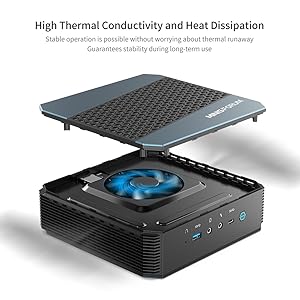
Figure 4.1: Diagram illustrating the high thermal conductivity and heat dissipation design of the HX90 Mini PC, featuring a fan and liquid metal cooling for stable performance.
5. Troubleshooting
5.1 Common Issues
- No Display Output: Ensure all display cables (HDMI/DisplayPort) are securely connected to both the Mini PC and the monitor. Verify the monitor input source is correctly selected.
- System Not Powering On: Check if the power adapter is securely connected to both the Mini PC and a working power outlet. Try a different power outlet if available.
- Intermittent HDMI Flickering: This can sometimes occur. Ensure your HDMI cable is of good quality and securely connected. Updating graphics drivers may also resolve this.
- Static Electricity Sensitivity: While designed robustly, electronic devices can be sensitive to static discharge. Handle the Mini PC with care, especially in dry environments, and consider using anti-static measures if issues persist.
- Wi-Fi Connectivity Issues (Linux): For Linux users, some Wi-Fi chipsets (e.g., Mediatek MT7921K) may require newer kernel versions or specific driver installations for stable operation. Consider using a wired Ethernet connection or an Intel AX200/AX210 M.2 Wi-Fi card as an alternative if issues persist.
5.2 Contact Support
If you encounter issues not covered in this manual or require further assistance, please contact MINISFORUM customer support. Refer to the warranty information for details on service and repairs.
6. Specifications
| Feature | Specification |
|---|---|
| Processor | AMD Ryzen 9 5900HX (8C/16T up to 4.6Ghz) |
| Graphics Coprocessor | AMD Radeon Graphics (2100 MHz) |
| RAM | 32 GB DDR4 (2x SODIMM slot, upgradable to 64GB) |
| Storage | 512 GB M.2 2280 PCIe SSD (upgradable to 2TB) |
| Additional Storage Slots | 2x 2.5 inch SATA HDD slots (SATA 3.0 6.0Gb/s compatible) |
| Operating System | Windows 11 Pro |
| Display Outputs | 2x HDMI 2.0, 2x DisplayPort (Quad 4K@60Hz support) |
| LAN | 2.5Gbps LAN Port |
| Wireless Connectivity | Dual-Band Wi-Fi, Bluetooth |
| Dimensions (LxWxH) | 7.72 x 7.48 x 2.36 inches |
| Item Weight | 5.48 pounds |
| Color | Black/Blue |
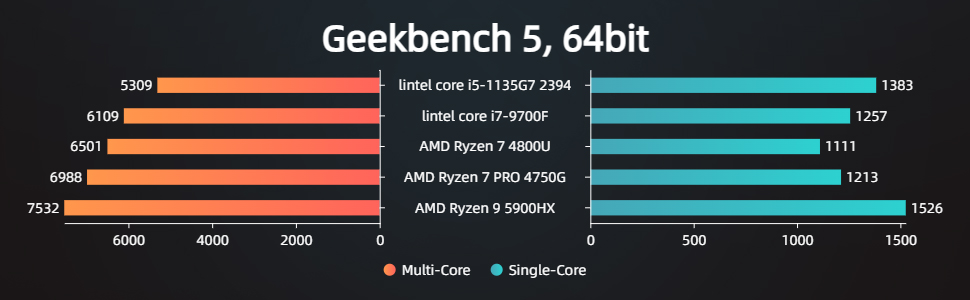
Figure 6.1: Geekbench 5 64-bit performance comparison, showing the AMD Ryzen 9 5900HX's multi-core and single-core scores relative to other processors.

Figure 6.2: Table displaying Frames Per Second (FPS) test results for various games on the MINISFORUM EliteMini HX90 Mini PC.
7. Warranty and Support
MINISFORUM products are covered by a manufacturer's warranty. For specific warranty terms, conditions, and duration, please refer to the documentation included with your product or visit the official MINISFORUM website. For technical support, driver downloads, or service inquiries, please visit the MINISFORUM Store on Amazon or their official support channels.
Related Documents - HX90
 |
Minisforum AI X1-255 Mini PC Technical Specifications Technical specifications for the Minisforum AI X1-255 Mini PC, featuring AMD Ryzen 7 255 processor, Radeon 780M graphics, and comprehensive I/O connectivity options. |
 |
Minisforum Mini PC User Manual and Installation Guide User manual for Minisforum Mini PCs, detailing setup, port functions (USB4, HDMI, DisplayPort, OCulink), installation of DDR and SSD, and operational guides. Includes FCC compliance information. |
 |
Minisforum Mini PC User Manual Comprehensive user guide for the Minisforum Mini PC, covering setup, interface details, SSD installation, and technical support information. |
 |
Minisforum UM760 Mini PC User Manual User manual for the Minisforum UM760 Mini PC, detailing package contents, hardware overview, interface specifications, setup guide, DIY installation of RAM and SSD, and mounting instructions. |
 |
MINISFORUM New Gen Venus Series Mini PC User Manual Comprehensive user manual for the MINISFORUM New Gen Venus Series Mini PC. Get detailed information on package contents, system overview, ports, interfaces, and safety guidelines for your MINISFORUM mini computer. |
 |
MINISFORUM MKB i83 Three-Mode Mechanical Keyboard Quick Start Guide Concise guide for the MINISFORUM MKB i83 mechanical keyboard, covering setup, connectivity (Bluetooth, 2.4G, Wired), function keys, backlighting, and specifications. |
Ask a question about this manual
Ask about setup, troubleshooting, compatibility, parts, safety, or missing instructions. Manuals+ will review the question and use this page’s manual context to help answer it.