
1. Introduction
Thank you for choosing the Prezlock EL-05-001 Fingerprint Padlock. This smart padlock offers advanced biometric security with the convenience of keyless access, complemented by a traditional key backup. Designed for durability and versatility, it is suitable for various indoor and outdoor applications. Please read this manual carefully to ensure proper setup, operation, and maintenance of your device.
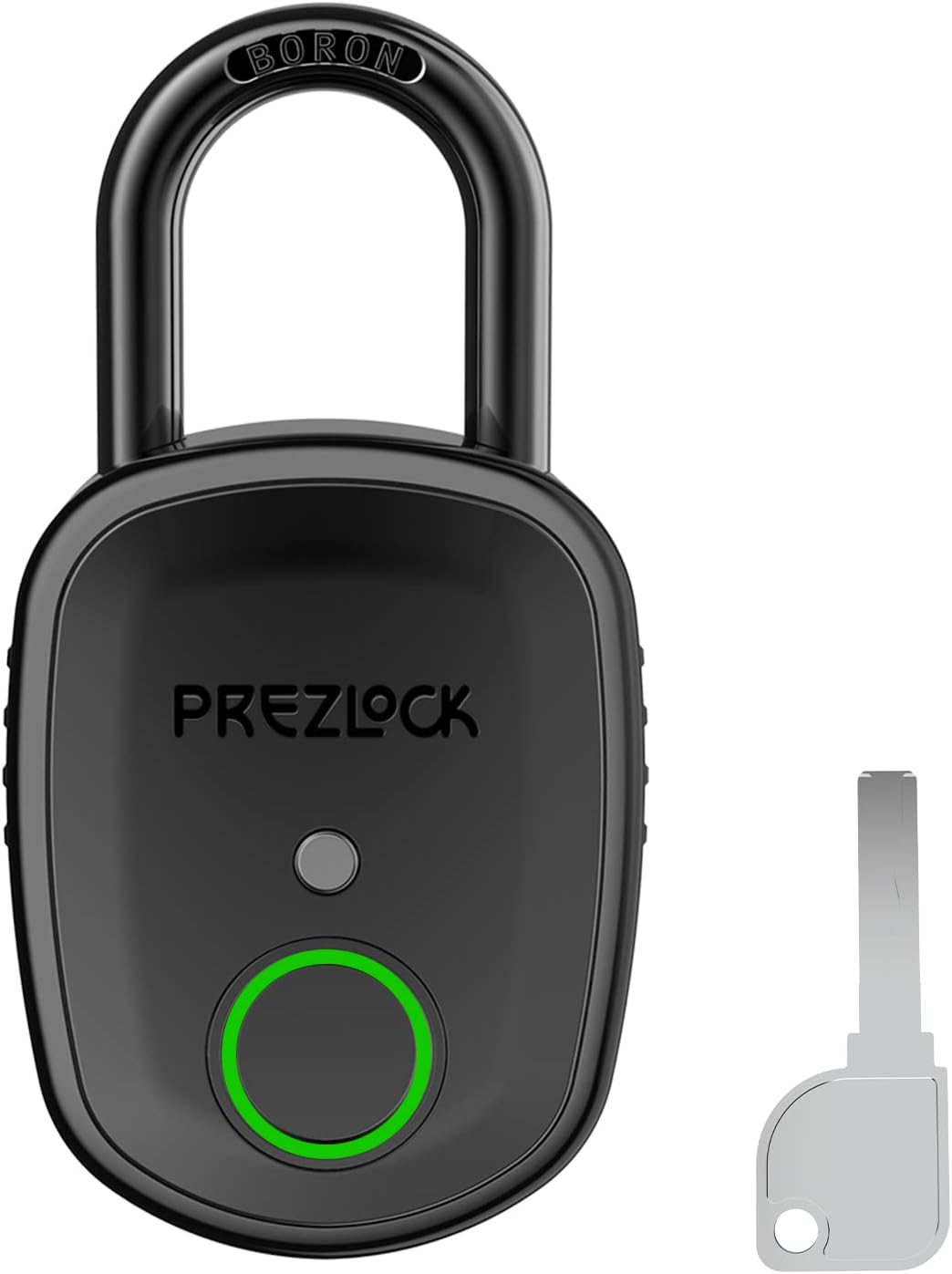
Image: The Prezlock EL-05-001 Fingerprint Padlock shown with its two physical backup keys.
2. Safety Information
- Do not attempt to disassemble or modify the padlock. This may damage the device and void the warranty.
- Keep the padlock away from extreme temperatures and corrosive substances.
- Ensure the charging port is dry before connecting the charging cable.
- Use only the provided charging cable or a compatible Type-C cable.
- Store backup keys in a secure location, separate from the padlock.
3. Package Contents
- Prezlock EL-05-001 Fingerprint Padlock
- 2 x Backup Keys
- USB Type-C Charging Cable
- User Manual
4. Product Overview
The Prezlock EL-05-001 features a robust design with a fingerprint sensor for quick access and a keyhole for manual unlocking. It is equipped with a Type-C charging port for convenient power replenishment.

Image: Detailed view of the padlock's components and dimensions.
5. Setup
5.1 Initial Charge
Before first use, fully charge the padlock using the provided USB Type-C cable. The LED indicator will show charging status (e.g., red for charging, green for fully charged).

Image: The Type-C charging port and keyhole located on the bottom of the padlock.
5.2 Setting Master Fingerprint
The first fingerprint registered will be the Master Fingerprint. This fingerprint is required to add additional user fingerprints or restore factory settings.
- With the padlock unlocked and the shackle open, press the fingerprint sensor button once. A blue LED light will begin to blink.
- Place your chosen finger (for the Master Fingerprint) on the sensor. Lift your finger when the LED turns green.
- Repeat placing and lifting your finger on the sensor until the LED light turns green and blinks rapidly (approximately 6 times). This confirms the Master Fingerprint is set.
- Close the shackle to lock the padlock. Test the Master Fingerprint to ensure it unlocks the device.
5.3 Adding User Fingerprints
You can register up to 100 fingerprints on the device.
- Unlock the padlock using the Master Fingerprint. Keep the shackle open.
- Press the fingerprint sensor button once. A blue LED light will begin to blink.
- Place the Master Fingerprint on the sensor to authorize the addition of a new fingerprint. The LED will turn green.
- Place the new user's finger on the sensor. Lift the finger when the LED turns green.
- Repeat placing and lifting the new user's finger on the sensor until the LED light turns green and blinks rapidly (approximately 6 times). The new fingerprint is now added.
- Close the shackle to lock the padlock. Test the newly added fingerprint.
5.4 Unlocking with Key Backup
In case of battery depletion or fingerprint sensor malfunction, the padlock can be unlocked using the physical backup keys.
- Locate the keyhole on the bottom of the padlock.
- Insert one of the provided backup keys into the keyhole.
- Turn the key 90 degrees clockwise or counter-clockwise to unlock the shackle.
- Pull out the shackle to open the padlock.
Video: An instructional video demonstrating how to unlock the Prezlock Pebble padlock using both fingerprint and key backup, and how to set master and other fingerprints.
6. Operating the Padlock
6.1 Unlocking with Fingerprint
- Place a registered finger on the fingerprint sensor.
- The LED indicator will briefly turn green, and the shackle will automatically release.
- Pull the shackle open.
6.2 Locking the Padlock
- Push the shackle down firmly into the padlock body.
- The padlock will automatically lock.
7. Maintenance
7.1 Charging the Battery
When the battery is low, the LED indicator may flash red or provide an audible alert. Connect the padlock to a power source using the USB Type-C cable to recharge. A full charge can last for thousands of openings.
7.2 Cleaning
Wipe the padlock body and fingerprint sensor with a soft, dry cloth. Avoid using abrasive cleaners or solvents that could damage the finish or electronic components.
7.3 Water Resistance
The Prezlock EL-05-001 is IP65 waterproof, offering protection against dust and low-pressure water jets. While suitable for outdoor use, prolonged submersion or exposure to high-pressure water is not recommended.

Image: The padlock demonstrating its IP65 waterproof capabilities.
8. Troubleshooting
- Padlock not unlocking with fingerprint: Ensure your finger is clean and dry. Try different angles or re-register your fingerprint if issues persist. Verify the battery level.
- LED not lighting up: The battery may be depleted. Charge the padlock using the Type-C cable.
- Cannot add new fingerprints: Ensure you are using the Master Fingerprint to authorize the addition of new fingerprints. The shackle must be open during the process.
- Padlock unresponsive: If the padlock becomes unresponsive, try unlocking it with a physical key. If the issue persists after charging, contact customer support.
9. Specifications
| Feature | Description |
|---|---|
| Brand | Prezlock |
| Model Name | Prezlock Pebble (EL-05-001) |
| Lock Type | Biometric with Key Backup |
| Material | Alloy Steel, Metal |
| Special Features | Heavy Duty, Fingerprint, IP65 Waterproof |
| Item Dimensions (L x W x H) | 4 x 2 x 0.9 inches |
| Item Weight | 12.6 ounces |
| Battery | 1 Lithium Polymer (included) |
| Charging Port | USB Type-C |
| Fingerprint Capacity | Up to 100 fingerprints |
| Security Rating | ASTM Grade 3 |

Image: Features emphasizing the padlock's strength and security mechanisms.
10. Restore Factory Settings
To erase all registered fingerprints and restore the padlock to its original factory settings:
- With the padlock unlocked and the shackle open, press and hold the fingerprint sensor button for at least 5 seconds until the blue LED light begins to flash rapidly, then turns to a flashing white light.
- Place your Master Fingerprint onto the sensor until the LED light turns green.
- The padlock will reset, and all registered fingerprints will be erased. The Master Fingerprint will no longer exist, and the padlock will be in its default state, allowing any fingerprint to unlock it initially.
11. Warranty and Support
For warranty information or technical support, please refer to the contact details provided with your purchase or visit the official Prezlock website. Keep your proof of purchase for warranty claims.


