
1. Introduction
Thank you for choosing the Generic TMS-802 Portable Speaker System. This high-quality, 8-inch portable speaker is designed to deliver powerful sound for parties and various events, featuring vibrant LED lights and wireless connectivity. This manual will guide you through the setup, operation, and maintenance of your new speaker to ensure optimal performance and longevity.
The TMS-802 comes equipped with a 4.5 Ampere lithium battery, providing 60W of power, and includes a wireless microphone and a remote control for convenient operation.
2. Important Safety Information
- Do not expose the speaker to water, rain, or moisture to prevent electric shock or fire.
- Keep the speaker away from heat sources such as radiators, heat registers, stoves, or other apparatus (including amplifiers) that produce heat.
- Use only attachments/accessories specified by the manufacturer.
- Unplug the speaker during lightning storms or when unused for long periods.
- Do not attempt to disassemble, repair, or modify the unit yourself. Refer all servicing to qualified service personnel.
- Ensure proper ventilation and do not block any ventilation openings.
3. Product Overview
3.1 Components
- TMS-802 Speaker Unit
- Wireless Microphone
- Remote Control
- Charging Cable
- User Manual
3.2 Control Panel Layout
The control panel is located on the top of the speaker, providing access to all primary functions including volume control, input selection, and microphone settings.

Figure 1: Top Control Panel of the TMS-802 Speaker. This image displays the main rotary volume knob, smaller volume controls for microphone and echo, input selection buttons, and ports for USB and SD card.
3.3 Rear Panel Connections
The rear panel houses essential connections for power and external audio inputs.
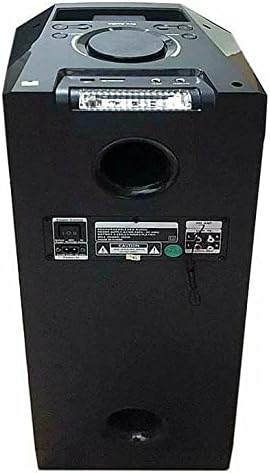
Figure 2: Rear Panel of the TMS-802 Speaker. This image illustrates the power input, auxiliary audio input jacks, and other utility ports on the back of the unit.
4. Setup Guide
4.1 Unpacking
- Carefully remove the speaker and all accessories from the packaging.
- Retain the packaging materials for future storage or transport.
- Inspect the unit for any signs of damage. If damaged, contact your retailer.
4.2 Charging the Speaker
The TMS-802 is equipped with a built-in 4.5 Ampere lithium battery. Before first use, it is recommended to fully charge the speaker.
- Connect the charging cable to the speaker's power input port on the rear panel.
- Plug the other end of the charging cable into a suitable power outlet.
- The LED display will indicate charging status. The speaker is fully charged when the indicator changes or turns off (refer to LED display section for specifics).
4.3 Initial Power On
- Locate the power switch, usually on the rear or top panel.
- Flip the switch to the 'ON' position. The LED display will light up, and a voice prompt may indicate the current mode.
5. Operating Instructions
5.1 Bluetooth Connection
- Turn on the speaker. It will automatically enter Bluetooth pairing mode, indicated by a flashing Bluetooth icon on the LED display or a voice prompt.
- On your mobile device (smartphone, tablet, laptop), enable Bluetooth and search for available devices.
- Select "TMS-802" from the list of devices.
- Once connected, the speaker will confirm with a voice prompt, and the Bluetooth indicator will stop flashing.
5.2 Wireless Microphone Usage
The TMS-802 includes a wireless microphone for karaoke or public speaking.
- Insert batteries into the wireless microphone (if not pre-installed).
- Turn on the microphone. It should automatically connect to the speaker.
- Adjust the microphone volume using the dedicated knob on the control panel.
- The speaker features a 'Microphone Priority' function, which automatically lowers music volume when the microphone is in use. Activate this feature via the control panel if desired.
5.3 Audio Playback
In addition to Bluetooth, the speaker supports playback from USB drives and SD cards.
- USB/SD Card: Insert a USB drive or SD card into the respective slot. The speaker will automatically switch to USB/SD mode and begin playing compatible audio files.
- Auxiliary Input: Connect external audio devices (e.g., MP3 players, TVs) using a 3.5mm audio cable to the AUX input on the rear panel. Select AUX mode on the speaker.
5.4 Recording Function (Optional)
The speaker may offer an optional recording function. Refer to the specific buttons on your control panel or remote for activation. This typically records microphone input to a connected USB drive or SD card.
5.5 LED Light Control
The TMS-802 features dynamic LED lights for an enhanced party atmosphere.
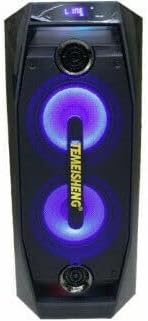
Figure 3: TMS-802 Speaker with LED Lights Activated. This image shows the speaker's front panel with the integrated LED lights glowing, adding a visual element to the audio experience.
Use the dedicated LED light button on the control panel or remote control to cycle through different light modes or turn them off.
5.6 Remote Control Usage
The included remote control allows for convenient operation from a distance. Functions typically include power on/off, mode selection, volume adjustment, track control, and LED light control.
6. Maintenance
6.1 Cleaning
Wipe the speaker's exterior with a soft, dry cloth. Do not use abrasive cleaners, waxes, or solvents as they may damage the finish. Avoid spraying liquids directly onto the speaker.
6.2 Storage
When not in use for extended periods, store the speaker in a cool, dry place, away from direct sunlight and extreme temperatures. It is advisable to store it in its original packaging to protect it from dust and physical damage.
6.3 Battery Care
To prolong battery life, avoid fully discharging the battery frequently. Recharge the speaker regularly, even if not in use, to maintain battery health. Do not expose the battery to high temperatures.
7. Troubleshooting
| Problem | Possible Cause | Solution |
|---|---|---|
| Speaker does not power on. | Battery is depleted; Power switch is off. | Charge the speaker; Ensure the power switch is in the 'ON' position. |
| No sound from speaker. | Volume is too low; Incorrect input mode selected; Device not connected properly. | Increase volume; Select the correct input mode (Bluetooth, USB, AUX); Reconnect your device. |
| Bluetooth connection fails. | Speaker not in pairing mode; Device too far; Interference. | Ensure speaker is in Bluetooth pairing mode; Move device closer to speaker; Avoid strong electromagnetic interference. |
| Wireless microphone not working. | Microphone batteries are low/dead; Microphone is off; Volume is too low. | Replace microphone batteries; Turn on the microphone; Increase microphone volume. |
8. Specifications
| Feature | Specification |
|---|---|
| Model Number | TMS-802 |
| Product Dimensions (L x W x H) | 38 x 38 x 80 cm |
| Gross Weight | 8.5 kg |
| Battery Type | 4.5 Ampere Lithium Battery |
| Maximum Speaker Output Power | 60 Watts |
| Connectivity Technology | Wireless |
| Audio Output Mode | Stereo |
| Mounting Type | Floor Standing |
| Materials | Multiple Materials |
| Special Features | Wireless, Portable |
| Recommended Uses | For Smartphones or Tablets, For Music Players, For TVs, For Computers |
| Compatible Devices | Smartphone, Laptop, Tablet |
| First Available Date | November 11, 2021 |
9. Warranty and Support
This product is covered by a standard manufacturer's warranty. For specific warranty terms and conditions, please refer to the documentation provided with your purchase or contact your retailer.
For technical support, troubleshooting assistance, or inquiries about replacement parts, please contact the seller or manufacturer directly. Keep your purchase receipt and model number (TMS-802) handy when contacting support.

