
1. Introduction
The XPPen Deco LW Wireless Drawing Tablet is a versatile graphic tablet designed for digital art, design, and online education. It offers both wireless Bluetooth 5.0 and wired USB connectivity, providing flexibility for various setups. Featuring the X3-Smart-Chip stylus with advanced pressure sensitivity and tilt function, this tablet aims to enhance your creative workflow across multiple operating systems and software applications.
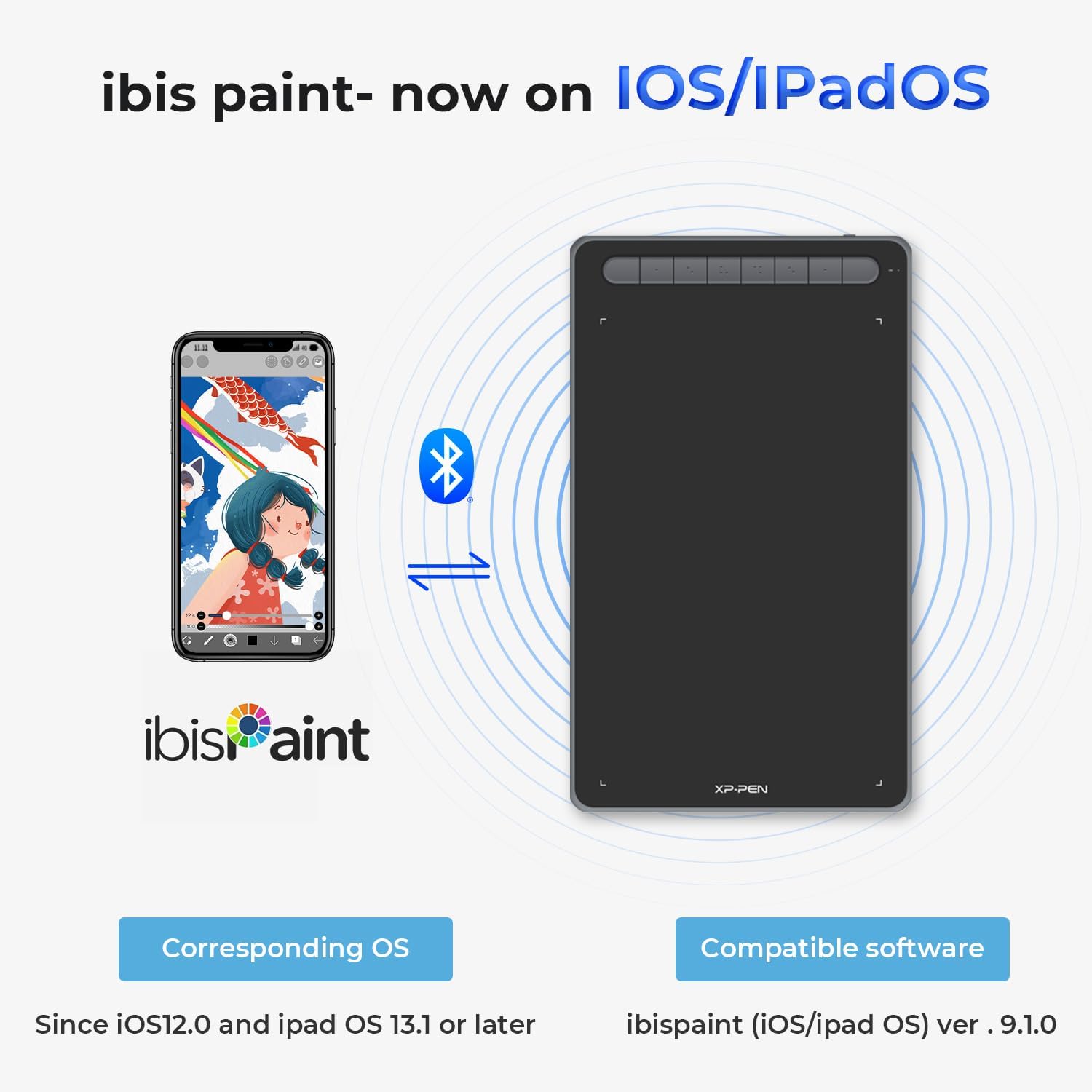
Image 1.1: XPPen Deco LW Wireless Drawing Tablet with X3 Stylus.
2. Package Contents
Please check the package contents upon unboxing to ensure all items are present:
- 1 x XPPen Deco LW Pen Tablet
- 1 x X3 Elite Digital Stylus
- 1 x USB A to USB-C Cable
- 1 x USB A to USB-C OTG Adapter
- 1 x USB A to Micro USB OTG Adapter
- 1 x Bluetooth Receiver (Dongle)
- 10 x Replacement Pen Nibs
- 1 x Nib Extractor
- 1 x Quick Guide
- 1 x Warranty Card

Image 2.1: All items included in the XPPen Deco LW package.
Video 2.1: An official video demonstrating the X3 Stylus's sharp, precise, and stable performance.
3. Setup
3.1 Connection
The Deco LW tablet supports both wired and wireless connections.
Wired Connection:
Connect the tablet directly to your computer using the provided USB A to USB-C cable. Ensure the connection is secure.
Wireless Connection:
The tablet supports Bluetooth 5.0 for wireless connectivity. Alternatively, you can use the provided USB receiver (dongle) for a 2.4G wireless connection. Insert the USB receiver into an available USB port on your computer. The tablet will automatically connect.

Image 3.1: Connection options for the XPPen Deco LW tablet.
Video 3.1: An official tutorial demonstrating the connection process for the Deco Series tablets.
3.2 Driver Installation
For full functionality, it is essential to install the latest drivers from the official XPPen website. Do not install drivers from other brands on the same computer, as this may cause conflicts.
Windows Installation:
- Download the latest Windows driver from the XPPen official website.
- Close all drawing software and antivirus programs before installation.
- Run the downloaded installer and follow the on-screen instructions.
- Restart your computer after installation is complete.
Video 3.2: An official tutorial for installing the Deco Series Pen Tablet driver on Windows.
Mac Installation:
- Download the latest Mac driver from the XPPen official website.
- Close all drawing software and antivirus programs before installation.
- Run the downloaded installer and follow the on-screen instructions.
- Grant necessary permissions in System Preferences (Security & Privacy) if prompted.
- Restart your computer after installation is complete.
Video 3.3: An official tutorial for installing the Deco Series Pen Tablet driver on Mac.
4. Operating the Tablet
4.1 X3 Elite Digital Stylus
The X3 Elite Digital Stylus features X3-Smart-Chip technology, providing 8192 levels of pressure sensitivity and 60° tilt function. This allows for subtle line variations and precise control, mimicking traditional drawing tools.

Image 4.1: Features of the X3 Elite Digital Stylus.
4.2 Shortcut Keys and Dial
The Deco LW tablet is equipped with 8 efficient shortcut keys and a mechanical dial. These can be customized through the driver software to streamline your workflow and provide quick access to frequently used functions in your creative applications.

Image 4.2: The 8 efficient shortcut keys on the Deco LW tablet.
5. Compatibility
The XPPen Deco LW Wireless Drawing Tablet offers broad compatibility with various operating systems and popular creative software:
5.1 Operating Systems
- Windows 11/10/8/7
- Mac OS X 10.10 (and higher)
- Android 6.0 (and higher)
- Chrome OS 88.0.4324.109 or above
- Linux
5.2 Software Applications
- Adobe Photoshop
- Adobe Illustrator
- SAI
- Painter
- Clip Studio
- GIMP
- Medibang
- Krita
- Fire Alpaca
- Blender 3D
- Ibis Paint (iOS/iPadOS) ver. 9.1.0 (for iOS 12.0+ and iPad OS 13.1+)

Image 5.1: Compatible Operating Systems and Software.

Image 5.2: Android device compatibility with the Deco LW tablet.

Image 5.3: iOS/iPadOS compatibility with Ibis Paint.
6. Maintenance
6.1 Pen Nib Replacement
The X3 Elite Digital Stylus comes with 10 replacement pen nibs. To replace a worn-out nib:
- Gently pull out the old nib using the provided nib extractor.
- Insert a new nib firmly into the stylus until it is securely in place.
6.2 Cleaning
To clean your tablet and stylus, use a soft, dry cloth. Avoid using harsh chemicals or abrasive materials that could damage the surface.
7. Troubleshooting
7.1 Connectivity Issues
- Wireless Lag/Jitter: If experiencing lag or jitter in wireless mode, try connecting the tablet via the USB cable to ensure a stable connection. Ensure your Bluetooth drivers are up to date.
- No Connection: Verify that the USB cable is securely connected or that the Bluetooth receiver is properly inserted and paired. Check your device's Bluetooth settings.
7.2 Driver/Software Issues
- Tablet Not Responding: Ensure the XPPen driver software is running. Sometimes, restarting the software or your computer can resolve temporary issues.
- Customization Not Working: If shortcut keys or dial functions are not responding, check the driver settings to ensure they are correctly mapped and that the driver software is active.
- Software Conflicts: Avoid installing multiple tablet drivers on the same system, as this can lead to conflicts. Uninstall any conflicting drivers before installing the XPPen driver.
7.3 Pen Sensitivity
- Adjusting Sensitivity: If the pen sensitivity feels too hard or too soft, adjust it within the XPPen driver software settings.
8. Specifications
| Feature | Detail |
|---|---|
| Product Dimensions | 164.4 x 102 x 17.88 inches |
| Item Weight | 1.76 pounds |
| Item Model Number | IT1060B_BK |
| Batteries | 1 Lithium Polymer batteries required (included) |
| Connectivity Technology | Bluetooth 5.0, USB |
| Pressure Sensitivity | 8192 Levels |
| Tilt Function | 60° |
| Operating System Compatibility | Windows, Android, Linux, Chrome OS, Mac |
| Special Feature | Online Education, Digital Drawing, Professional Design, Video Edition |
9. Warranty and Support
XPPen offers a 1-Year Protection Plan for all its products. For detailed terms and conditions regarding support, returns, and refunds, please refer to the XPPen official website or contact XPPen customer service via Amazon Message for any product-related questions.
